
The HP Color LaserJet Managed MFP E87650du driver download for Windows 11, Windows 10, 8.1, 8, 7 (32-bit and 64-bit) is the HP Color LaserJet Managed MFP E87640/E87650/E87660 PCL 6 Printer Driver (no installer), and for a Mac HP lists the package titled “Install HP Easy Start”. This page lists HP’s official software for the HP Color LaserJet Managed MFP E87650du.
Recommended HP Color LaserJet Managed MFP E87650du driver downloads
Files download directly from HP’s official servers. hpdrivers.net does not host or modify them.
Which Windows package does the HP Color LaserJet Managed MFP E87650du driver need?
These are the main types of Windows package that HP lists specifically for the Color LaserJet Managed MFP E87650du:
- Firmware update (v2411226_066573, Feb 02, 2023): updates the printer itself, not your PC.
- Driver files (no installer) (v49.10.4644, Nov 11, 2021): bare driver files for Windows’ Add Printer wizard.
HP Color LaserJet Managed MFP E87650du driver: all packages
Windows firmware utility for the HP Color LaserJet Managed MFP E87650du
File details
File:E87640_50_60_fs4.12.0.1_fw_2411226_066573.zipFile details
File:E87640_50_60_fs5.10.0.7_fw_2510156_069214.zipMac firmware utility for the HP Color LaserJet Managed MFP E87650du
File details
File:E87640_50_60_fs4.12.0.1_fw_2411226_066573.zipFile details
File:E87640_50_60_fs5.10.0.7_fw_2510156_069214.zipScanning and OCR software
Setup tools and other software
HP Color LaserJet Managed MFP E87650du driver for Linux
HP lists a Linux driver for this series: FutureSmart Bundle Version 4.12.0.1 – HP Color LaserJet Managed MFP E87640/50/60 Series Printer FIRMWARE (Version 2411226_066573 · Released Feb 02, 2023 · 850.2 MB). Download from HP.
Which systems the HP Color LaserJet Managed MFP E87650du driver supports
HP’s download list for the HP Color LaserJet Managed MFP E87650du names Windows 11, 11 on ARM64; Windows 10, 8.1, 8, 7 (32-bit and 64-bit); macOS 26, 15, 14, 13, 12, 11, 10.15, 10.14, 10.13, 10.12, Mac OS X 10.11, Mac OS X 10.10, Mac OS X 10.9, Mac OS X 10.8, Mac OS X 10.7, Mac OS X 10.6, Mac OS X 10.5; and Linux through HPLIP. For macOS 26, 15, setup runs through the HP app.
Installing the HP Color LaserJet Managed MFP E87650du driver
To install it, follow these steps.
- Pick the installer from the table above.
- Run it and follow the prompts on screen.
- Connect the printer with the USB cable, or to your network, when the installer asks.
- Print a test page to confirm the connection.
The driver files without an installer are added through Windows’ Add Printer wizard (Have Disk). For step-by-step instructions, see our guide to installing an HP printer driver.
Firmware update 2411226_066573
For the Color LaserJet Managed MFP E87650du, HP lists the FutureSmart Bundle Version 4.12.0.1 – HP Color LaserJet Managed MFP E87640/50/60 Series Printer FIRMWARE, version 2411226_066573, released Feb 02, 2023. On a Mac, HP lists version 2510156_069214, released Aug 29, 2026.
- Keep the printer and the computer switched on until the update has finished.
Specifications that matter for setup
Toner supplies HP lists for the Color LaserJet Managed MFP E87640du-E87660du
HP’s specifications name these replacement supplies for the Color LaserJet Managed MFP E87640du-E87660du:
- HP Black Managed LJ Toner Cartridge (ISO
Paper handling and hardware details
Values below are HP’s published figures for the Color LaserJet Managed MFP E87640du-E87660du series, which the Color LaserJet Managed MFP E87650du belongs to.
Common setup problems
- No Wi-Fi option during setup. HP’s specifications list no built-in Wi-Fi for the Color LaserJet Managed MFP E87640du-E87660du. Use an Ethernet cable or USB.
- You’d rather not install software on a Mac. HP’s specifications list AirPrint support, so macOS can usually add the printer from System Settings without extra software.
Making a copy at the control panel
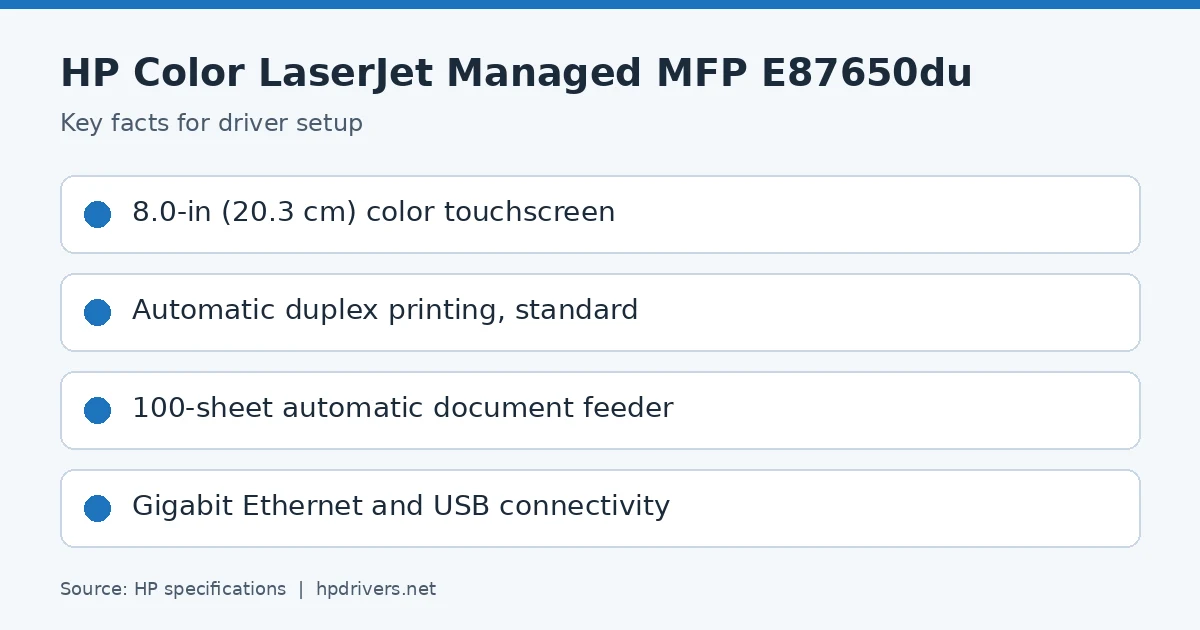
The HP Color LaserJet Managed MFP E87650du can copy from the scanner glass or from its automatic document feeder, which holds 100 sheets. Its flatbed scanner with ADF reaches an optical resolution of up to 600 x 600 dpi.
- Place the document face-down on the glass or face-up in the feeder.
- Open the Copy application on the Home screen and select Copy.
- Enter the number of copies on the keypad.
- Select Optimize Text/Picture and pick a predefined option.
- Touch the right pane to preview, if you want.
Setting up outgoing email for Office 365
To send email from an Office 365 Outlook account, configure the outgoing email server (SMTP) in the EWS. On the Email Setup page, select the Enable Scan to Email check box. If that check box is not available, the feature is unavailable at the printer control panel.
- Click Networking, then TCP/IP Settings, then Network Identification.
- Check the DNS suffix if DNS is required, then click Apply.
- Click the Scan/Digital Send tab, then Email Setup.
- Under Outgoing Email Servers (SMTP), click Add and enter the server address.
- Type 587 as the port number and select Enable SMTP SSL Protocol.
- Select Server requires authentication and Always use these credentials, then enter the account email address and password.
Scanning to job storage on the printer
Scan to Job Storage saves a scanned document in a job storage folder on the printer, so you can print copies at any time. If prompted, enter your user name and password. If the administrator has configured the option, you can create a new folder.
- Place the document face-down on the glass or face-up in the feeder.
- Open Scan on the Home screen, select the Scan icon, then Scan to Job Storage.
- Select the correct folder under Folder.
- Touch the Job Name field, type a name, and select Enter.
- For a private job, select the PIN button and enter a four-digit PIN.
When the printer does not pick up paper
If paper is not picked up from the tray, open the printer and remove any jammed sheets, and check that no torn remnants remain inside. Also load the tray with the correct paper size for the job, and confirm the size and type are set correctly on the control panel.
Similar models
This page covers the E87650du only. The E87640du and the E87660du have their own pages.