
Advertisement
HP LaserJet Pro MFP M127fw Driver Download
Need the HP LaserJet Pro MFP M127fw driver? This page provides the available HP driver packages, installation instructions, and practical solutions for common printing and scanning problems.
The main Windows package is the HP LaserJet Pro MFP M127/128 Series Full Software and Drivers. It includes the printer drivers and software required for a complete installation.
Quick answer: For most Windows users, download the Full Software and Drivers package below. If you only need the basic PCLm print driver, the driver-only package is also available.
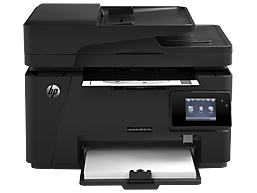
HP LaserJet Pro MFP M127fw Driver Download
| Driver / Software | Version | Release Date | File | Download |
|---|---|---|---|---|
| Full Software and Drivers | 23199.22.21 | January 22, 2024 | LJPro_MFP_M127-M128_full_solution_23199.22.21.exe | Download |
| PCLm Print Driver | 15.0.15310.1258 | March 5, 2021 | LJPro_MFP_M127-M128_basic_15310.exe | Download |
Which driver should I download? If you want printing, scanning, copying and the complete printer software, use the Full Software and Drivers package. The PCLm package is intended for users who only need the basic print driver.
HP LaserJet Pro MFP M127fw Full Software and Drivers
The full solution is the recommended package for a normal Windows installation. It contains the drivers, installer software and additional components needed to set up the printer.
- File name: LJPro_MFP_M127-M128_full_solution_23199.22.21.exe
- Version: 23199.22.21
- Release date: January 22, 2024
- File size: approximately 125.88 MB
Download HP LaserJet Pro MFP M127fw Full Driver
The same 23199.22.21 package is also referenced in recent HP Support Community installation guidance for the M127/M128 series.
Supported Windows Versions
- Windows 11
- Windows 10 32-bit
- Windows 10 64-bit
- Windows 8.1 32-bit
- Windows 8.1 64-bit
- Windows 8 32-bit
- Windows 8 64-bit
- Windows 7 32-bit
- Windows 7 64-bit
- Windows Vista 32-bit
- Windows Vista 64-bit
- Windows XP
HP LaserJet Pro MFP M127fw PCLm Print Driver
The PCLm package is a driver-only solution. It is useful if you only need basic printing and do not need the complete HP software package.
- File name: LJPro_MFP_M127-M128_basic_15310.exe
- Version: 15.0.15310.1258
- Release date: March 5, 2021
- File size: approximately 87.2 MB
Download HP M127fw PCLm Print Driver
If you need the scanner or other printer software, use the full software package instead of the PCLm driver-only package.
How to Install the HP M127fw Driver
USB Installation
- Turn on the HP LaserJet Pro MFP M127fw.
- Download the Full Software and Drivers package from the link above.
- Open the downloaded EXE file.
- Follow the instructions shown by the HP installer.
- Do not connect the USB cable until the installer asks you to do so.
- Complete the installation and print a test page.
This USB installation order is also recommended in HP Support Community guidance for the M127/M128 series.
Network or Wi-Fi Installation
If you are installing the M127fw over a network, make sure the printer and computer are connected to the appropriate network before starting the installation. The M127fw supports printing, scanning, copying and faxing, and HP provides troubleshooting resources for network and wireless connection problems.
If the installer cannot find the printer, check the printer’s network connection first and then restart the installation.
HP M127fw Not Detected by Windows
If Windows cannot find your HP LaserJet Pro MFP M127fw, try these steps before reinstalling everything:
- Make sure the printer is powered on.
- For USB installation, try another USB port.
- Disconnect the USB cable and reconnect it only when the installer requests it.
- Restart Windows and the printer.
- Remove an incomplete or failed previous installation.
- Run the Full Software and Drivers package again.
If the printer was previously installed but stopped working, removing the old printer software and reinstalling the complete package can also help. HP Support Community guidance for the M127/M128 series recommends removing the existing printer software and restarting before reinstalling the full package when installation or scanning problems persist.
HP M127fw Printer Is Offline
If Windows shows the printer as Offline, first check the physical or network connection. If the printer is connected through Wi-Fi or Ethernet, make sure the computer and printer can communicate over the same network.
HP’s current troubleshooting tools can check offline status, print queues, print spooler problems and printer ports.
HP M127fw Prints Nothing
If the printer is installed but does not print, check the Windows print queue first.
- Make sure the M127fw is selected as the correct printer.
- Remove documents that are stuck in the print queue.
- Make sure the printer is not paused or offline.
- Restart the Windows Print Spooler if necessary.
- Restart the printer and computer.
- If the problem continues, reinstall the full HP driver package.
HP’s Diagnose & Fix tool can automatically check several of these problems, including stuck print jobs, paused queues, offline status, print spooler errors and incorrect printer ports.
HP M127fw Scanner Not Working
If printing works but scanning does not, the problem is often related to the scanner software, Windows scanner connection or an incomplete driver installation.
- Restart the printer and computer.
- Make sure the printer is connected to the computer or the same network.
- Open the HP app and check whether the printer is detected.
- If the scanner is not detected, reinstall the Full Software and Drivers package.
- For network scanning, check the network connection between the printer and computer.
HP’s current scanner troubleshooting guidance specifically covers cases where Windows cannot communicate with the scanner, cannot find HP Scan, or the scanner disconnects or freezes.
HP M127fw Driver After Windows 11 Update
If your M127fw worked before a Windows update and stopped printing or scanning afterward, reinstalling the complete HP driver package is worth trying before replacing the printer or buying another driver.
HP’s current M127fw support resources include troubleshooting for printers that stop working after Windows 11 upgrades.
HP Diagnose & Fix – Replacement for Print and Scan Doctor
Important: HP Print and Scan Doctor should no longer be recommended on this page. HP retired the tool on May 27, 2025 and advises Windows users to remove it because it is no longer maintained and may present security risks.
HP now recommends Diagnose & Fix in the HP app. It can check common printer problems such as stuck print jobs, offline printers, print spooler errors, driver updates and incorrect ports.
HP Diagnose & Fix – Official Instructions
For Windows users, HP says the HP app supports Diagnose & Fix on Windows 10 version 1809 or later.
HP LaserJet Pro MFP M127fw Official Support
If you want to check HP’s latest support information, troubleshooting articles, manuals and available driver options, use the official HP product support page.
HP LaserJet Pro MFP M127fw – Official HP Support
HP’s current product documentation confirms that the M127fw is an all-in-one laser printer with print, copy, scan and fax functions, including a 35-sheet automatic document feeder.
Frequently Asked Questions
What is the latest HP M127fw driver?
The current full Windows package available for the M127/M128 series is version 23199.22.21, released January 22, 2024. The file is LJPro_MFP_M127-M128_full_solution_23199.22.21.exe. Recent HP Support Community guidance continues to reference this package for M127/M128 installation.
Does the HP M127fw work with Windows 11?
Yes. The current HP support resources list Windows 11 for the M127fw driver and support ecosystem. The full package listed above is the main Windows installation package for the M127/M128 series.
Should I install the full driver or PCLm driver?
Use the Full Software and Drivers package if you need the complete printer and scanner functionality. Use the PCLm driver if you only need a basic print driver.
Why was HP Print and Scan Doctor removed?
HP retired Print and Scan Doctor on May 27, 2025. The software is no longer maintained, and HP recommends removing it because of potential security risks. HP’s Diagnose & Fix feature in the HP app is the replacement.
Why does my M127fw print but not scan?
This can happen when the printer driver is installed but the scanner component or scanner connection is not working correctly. Reinstall the complete driver package and check the HP app. If the scanner is connected over a network, also verify that the computer and printer can communicate with each other.
Why is my HP M127fw offline?
Check the USB, Ethernet or Wi-Fi connection first. Then check the Windows print queue and make sure the correct M127fw printer is selected. HP’s Diagnose & Fix tool can also check offline status and several common connection and queue problems.
Related HP Drivers
If you have a different HP printer from the same family, these pages may be useful:
Important Download Information
The driver download links above point to HP-hosted files. Driver versions and support options can change over time, so if a particular package is no longer available, check the official HP support page linked above for the latest information.
Last reviewed: October 2, 2026
Advertisement
GOOD PRODUCT
Thanks very good
cant install laserjet pro mfp m127fw on my computer
worked well thanks!