HP LaserJet M436 Printer Driver

Driver Download HP LaserJet MFP M436 Printer Series for Windows 10/8/7/Vista/Xp

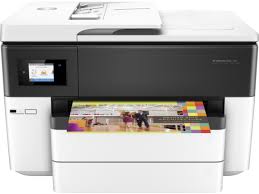
Functions; Print, Copy, Scan. A3 printing, and copying at up to 23 ppm. Capture both sides of the page with ease, using an optional 100-sheet reversing automatic document feeder. Easily set up, print, and share printing resources with built-in Ethernet networking.

HP LaserJet MFP M436 Printer Series for Windows
HP LaserJet MFP M436 Print, Copy, Scan

Platen: Scan 600 x 600, Printing 600 x 600; Document feeder: Scan 600 x 600, Printing 600 x 600

Power: AC 220 – 240V: 50/60Hz; Normal Operation 550 W; Ready 80 W; Max/Peak 1.1 kWh; Sleep/Power Off 1 W/0.2 W; TEC 0.998 kWh

HP LaserJet MFP M436 Printer Series Full Solution Software and Driver

The full solution software includes everything you need to install your HP printer.

Version: 1.14
Release Date: Apr 27, 2023
File name: HP_LaserJet_MFP_M436_Full_Software_and_Drivers_1.14.exe

Operating Systems

Microsoft Windows 11, Microsoft Windows 10 (32-bit), Microsoft Windows 10 (64-bit), Microsoft Windows 7 (32-bit), Microsoft Windows 7 (64-bit), Microsoft Windows 8 (32-bit), Microsoft Windows 8 (64-bit), Microsoft Windows 8.1 (32-bit), Microsoft Windows 8.1 (64-bit), Microsoft Windows Vista (32-bit), Microsoft Windows Vista (64-bit), Microsoft Windows XP (32-bit), Microsoft Windows XP x64

Download

File Size: 148.61 MB

Hp Laserjet 1018 Printer Driver for Windows 10

HP LaserJet 1018 Printer Driver for Microsoft Windows 10 (32Bit/64Bit)

How to install HP Laserjet 1018 printer software on Windows 10

HP LaserJet 1018 Printer Driver for Microsoft Windows 10 (32Bit/64Bit)
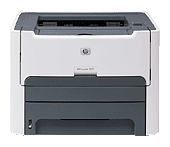
HP Laserjet 1018 (CB419A#ABA) Printers
  • Up to 12 ppm Letter Print Speed with 100-sheet Output Bin
  • 150-Sheet Input Tray and Single-Sheet Priority Input Slot
  • 1200 dpi Effective Output Quality 600 by 600 dpi with HP REt And FastRes 1200
  • 234 MHz Processor With 2MB RAM Internal Memory Included
  • Convenient Hi-Speed USB 2.0 Connectivity and Genuine HP LaserJet Print Cartridge

Automatically adjust for optimized print quality with HP’s Smart printing technology.

HP LaserJet 1018 – Installing and Using the Windows Built-in Print Software

This document is for HP printers and Windows computers.

Windows contains built-in print drivers for many types of printers. These drivers support basic printer functionality for most print jobs.

Details

Installing an HP Printer with the Windows Print Driver
Install your HP printer without any software using the drivers built into the Windows operating system. The Windows drivers provide basic functionality for your printer.

How to install HP laserjet 1018 printer driver on windows 10

Here, you can access HP LaserJet 1018 printer’s original software support page from Hpsupport. Unfortunately, HP does not release drivers for some older printers for new operating systems. Many printer companies do this.

HOW TO REPLACE CARTRIDGE

These steps will help you in installing compatible HP LaserJet 1018 toner cartridges:

Your HP LaserJet 1018 will start up after you press the Power button.

Before removing the empty cartridge, open the toner cartridge access door and wait for the carriage to become stationary and silent.

The new toner cartridge should be gently rocked from side to side several times after being opened.

Before installing the cartridge, remove all of the protective tape.

Once it locks into place, align the new cartridge with the printer’s internal tracks.

Shut the access door for the toner cartridges.

Installing and Using the Windows Built-in Print Driver (Hp Printers)

HP Printers – Installing and Using the Windows Built-in Print Driver

This document is for HP printers and Windows computers.

Windows contains built-in print drivers for many types of printers. These drivers support basic printer functionality for most print jobs.

Installing an HP Printer with the Windows Print Driver
Install your HP printer without any software using the drivers built into the Windows operating system. The Windows drivers provide basic functionality for your printer.

1: Set Windows Update to automatically download driver software

Confirm that your computer is set to automatically download driver software.
In Windows, search for and open Change device installation settings.
In the Device Installation Settings window, select the Yes option, and then click Save Changes.

Windows Update to automatically download driver software

2: Connect your printer to the computer

Connect your printer to the computer before starting the driver installation.

USB connection to your computer
Connect the printer to the computer with a USB cable.

  • Make sure your computer is turned on and connected to the Internet.
  • Turn on the printer.
  • Connect a USB cable to the USB port on the rear of the printer , and then to the computer.
  • If a Found new hardware window displays, follow any prompts to install the driver, and then try to print.
    -If you can use your printer, your driver installed, and you do not need to continue with the steps in this document. Continue to the frequently asked questions in this document for more information.
    -If you cannot use your printer, continue to the next step.

3: Install the print driver with the Add a Printer wizard

Use the Windows Add a Printer wizard to install the built-in print driver.

USB connection (Windows 10, 8)

Install the built-in print driver for a USB connection with Windows 10 or Windows 8.

  • In Windows, search for and open Control Panel.
  • Click Devices and Printers, and then click Add a printer.

Install the print driver with the Add a Printer wizard

  • On the Choose a device or printer to add to this PC window, select your printer, click Next, and then follow the on-screen instructions to install the driver. If your printer is not in the list, continue with these steps.

On the Choose a device or printer to add to this PC Window

  • Click The printer I want isn’t listed, and then select Add a local printer or network printer with manual settings.

Click The printer I want isn’t listed

  • Click Next.
  • Select Use an existing port (USB001: Virtual printer port for USB), and then click Next.
  • Click Windows Update, and then wait for the print drivers to update.
  • Click HP, Hewlett-Packard, or Hewlett Packard in the Manufacturer pane, and then click the name of your printer in the Printers pane.
  • Click Next, and then follow the on-screen instructions to install the driver.
  • Disconnect the printer USB cable from the computer, and then reconnect the cable.

4: Print document

Print to make sure that your printer is working.

  • If you can print, the print driver installed and is working.

5: Scan a document (if supported)

Scan a document to make sure the scanner is working.

  • If you can scan, the built-in driver installed and is working.