[Nov 26, 2021] HP LaserJet Pro M118dw Printer Full Software Solution Driver Download for Windows 11, 10, 7, 8, 8.1 (32Bit-64Bit)
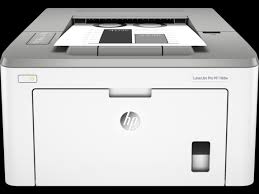
HP LaserJet Pro M118dw Printer Full Software Solution
HP LaserJet Pro M118dw Printer
Description :
The full solution software includes everything you need to install and use your HP printer. This collection of software includes the complete set of drivers, installer software, and other administrative tools.
Microsoft Windows 11, Microsoft Windows 10 (32-bit), Microsoft Windows 10 (64-bit), Microsoft Windows 7 (32-bit), Microsoft Windows 7 (64-bit), Microsoft Windows 8 (32-bit), Microsoft Windows 8 (64-bit), Microsoft Windows 8.1 (32-bit), Microsoft Windows 8.1 (64-bit)
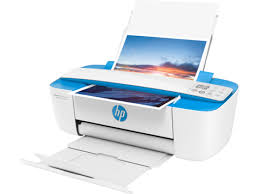
HP DeskJet Ink Advantage 3787 All-in-One Printer Driver for Windows 11/10/8/8.1/7 (32Bit-64Bit)
Download HP DeskJet and Ink Advantage 3700 All-in-One Print and Scan Driver and Accessories
HP DeskJet Ink Advantage 3787
HP DeskJet 3787 Driver Details
The full solution software includes everything you need to install and use your HP printer. This collection of software includes the complete set of drivers, installer and optional software.
Fix and enhancements: Updated some basic information in installation screen.
Microsoft Windows 11, Microsoft Windows 10 (32-bit), Microsoft Windows 10 (64-bit), Microsoft Windows 8.1 (32-bit), Microsoft Windows 8.1 (64-bit), Microsoft Windows 8 (32-bit), Microsoft Windows 8 (64-bit), Microsoft Windows 7 (32-bit), Microsoft Windows 7 (64-bit)
Download HP Deskjet 4518 All-in-One Printer Driver for Windows 11/10/8/8.1/7/Vista/Xp 32bit-64bit
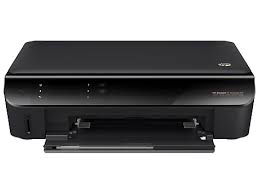
HP Deskjet Ink Advantage 4510 e-All-in-One Printer series Full Feature Software and Drivers
HP Deskjet Ink Advantage 4518
HP DeskJet Ink Advantage 4518 Driver Download
Download and install the HP DeskJet Ink Advantage 4518 driver for Windows. This guide explains the available driver options, Windows 11 compatibility, USB and Wi-Fi setup, driver installation, and common printing problems.
The HP DeskJet Ink Advantage 4518 is an all-in-one printer with print, scan, copy, photo, and wireless functions. HP provides an official support page for this model and currently lists Windows 11 among the operating systems that can be selected for driver support.
HP DeskJet Ink Advantage 4518 Driver Download
The safest way to obtain a driver for the HP DeskJet Ink Advantage 4518 is to use the official HP support page and select the operating system installed on your computer.
HP’s support page identifies the printer as the HP Deskjet Ink Advantage 4518 e-All-in-One Printer and allows the operating system to be selected before displaying available software and drivers.
HP DeskJet 4518 Driver for Windows 11
Windows 11 is listed by HP as an operating-system option for the DeskJet Ink Advantage 4518. Because this is an older printer model, the available software may depend on the Windows 11 version and the installation method used.
Before installing a driver, connect the printer by USB or prepare the printer for wireless setup. If Windows already detects the printer, you may also be able to install it using Windows’ built-in printer setup instead of manually installing an older HP package.
Which Driver Should You Use?
HP full-feature driver: Use this when you want the complete HP installation package and additional printer/scanner functionality.
HP basic driver: Useful when you need basic printing functionality with a smaller software installation.
Windows built-in printer driver: An option when Windows can automatically configure the printer.
HP support software: Use HP’s current support and setup tools when they are offered for your operating system and printer.
HP DeskJet Ink Advantage 4518 Driver Details
Item
Details
Printer
HP DeskJet Ink Advantage 4518 e-All-in-One
Printer series
HP DeskJet Ink Advantage 4510 e-All-in-One Printer series
Product number
A9J43B
Driver package
Full Feature Software and Drivers
Package version
32.4.118
File name
Full_Webpack-118-DJ4510_Full_Webpack.exe
Package date
December 7, 2021
File size
Approximately 108.93 MB
Connectivity
USB 2.0 and Wi-Fi 802.11b/g/n
Important: The driver package information above refers to the HP package identified for this printer series. The package date is 2021; it should not be described as a newly released 2026 driver. For the latest operating-system-specific options, check the official HP support page before installation.
How to Install the HP DeskJet Ink Advantage 4518 Driver
Method 1: Install from HP Support
Open the official HP DeskJet Ink Advantage 4518 driver page.
Select Windows 11 or the operating system installed on your computer.
Review the available driver and software packages.
Download the recommended package.
Run the downloaded installer.
Follow the installation instructions on screen.
Connect the printer when the installer asks you to do so.
Print a test page after installation.
Method 2: Install the Printer Through Windows 11
If you do not need the complete HP software package, Windows 11 may be able to install and configure the printer using its built-in printer support.
Open Settings in Windows 11.
Go to Bluetooth & devices → Printers & scanners.
Select Add device.
Wait for Windows to detect the HP DeskJet Ink Advantage 4518.
Select the printer and complete the setup.
Print a test page.
HP DeskJet 4518 USB Driver Setup
The HP DeskJet Ink Advantage 4518 supports USB 2.0 connectivity. If Windows does not detect the printer correctly over USB, check the cable first and then remove the existing printer entry before trying the installation again.
Connect the USB cable directly to the computer rather than through a USB hub.
Try a different USB port.
Check whether Windows detects the printer under Printers & scanners.
Remove an old or duplicate HP printer entry.
Restart Windows before reinstalling the printer.
Run the HP installation package again and connect the printer when prompted.
HP DeskJet 4518 Wi-Fi Setup
The HP DeskJet Ink Advantage 4518 has built-in Wi-Fi 802.11b/g/n connectivity. HP lists the model as compatible with HP mobile printing solutions, including the HP app/HP Smart app, AirPrint and other supported wireless printing methods.
If the printer is connected to Wi-Fi but Windows cannot find it, make sure the computer and printer are connected to the same local network. You can then remove the old printer entry and add the printer again through Windows printer settings.
HP DeskJet 4518 Not Printing on Windows 11
If the printer is installed but does not print, the problem may be the printer queue, selected printer, connection, or driver rather than the printer hardware itself.
Printer Shows Offline
Check that the printer is powered on.
Check the USB or Wi-Fi connection.
Make sure Windows has selected the HP DeskJet 4518 as the active printer.
Remove duplicate printer entries.
Restart the printer and computer.
Try printing a Windows test page.
Print Jobs Are Stuck
If documents remain in the print queue, cancel the pending jobs and restart the printer. If the queue continues to stall, remove the printer from Windows and add it again.
Windows Says Driver Is Unavailable
When Windows reports that a driver is unavailable, first remove the existing printer entry. Then restart Windows and add the printer again. If Windows does not provide a suitable driver, use the operating-system-specific software offered on HP’s official support page.
HP DeskJet 4518 Scanner Not Working
The DeskJet Ink Advantage 4518 is an all-in-one printer with a flatbed scanner. HP lists optical scanning resolution of up to 1200 dpi and support for common scan formats including PDF, BMP, PNG, TIF and JPG.
If printing works but scanning does not, check whether the HP software or Windows scanning application can detect the printer. A print-only installation may not provide all of the scanner functionality available through the full HP software package.
HP DeskJet Ink Advantage 4518 Specifications
Specification
HP DeskJet Ink Advantage 4518
Functions
Print, copy, scan, photo and web
Print technology
HP Thermal Inkjet
Printer language
HP PCL 3 GUI
Wireless
Wi-Fi 802.11b/g/n
USB
USB 2.0
Display
6.74 cm color touchscreen
Automatic duplex
Yes
Scanner
Flatbed
Optical scan resolution
Up to 1200 dpi
Input capacity
Up to 100 sheets
Output capacity
30 sheets
Recommended monthly volume
300–400 pages
Maximum dimensions
445 × 608 × 390 mm
Weight
5.56 kg
HP DeskJet Ink Advantage 4518 Ink Cartridges
The printer uses two cartridges: one black cartridge and one tri-color cartridge. Cartridge compatibility can vary by sales region, so check the cartridge information for the country where the printer was purchased before ordering replacements.
Windows 11 Driver Compatibility
HP currently provides a Windows 11 selection on the official DeskJet Ink Advantage 4518 driver page. HP also lists the 4518 among compatible DeskJet Ink Advantage models in its Windows printer compatibility documentation.
Because the printer is an older model, Windows 11 users should not assume that every legacy driver package provides exactly the same functionality on every Windows 11 release. If the full HP package does not install correctly, try the Windows printer setup method or the current driver option shown by HP for your Windows version.
HP DeskJet 4518 Driver for Windows 10
HP lists the DeskJet Ink Advantage 4518 among Windows 10 compatible printers and identifies HP full-feature, basic and Windows in-OS driver options for this model family.
Should You Download the HP DeskJet 4518 Driver from a Third-Party Website?
For the actual driver package, the official HP support page should be the first source to check. Third-party driver pages can be useful for driver information, version history and troubleshooting, but the downloaded executable should be verified before installation.
Do not install a driver simply because its filename contains “HP DeskJet 4518.” Confirm the printer model, operating system and driver package before running an executable file.
Official HP Support for DeskJet Ink Advantage 4518
HP’s official support resources provide the driver selection, product specifications, setup documentation and user guides for the DeskJet Ink Advantage 4518.
Does the HP DeskJet Ink Advantage 4518 work with Windows 11?
HP’s official driver page currently provides Windows 11 as an operating-system option for the DeskJet Ink Advantage 4518. The exact driver and software options depend on the Windows version selected.
What is the HP DeskJet 4518 driver version 32.4.118?
Version 32.4.118 is the full-feature software and driver package identified on this page. Its file name is Full_Webpack-118-DJ4510_Full_Webpack.exe and the package date is December 7, 2021.
Can I install the HP DeskJet 4518 without the HP driver?
Windows may be able to install the printer using its built-in printer support. However, the full HP software package can provide additional printer and scanning functionality. If Windows does not automatically configure the printer correctly, use the driver options provided by HP.
Why is my HP DeskJet 4518 not detected?
For USB connections, check the cable and USB port and remove duplicate printer entries. For Wi-Fi connections, confirm that the printer and computer are connected to the same network. If the problem continues, remove the printer from Windows and run the HP installation process again.
Can I use the HP DeskJet 4518 over Wi-Fi?
Yes. The HP DeskJet Ink Advantage 4518 includes built-in Wi-Fi 802.11b/g/n connectivity. HP also lists wireless printing support for the 4510 series.
Does the HP DeskJet 4518 support scanning?
Yes. The HP DeskJet Ink Advantage 4518 is an all-in-one printer with a flatbed scanner. HP lists optical scanning resolution of up to 1200 dpi.
Where should I get the latest HP DeskJet 4518 driver?
Use the official HP support page and select Windows 11 or your installed operating system. HP determines which driver and software packages are available for the selected operating system.
HP DeskJet Ink Advantage 4518 Driver – Final Checklist
Confirm that the printer model is HP DeskJet Ink Advantage 4518.
Select the correct Windows version before downloading a driver.
Prefer the official HP support page for the actual driver download.
Use the full-feature package when you need complete printer and scanner functionality.
Use Windows built-in printer setup if you only need basic printing and Windows can configure the device correctly.
For USB problems, test another USB port and cable before reinstalling the driver.
For Wi-Fi problems, confirm that the printer and computer are on the same network.
Do not assume that an old driver package is a newly released Windows 11 driver.
Bottom Line
The HP DeskJet Ink Advantage 4518 remains listed on HP’s official support resources, including a Windows 11 operating-system option. For a new installation, start with HP’s official driver page and select the operating system installed on your computer. If the printer is already detected by Windows, the built-in printer setup can also be an option.
This page provides driver information, Windows 11 installation guidance, USB and Wi-Fi troubleshooting, scanner information and product specifications so that you can choose the appropriate installation method instead of downloading an unknown driver package.