HP Ink Tank 110 Driver Download for Microsoft Windows 11/10/8/8.1/7 (32Bit/64Bit)
Download HP Ink Tank 110 Printer Series Full Software Soolution
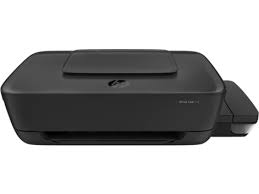
If you bought a new HP Ink Tank 110 Series printer and do not have an installation CD, you are in the right place. We compile the software required for you/your printer from the most up-to-date and accurate source. We do not keep any software/drivers other than HP’s original website. You can download the full drivers for HP Ink Tank 110 Printer from below. You can also find Basic Software Solution for HP Ink Tank 110 on this page. You can even download the latest and most updated version of HP Easy Start Printer Setup Software from below.
Details HP Ink Tank 110 Driver
The full solution software includes everything you need to install and use your HP printer. This collection of software includes the complete set of drivers, installer software, and other administrative tools found on the printer’s software CD.
Fix and enhancements: Updated end user license agreement and data collection statement
Release details
File name: Full_Webpack-47.4.4200-it110_Full_Webpack.exe
Released: Nov 19, 2021
Version: 47.4.4200
Operating Systems:
Microsoft Windows 11, Microsoft Windows 10 (32-bit), Microsoft Windows 10 (64-bit), Microsoft Windows 7 (32-bit), Microsoft Windows 7 (64-bit), Microsoft Windows 8 (32-bit), Microsoft Windows 8 (64-bit), Microsoft Windows 8.1 (32-bit), Microsoft Windows 8.1 (64-bit)
File Size : 87.18 Mb
Installation instructions
Firstly, do not connect the USB cable until prompted by the installer. After that, If you are connecting to a network, make sure the network cable is connected before running the installer. Moreover, close any software programs running on your computer. After that, turn on the printer and click on the Download button on this page. Than, click the downloaded file. In this way, the files will be extracted and the installation process will automatically start. Than, follow the on-screen instructions to proceed with and complete the installation. Additionally, to install at a later date, select Save on step 4 and select a location on your hard disk. similarly, when ready to install, locate and double-click the file. This will automatically extract and start the installation process. Finally, follow the on-screen instructions to proceed with the installation.
HP Ink Tank 110 Printer Series Basic Software Solution
This basic solution is a driver-only solution intended for customers who only want a basic driver to use with their HP printer. If you want the full feature software solution, it is available as a separate download.
Fix and enhancements: Updated end user license agreement and data collection statement.
File Name : Basic_Webpack_x64-47.4.4200-it110_Basicx64_Webpack.exe
File Size : 44.42Mb
HP Easy Start Printer Setup Software (Internet connection required for driver installation)
HP Easy Start provides guided setup and drivers for your HP printer. Furthermore, installation Software and Driver-Includes print, scan, latest features, and solutions.
Fix and enhancements: Improved user experience. Moreover, performance Optimizations. Additionally, added support for newest printer models.
Operating Systems : Microsoft Windows 11 All Editions, Microsoft Windows 10 (32-bit), Microsoft Windows 10 (64-bit)
Installation Software and Driver-Includes print, scan, latest features, and solutions.
Version : 16.7.5
Release date: Jul 18, 2024
File Name : HPEasyStart_16_7_5.exe
File Size : 17.21Mb
HP Ink Tank 110 series printers come with 1 black and 3 color print cartridge bottles. You can also print 8 pages per minute in professional mode. Moreover, if you want to use it in general office mode, you can print 19 pages per minute. I think these are acceptable numbers for a printer at this price. You can also print an average of 1,000 A4 pages per month with this printer. Print quality 1200×1200 dpi for black. For color, you can print 4800×1200 dpi. Moreover, HP Ink Tank 110 series printers use thermal inkjet printing technology. It also has a 7-segment icon LCD screen. The input tray has a standard 60-sheet capacity. Inserting too much paper may cause paper jams. This needs to be taken into consideration.
As for the disadvantages of this printer, unfortunately it does not have wireless support. This is a big deficiency in today’s conditions. Cable crowding is often an annoying situation. As always, there is no direct Linux support/driver.
As a result, I think the HP Ink Tank 110 Printer can compete with its competitors considering its dimensions, printing speed and economical printing cost.