
The HP DeskJet 2822 driver download for Windows 11 is the HP DeskJet 2800 series EasyStart Printer Setup Software with PSA – Offline Use Only, and for a Mac HP lists the package titled “Install HP app to complete setup and support”. For Windows 11 on ARM64, HP lists the HP DeskJet 2800 series EasyStart Printer Setup Software with PSA (ARM64) – Offline Use Only. For Windows 10 (32-bit and 64-bit), HP lists the HP DeskJet 2800 series EasyStart Printer Setup Software – Offline Use Only. This page lists HP’s official software for the HP DeskJet 2822.
Recommended DeskJet 2822 driver downloads
Files download directly from HP’s official servers. hpdrivers.net does not host or modify them.
Which Windows package does the DeskJet 2822 driver need?
These are the main types of Windows package that HP lists specifically for the DeskJet 2822:
- Firmware update (v2629A, Aug 26, 2026): updates the printer itself, not your PC.
- Full software solution for Windows 11 (v17.6.9, Sep 29, 2026, 449.8 MB): HP’s setup package for printing and scanning only.
- Full software solution for Windows 11 on ARM64 (v17.6.9, Sep 29, 2026, 456.2 MB): HP’s setup package for printing and scanning only.
- Full software solution for Windows 10 (32-bit and 64-bit) (v17.6.9, Sep 29, 2026, 373.0 MB): HP’s setup package for printing and scanning only.
DeskJet 2822 driver: all packages
DeskJet 2822 driver for Windows
File details
File:DJ2800_2629A.exeFile details
File:HPEasyStart-17.6.9-DJ2800_57_2_1683_ARM64_Webpack.exeFile details
File:HPEasyStart-17.6.9-DJ2800_57_2_1683_Webpack.exeFile details
File:HPEasyStart-17.6.9-DJ2800_57_2_1683_1_Webpack.exeMac firmware utility for the DeskJet 2822
File details
File:DJ2800_2629A.dmgScanning and OCR software
Setup tools and other software
Which systems the DeskJet 2822 driver supports
HP’s download list for the DeskJet 2822 names Windows 11, 11 on ARM64; Windows 10, 8.1 (32-bit and 64-bit); macOS 26, 15, 14, 13, 12, 11, 10.15, 10.14, 10.13, 10.12. For macOS 26, 15, 14, 13, 12, 11, setup runs through the HP app. For macOS 10.15, 10.14, 10.13, 10.12, HP’s list has only the firmware utility.
HP’s specifications name Windows 11 and Windows 10 as the compatible desktop versions of Windows. For older versions, the list has no printer setup package.
Installing the DeskJet 2822 driver
To install it, follow these steps.
- Pick the installer from the table above.
- Run it and follow the prompts on screen.
- Connect the printer by USB or Wi-Fi when the installer asks.
- Print a test page to confirm the connection.
For step-by-step instructions, see our guide to installing an HP printer driver.
Firmware update 2629A
For the DeskJet 2822, HP lists the HP DeskJet 2800/2800e All-in-One Printer series Firmware Update, version 2629A, released Aug 26, 2026. HP’s notes for it: Security fixes.
- Keep the printer and the computer switched on until the update has finished.
Specifications that matter for setup
Ink supplies HP lists for the DeskJet 2800 All-in-One
HP’s specifications name these replacement supplies for the DeskJet 2800 All-in-One:
- HP 67 Black Original Ink Cartridge (~120 pages) 3YM56AN
- HP 67XL Black High
Paper handling and hardware details
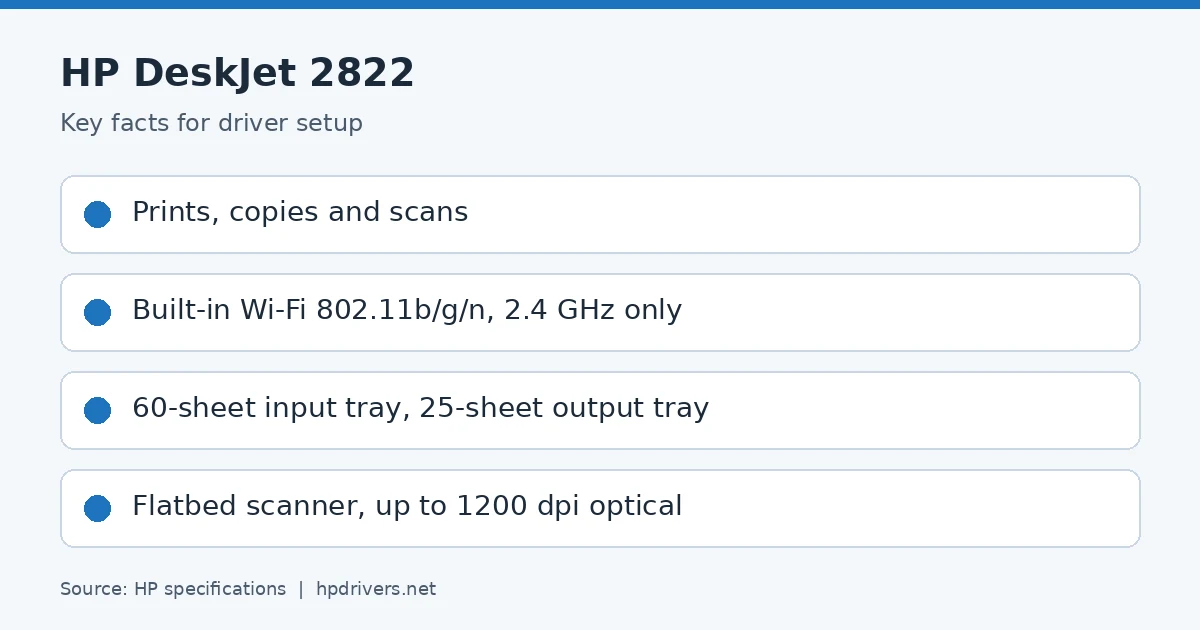
Values below are HP’s published figures for the DeskJet 2800 All-in-One series, which the DeskJet 2822 belongs to.
Clean the cartridge contacts
Cleaning the cartridge contacts applies when the printer shows an error message about a cartridge. HP says to do this when necessary, and the process should take a few minutes. However, a cartridge left unprotected outside the printer for too long can have its nozzles dry out or clog.
- Turn the printer on and open the cartridge access door.
- Wait for the carriage to stop in the center, then remove the cartridge named in the error message.
- Wipe the gold-colored contacts on the cartridge, holding it by its sides, with a dry swab or lint-free cloth.
- Wipe the gold-colored contacts inside the printer the same way.
- Reinsert the cartridge and close the door.
- If the error persists, turn the printer off and on.
Use the HP Smart app
HP Smart is HP software for mobile devices and computers. It sets up and connects the printer, prints and scans documents and photos, and shares documents by email. Also, it manages printer settings, checks status, prints reports and orders supplies. Support covers some versions of iOS, Android, Windows 10 and macOS.
- Download and install the software on your device.
- Open the software.
- If prompted, create or sign in to an HP account and register the printer.
- Connect the printer.
Wi-Fi status, light, and icons
The Wi-Fi light and the Wi-Fi icons on the control panel together show the connection status. A blinking light means the printer is not connected or is trying to connect. However, if setup mode times out, try pressing the Wi-Fi button to turn it back on.
Similar models
This page covers the 2822 only. The 2810 and the 2821 and the 2823 and the 2828 and the 2829 have their own pages.