
The HP DeskJet 2829 driver download for Windows 11 is the HP DeskJet 2800 series EasyStart Printer Setup Software with PSA – Offline Use Only, and for a Mac HP lists the package titled “Install HP app to complete setup and support”. For Windows 11 on ARM64, HP lists the HP DeskJet 2800 series EasyStart Printer Setup Software with PSA (ARM64) – Offline Use Only. For Windows 10 (32-bit and 64-bit), HP lists the HP DeskJet 2800 series EasyStart Printer Setup Software – Offline Use Only. This page lists HP’s official software for the HP DeskJet 2829.
Recommended DeskJet 2829 driver downloads
Files download directly from HP’s official servers. hpdrivers.net does not host or modify them.
Which Windows package does the DeskJet 2829 driver need?
These are the main types of Windows package that HP lists specifically for the DeskJet 2829:
- Firmware update (v2629A, Aug 26, 2026): updates the printer itself, not your PC.
- Full software solution for Windows 11 (v17.6.9, Sep 29, 2026, 449.8 MB): HP’s setup package for printing and scanning only.
- Full software solution for Windows 11 on ARM64 (v17.6.9, Sep 29, 2026, 456.2 MB): HP’s setup package for printing and scanning only.
- Full software solution for Windows 10 (32-bit and 64-bit) (v17.6.9, Sep 29, 2026, 373.0 MB): HP’s setup package for printing and scanning only.
DeskJet 2829 driver: all packages
DeskJet 2829 driver for Windows
File details
File:DJ2800_2629A.exeFile details
File:HPEasyStart-17.6.9-DJ2800_57_2_1683_ARM64_Webpack.exeFile details
File:HPEasyStart-17.6.9-DJ2800_57_2_1683_Webpack.exeFile details
File:HPEasyStart-17.6.9-DJ2800_57_2_1683_1_Webpack.exeMac firmware utility for the DeskJet 2829
File details
File:DJ2800_2629A.dmgScanning and OCR software
Setup tools and other software
Which systems the DeskJet 2829 driver supports
HP’s download list for the DeskJet 2829 names Windows 11, 11 on ARM64; Windows 10, 8.1 (32-bit and 64-bit); macOS 26, 15, 14, 13, 12, 11, 10.15, 10.14, 10.13, 10.12. For macOS 26, 15, 14, 13, 12, 11, setup runs through the HP app. For macOS 10.15, 10.14, 10.13, 10.12, HP’s list has only the firmware utility.
HP’s specifications name Windows 11 and Windows 10 as the compatible desktop versions of Windows. For older versions, the list has no printer setup package.
Installing the DeskJet 2829 driver
To install it, follow these steps.
- Pick the installer from the table above.
- Run it and follow the prompts on screen.
- Connect the printer by USB or Wi-Fi when the installer asks.
- Print a test page to confirm the connection.
For step-by-step instructions, see our guide to installing an HP printer driver.
Firmware update 2629A
For the DeskJet 2829, HP lists the HP DeskJet 2800/2800e All-in-One Printer series Firmware Update, version 2629A, released Aug 26, 2026. HP’s notes for it: Security fixes.
- Keep the printer and the computer switched on until the update has finished.
Specifications that matter for setup
Ink supplies HP lists for the DeskJet 2800 All-in-One
HP’s specifications name these replacement supplies for the DeskJet 2800 All-in-One:
- HP 67 Black Original Ink Cartridge (~120 pages) 3YM56AN
- HP 67XL Black High
Paper handling and hardware details
Values below are HP’s published figures for the DeskJet 2800 All-in-One series, which the DeskJet 2829 belongs to.
Connecting to Wi-Fi with HP Smart
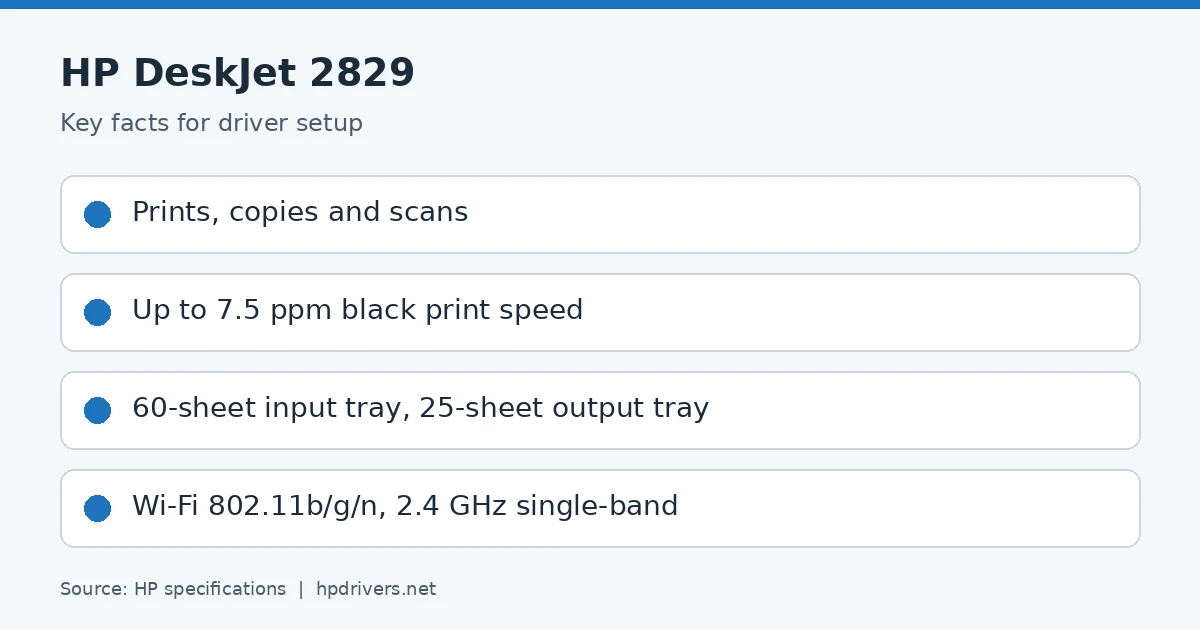
The DeskJet 2829 has built-in Wi-Fi 802.11b/g/n, which works on the 2.4 GHz band only. HP Smart, installed on a computer or mobile device, sets up the printer or connects it to your network. Bluetooth is used during setup, though not for printing.
Before you start, the computer or device must be on your Wi-Fi network, with Bluetooth and/or location services turned on. The Wi-Fi light should blink blue, showing setup mode. When the connection succeeds, the light stops blinking and stays lit. If asked for a password, enter the default PIN from the printer’s PIN label.
Handling cartridges and keeping ink usable
HP recommends Original HP cartridges. HP cannot guarantee the quality or reliability of non-HP supplies, and service or repairs needed because of them are not covered under warranty. Store cartridges at room temperature, 15-35° C (59-95° F), in their sealed packages until needed.
Handle cartridges carefully, since dropping or rough handling during installation can cause temporary printing problems. When you install a new cartridge, a printhead alignment page prints automatically, and you scan it by following its instructions. If a cartridge is left unprotected outside the printer, its nozzles might dry out and clog.
Sleep mode and Energy Save timing
Sleep mode lowers power usage. After initial setup, the printer enters it following 5 minutes of inactivity. During sleep, the Power button light is dimmed and the control panel display is off. Pressing any button on the control panel wakes the printer.
- Open the EWS.
- Click the Settings tab.
- From the left menu, click Power Management.
- Click Energy Save Mode.
- Select the desired time, and then click Apply.
Similar models
This page covers the 2829 only. The 2810 and the 2821 and the 2822 and the 2823 and the 2828 have their own pages.