
hpdrivers.net is an independent website and is not affiliated with, endorsed by, or sponsored by HP Inc. Download links point to HP's official servers (ftp.hp.com). Read the full disclaimer

HP Printhead Missing or Failed Error: How to Fix It

An HP printhead missing message, “Printhead failure” or “Incompatible printhead” stops an HP inkjet from printing. HP’s guide groups these errors under one fix that depends on your cartridge numbers. This page explains the order HP gives, what you can safely do yourself, and when the printhead is not user-replaceable and the printer needs service.
Last checked against HP’s published support information: November 14, 2026 · Checked by H&G
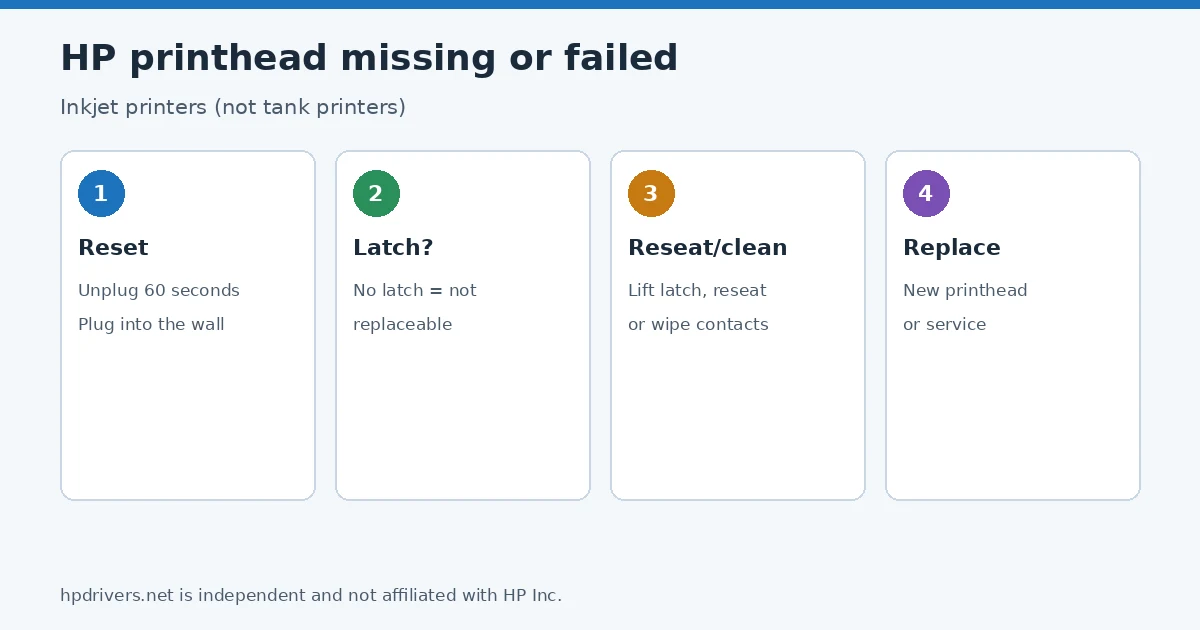
HP printhead error: find your cartridge type, reset the printer, reseat or clean the printhead, then replace or service

Quick check

  • Printer uses a tank (ink bottles): this HP document does not apply to tank printers.
  • Look for a latch on the carriage: no latch means the printhead is not replaceable and HP says to contact support.
  • HP includes a 60-second power reset in its steps (step 1).

Messages HP covers

HP lists these messages: Incompatible Printhead, Missing or Failed Printhead, Printhead Appears to be Missing or Damaged, Printhead Failure, Printhead is Missing, Not Detected, or Not Properly Installed, Printhead Missing, Printhead Missing or Damaged and Printhead Problem. HP says to work through the steps in order and test the printer after each task. The steps depend on your cartridge numbers:

Group
Cartridge numbers (HP’s list)
Where to start
Type 1
178, 364, 564, 655, 862, 902 to 920, 934, 935
Clean or service the printhead, then reset
Type 2
932, 933, 936–938, 950, 951–959, 962–969
Update firmware, reset, reseat the printhead
Type 3
10–13, 18, 38, 39, 70, 72, 73, 82, 84, 85, 88, 89, 727, 728, 777, 940
Open HP’s document for this group

Step 1: Reset the printer

If an HP printhead missing message appears, HP’s first step is the same 60-second power reset described here.

  1. If the printer has a rechargeable battery, remove it.
  2. Press the power button to turn the printer off. If it will not turn off, unplug the cord from the printer.
  3. Unplug the power cord from the wall and wait 60 seconds.
  4. Plug the cord directly into a wall outlet and into the printer, then turn it on.

Other reset types are in how to reset an HP printer.

Step 2 (Type 2): Update the firmware

HP releases firmware with fixes. You can update from the control panel (for example Setup, Printer Maintenance, Update Printer, Check Now), from the HP app’s Printer Update tile, or by downloading firmware from your model’s page on HP’s software and driver site. HP warns not to turn the printer off during an update because that can permanently damage it.

Step 3: Check whether the printhead is replaceable

If your HP printhead missing error appears on a printer with no latch on the carriage, the printhead is not user-replaceable and the next step is service.

Open the cartridge door and wait until the carriage stops. If there is no latch on the carriage, the printhead is not replaceable; HP says to contact HP Customer Support for repair or replacement. Repair fees can apply if the product is out of warranty.

Step 4: Reseat or clean the printhead (if there is a latch)

Type 2 printers: reseat

  1. With the printer on, disconnect the power cord from the printer.
  2. Lift the carriage latch, slightly lift the printhead, lower it back into the carriage, wiggle it left and right, and lower the latch until it stops.
  3. Close the door and reconnect the power cord.

HP says you may repeat this up to three times if the error persists.

Type 1 printers: clean

  1. Remove all the cartridges. HP cautions not to leave them outside the printer for more than 30 minutes.
  2. Lift the latch until it stops and remove the printhead by its sides.
  3. Wipe the printhead’s electrical contacts bottom to top with a lint-free cloth slightly dampened with distilled or bottled water until no ink shows on the cloth. Do not touch the copper-colored contacts with your fingers.
  4. Wipe the edge between the contacts and the ink nozzles, and the ramps beside the nozzles (wipe away from the nozzles), then dry each area with a clean, dry cloth.
  5. Wipe the carriage’s contacts top to bottom, dry them, refit the printhead, lower the latch and reinsert each cartridge into its color-coded slot.

Step 5: Replace the printhead or service the printer

If the error remains, HP says to order a replacement printhead from the HP Parts Store using the printhead number for your printer; a defective printhead may be under warranty. If the problem persists after installing it, the printer needs service. Tank printers have their own HP pages; our Smart Tank error codes guide covers the code list.

Related problems

Sources

hpdrivers.net is independent and not affiliated with HP Inc. Steps follow HP’s guide; the wording is ours.
HP “No AirPrint Printers Found” on iPhone or iPad: How to Fix It

“No AirPrint Printers Found” appears on an iPhone or iPad when you choose Print and the device cannot see your HP printer. HP’s guide says to check the wireless connection first and then make sure AirPrint is turned on in the printer. This page follows HP’s order and explains each step in plain terms.

Last checked against HP’s published support information: November 14, 2026 · Checked by H&G
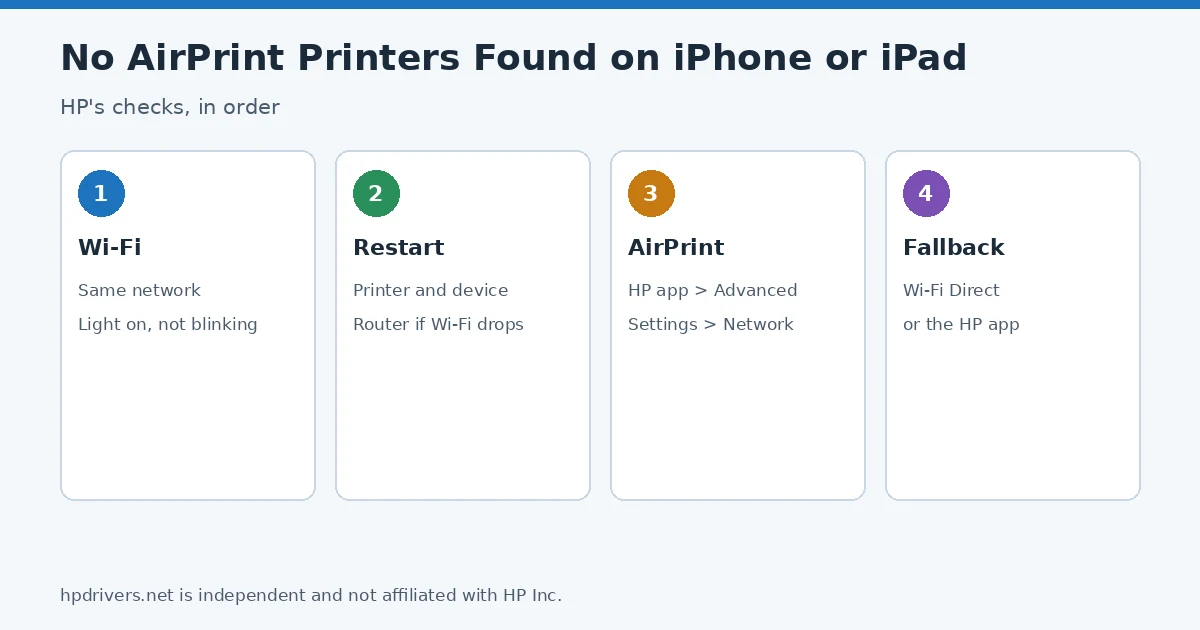
HP No AirPrint Printers Found: check Wi-Fi, same network, restart devices, then turn on AirPrint in the HP app

Quick check

  • Printer’s wireless light off or blinking: it is not on the network; start with step 1.
  • Printer is on Wi-Fi but still not found: check AirPrint in the HP app (step 2).
  • AirPrint option missing: your printer may not support it; use Wi-Fi Direct (step 3).

Step 1: Check the wireless connection

HP asks you to try these in the order given and test after each one:

  • Signal: move the printer and the phone closer to the router, and make sure websites load. If Wi-Fi is slow or drops, restart the router by unplugging it for 15 seconds.
  • Sleep mode: touch the control panel or press Power to wake the printer. HP notes it can show Offline when it is actually ready.
  • Same network: the printer and the iPhone or iPad must be on the same network. A light next to the wireless icon that is off or blinking means the printer is disconnected.
  • Reconnect: on a touchscreen printer, open Setup, Network or Wireless settings, choose Wireless Setup Wizard and pick your network. Without a touchscreen, hold the Wireless button for five seconds, then press WPS on the router within two minutes.
  • Restart: restart the printer and the mobile device.
  • Setup mode and Bluetooth: HP says a new printer is in Wi-Fi setup mode for a short time and that Bluetooth should be on for HP app setup.

HP also warns that wireless isolation on the router can make a printer look offline; check your router’s documentation. More network checks are in HP printer won’t connect to Wi-Fi.

Step 2: Turn on AirPrint with the HP app

  1. Open the HP app and sign in or create an account.
  2. Click your printer’s name or image.
  3. Click Advanced Settings, or scroll to Printer Settings, click View all, then Advanced Settings.
  4. Select Network and look for AirPrint.
  5. If AirPrint is listed, select it, then Status. If asked to go to a secure HTTPS page, choose OK or Redirect to HTTPS. If a “connection is not private” message appears, choose Advanced or Show Details and proceed to the printer’s address.
  6. Under AirPrint Status, select Turn on AirPrint.

The printer’s address can be found as described in how to find the HP printer IP address. A related AirPrint message about certificates is covered in encryption credentials expired.

Step 3: If AirPrint is not listed or still fails

HP says that if AirPrint does not appear in the app, the printer does not support it, and you should use another method such as Wi-Fi Direct. In some cases the phone’s configuration may not be compatible with the HP Print Service Plugin. If you still cannot print, use Wi-Fi Direct or the HP app. Wi-Fi Direct names and passwords are explained in WPS PIN, Wi-Fi Direct password and printer PIN.

Related problems

Sources

hpdrivers.net is independent and not affiliated with HP Inc. Steps follow HP’s guide; the wording is ours.

How to Set Up an HP Printer on a Chromebook

Your HP printer Chromebook setup needs no driver or extra app on most models. HP’s guide says no drivers or apps are required for a USB or network connection; you add the printer in Chromebook Settings and print from the Chrome browser. This page walks through HP’s steps and explains the one case that needs a second device, the HP+ printer.

Last checked against HP’s published support information: November 14, 2026 · Checked by H&G
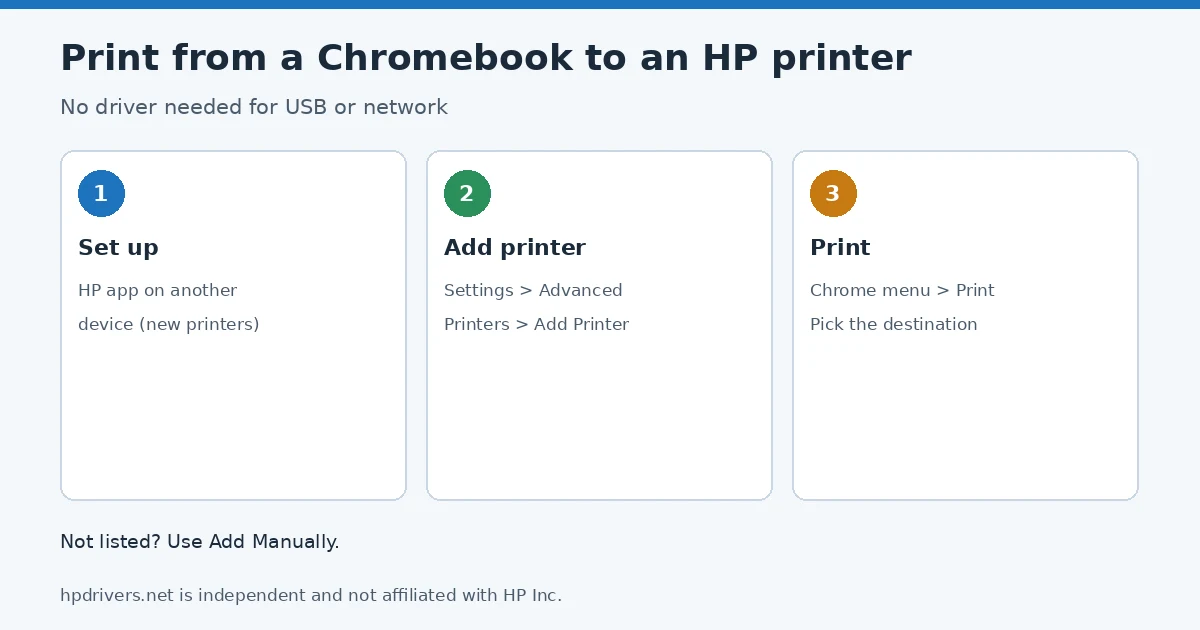
Add an HP printer to a Chromebook: set up with the HP app, add in Settings, then print from Chrome

Quick check

  • Printer already works on Wi-Fi: go straight to step 2.
  • New printer: HP recommends setting it up with the HP app on another computer or phone first (step 1).
  • Printer not in the list: use Add Manually (step 2).

Step 1: Set up the printer with the HP app (new printers)

HP recommends that you set the printer up with the HP app on a different computer or a mobile device. The app registers the printer with an HP account, which gives access to advanced print features and services such as Instant Ink; features depend on the model and country. Install the app from hp.com/start/install or your app store and follow the instructions. More on the app is in HP app replaces HP Smart.

Step 2: Add the printer on the Chromebook

  1. Make sure the printer is on the same network as the Chromebook. For a USB connection, connect the printer to the Chromebook with its USB cable.
  2. Click the clock in the lower-right corner, then the Settings icon.
  3. Scroll down and click Advanced.
  4. Under Printing, click Printers, then Add Printer.
  5. If your printer is listed, select it and click Add. If it is not listed, click Add Manually and follow the instructions.

If the printer is not found on Wi-Fi, check the network first: HP printer won’t connect to Wi-Fi. If you need the printer’s address for a manual setup, see how to find the IP address.

Step 3: Print from Chrome

Once the HP printer Chromebook connection is added, you print from Chrome like any other printer.

  1. Open the page, document or email you want to print.
  2. Click the Chrome Settings icon and select Print.
  3. Next to Destination, click Change and choose your printer.
  4. Change any print settings, then click Print. For two-sided jobs, see printing on both sides.

Is my printer compatible?

Printer support
What HP says
IPP Everywhere
No setup needed. Print and select the printer if asked. HP points to the IPP Everywhere printer list to check your model.
HPLIP (HP Linux Imaging and Printing)
Thousands of HP printers print through Chromebook in-OS support. These must be added first through Chrome’s printer settings.
Managed by an organization
HP says printers can be managed remotely through CUPS and Google admin tools.

If the Chromebook shows the printer but nothing prints, run through the won’t-print checklist.

Related problems

Sources

hpdrivers.net is independent and not affiliated with HP Inc. Steps follow HP’s guide; the wording is ours.