
hpdrivers.net is an independent website and is not affiliated with, endorsed by, or sponsored by HP Inc. Download links point to HP's official servers (ftp.hp.com). Learn more

HP OfficeJet Pro 8133 Product Specifications – Setup & User Guides – Troubleshooting – Support

HP OfficeJet Pro 8133 All-in-One Printer includes four cartridges.

HP OfficeJet Pro 8133 Printer

HP OfficeJet Pro 8133 Product Specifications

Print quality black: 1200 x 1200 dpi – 4800 x 1200 optimized dpi.
Color print quality: 1200 x 1200 dpi – 4800 x 1200 optimized dpi.
Print technology: HP Thermal Inkjet
Processor speed: 1.2 Ghz
Input tray: 225 pages
Output tray: 60 pages
Duplex printing: Automatic.
Borderless printing: Photo and Brochures only Wireless capability: Built-in dual-band Wi-Fi 802.11
Minimum System Requirements: Microsoft Windows 11, 10 32-bit or 64-bit; 2 GB of available disk space.
Minimum System Requirements for Macintosh: Apple macOS v11 Big Sur, macOS v12 Monterey, macOS v13 Ventura; 2 GB of disk space.
Built-in memory capacity: 256 Mb
Note: USB cable not included.

HP OfficeJet Pro 8133 Setup & User Guides

If you have an HP OfficeJet Pro 8133 printer, you may need the following information.

HP contact address change in European Union (0.07 MB)

User Guide (3.14 MB)

Reference Guide (1.49 MB)

Quick Start Guide (0.36 MB)

‘The HP software is setting up your printer…’ error displays on printer control panel

During the installation of your HP printer, the message HP software is installing your printer… is displayed on the printer control panel menu and you cannot complete the printer installation.

You can check the following steps to get rid of this error and complete the installation.

1. Make sure that your printer has standard cartridges and paper of the standards specified by HP.

2. Download and run the HP Smart application. You can check it from our website.

3. Find and select your printer at the top of the HP Smart screen.

4. Select Print Quality Tools and then Align Printer.

5. You can perform the alignment using the front panel or the control panel.

6. When the error is resolved in the printer control panel menu, return to your printer’s home page in HP Smart and click Finish Setup.

7. Now you can return to the printer installation.

If your problem persists, you can contact us.
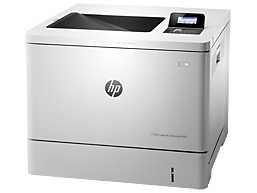
HP Color LaserJet M553n Driver Download for Mac

HP Color LaserJet Enterprise M553n Driver Download for Mac

Download HP Color LaserJet Enterprise M553 Printer Install HP Easy Start Driver

HP Color LaserJet Enterprise M553n Printer

Details Hp M553n Driver for Mac

HP Easy Start is the new way to set up your HP printer and prepare your Mac for printing. HP Easy Start will locate and install the latest software for your printer and then guide you through printer setup.

Release details

Version: 2.14.0.231016

File name: HP_Easy_Start.app.zip

Relased : Oct 31, 2023

Operating Systems:

Mac OS X 10.10, Mac OS X 10.11, Mac OS X 10.12, Mac OS X 10.9, macOS 10.13, macOS 10.14, macOS 10.15, macOS 11, macOS 12, macOS 13, macOS 14

Download

File Size : 91.03 Mb

Fixed:

Fixed the Security Vulnerability

Before you start installing the driver for your printer, you need to download the driver suitable for your operating system above to your computer. Additionally, when the driver installation is completed, you can delete the file you downloaded if you wish. Moreover, all the drivers published on our site are taken from HP’s original website. All are completely safe. Our goal is to help you find the driver you are looking for more easily and quickly. However, if you want to see more detailed drivers for your printer, you can visit HP’s original site. You can find a shortcut to the original site at the top right of our site. Also, if you need drivers for different operating systems or different printers, you can share this with us. We’d be happy to help you.

HP Laser MFP 1188w Driver Download for MacOs

HP Laser MFP 1188w (715A3A) Printer Software Driver Download for MacOs

You can download the latest drivers for HP Laser MFP 1188w Printer from our page. It’s free.

HP Laser MFP 1188w Printer

HP MFP 1188w Multi-function WiFi Monochrome Laser Printer

Print, Copy, Scan, Fax Wireless, Direct Wifi USB 2.0 High Speed connectivity / Ethernet Space saving design 150 sheet input,100 sheet output Duty Cycle – 10000 Pages, 40 page ADF

Mobile printing services : HP Smart App; Apple AirPrint; Mopria Certified; Wi-Fi Direct Printing.

Connect via Wi-Fi or Ethernet and you’ll be all set for mobile printing success

This LaserJet printer features all-in-one – print, copy, scan functions for versatile printing. Print clear monochrome documents and easily scan with a flatbed scanner.

HP printer setup (HP Smart app) / HP 1188w Driver MacOs

Install HP Smart app to complete setup and support (Recommended)

Install HP Smart app to setup and use your Printer

  • HP Smart will help you connect your printer, install driver, offer print, scan, fax, share files and Diagnose/Fix top issues. Click here to learn how to setup your Printer successfully (Recommended).
  • Creating an HP Account and registering is mandatory for HP+/Instant-ink customers. It also helps in accessing assisted support options and more.

NOTE:

  • Disconnect from Virtual Private Network (VPN) connection before downloading.
  • Creating an account on Microsoft Store to download HP Smart app is optional.

The HP Smart app is the main software for your printer. Install it on the device you want to print from, and then use it to set up the printer connection. By installing the HP Smart app, you also install all drivers necessary to print and scan.

Install the HP Smart app

Download the HP Smart app from your app store.

Use the guided printer setup in the HP Smart app to connect your printer over USB or to the internet.

It is critical that the printer driver is up to date. A printer with an up-to-date driver provides you with various advantages. For example, it closes some security gaps. It also increases your print quality. In other words, you can make more vivid, bright and economical prints. Moreover, it eliminates or minimizes software problems.