
When Windows lists your HP printer with the status “Driver is unavailable”, the message is about the driver attached to the printer entry, not about the printer’s hardware. Windows has a printer queue with that name, but no working driver is connected to it. This guide goes through the causes in the order that is quickest to check, including one that Microsoft has documented for several HP models and that most guides skip.
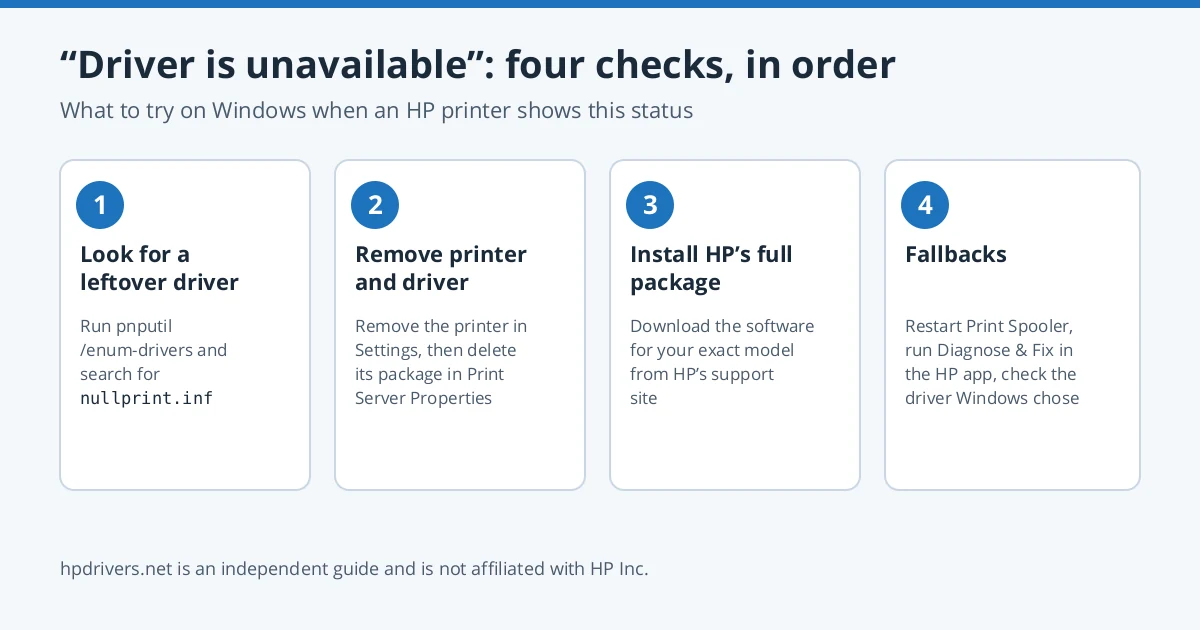
The short version
- Check whether a leftover “Null Print” driver (
nullprint.inf) is blocking the real driver. The check only lists drivers, so it is safe to run. - Remove the printer, then remove its old driver package as well.
- Install the full software package for your exact model from HP, not only what Windows picks automatically.
- Only then try fallbacks: restarting the Print Spooler, or the generic driver.
What it looks like when the driver is unavailable
You will see it in the status column under Devices and Printers in Control Panel, where a working printer normally shows “Ready.” Printing usually fails, and removing and re-adding the printer can bring the same message back. That repeat is the clue: Windows keeps attaching the same broken driver entry.
Step 1: Look for the leftover “Null Print” driver
Microsoft has acknowledged that some HP printers can end up in the “Driver is unavailable” state after the printer is uninstalled. According to Microsoft, the current HP driver for these models also installs a file called a “Null Print” driver. When the printer is uninstalled, that file stays behind. When the printer is added again, Windows treats the file as the printer’s driver and stops looking for the real one.
Microsoft’s answer lists these affected models, and says the list is not complete: HP DeskJet 4670, ENVY 5000, ENVY 5660, ENVY Photo 7800, OfficeJet 3830, OfficeJet 5740, OfficeJet Pro 8600 and OfficeJet 8730. The note was written for Windows 10 in 2019. The same commands exist in Windows 11, and we have not seen Microsoft update the note, so treat it as a check that may or may not apply to your printer.
- Type
cmdin the taskbar search box, right-click Command Prompt, and choose Run as administrator. - Run
pnputil /enum-drivers. This only lists the driver packages on your PC. - Scroll through the list and look for an entry whose Original Name is
nullprint.inf. If there is none, this is not your problem. Go to Step 2. - Note the Published Name of that entry (for example
oem12.inf). - Run
pnputil /delete-driver <published name>, replacing the placeholder with the name you noted. - Remove your HP printer and add it again. Windows should now search for the proper driver.
Delete only the entry whose Original Name is nullprint.inf. Do not remove other packages from that list.
Step 2: Remove the printer and its old driver package
Removing only the printer leaves the driver package in Windows. A damaged or outdated package can then be reused the next time you add the printer.
- Open Settings > Bluetooth & devices > Printers & scanners, select the HP printer and choose Remove.
- Press Windows + R, type
printui /s /t2and press Enter. This opens Print Server Properties on the Drivers tab. - Select the old driver entries for your HP printer, choose Remove, and pick the option to remove the driver and driver package.
- Restart Windows.
Step 3: Install the full package for your exact model
A Windows-supplied driver often covers only basic printing. In one Microsoft Q&A thread about this message, an independent adviser gave the same answer and sent the user to HP’s full feature software for the printer. Use HP’s driver download page and search for the exact model name, for example “OfficeJet Pro 8600” rather than “OfficeJet.” Different HP families use different packages.
If you use the printer on more than one PC, install the software on every PC where you see the message. One report describes a printer that worked over USB on one laptop but showed “Driver is unavailable” over Wi-Fi on a second laptop that had no HP software installed. For installation details see our guide to installing an HP printer driver.
Step 4: If it still fails
- Restart the Print Spooler. Open Services, find Print Spooler, and restart it. If jobs are stuck, HP has a page on fixing a print job stuck in the queue.
- Run HP’s Diagnose & Fix. It is the tool HP now recommends instead of the discontinued Print and Scan Doctor. See our page on the replacement.
- Check which driver Windows chose. On Windows 11, newer printers may be installed with the built-in Microsoft IPP Class Driver, and Windows Protected Print Mode can limit third-party drivers. Our Windows 11 HP printer driver guide covers both.
Frequently asked questions
Does “Driver is unavailable” mean my printer is broken?
The message describes the driver attached to the printer entry in Windows. By itself it does not say the printer hardware has failed.
Why does the message come back after I remove and re-add the printer?
Because removing the printer does not necessarily remove the driver package or a leftover nullprint.inf entry. Windows can attach the same entry again.
Is deleting nullprint.inf safe?
It is the step Microsoft’s own answer describes for this problem. Run the listing command first, delete only the entry whose Original Name is nullprint.inf, and only if you see it.
Where do I get the right driver?
From HP’s driver download page for your exact model. hpdrivers.net is an independent website. Our model pages link to HP’s own servers.
Source for the Null Print behaviour: Microsoft Q&A, “Unable to install HP Printer. Status shows as ‘Driver is unavailable’” (answer dated February 21, 2019).
Advertisement