Hp Laserjet 1018 Printer Driver for Windows 10

HP LaserJet 1018 Printer Driver for Microsoft Windows 10 (32Bit/64Bit)

How to install HP Laserjet 1018 printer software on Windows 10
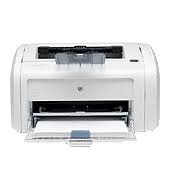
HP LaserJet 1018 Printer Driver for Microsoft Windows 10 (32Bit/64Bit)
HP Laserjet 1018 (CB419A#ABA) Printers
  • Up to 12 ppm Letter Print Speed with 100-sheet Output Bin
  • 150-Sheet Input Tray and Single-Sheet Priority Input Slot
  • 1200 dpi Effective Output Quality 600 by 600 dpi with HP REt And FastRes 1200
  • 234 MHz Processor With 2MB RAM Internal Memory Included
  • Convenient Hi-Speed USB 2.0 Connectivity and Genuine HP LaserJet Print Cartridge

Automatically adjust for optimized print quality with HP’s Smart printing technology.

HP LaserJet 1018 – Installing and Using the Windows Built-in Print Software

This document is for HP printers and Windows computers.

Windows contains built-in print drivers for many types of printers. These drivers support basic printer functionality for most print jobs.

Details

Installing an HP Printer with the Windows Print Driver
Install your HP printer without any software using the drivers built into the Windows operating system. The Windows drivers provide basic functionality for your printer.

How to install HP laserjet 1018 printer driver on windows 10

Here, you can access HP LaserJet 1018 printer’s original software support page from Hpsupport. Unfortunately, HP does not release drivers for some older printers for new operating systems. Many printer companies do this.

HOW TO REPLACE CARTRIDGE

These steps will help you in installing compatible HP LaserJet 1018 toner cartridges:

Your HP LaserJet 1018 will start up after you press the Power button.

Before removing the empty cartridge, open the toner cartridge access door and wait for the carriage to become stationary and silent.

The new toner cartridge should be gently rocked from side to side several times after being opened.

Before installing the cartridge, remove all of the protective tape.

Once it locks into place, align the new cartridge with the printer’s internal tracks.

Shut the access door for the toner cartridges.
Installing and Using the Windows Built-in Print Driver (Hp Printers)

HP Printers – Installing and Using the Windows Built-in Print Driver

This document is for HP printers and Windows computers.

Windows contains built-in print drivers for many types of printers. These drivers support basic printer functionality for most print jobs.

Installing an HP Printer with the Windows Print Driver
Install your HP printer without any software using the drivers built into the Windows operating system. The Windows drivers provide basic functionality for your printer.

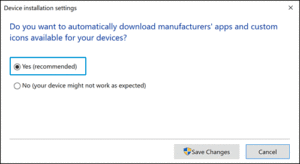
1: Set Windows Update to automatically download driver software

Confirm that your computer is set to automatically download driver software.
In Windows, search for and open Change device installation settings.
In the Device Installation Settings window, select the Yes option, and then click Save Changes.

Windows Update to automatically download driver software

2: Connect your printer to the computer

Connect your printer to the computer before starting the driver installation.

USB connection to your computer
Connect the printer to the computer with a USB cable.

  • Make sure your computer is turned on and connected to the Internet.
  • Turn on the printer.
  • Connect a USB cable to the USB port on the rear of the printer , and then to the computer.
  • If a Found new hardware window displays, follow any prompts to install the driver, and then try to print.
    -If you can use your printer, your driver installed, and you do not need to continue with the steps in this document. Continue to the frequently asked questions in this document for more information.
    -If you cannot use your printer, continue to the next step.

3: Install the print driver with the Add a Printer wizard

Use the Windows Add a Printer wizard to install the built-in print driver.

USB connection (Windows 10, 8)

Install the built-in print driver for a USB connection with Windows 10 or Windows 8.

  • In Windows, search for and open Control Panel.
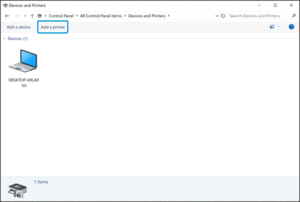
  • Click Devices and Printers, and then click Add a printer.

Install the print driver with the Add a Printer wizard

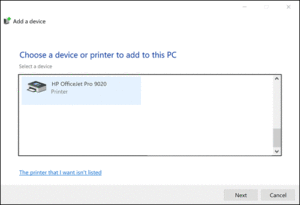
  • On the Choose a device or printer to add to this PC window, select your printer, click Next, and then follow the on-screen instructions to install the driver. If your printer is not in the list, continue with these steps.

On the Choose a device or printer to add to this PC Window

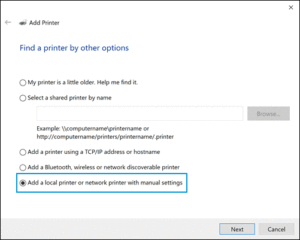
  • Click The printer I want isn’t listed, and then select Add a local printer or network printer with manual settings.

Click The printer I want isn’t listed

  • Click Next.
  • Select Use an existing port (USB001: Virtual printer port for USB), and then click Next.
  • Click Windows Update, and then wait for the print drivers to update.
  • Click HP, Hewlett-Packard, or Hewlett Packard in the Manufacturer pane, and then click the name of your printer in the Printers pane.
  • Click Next, and then follow the on-screen instructions to install the driver.
  • Disconnect the printer USB cable from the computer, and then reconnect the cable.

4: Print document

Print to make sure that your printer is working.

  • If you can print, the print driver installed and is working.

5: Scan a document (if supported)

Scan a document to make sure the scanner is working.

  • If you can scan, the built-in driver installed and is working.

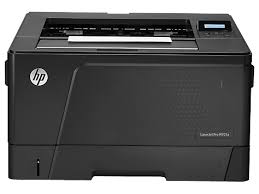
HP LaserJet Pro M 701 Driver

Driver Download for Microsoft Windows 8.1/8/7/Vista XP (32 Bit/64 Bit) for HP LaserJet Pro M701 Series Printer. Latest Drivers. Quick And Easy Installation.

The full solution software includes everything you need to install your HP LaserJet Pro printer. This collection of software includes the complete set of drivers, installer software.

HP LaserJet Pro M701 Series Printer
HP LaserJet Pro M701 Printers

HP LaserJet Pro M701 Printer Series Full Software and Drivers

The full solution software includes everything you need to install your HP printer. This collection of software includes the complete set of drivers, installer software, and other administrative tools found on the printer’s software CD.

Relase Details

Version: 10.0.15300.247

Relase Date: Mar 19, 2021

File name: LJPro-M701-Full-Solution-15300.exe

Operating Systems

Microsoft Windows 8.1 (32-bit), Microsoft Windows 8.1 (64-bit), Microsoft Windows 8 (32-bit), Microsoft Windows 8 (64-bit), Microsoft Windows 7 (32-bit), Microsoft Windows 7 (64-bit), Microsoft Windows Vista (32-bit), Microsoft Windows Vista (64-bit), Microsoft Windows XP (32-bit)

Download

Size: 93.81 MB


HP Universal Print Driver for Windows PCL6

This is the most current PCL6 driver of the HP Universal Print Driver (UPD) for Windows 32 bit and 64 bit systems.

The HP Universal Print Driver is a single driver that provides access to a variety of HP printing options. This driver supports many HP printer models. You do not need to install separate drivers for all of them. However, you may not be able to use all the features of your printer. If there is a driver produced for your printer, it would be better to install it. However, HP company only releases universal drivers for some of its models.

Release details

Version: v7.3.0.25919

Relase Date : Nov 18, 2024

Operating Systems:
Microsoft Windows 10 (32-bit), Microsoft Windows 7 (32-bit), Microsoft Windows 8 (32-bit), Microsoft Windows 8.1 (32-bit), Microsoft Windows Server 2012, Microsoft Windows Server 2016, Microsoft Windows Server 2019
File name: upd-pcl6-x32-7.3.0.25919.zip

Download

File Size : 18.51 MB

Operating Systems:
Microsoft Windows 11, Microsoft Windows 10 (64-bit), Microsoft Windows 7 (64-bit), Microsoft Windows 8 (64-bit), Microsoft Windows 8.1 (64-bit), Microsoft Windows Server 2012, Microsoft Windows Server 2016, Microsoft Windows Server 2019
File name: upd-ps-x64-7.3.0.25919.zip

Download

File Size : 22.13Mb

Before you start installing the driver for your printer, you need to download the driver suitable for your operating system above to your computer. Additionally, when the driver installation is completed, you can delete the file you downloaded if you wish. Moreover, all the drivers published on our site are taken from HP’s original website. All are completely safe. Our goal is to help you find the driver you are looking for more easily and quickly. However, if you want to see more detailed drivers for your printer, you can visit HP’s original site. You can find a shortcut to the original site at the top right of our site. Also, if you need drivers for different operating systems or different printers, you can share this with us. We’d be happy to help you.