hpdrivers.net is an independent website and is not affiliated with, endorsed by, or sponsored by HP Inc. Download links point to HP's official servers (ftp.hp.com). Learn more

HP LaserJet Professional M1210nf MFP Driver for Windows and Mac

HP LaserJet Professional M1210nf MFP Serisi Driver for Windows 10/8/7/Vista/Xp and Mac Os X

Download HP LaserJet Full Feature Software and Driver
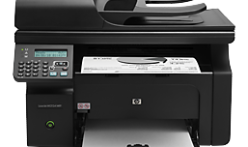
HPdrivers.net-LaserJetProM1210nf
HP LaserJet Pro M1210nf MFP Driver

Description :

This full software solution is the same solution as the in-box CD that came with your printer.

Fix/Enhancement :
Added compliance with European ErP regulation. Added support for Windows 8, and Windows 10. Wireless installation improvement with auto-credential feature.

Release details

Released: Aug 18, 2022

File name: HP_M1130_M1210_MFP_Full_Solution-v20180815-10158769_1.exe

Version : 20180815_1

Compatibility:

Microsoft Windows 10 (32-bit), Microsoft Windows 10 (64-bit), Microsoft Windows 8.1 (32-bit), Microsoft Windows 8.1 (64-bit), Microsoft Windows 8 (32-bit), Microsoft Windows 8 (64-bit), Microsoft Windows 7 (32-bit), Microsoft Windows 7 (64-bit), Microsoft Windows Vista (32-bit), Microsoft Windows Vista (64-bit), Microsoft Windows XP (32-bit), Microsoft Windows XP (64-bit)

Download

File Size :240.82Mb

Installation instructions

This section will help you in the download of the software to your computer and start you on the install process. Below are easy-to-follow instructions for downloading and installing printer drivers. (Note: Do not connect the USB cable until prompted.

Approximately 700 MB of free hard disk space is required to use this download.
1. Close any software programs running on your computer.
2. Click on “Download Only” button and save the file to your hard disk.
3. Double click on the downloaded file. This will extract all the driver files into a directory on your hard drive. The default directory these files are extracted to have a similar name to the printer model.
4. Follow the on-screen instructions to proceed installation.

HP LaserJet Professional M1210nf MFP Serisi Mac Printer Driver

Released: Jul 22, 2021

File name: HewlettPackardPrinterDrivers.dmg

Version : 5.1

Compatibility:

  • Mac OS X 10.10
  • Mac OS X 10.11
  • Mac OS X 10.12
  • Mac OS X 10.9
  • macOS 10.13
  • macOS 10.14
  • macOS 10.15
  • macOS 11
  • macOS 12

Download

File Size :240.82Mb

HP Photosmart Wireless B109n-z Driver for Windows and Mac

HP Photosmart Wireless All-in-One Printer – B109n-z Driver

Downlolad HP Photosmart Wireless All-in-One Printer series – B109 Full Feature Software and Driver

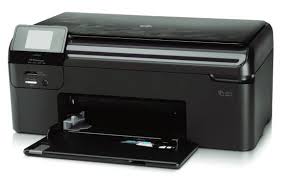
Hpdrivers.net- Photosmart Wireless All-in-One Printer - B109n-z

Details HP Photosmart B109n-z Driver

This download includes the HP Photosmart Software Suite and Driver

Release details

Operating Systems: Microsoft Windows 10 (32-bit) (64-bit), Microsoft Windows 8 (32-bit) (64-bit), Microsoft Windows 8.1 (32-bit) (64-bit)
File name: PS_AIO_06_B109n-z_USW_Full_Win_140_408-5.exe
Released: Jul 29, 2015
Version: 14.8.0
Download
File Size : 148.51Mb

Operating Systems: Microsoft Windows 7 (32-bit) (64-bit), Microsoft Windows Vista (32-bit) (64-bit), Microsoft Windows XP
File name: PS_AIO_06_B109n-z_USW_Full_Win_WW_140_175-4.exe
Released: Aug 21, 2014
Version : 14.1.0
Download
File Size : 152.52Mb

HP Photosmart B109n-z Full Feature Software and Driver – Mac OS X v10.4, v10.5 and v10.6

This download includes the HP Photosmart print driver, HP Printer Utility, HP Scan software and HP Photosmart Studio imaging software for Mac OS X v10.4, v10.5 and v10.6

Version: 11.0.0

Release date: Apr 5, 2010

File name: PS_AIO_06_B109a-m_NonNet_Full_Mac_WW_104.dmg

Operating Systems:

  • Mac OS X 10.4
  • Mac OS X 10.5
  • Mac OS X 10.6

Download

File Size : 137.62MB

Installation instructions

Note: For Network Connections, please refer to the Setup Poster which shipped with your HP All-in-One for network setup and software installation instructions.
1. Click the Download Only button.
2. When a new pop-up window appears, click on the Save button.
3. Save the file in a desired location.
4. At the end of saving the file, go to the folder where the file was saved and launch the file.
5. Follow any on-screen instructions.

HP LaserJet M1319 MFP Driver for Windows

HP LaserJet M1319 Multifunction Printer Driver for Windows 10-8-7-8.1-Vista-Xp

Download HP LaserJet Hostbased Print/Scan Plug and Play Drivers

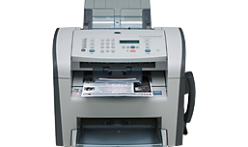
HP LaserJet M1319f Multifunction Printer www.hpdrivers.net

Description

The Plug and Play Bundle provides EZInstall to assist with installation for direct USB connections and offers basic print and scan for all-in-one and multifunction devices.

Release details

Released: Mar 29, 2013
Version : 5.0.1.64861

Compatibility : Microsoft Windows 10 (64-bit), Microsoft Windows 7 (64-bit), Microsoft Windows XP x64, Microsoft Windows Vista (64-bit), Microsoft Windows 8 (64-bit), Microsoft Windows 8.1 (64-bit)

File Name: ljM1319-hb-pnp-win64-en.exe

Download

File Size : 16.02Mb

Notes: For best scanning performance, it is recommended that the connected device is power cycled after the web bundle is installed.

Compatibility : Microsoft Windows 10 (32-bit), Microsoft Windows 7 (32-bit), Microsoft Windows XP x32, Microsoft Windows Vista (32-bit), Microsoft Windows 8 (32-bit), Microsoft Windows 8.1 (32-bit)

File Name: ljM1319-hb-pnp-win32-en.exe

Download

File Size : 13.2Mb

Installation instructions

Before proceeding with the software installation, the printer must first be properly set up, and your computer must be ready to print.

1. Close any software programs running on your computer.
2. Click the Download button and a File Download box will appear.
3. Select Save and a Save As box will appear.
4. Select a directory to save the file in and click Save Remember the location of the saved file.
5. Locate the file using Windows Explorer when the download has completed.
6. Double click on the file. This will extract all the driver files into a directory on your hard drive. The default directory is C:\Users\ADMIN~1\AppData\Local\Temp. The extraction location path and directory name at the time of extracting the file can be changed by choosing the “Browse” button.
7. Click Next after the file extraction is complete and follow the instructions presented by the EZInstall program. Do NOT attach the USB cable to the printer until prompted by the EZInstall program.
8. After the installation is complete you can delete the file “ljM1319MFP-HB-pnp-win64-.exe” if desired.