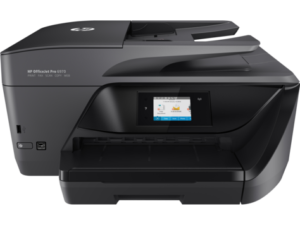
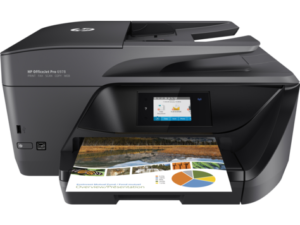
HP OfficeJet Pro 6975 All-in-One Printer Driver for Windows 11-10-8-7 (Update : May 26, 2022)
Download HP OfficeJet Pro 6970 All-in-One Print and Scan Driver and Accessories
HP OfficeJet Pro 6975 Printer
Details
The full solution software includes everything you need to install and use your HP printer. This collection of software includes the complete set of drivers, installer and optional software.
Fix and enhancements: Repackaged without Optical Character Recognition (OCR) Functionality
Release Details
Version: 40.16.1234_1 File Name: Full_Webpack-40.16.1234_1-OJ6970_Full_Webpack.exe Post Date: May 26, 2022
Compatibility Systems:
Microsoft Windows 11, Microsoft Windows 10 (32-bit), Microsoft Windows 10 (64-bit), Microsoft Windows 7 (32-bit), Microsoft Windows 7 (64-bit), Microsoft Windows 8 (32-bit), Microsoft Windows 8 (64-bit), Microsoft Windows 8.1 (32-bit), Microsoft Windows 8.1 (64-bit)
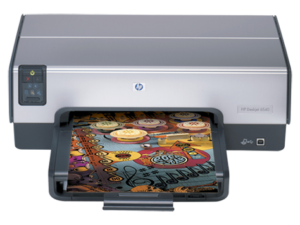
Download the HP Deskjet 6540 driver, software, manuals and setup information for Windows, Linux and older Mac operating systems. This guide also explains how to install the printer and fix common HP Deskjet 6540 problems.
Important: Do not download an HP Deskjet 6540 driver from unofficial driver-hosting websites. If HP does not provide a verified direct package for your operating system, use the official HP support page or the operating system’s built-in printer driver.
HP Deskjet 6540 Windows 10 Driver
HP identifies the Deskjet 6540 as a printer that uses the Windows operating-system driver in Windows 10.
There is no need to download an unofficial “HP Deskjet 6540 Windows 10 driver”.
How to install the HP Deskjet 6540 in Windows 10
Turn on the HP Deskjet 6540.
Connect the printer directly to the computer with USB.
Open Settings.
Select Devices.
Select Printers & scanners.
Select Add a printer or scanner.
Allow Windows to search for the printer.
If the printer is not found, select The printer that I want isn’t listed.
Select the manual or local printer installation option.
Select the appropriate USB port.
Allow Windows Update to search for an available driver.
Install HPLIP using your Linux distribution’s package manager.
Connect the Deskjet 6540 by USB.
Turn on the printer.
Start the HP printer setup utility.
Select the Deskjet 6540.
Complete the installation.
Print a test page.
HP Deskjet 6540 Mac Driver
The HP Deskjet 6540 was designed for older Macintosh operating systems.
HP’s original specifications list support for Mac OS 9.2 and several older Mac OS X versions.
HP’s current support pages provide historical Macintosh manuals and documentation, but a current, directly verifiable Mac driver package is not available from HP for modern macOS.
For this reason, we do not recommend downloading a Deskjet 6540 Mac driver from unofficial driver websites.
The Deskjet 6540 uses USB as its standard connection.
If Windows does not detect the printer:
Turn the printer off.
Disconnect the USB cable.
Restart the computer.
Connect the printer directly to the computer.
Avoid USB hubs during installation.
Try another USB port.
If possible, try another USB cable.
Remove old Deskjet 6540 installations.
Add the printer again.
HP Deskjet 6540 Not Printing
If the printer appears in Windows but does not print, check the following:
Check the print queue.
Cancel documents that are stuck.
Restart the printer.
Check the USB connection.
Connect the printer directly to the computer.
Remove and reinstall the printer.
Print a Windows test page.
If the test page works but a particular program does not print, the problem may be related to that program or document.
HP Deskjet 6540 Driver Unavailable
If Windows displays “Driver unavailable”:
Remove the HP Deskjet 6540 from Windows.
Disconnect the USB cable.
Restart the computer.
Connect the printer again.
Open Printers & scanners.
Select Add device.
If automatic installation fails, select Add manually.
Use Windows Update to search for a compatible printer driver.
Select the available HP Deskjet driver.
Print a test page.
Do not install a random driver from an unofficial driver-download website.
HP Deskjet 6540 Not Detected by USB
If the printer is not detected:
Check the USB cable.
Try another USB port.
Avoid USB hubs.
Restart the printer.
Restart Windows.
Try another USB cable if available.
Remove the old printer installation.
Add the printer again.
For this older printer, a direct USB connection is preferable during installation.
HP Deskjet 6540 Prints Blank Pages
If the printer feeds paper but prints blank pages:
Check the ink cartridges.
Remove and reinstall the cartridges.
Check the cartridge contacts.
Make sure the cartridges are installed correctly.
Run cartridge cleaning if the option is available.
Align the cartridges.
Print a test page.
Try another document.
If the printer’s own test page is also blank, the problem is more likely related to the cartridges or ink system than to the Windows driver.
HP Deskjet 6540 Prints Wrong Colors
If colors are incorrect:
Check the installed cartridges.
Make sure the cartridges are installed in the correct positions.
Remove and reinstall the cartridges.
Check the cartridge contacts.
Run cartridge alignment.
Clean the cartridges if necessary.
Print a test page.
HP Deskjet 6540 Cartridge Problems
Ink-level problems can occur with refilled cartridges.
A refilled cartridge may retain its previous electronic ink-level information even after being refilled.
If a cartridge is not recognized:
Remove the cartridge.
Check the electrical contacts.
Carefully clean the contacts if necessary.
Reinstall the cartridge.
Restart the printer.
Check whether the cartridge is recognized.
HP Deskjet 6540 Paper Jam
If the printer reports a paper jam:
Stop the print job.
Remove loose paper from the input tray.
Check the paper path.
Carefully remove visible jammed paper.
Look for small pieces of torn paper.
Reload the paper correctly.
Adjust the paper guides.
Restart the printer.
Do not pull jammed paper aggressively because pieces can remain inside the printer.
HP Deskjet 6540 Prints Slowly
Printing can be slower when using high-quality printing, photo printing, large images, large print queues, incorrect printer settings or USB communication problems.
For normal documents, use Standard or Normal print quality instead of maximum-quality photo printing.
HP Deskjet 6540 Borderless Printing
The Deskjet 6540 supports borderless printing.
If the borderless option is missing in newer Windows versions, Windows may be using a basic operating-system driver instead of the original HP software.
Some advanced printer options available in the original HP software may not be available with the basic Windows driver.
HP Deskjet 6540 Duplex Printing
The Deskjet 6540 supports optional two-sided printing hardware.
If the duplex option does not appear, check whether the optional duplex accessory is installed.
A basic Windows driver may also expose fewer printer-specific options than the original HP software.
HP Deskjet 6540 Wireless Printing
The HP Deskjet 6540 does not have built-in Wi-Fi.
HP offered wireless and network functionality through optional external HP Jetdirect accessories.
A standard Deskjet 6540 connected only by USB cannot connect directly to a modern Wi-Fi network without additional hardware.
Yes. HP identifies the Deskjet 6540 as using the Windows operating-system driver in Windows 10.
Is there a Windows 11 driver for HP Deskjet 6540?
The Deskjet 6540 is a legacy printer. On Windows 11, use Windows printer installation and the compatible driver offered by Windows.
Can I use the Windows XP driver on Windows 11?
The original HP software was designed for older versions of Windows. It should not be considered a native Windows 11 driver.
Does HP Deskjet 6540 work with Linux?
Yes. The printer is supported by HP’s HPLIP Linux printing system.
Does HP Deskjet 6540 have Wi-Fi?
No. The standard printer has USB connectivity. Wireless networking required optional external HP hardware.
Does HP Deskjet 6540 work with Mac?
The printer supported several older Mac OS versions. HP’s current support pages provide legacy documentation, but there is no currently verified modern macOS driver package.
Why does Windows say “Driver unavailable”?
The printer is a legacy model. Remove the existing printer installation and reinstall it using Windows printer settings and Windows Update.
Why are some printer options missing?
Newer Windows versions may use a basic Windows printer driver. Some advanced functions from the original HP software may therefore not be available.
Why is the printer not detected?
Check the USB cable, USB port, printer power and Windows printer installation. Avoid USB hubs during installation.
Why does the printer print blank pages?
Check the ink cartridges, cartridge contacts and print system. If the printer’s own test page is blank, investigate the cartridges before changing the Windows driver.
Why are the colors incorrect?
Check cartridge installation, cartridge type, cartridge contacts and cartridge alignment.
HP Deskjet 6540 Driver – Final Information
The HP Deskjet 6540 is a legacy printer, but it can still be used with several operating systems.
For Windows 10 and newer systems, start with the Windows printer driver rather than installing an old XP package.
For Linux, use HP HPLIP.
For older Windows and Mac computers, use the operating-system selection available on the official HP support page.
For manuals and setup documentation, use HP’s official Deskjet 6500-series documentation.
Avoid unofficial driver websites and do not install a driver simply because a third-party website claims that it is compatible.
The full solution software includes everything you need to install and use your HP printer. This collection of software includes the complete set of drivers, installer and optional software.
Fix and enhancements: Updated end user license agreement and data collection statement
Release Details for HP OfficeJet Pro 6978 Driver
Version: 40.16.1234_1 File Name: Full_Webpack-40.16.1234_1-OJ6970_Full_Webpack.exe Post Date: May 26, 2022
Compatibility Systems:
Microsoft Windows 11, Microsoft Windows 10 (32-bit), Microsoft Windows 10 (64-bit), Microsoft Windows 7 (32-bit), Microsoft Windows 7 (64-bit), Microsoft Windows 8 (32-bit), Microsoft Windows 8 (64-bit), Microsoft Windows 8.1 (32-bit), Microsoft Windows 8.1 (64-bit)