
Advertisement
If your HP printer stopped printing after upgrading to Windows 11 25H2, the problem may be related to the printer’s USB driver or the existing Windows printer queue. This guide explains how to check the HP printer USB driver for Windows 11 25H2, install the correct driver update, remove an old printer installation, and restore USB printing.
Microsoft Update Catalog currently lists HP Printer Driver Update 5.6.1.3861 and Hewlett-Packard USB Driver Update 5.6.1.3861 for Windows 11 25H2 and later. HP has also documented a specific USB printing problem affecting some HP printers after upgrading to Windows 11 25H2.
Important: HP printer USB driver 5.6.1.3861 is not a universal replacement for every HP printer model. Some printers require a model-specific HP driver or software package.
HP Printer Not Printing After Windows 11 25H2?
HP has documented a USB printing issue that can occur after upgrading to Windows 11 25H2.
The problem can affect an existing HP printer that was previously working through USB. It can also occur when a printer was originally installed over Wi-Fi or Ethernet and is later connected to the computer with a USB cable.
Typical symptoms include:
- HP printer appears online but does not print
- Print jobs remain stuck in the Windows print queue
- HP printer works over Wi-Fi but not through USB
- Windows detects the HP printer but printing fails
- USB printer queue is created but jobs do not reach the printer
- HP printer is not detected correctly after reconnecting the USB cable
HP states that the documented issue specifically affects USB printing, while Wi-Fi or Ethernet printing may continue to work normally.
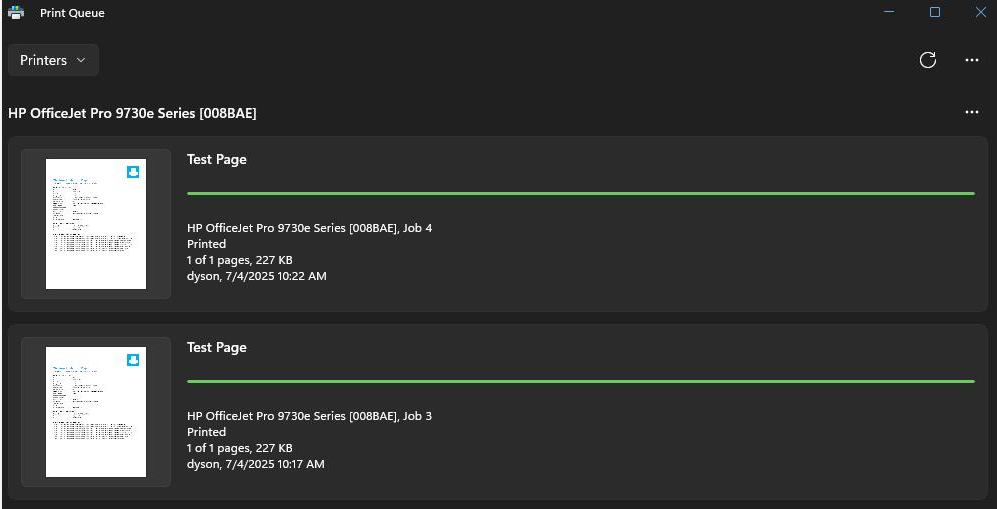
Image suggestion: Add a screenshot of a Windows print queue showing a stuck HP print job.
Image alt: HP printer USB driver Windows 11 25H2 print queue problem
HP Printer USB Driver Windows 11 25H2
The most relevant driver packages currently listed by Microsoft Update Catalog include:
- HP Printer Driver Update 5.6.1.3861
- Hewlett-Packard USB Driver Update 5.6.1.3861
- Windows 11 Client, version 25H2 and later
- Driver date listed by Microsoft: December 4, 2025
- 25H2 package size: approximately 15 MB
Microsoft also lists the same 5.6.1.3861 driver for Windows 11 24H2, with a different package size.
What Is HP Printer Driver 5.6.1.3861?
HP Printer Driver Update 5.6.1.3861 is a driver package distributed through Microsoft Update Catalog.
For Windows 11 25H2, Microsoft lists the package as a printer driver update. A corresponding Hewlett-Packard USB Driver Update with the same version number is also listed for Windows 11 25H2.
This does not mean that 5.6.1.3861 is the correct complete software package for every HP printer.
Depending on the printer model, Windows may also require:
- A model-specific HP printer driver
- HP Smart
- HP Easy Start
- A PCL or PostScript driver
- A USB printer port configuration
- A network/IP printer installation
Is HP Driver 5.6.1.3861 Compatible With Windows 11 25H2?
Yes. Microsoft Update Catalog currently lists HP Printer Driver Update 5.6.1.3861 for Windows 11 Client, version 25H2 and later. The catalog also lists a Hewlett-Packard USB Driver Update 5.6.1.3861 for the same Windows version.
However, driver compatibility does not guarantee that the package is the correct driver for your particular HP printer.
If your printer has a dedicated Windows 11 driver, use the model-specific driver whenever possible.
HP Printer USB Driver 5.6.1.3861 Download
You do not need to download a copy of the driver from an unofficial driver website.
The safest option is to check the driver through Microsoft Update Catalog or use the official HP driver page for your printer model.
Microsoft Update Catalog currently lists the 25H2 HP printer and USB driver packages.
Recommended procedure:
- Open Microsoft Update Catalog.
- Search for
HP Printer Driver 5.6.1.3861. - Look for the entry that specifies Windows 11 Client, version 25H2 and later.
- Check whether the driver matches your printer and Windows architecture.
- Download and install the appropriate package.
- Restart Windows.
- Test the HP printer again.
Do not assume that every HP printer should use this driver.
Windows 11 24H2 vs. 25H2 HP Printer Drivers
Microsoft lists separate 24H2 and 25H2 packages for HP Printer Driver Update 5.6.1.3861.
The 24H2 package is listed at approximately 13.5 MB, while the 25H2 package is listed at approximately 15.0 MB.
If your computer is running Windows 11 25H2, use the package identified for Windows 11 Client, version 25H2 and later rather than selecting a package only because the version number is the same.
Why Is My HP Printer Not Printing After Windows 11 25H2?
There are several possible causes.
The Windows upgrade may leave an existing USB printer queue in a state where Windows can see the printer but cannot send the print job correctly. HP specifically documents this situation for some USB-connected printers after the Windows 11 25H2 upgrade.
HP Printer Shows Online but Will Not Print
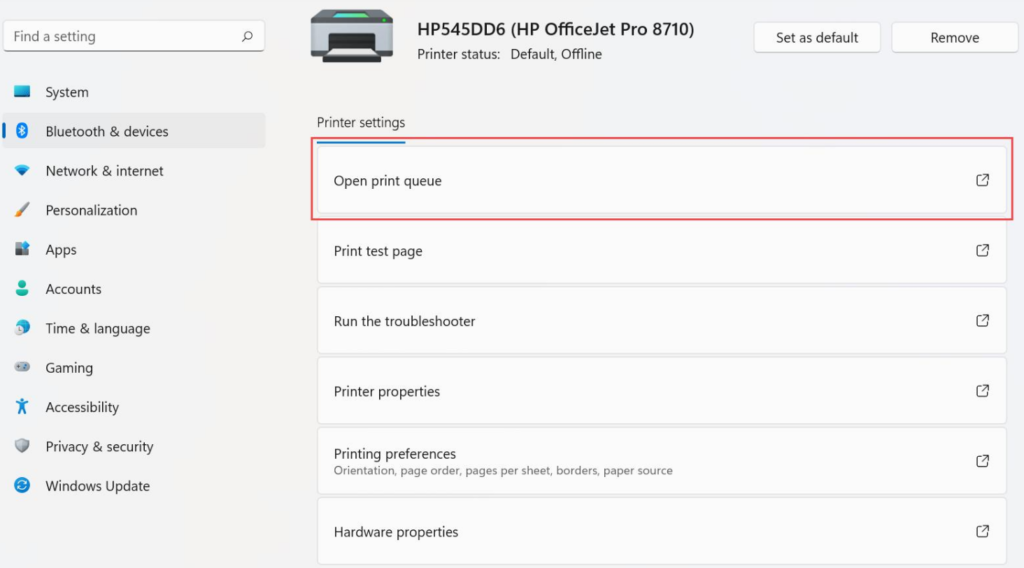
If Windows shows the HP printer as online but nothing comes out of the printer, check the print queue first.
Open:
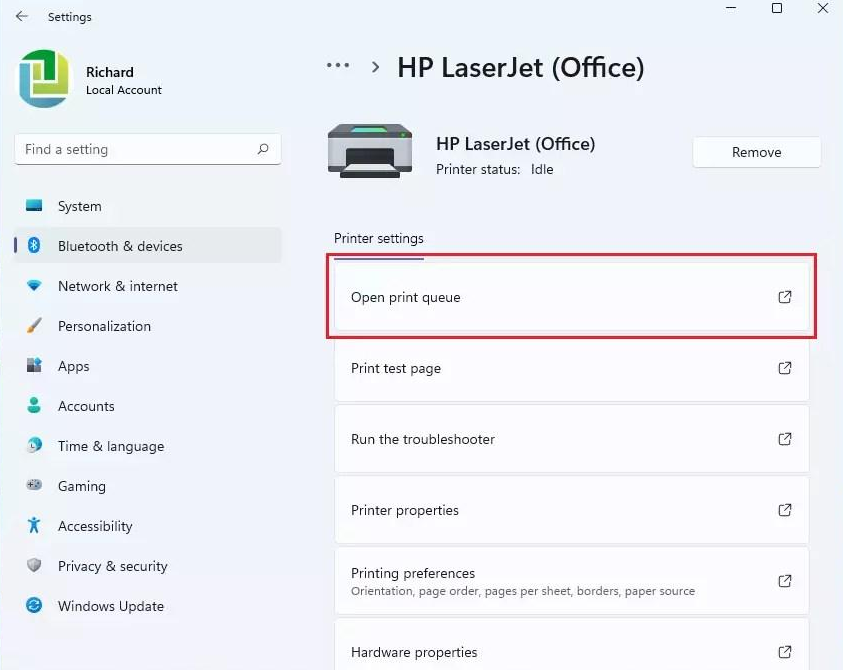
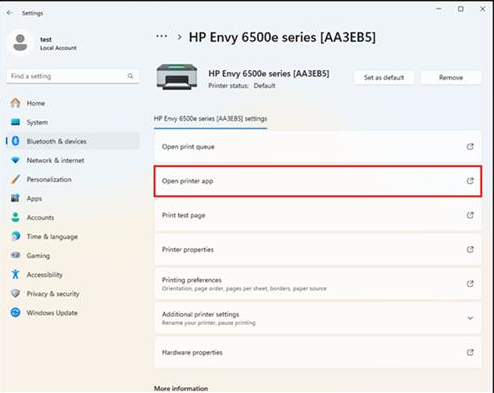
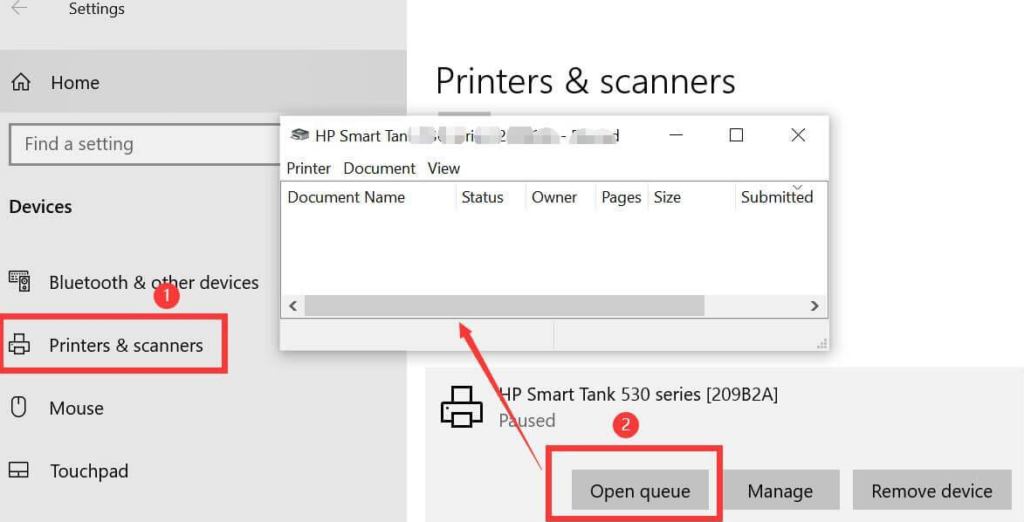
Settings → Bluetooth & devices → Printers & scanners → Your HP printer → Open print queue
If documents remain in the queue for a long time, remove them and restart the Print Spooler service.
HP Print Jobs Are Stuck in the Queue
A stuck print queue can prevent new jobs from printing.
Try this:
- Cancel all pending print jobs.
- Turn off the HP printer.
- Restart Windows.
- Turn the printer back on.
- Connect the USB cable directly to the computer.
- Send a new test print.
If the queue immediately becomes stuck again, continue with the driver and printer reinstallation methods below.
HP Printer Works Over Wi-Fi but Not USB
This is an important symptom.
If the same HP printer prints normally over Wi-Fi but fails when connected through USB, the printer itself may be working correctly.
HP’s Windows 11 25H2 documentation specifically describes cases where USB printing fails while Wi-Fi or Ethernet printing continues to work.
In this situation, focus on:
- The HP USB driver
- The Windows printer queue
- The USB printer port
- The existing HP printer installation
- Reinstalling the printer
Windows 11 Detects the HP Printer but Cannot Print
Windows detecting the printer does not necessarily mean that the printer driver and printer port are configured correctly.
A printer can appear under Windows settings while the print queue is using an incorrect or damaged configuration.
Removing the printer and reinstalling it can resolve this type of problem.
HP Printer Is Not Detected Through USB
If Windows does not detect the printer at all:
- Disconnect the USB cable.
- Turn off the printer.
- Restart Windows.
- Turn the printer back on.
- Connect the USB cable directly to the computer.
- Avoid USB hubs during testing.
- Try another USB port.
- Check Device Manager for an HP printer or USB device.
- Reinstall the HP printer software if necessary.
If the printer is detected but still cannot print, continue with the driver troubleshooting steps below.
How to Fix HP Printer USB Problems in Windows 11 25H2
Method 1 – Reinstall the HP Printer Using HP Software
For many HP printers, reinstalling the official HP software is the simplest approach.
Remove the existing printer from Windows first.
Go to:
Settings → Bluetooth & devices → Printers & scanners
Select the HP printer and choose Remove.
Restart Windows.
Then install the software recommended for your exact HP printer model.
This creates a new printer installation instead of continuing to use a potentially damaged printer queue.
Method 2 – Install the Correct HP USB Driver
If Windows 11 25H2 is using an older HP USB driver, check Microsoft Update Catalog for the current package.
The catalog currently lists:
Hewlett-Packard USB Driver Update 5.6.1.3861
for Windows 11 25H2 and later.
Before installing it, make sure that:
- You are actually running Windows 11 25H2 or later.
- The package matches your system architecture.
- Your printer is compatible with the driver.
- A model-specific HP driver is not required instead.
Method 3 – Remove the Old HP Printer Driver
Simply removing the printer from Windows does not always remove every associated driver package.
For a persistent problem, open:
Control Panel → Devices and Printers
Then select:
Print server properties → Drivers
Look for the old HP printer driver.
If the driver is clearly associated with the failed printer installation, remove it and restart Windows.
Be careful when removing shared or actively used printer drivers on a computer that manages multiple printers.
Method 4 – Clear the Windows Print Spooler
The Windows Print Spooler controls the print queue.
If jobs remain stuck, restarting the spooler can help.
Press:
Windows + R
Type:
services.msc
Find:
Print Spooler
Right-click it and select:
Restart
Then try printing again.
If the queue remains stuck, remove the printer and reinstall it rather than repeatedly restarting the spooler.
Method 5 – Reinstall the HP Printer Using USB
After removing the old printer:
- Restart Windows.
- Turn on the HP printer.
- Connect the USB cable directly to the computer.
- Wait for Windows to detect the printer.
- Install the appropriate HP software or driver.
- Print a Windows test page.
If the printer works after a clean installation, the previous printer queue or driver installation was likely the source of the problem.
Method 6 – Install the Printer by IP Address
If USB continues to fail but the printer works over Wi-Fi or Ethernet, installing the printer by IP address can provide a practical workaround.
First determine the printer’s IP address from its control panel or network configuration page.
Then open:
Settings → Bluetooth & devices → Printers & scanners → Add device
If Windows cannot find the printer automatically, use the option to add a printer manually.
Choose the option for adding a printer using an IP address or hostname when available.
This creates a network printer connection instead of relying on the USB printer queue.
Method 7 – Test the Microsoft IPP Class Driver
Modern Windows versions can use the Microsoft IPP Class Driver for compatible printers.
IPP can be useful when the manufacturer’s traditional driver is causing installation or compatibility problems.
However, this is not a universal replacement for every HP printer driver.
If your HP printer supports modern IPP printing, testing it can help determine whether the problem is specific to the traditional HP driver.
Method 8 – Check the HP Universal Print Driver
Business-class HP LaserJet printers may use the HP Universal Print Driver (UPD).
If your printer is managed in an office environment, check whether the existing installation uses:
- HP Universal Print Driver
- PCL6
- PostScript
- A model-specific HP driver
Do not replace a working business printer configuration with a different driver without checking compatibility first.
HP Universal Print Driver and Windows Protected Print
Windows Protected Print is a separate Windows printing feature that can affect traditional third-party printer driver installations.
This is particularly relevant when an older HP printer or HP Universal Print Driver installation suddenly behaves differently after a Windows configuration change.
What Is Windows Protected Print?
Windows Protected Print is designed to use a modern Windows printing architecture and can affect traditional third-party print drivers.
If Windows Protected Print is enabled, some older driver-based printer configurations may need to be changed.
Why HP Printers May Disappear After Enabling Windows Protected Print
A printer that depended on a traditional driver can behave differently when Windows Protected Print is enabled.
If your HP printer suddenly disappears or cannot be configured, check whether Windows Protected Print is enabled before repeatedly reinstalling drivers.
HP Universal Print Driver: Not Connected or Not Configured
Some HP Universal Print Driver installations can display messages such as:
- Not Connected
- Not Configured
These messages do not automatically mean that the printer hardware is defective.
Check the printer connection, driver type, printer port and Windows printing configuration.
HP Printer Error 0x80070709
Error 0x80070709 can occur in Windows printer configuration scenarios.
If you see this error, do not assume that downloading another generic HP driver will automatically fix it.
First check:
- The Windows printer configuration
- The active printer driver
- The printer port
- Windows Protected Print settings
- Whether the printer was installed using HP Universal Print Driver or another legacy driver
HP Printer Drivers for Windows 11 ARM64
Windows 11 ARM64 computers, including some Snapdragon-based PCs, can introduce additional printer compatibility considerations.
HP Printer Driver Problems on Snapdragon PCs
If you use a Windows 11 ARM64 computer, do not assume that a driver designed for traditional x64 Windows will behave identically on ARM64.
Check HP and Microsoft compatibility information for your exact printer.
HP Printer USB Driver for Windows 11 ARM
USB printer problems on ARM64 systems can involve driver architecture rather than the USB cable itself.
Before installing an old HP driver manually, check whether the printer has:
- Native ARM64 support
- A compatible Windows driver
- Microsoft IPP support
- A compatible HP software package
Microsoft IPP Class Driver on ARM64
For supported printers, Microsoft’s modern printing architecture can sometimes avoid the need for an older manufacturer-specific driver.
This depends on the printer model and available features.
HP Printer Models and Windows 11 25H2
The Windows 11 25H2 USB issue is not limited to one single HP printer model.
The correct driver depends on the exact printer.
HP LaserJet Driver for Windows 11
Older LaserJet printers can require a specific PCL, PCL6, PostScript or model-specific driver.
If you own an older LaserJet printer, do not automatically install the newest generic HP driver without checking compatibility.
HP DeskJet Driver for Windows 11
DeskJet models often use HP Smart or model-specific software.
If a DeskJet printer is detected but does not print through USB, remove the existing Windows printer installation and reinstall the printer using the recommended HP software.
HP OfficeJet Driver for Windows 11
OfficeJet printers may support multiple connection methods, including USB, Wi-Fi and Ethernet.
If Wi-Fi works but USB fails after the Windows 11 25H2 upgrade, test the USB driver and printer queue before replacing the printer or assuming there is a hardware failure.
How to Check Your HP Printer Driver Version
You can check the installed printer driver through Windows.
Open:
Settings → Bluetooth & devices → Printers & scanners
Select your HP printer and open its printer properties.
Depending on the printer and Windows configuration, you may also find driver information under:
Control Panel → Devices and Printers → Printer properties → Advanced
Record the following information:
- HP printer model
- Driver name
- Driver version
- Driver provider
- Printer port
- Windows version
This information is useful when comparing your installation with the driver listed in Microsoft Update Catalog.
Should You Install the HP USB Driver Manually?
Not always.
If Windows Update already installed a compatible driver and your HP printer works normally, there is no reason to manually replace it.
Manual installation becomes more useful when:
- The printer stopped working after Windows 11 25H2
- USB printing stopped working
- Print jobs remain stuck
- Windows detects the printer but cannot print
- The HP USB device appears incorrectly in Device Manager
- Reinstalling the printer does not restore USB printing
For a specific HP printer model, the manufacturer’s recommended driver should generally be checked before installing a generic driver package.
Official HP and Microsoft Driver Sources
Use official sources whenever possible.
For model-specific HP drivers, use the official HP driver support system.
For Windows-distributed driver packages such as HP Printer Driver Update 5.6.1.3861, Microsoft Update Catalog provides the relevant Windows driver entries.
Avoid downloading printer drivers from unknown third-party websites when an official HP or Microsoft source is available.
Frequently Asked Questions
What is the HP printer USB driver for Windows 11 25H2?
Microsoft currently lists Hewlett-Packard USB Driver Update 5.6.1.3861 for Windows 11 25H2 and later. Microsoft also lists HP Printer Driver Update 5.6.1.3861 for the same Windows version.
Why did my HP printer stop working after Windows 11 25H2?
HP has documented a USB printing problem that can occur after upgrading some systems to Windows 11 25H2. Existing USB printer queues may stop printing, while Wi-Fi or Ethernet printing can continue to work.
Does HP driver 5.6.1.3861 work with every HP printer?
No. It should not be treated as a universal driver for every HP printer. Check the exact printer model and the manufacturer’s recommended driver.
Should I download the HP USB driver from a third-party driver website?
It is preferable to use Microsoft Update Catalog or the official HP driver source rather than an unknown third-party driver website.
Why does my HP printer work over Wi-Fi but not USB?
This can happen when the USB printer queue or USB driver installation is damaged or incompatible. HP specifically documents this type of USB-only printing problem after Windows 11 25H2.
Why is my HP printer online but not printing?
The printer can appear online while the Windows print queue or printer driver is not functioning correctly. Clear the queue, restart the Print Spooler and reinstall the printer if necessary.
Do I need to install HP Printer Driver 5.6.1.3861 manually?
Not necessarily. If Windows Update or HP software already installed a compatible driver and the printer works, manual installation is unnecessary.
Can I use a network connection instead of USB?
Yes. If your printer supports Wi-Fi or Ethernet and those connections work correctly, installing the printer by IP address can be an alternative to USB.
Final Checklist
If your HP printer stopped printing after Windows 11 25H2, work through this checklist:
- Check whether the problem occurs only through USB.
- Clear the Windows print queue.
- Restart the Print Spooler.
- Remove the existing HP printer.
- Restart Windows.
- Check the installed HP driver version.
- Check Microsoft Update Catalog for the Windows 11 25H2 HP driver.
- Check the Hewlett-Packard USB Driver Update 5.6.1.3861.
- Check the exact driver for your HP printer model.
- Reinstall the printer using official HP software.
- Try another USB port and cable.
- If Wi-Fi or Ethernet works, consider installing the printer by IP address.
- If you use HP Universal Print Driver, check the printer driver and port configuration.
- If you use Windows 11 ARM64, verify ARM64 compatibility.
- Do not install an unrelated generic driver simply because the version number looks newer.
For many USB printing problems after Windows 11 25H2, the key is not simply finding a new driver. The printer queue, USB driver, printer port and existing HP installation may all need to be checked.
If you need to reinstall or update your HP printer driver, use the official sources below.
1. HP Official Printer Drivers
Use HP’s driver page to search for your exact printer model, product number, or serial number. This is the recommended source when you are not sure which driver your printer needs.
HP Official Printer Drivers and Software
2. HP Printer Driver 5.6.1.3861 – Windows 11 25H2
Microsoft Update Catalog lists HP Printer Driver Update 5.6.1.3861 for Windows 11 Client, version 25H2 and later. The listed package is approximately 15 MB and was published on December 4, 2025.
Microsoft Update Catalog – HP Printer Driver 5.6.1.3861
3. HP Windows 11 25H2 USB Printing Issue
If your HP printer stopped printing through USB immediately after upgrading to Windows 11 25H2, check HP’s official troubleshooting information for this specific issue. HP documents symptoms such as stuck print jobs, an online printer that will not print, and USB printing failing while Wi-Fi or Ethernet continues to work.
HP: Cannot Print via USB After Upgrading to Windows 11 25H2
Important: Do not assume that driver 5.6.1.3861 is the correct package for every HP printer. If your exact model has a newer or model-specific driver on HP’s website, use the driver provided for your printer model.
Advertisement