
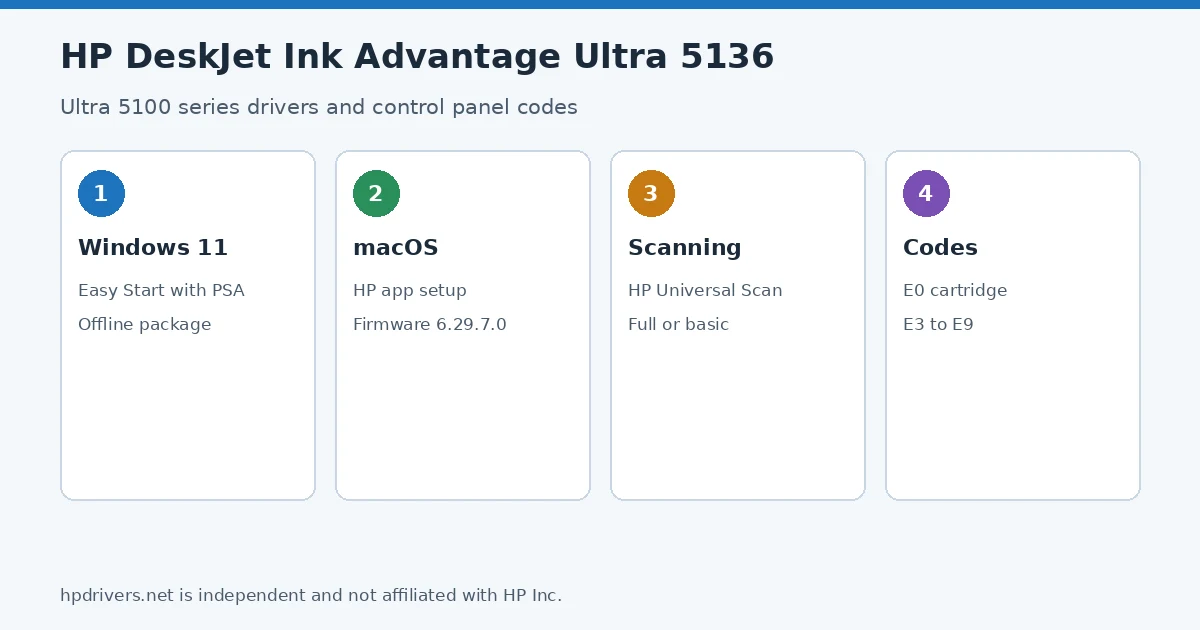
Looking for the HP DeskJet Ink Advantage Ultra 5136 driver? This page lists HP’s official software for the whole HP DeskJet Ink Advantage Ultra 5100 All-in-One Printer series. HP lists some packages for specific models in the series, so check that the package title includes your model. For Windows 11, the package most people need is the HP DeskJet 5100 EasyStart Printer Setup Software with PSA – Offline Use Only. For a Mac, HP lists Install HP app to complete setup and support.
Recommended downloads
Files download directly from HP’s official servers. hpdrivers.net does not host or modify them.
Models covered by this page
HP’s download list for this series names these models. It covers the whole DeskJet Ink Advantage Ultra 5100 All-in-One range, including model variants HP does not list by name:
HP DeskJet Ink Advantage Ultra 5186 HP DeskJet Ink Advantage Ultra 5127 HP DeskJet Ink Advantage Ultra 5135 HP DeskJet Ink Advantage Ultra 5136 HP DeskJet Ink Advantage Ultra 5138 HP DeskJet Ink Advantage Ultra 5139 HP DeskJet Ink Advantage Ultra 5185 HP DeskJet Ink Advantage Ultra 5187 HP DeskJet Ink Advantage Ultra 5188 HP DeskJet Ink Advantage Ultra 5175 HP DeskJet Ink Advantage Ultra 5189
Which Windows package should you choose?
HP publishes 2 kinds of Windows package for the DeskJet Ink Advantage Ultra 5100 All-in-One:
- Firmware update (v6.29.7.0, Aug 07, 2026): updates the printer itself, not your PC.
- Full software solution (v17.6.15, Nov 04, 2026, 456.9 MB): driver plus HP’s setup wizard and tools.
All Ink Advantage Ultra 5136 driver downloads
Windows
10 (32-bit and 64-bit)
File details
File:DJ2900_DJIA2900_DJUIA5100_6.29.7.0.exeFile details
File:HPEasyStart-17.6.15-DJ5100_63_1_42_ARM64_Webpack.exeFile details
File:HPEasyStart-17.6.15-DJ5100_63_1_42_Webpack.exeFile details
File:HPEasyStart-17.6.15-DJ5100_63_1_42_1_Webpack.exemacOS
File details
File:DJ2900_DJIA2900_DJUIA5100_6.29.7.0.dmgOther HP software listed for this series
Windows 10, 8.1 (32-bit and 64-bit)
Windows 10, 8.1 (32-bit and 64-bit)
Windows 10 (32-bit and 64-bit)
Installing the Ink Advantage Ultra 5136 driver
The steps below install the Ink Advantage Ultra 5136 driver the way HP’s package expects. Download the file only from the HP link in the table above, and follow the order shown here.
For step-by-step instructions, see our guide to installing an HP printer driver.
Firmware update 6.29.7.0
The newest firmware HP lists for the DeskJet Ink Advantage Ultra 5100 All-in-One is version 6.29.7.0, released Aug 07, 2026.
- Keep the printer and the computer switched on until the update has finished.
Specifications that matter for setup
Ink supplies HP lists for the DeskJet Ink Advantage Ultra 5100 All-in-One
HP’s specifications name these replacement supplies for the DeskJet Ink Advantage Ultra 5100 All-in-One:
- HP 37 Original Black Ultra Ink Advantage Cartridge (~1
- 300 pages
Paper handling and hardware details
Values below are HP’s published figures for the DeskJet Ink Advantage Ultra 5100 All-in-One; they help you check that this page matches your printer before you download anything.
DeskJet Ink Advantage Ultra 5136 error codes (E0 to E9)
The DeskJet Ink Advantage Ultra 5100 has no text screen. When something goes wrong, the number counter on the control panel shows the letter E and one digit. HP uses the same codes for the DeskJet 2900, 4300, 5100 and 5800 families:
Other control panel signals: an amber Information light means you should press the Information button and read the Information Page it prints; a white blinking Information light during Wi-Fi setup asks you to press it to confirm the connection. A blinking letter A appears after the alignment page prints.
Based on HP support document HP DeskJet 2900, 4300, 5100, 5800 Printers – Blinking lights and error codes; the wording is ours.
Clearing the E0 cartridge error
E0 is the code owners of the Ultra 5136 and other 5100 models meet most often after changing cartridges. HP reads the ink icons for you: a blinking left icon points to the tri-color cartridge, a blinking right icon to the black one, and both icons showing empty while the cartridges still have ink means a cartridge is not seated in its chute.
- Open the cartridge access door and wait for the carriage to move to the center.
- Press down on the end of the cartridge named by the icon, take it out holding only the sides, and slide it back until it snaps in. Press down any cartridge that tilts upward so both sit level.
- Close the door and press Cancel to clear E0. If it returns, turn the printer off for 60 seconds.
- Still there: take the cartridge out again, check that its number matches the label inside the printer, and remove any orange shipping tape over the nozzles. HP warns not to peel off the printed circuit, and not to touch the copper contacts or nozzles.
- If E0 persists, HP’s next step is a new, genuine HP cartridge.
More cartridge messages are explained in HP cartridge incompatible error; carriage jams in HP carriage jam and E3.
Based on HP support document HP DeskJet 2900, 4300, 5100, 5800 Printers – ‘E0’ error; the wording is ours.
Advertisement