
An HP carriage jam means the part that carries the ink cartridges or printheads has stopped moving in the middle of a job. The printer shows “Carriage Jam” on its display, or E3 on models with a small code display. In most cases something is in the carriage’s path, often a scrap of paper or a label that came loose. HP’s guide for the error has three steps: look for the obstruction safely, reset the printer, and only then send it for service. Two cautions in it matter more than the steps themselves, and this page explains both.
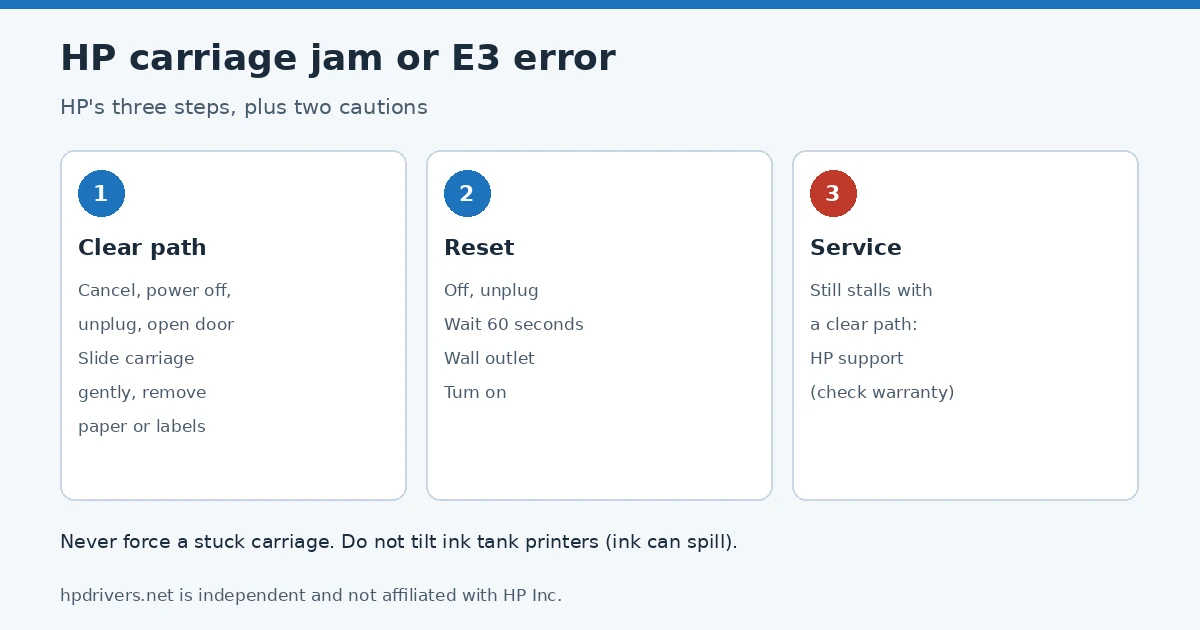
Before you reach inside
- Never force the carriage. HP says pushing a carriage that is locked or stuck can damage the printer.
- Do not tilt an ink tank printer (Smart Tank, Ink Tank) while you look for the obstruction, because ink can spill.
- Turn the printer off and unplug it before you open the door.
Step 1: Clear the HP carriage jam
- If the Cancel button is lit, press it and wait until the printer is quiet.
- Turn the printer off and disconnect the power cord.
- Open the cartridge access door to reach the carriage.
- Gently slide the carriage left and right to see whether it moves freely.
- Look along the whole path for anything in the way, such as crumpled paper or a label that came off, and remove it. A flashlight helps.
- If the carriage has a latch, press it down gently so it is locked. On an ink tank printer, HP says not to press a latch that is already secured.
- If the carriage is not locked in place, move it to each side and clear anything you find. If it will not move, stop: do not force it.
- Close the door, reconnect the power cord and turn the printer on.
Small torn pieces are the usual culprit after a paper jam. If the printer also reports a jam with no paper visible, see HP paper jam with no paper.
Step 2: Reset the printer
- Remove the battery if the printer has a rechargeable one.
- Turn the printer off, or unplug the cord from the printer if it will not turn off.
- Unplug the cord from the power source and wait 60 seconds.
- Plug it straight into a wall outlet and into the printer, then turn it on.
The other reset types are in how to reset an HP printer.
Step 3: Service
If the carriage still stalls with a clear path, HP’s next step is repair or replacement through HP Customer Support. Check the warranty status first; fees can apply after it ends.
E3 on specific models
Several HP printer families show the carriage jam as code E3, with the same fix: open the doors, clear the carriage path, then press Resume. Our guides to HP DeskJet error codes (2800, 4200, 4900) and HP Smart Tank error codes list the other codes those printers use. On Smart Tank models HP adds that the printhead cover must stay closed.
Sources
- HP Support: HP Printers – Carriage jam or E3 error
hpdrivers.net is independent and not affiliated with HP Inc. Steps and cautions follow HP’s guide; the wording is ours.
Advertisement