
When an HP printer says out of paper while the tray is full, the paper is not reaching the printer. HP’s guide names the usual causes are the paper stack itself, something blocking the rollers, or pick rollers that have become too dirty to grip. HP’s guide for the “Out of Paper” or “Load Paper” message works through these in a fixed order. This page follows it, including where to find the pick rollers on the three common printer layouts.
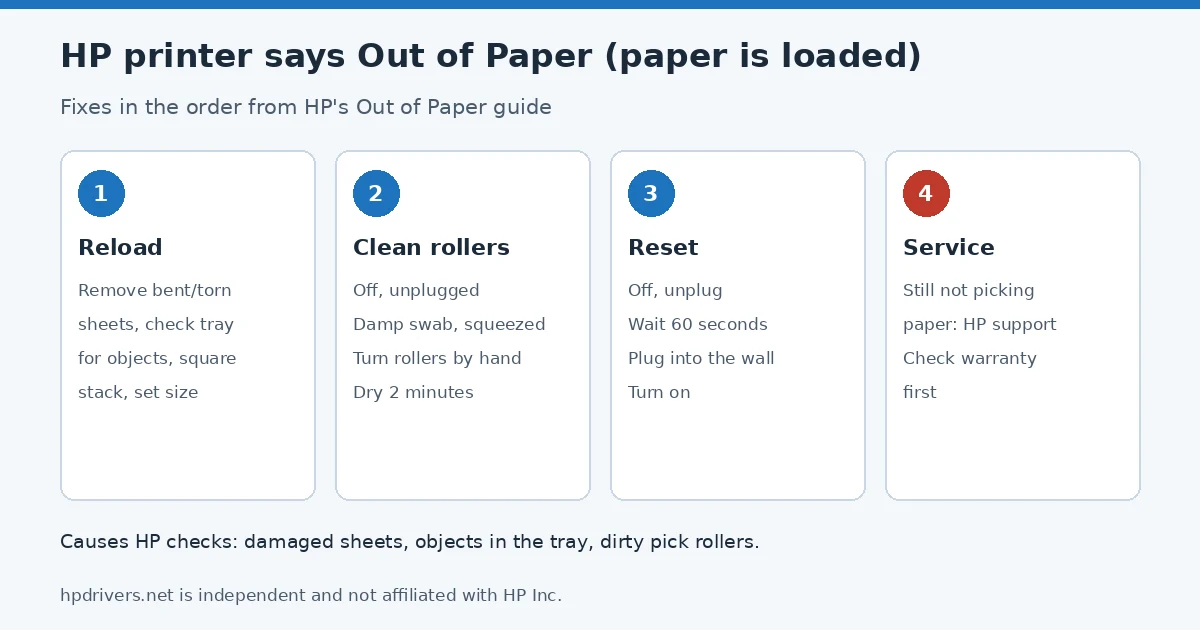
In short
- Take the paper out, remove bent or torn sheets, check the tray for objects, square the stack and reload it.
- Set the correct paper size on the printer or in the print settings.
- Clean the paper pick rollers with a lightly damp swab and let them dry for two minutes.
- Reset the printer. If it still will not pick paper, HP says it needs service.
Why the HP printer says out of paper with paper loaded
HP’s steps point to three causes: sheets in the stack that are bent, wrinkled or torn, something in the tray that keeps the stack from touching the rollers, and dirt or debris on the paper pick rollers. The message is the same for all three, so HP checks them from the easiest to the most work.
Step 1: Check the paper and reload it
- Remove all the paper from the tray.
- Throw away any sheets that are badly bent, wrinkled or torn.
- Look inside the tray for anything that stops the paper reaching the rollers.
- Make the stack even on all sides, load it and close or push in the tray.
- Select the correct paper size on the control panel or in the printer software. If the size in the print job does not match the tray, see our HP printer won’t print checklist, which covers the Paper Mismatch message too.
Step 2: Clean the paper pick rollers
For all three layouts HP uses the same method: turn the printer off, wait until it is silent, unplug the power cord, take the paper out, then wipe the rollers with a cotton swab lightly dampened with water and squeezed out, turning the rollers with your fingers so the whole surface gets cleaned. Let them dry for two minutes before plugging the printer back in. What changes is where the rollers are.
| Printer layout | Where the pick rollers are |
|---|---|
| Paper loads in a tray at the top or back | Shine a flashlight down into the input tray; the rollers are at the bottom of the tray. |
| Paper tray at the bottom | Unplug all cables, lay the printer on its side or back, pull out the tray and look for the gray rollers. Set the printer upright afterwards. |
| Rollers inside the printer | Use a flashlight. Depending on the model they sit under the cartridges or above the input tray. |
Step 3: Reset the printer
- Remove the battery if your printer has a rechargeable one.
- Turn the printer off, or unplug the cord from the printer if it will not turn off.
- Unplug the cord from the power source and wait 60 seconds.
- Plug it straight into a wall outlet and into the printer, then turn the printer on.
For the other kinds of reset, see how to reset an HP printer.
Step 4: Service
If the printer still says out of paper after all of the above, HP says the printer needs service or replacement and points to HP Customer Support. Check your warranty status first, since repair fees can apply outside warranty.
Related messages
- The printer reports a jam but there is no paper inside: HP paper jam with no paper.
- Pages come out but black is missing: HP printer not printing black.
Sources
hpdrivers.net is independent and not affiliated with HP Inc. Steps follow HP’s guide; the wording is ours.
Advertisement