
An HP print job stuck in the queue blocks everything behind it: nothing prints, and in Windows the Cancel and Delete options are often grayed out or do nothing. HP’s support guide for this problem has separate fixes for Windows and macOS, in a set order. The most reliable one in Windows is to stop the Print Spooler and delete the waiting job files by hand. This page walks through each step, explains what it does and tells you what you will have to set up again afterwards.
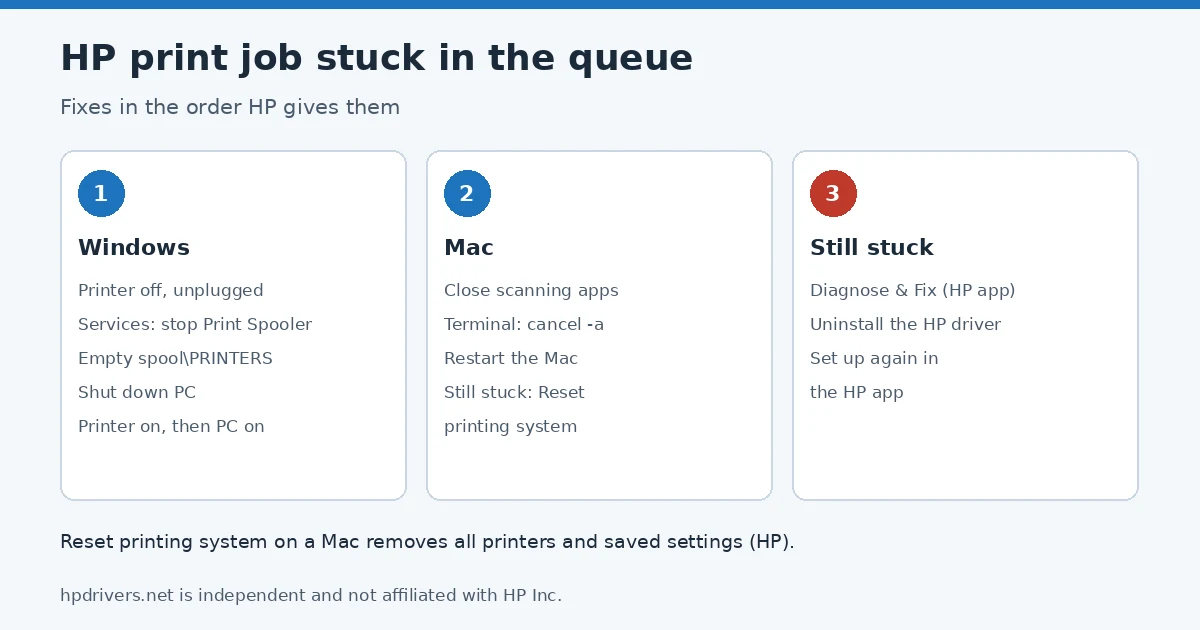
Short version
- Windows: printer off and unplugged, stop Print Spooler in Services, delete everything in
C:\Windows\System32\spool\PRINTERS, shut down the PC, then turn the printer and PC back on. - Mac: close scanning apps, run
cancel -ain Terminal and restart. If that fails, reset the printing system. - Still stuck: run Diagnose & Fix in the HP app, or remove the HP driver and set the printer up again in the HP app.
Why an HP print job gets stuck
Windows and macOS hold every document in a queue until the printer accepts it. If the first job cannot be sent, because the printer went offline, ran out of paper or hit an error halfway, the queue waits on it and every later job waits too. Deleting the job in the queue window sometimes fails because the system is still trying to send it. Clearing the files behind the queue removes it for good.
Clear a stuck HP print job in Windows
1. Reset the Windows printing environment
- Turn the printer off and unplug its power cord.
- Search Windows for Services and open it.
- Right-click Print Spooler and click Stop. Close Services once it has stopped.
- Open File Explorer and go to
C:\Windows\System32\spool\PRINTERS. - Delete every file in the PRINTERS folder. These are the waiting jobs; the folder itself stays.
- Shut down the computer.
- Plug the printer back in and turn it on, then turn the computer on.
Windows starts the spooler again when the computer starts, with an empty queue. Send a single test page before reprinting large documents.
2. Remove the HP driver and use the HP app
If jobs keep getting stuck, HP’s next step is to remove the printer software and set the printer up again with the HP app:
- Unplug any USB cable from the printer.
- Open Add or remove programs, find your HP printer and click Uninstall. If it is not listed, open Printers & scanners, click the printer and choose Remove device.
- Restart the computer, install the HP app from 123.hp.com or your app store, and add the printer.
Our page on the HP app that replaced HP Smart explains what changes. If you would rather keep the full driver, the HP driver installation guide shows how to reinstall it cleanly.
3. Run Diagnose & Fix
In the HP app, click your printer, then Diagnose & Fix (it may also be in the Printers menu or under Diagnostics). Click Start and leave the app open until the results screen appears.
Clear a stuck print job on a Mac
1. Clear the queue from Terminal
- Close Image Capture, HP Easy Scan and HP Scan if they are open.
- Open Terminal from Spotlight.
- Type
cancel -aand press Enter. This cancels all jobs in all queues. - Close Terminal and restart the Mac.
2. Reset the printing system
Open Printers & Scanners, Control-click (or right-click) in the printer list and choose Reset printing system. Restart the printer, then add it again with the Add button. HP warns that this removes every printer and scanner and deletes all print jobs and saved print settings, so use it only if Terminal did not help.
3. Run Diagnose & Fix, or reinstall
The HP app’s Diagnose & Fix works on macOS too. As a last step, HP suggests uninstalling the old HP software with HP Easy Start (Uninstall HP Software) and setting the printer up in the HP app.
If the queue clears but nothing prints
- Windows shows User Intervention Required: follow HP’s steps for that message.
- The printer shows as offline: see HP printer offline but connected to Wi-Fi.
- Something else is wrong: our HP printer won’t print checklist follows HP’s order.
Sources
hpdrivers.net is independent and not affiliated with HP Inc. Steps follow HP’s guide; explanations are ours.
Advertisement