
When an HP printer shows offline while its wireless light says it is connected, Windows and the printer disagree about where to find each other. The printer may be fine. HP’s guidance for an HP printer offline status starts with the network and then moves to the Windows printer settings. This guide follows that order, so you check the cheap things first.
The short version
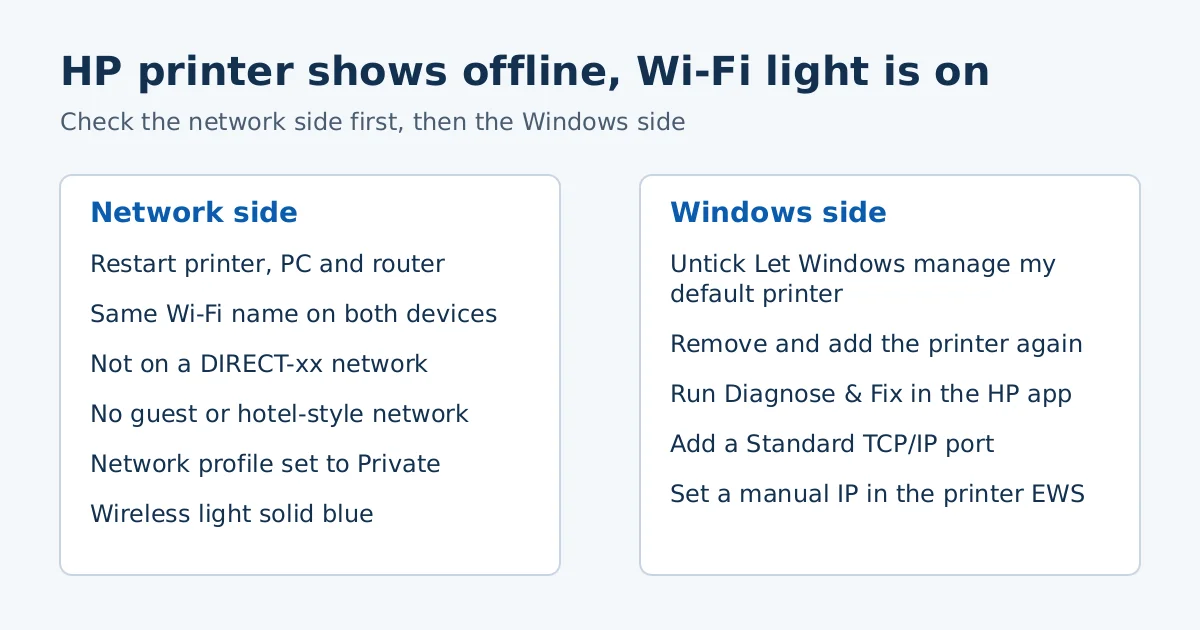
- Turn off the printer, restart the PC and the router, then turn the printer back on.
- Make sure the PC and the printer use the same Wi-Fi network, not the printer’s DIRECT network and not a guest network.
- In Windows, switch off Let Windows manage my default printer, then remove and re-add the printer.
- Still offline? Run Diagnose & Fix in the HP app, then try a TCP/IP port or a manual IP address.
Why the printer says it is connected but Windows says offline
The wireless light only tells you that the printer is on the network. Windows keeps its own record of how to reach the printer, and that record can point to the wrong place or be blocked. HP notes that the printer and the device must be on the same network, and that Windows can block traffic from devices when the network profile is set to Public.
If your phone prints but your PC does not, the printer is probably working and the fault is on the PC side. That is our reading, not an HP statement, but it is a good reason to start with Windows settings.
Step 1: Restart everything in order
- Press the power button to turn off the printer. If it does not turn off, unplug it.
- Turn off the computer or phone you print from.
- Restart the router.
- Reconnect the printer power cord if needed, then turn the printer on. HP recommends plugging it directly into a wall outlet.
- Turn the computer on and try to print.
Step 2: Check the network
- Open the list of networks on the PC and confirm it is on the same Wi-Fi network as the printer. HP says not to connect to DIRECT-xx-HP followed by your printer model.
- On the printer, check the wireless light. Solid blue means connected. If it is off or blinking, the printer is not connected. Move it within 8 m (26 ft) of the router and check again.
- A printer cannot connect over a public or guest network that needs a login or a confirmation page, such as at a school or hotel.
- If a USB cable is plugged into the printer, unplug it so Wi-Fi stays enabled.
Set the network profile to Private
HP says a Public network profile can make Windows block traffic from devices. Change it only on a trusted home or office network. Click the network icon on the right side of the taskbar, click Properties under your network name, and choose Private.
Step 3: Fix the printer settings in Windows
- Open Printers & scanners. Make sure Let Windows manage my default printer is not checked.
- Click your printer and choose Manage, then Set as default. If several entries have your printer’s name, pick the one that is idle or online.
- If it is still offline, select the printer and choose Remove device, then Yes. With the printer on, click Add a printer or scanner to add it again.
Step 4: Use Diagnose & Fix in the HP app
Open the HP app, click your printer, and choose Diagnose & Fix. Click Start, wait for the analysis, and do not close the app while it runs. You can also remove the printer from the app (Remove from app at the bottom of the printer page) and add it again. This is HP’s replacement for the retired Print and Scan Doctor. See HP App Replaces HP Smart for how the app works.
Step 5: Advanced options
Create a Standard TCP/IP port
HP’s steps start by printing a Network Configuration Report. In the HP app, click the printer image, then Printer Reports under Tools. On a touchscreen printer, open the Wireless or Network Settings menu. Then:
- Find the printer address in the 802.11 Wireless section of the report. HP’s steps use the IPv6 address, which starts with
fe80. - In Printers & scanners, click your printer, then Printer properties.
- On the Ports tab, click Add Port, choose Standard TCP/IP Port, and click New Port.
- Type the address, click Next, select the new port, and click OK.
HP warns that you might see two printers afterwards. Do not remove or uninstall either one.
Set a manual IP address
On the same report, note the IP Address, Subnet Mask, Default Gateway and the Embedded Web Server URL. Open that URL in a browser, go to Network > Wireless > IPv4 Configuration, choose Manual IP, and enter the values (or use Suggest a Manual IP Address). Click Apply.
Update the firmware
HP lists a firmware update as an advanced step. Do not turn the printer off during an update, because HP warns this can permanently damage it. If the problem started after a driver change rather than a network change, our guide to “Driver is unavailable” may fit better.
If the printer is reachable but scanning still fails, see our guide to an HP printer not scanning while it still prints.
Frequently asked questions
Why does my HP printer say offline when it is on Wi-Fi?
The printer may be on the network while Windows is looking elsewhere, for example on another network, a blocked profile, or a duplicate printer entry.
Should I give the printer a fixed IP address?
HP lists a manual IP as an advanced option. It is worth trying if the printer goes offline again after working for a while.
Do I need a new driver?
Not at first. HP’s steps begin with restarts, network checks and printer settings. For driver choices see our install guide.
Source: HP Support, “HP printer is offline or unavailable.” Menu names can differ between printer models and Windows versions.
Advertisement