
To reset an HP printer you first have to decide which reset you need. HP describes three different ones: a simple power reset that clears a stuck state, a Wi-Fi reset that puts the printer back into setup mode, and a factory reset that returns every setting to its defaults. They are not interchangeable, and the button combinations differ by printer family. This guide follows HP’s own support documents and tells you which reset to try first and how to do each one on the common DeskJet, ENVY, Smart Tank, Ink Tank and LaserJet models.
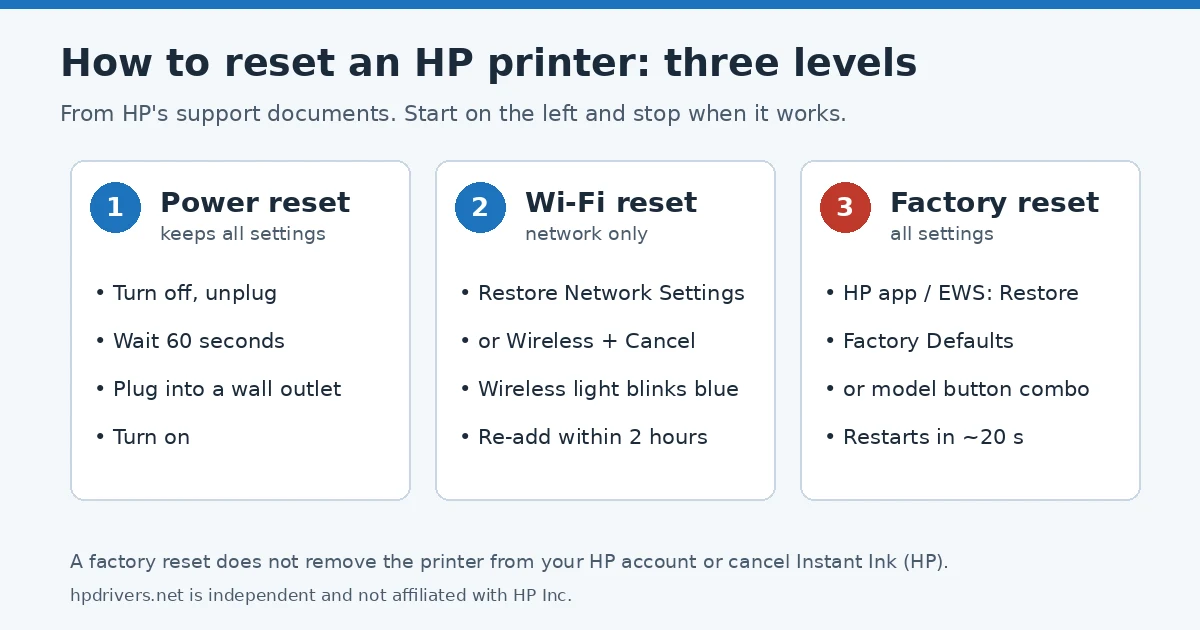
Which reset do you need?
- Printer frozen, error on the panel, jobs not printing: start with a power reset. It changes no settings.
- Printer not found during setup, new router or new Wi-Fi password: restore Wi-Fi setup mode. Only the network settings go back to default.
- Nothing else helped, or you are passing the printer on: restore factory defaults. All settings are reset.
1. Power reset (try this first)
The gentlest way to reset an HP printer is a power reset. HP puts it at the start of many troubleshooting guides. It clears temporary errors and keeps your settings:
- If the printer has a rechargeable battery, remove it.
- Turn the printer off with the power button. If it will not turn off, unplug the power cord from the printer.
- Unplug the cord from the power source and wait 60 seconds.
- Plug the cord straight into a wall outlet, not a power strip or surge protector, and into the printer, then turn the printer on.
If the printer was offline before the reset, our guide to an HP printer that is offline but connected to Wi-Fi covers the next checks.
2. Reset the Wi-Fi settings (Wi-Fi setup mode)
HP calls this restoring Wi-Fi setup mode. It returns the network settings to their defaults so the HP app or setup software can find the printer again. HP says the mode is enabled for two hours during first-time setup, and after you restore it you have two hours to add the printer in the app. HP recommends it when the printer is not found during setup or the connection is lost.
Printers with a touchscreen
Touch the Setup or Wireless icon, select Network setup or Settings, then Restore Network Settings, and confirm with Yes. Wait 60 seconds until the Wireless light blinks blue.
Printers with buttons
| Printer family (from HP’s list) | Button sequence |
|---|---|
| Most HP inkjet and ink tank printers | Press Cancel, then hold Wireless and Cancel together until the Power button blinks. Wait 60 seconds for the blue Wireless light. |
| DeskJet 2700-2900, 4100-4300, Ultra 4800, 4900 | Press Cancel, then hold Wireless and Cancel for five seconds until the Power button blinks. Wait for the Wireless light to blink continuously. |
| DeskJet Plus 6000, 6400, ENVY 6000, 6000e, 6400e, Pro 6400 | Hold the Wireless button on the back for five seconds. Wait for the Status light to turn purple. |
| Most LaserJet printers without a touchscreen | Press Cancel, then hold Wireless until the Attention light blinks. Wait 60 seconds. |
| LaserJet M109-M112 | Wake the printer with Resume/Cancel, hold Wireless for more than 20 seconds until the Attention light blinks, then release. The printer restarts. |
| LaserJet M207-M212, MFP M232-M237 | Press Cancel, hold Information for five seconds until the buttons light, then press Wireless and Cancel together. Wait 60 seconds. |
| Laser 100, 1008 and similar; Laser MFP 130, 1136, 1188 | Laser: hold Wireless for 20 seconds until the Attention and Power lights blink. Laser MFP: Menu, Network, Wi-Fi Default, OK. |
Your exact printer may use a slightly different sequence; HP keeps the full list in its document Restore Wi-Fi setup mode on your HP printer. If the printer asks for a WPS PIN or a Wi-Fi Direct password while you reconnect, see where to find the HP printer PIN and passwords.
3. Factory reset: restore an HP printer to factory defaults
A factory reset returns all printer settings to their defaults. HP says it can help with setup issues, connection problems and error messages. Before you start, note one point from HP: restoring factory defaults does not remove the printer from your HP account and does not cancel an Instant Ink subscription. For a printer you are selling, donating or recycling, HP has a separate preparation guide.
From the HP app or the Embedded Web Server
- Open the HP app and click your printer, then Advanced Settings. Or type the printer’s IP address into a browser to open the Embedded Web Server.
- Click the Settings or System tab. If you are asked to log in, HP says to enter admin as the username (LaserJet only) and the PIN from the printer label, which is usually inside the cartridge access area or door.
- Most printers: click Restore Factory Defaults (or Factory under Restore Defaults), then Yes. LaserJet printers: click Service, then Restore defaults, then OK.
- The printer restarts by itself after about 20 seconds.
From a touchscreen
Touch Setup or Menu (on some models swipe down for the Dashboard first), then Tools, or Printer Maintenance and Restore, then Restore Factory Defaults and confirm. On the Smart Tank 790 and 7600 the path is Menu, Tools, Maintenance, Restore Settings.
With the control panel buttons
| Printer family | HP’s factory reset sequence |
|---|---|
| Most DeskJet and ENVY printers | Open the cartridge access door, hold Power and Wireless for at least 3 seconds, wait about 20 seconds, close the door. |
| Smart Tank 520, 540, 580, 5100 | With the printer off, hold Resume and Black Copy, turn the printer on, keep holding at least 5 seconds. |
| Smart Tank 210 | With the printer off, hold Resume and Information, turn it on, keep holding at least 5 seconds. |
| Smart Tank 480, 490, 560, 4800, 4900 | With the printer off, hold Resume and Wi-Fi, press Power, keep holding for five seconds. |
| Smart Tank 670, 720, 750, 6000, 7000, 7300 | Hold Information for 5 seconds until all buttons light, open the ink access door, hold Information and Cancel for 3 seconds, close the door after about 20 seconds. |
| Ink Tank 500, 510, Plus 550 | Hold Power, then also hold Black Copy and Resume until a spinning wheel appears. |
| LaserJet M109-M122 | Turn off, unplug for 30 seconds, plug in, hold Resume/Cancel and press Power; release when the Power light comes on. |
| LaserJet M207-M212 | Turn off, unplug for 30 seconds, plug in, hold Resume and press Power; release when the Information light comes on. |
| LaserJet MFP M139-M142 | Turn off, unplug for 30 seconds, plug in, hold Up and Cancel and press Power; release when nv appears. |
| LaserJet Pro CP1025, CP1025nw | Turn off, unplug for 30 seconds, plug in, turn on and hold Resume for 10-20 seconds until the Attention light comes on. |
HP lists more families, including the LaserJet MFP M232-M237 with separate steps for flatbed and document-feeder models, in Restore factory defaults on your HP printer.
After you reset an HP printer
- After a Wi-Fi or factory reset, add the printer again in the HP app within the two-hour setup window. Our page on the HP app that replaced HP Smart explains the app.
- If you print over USB or prefer the full software, the HP driver installation guide shows how to reinstall it.
- A factory reset leaves your Instant Ink enrollment in place. If the printer stopped printing after an Instant Ink cancellation, a reset will not change that; see why that happens.
Sources
- HP Support: Restore factory defaults on your HP printer
- HP Support: Restore Wi-Fi setup mode on your HP printer
- HP Support: HP printers – Paper Mismatch error (power reset steps)
hpdrivers.net is independent and not affiliated with HP Inc. Button sequences are taken from HP’s documents; if your printer behaves differently, follow the HP page for your exact model.
Advertisement