
An HP printer not printing black, or printing it faint, usually comes down to the printhead, the cartridge or alignment, and HP tests them in that order. HP’s guide for the DeskJet 2600, 2700, 4100 and 4800 printers lays out the sequence for missing black ink, wrong colors and other print quality problems. This article follows it and adds the one point people miss after installing a new cartridge: wait a few hours before you judge the result.
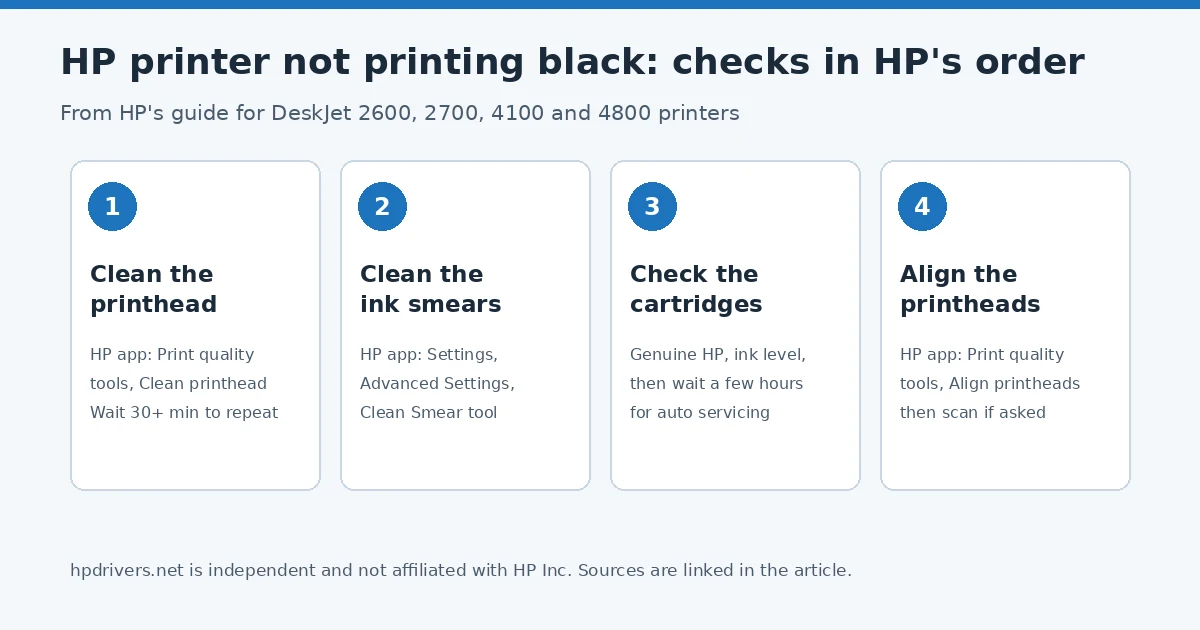
The short version
- Clean the printhead from the HP app, then look at the test page.
- Run the Clean Smear tool.
- Check the cartridges: genuine HP, ink level, and after a new cartridge, wait a few hours.
- Check paper and print settings, then align the printheads.
One limit first: HP wrote this guide for the DeskJet 2600, 2700, 4100 and 4800 printers. Menus differ on other models, so use it as a map of what HP checks rather than a button-by-button guide for every printer.
Step 1: Clean the printhead from the HP app
Load plain white paper. Open the HP app, click your printer, and under Diagnostics or Tools click Print quality tools, then Clean printhead (or View all print quality tools, OK, then Clean Printhead). A test page prints. If the quality is acceptable you are done. If not, the app offers a second-level and third-level cleaning, which are more thorough and take a few extra minutes. HP says badly clogged printheads might need another cycle, and to wait at least 30 minutes before cleaning again.
Step 2: Clean the ink smears
In the HP app go to Settings, then Advanced Settings (or Settings, View All, Advanced Settings) and look for a Tools menu or Print Quality Toolbox. Click Clean from the Clean Smear tool. HP says this cleans the printhead contacts and can improve print quality issues.
Step 3: Check the cartridges if the HP printer is not printing black
- Genuine HP cartridges. HP says very low ink, non-HP cartridges and rough handling can all cause print quality problems, and that it cannot guarantee the quality of non-HP or refilled cartridges.
- Ink levels. Replace any low or empty cartridge.
- Right after installing a new cartridge. HP says rough handling during transport or installation can cause print quality problems, and to wait a few hours for the printer’s automatic servicing routine to finish before trying again. This can explain a “new cartridge, still no black” case.
- Backup mode. The printer can print with one cartridge if a replacement is not at hand. Remove the low or empty cartridge to continue. Depending on which one you remove, blacks are lighter or color prints come out in grayscale. Whether your cartridge number allows this is covered in our guide to printing with an empty cartridge.
Step 4: Check paper, print settings and the file
HP names plain paper with ColorLok technology for documents and HP Advanced Photo Paper for photos. Use clean, wrinkle-free paper, since wrinkled or curled sheets cause dark horizontal defects. Load the print side up for a rear load tray and down for a front load tray. In the program you print from, open File, Print, then Options, Printer Setup or Preferences (or the Paper Type/Quality or Media & Quality menu) and check the color, paper type, paper size and quality settings. A higher resolution photo or document also prints clearer.
Step 5: Align the printheads
Load plain white paper, open the HP app, click your printer, and under Print quality tools click Align printheads. An alignment page prints. On single-function printers you choose the alignment pattern on screen and click Done. If the page tells you to scan it, follow the instructions to finish.
When to stop
If nothing helps, HP says to service or replace the printer, and to keep a print sample that shows the problem, because the support agent may ask for it if a printer or cartridge is replaced under warranty. Check your warranty status first. If your cartridge is not recognized at all, see our guide to the “Use SETUP cartridges” error.
Questions people ask
Does cleaning the printhead use a lot of ink?
HP does not give an amount in this guide. It only says to wait at least 30 minutes between cleaning cycles, so avoid repeating the cleaning back to back.
Can I print in black with only the color cartridge?
On printers that allow single-cartridge mode, HP says colors print normally and black prints lighter than usual. Which printers allow it depends on the cartridge number.
Source: HP Support, HP DeskJet 2600, 2700, 4100, 4800 printers – No black ink, wrong colors, other print quality issues; HP Support, HP inkjet printers – Print with one or more empty ink cartridges.
Advertisement