
The HP encryption credentials expired error appears when you print from a Mac, iPhone or iPad and the printer’s secure certificate has run out. Printing stops until the printer has a valid certificate again. HP’s fix is to check the printer’s clock and create a new certificate in its web page, and this guide follows that order.
What the HP encryption credentials expired error means
HP says the error displays when the printer’s Embedded Web Server (EWS) has an expired certificate, so the operating system rejects it. A current certificate is needed to secure AirPrint and Secure Internet Printing Protocol (IPPS) connections. It does not mean the printer is broken or that a driver is missing.
Step 1: Fix HP encryption credentials expired with a new certificate
- Type the printer’s IP address into a browser on a computer to open the EWS.
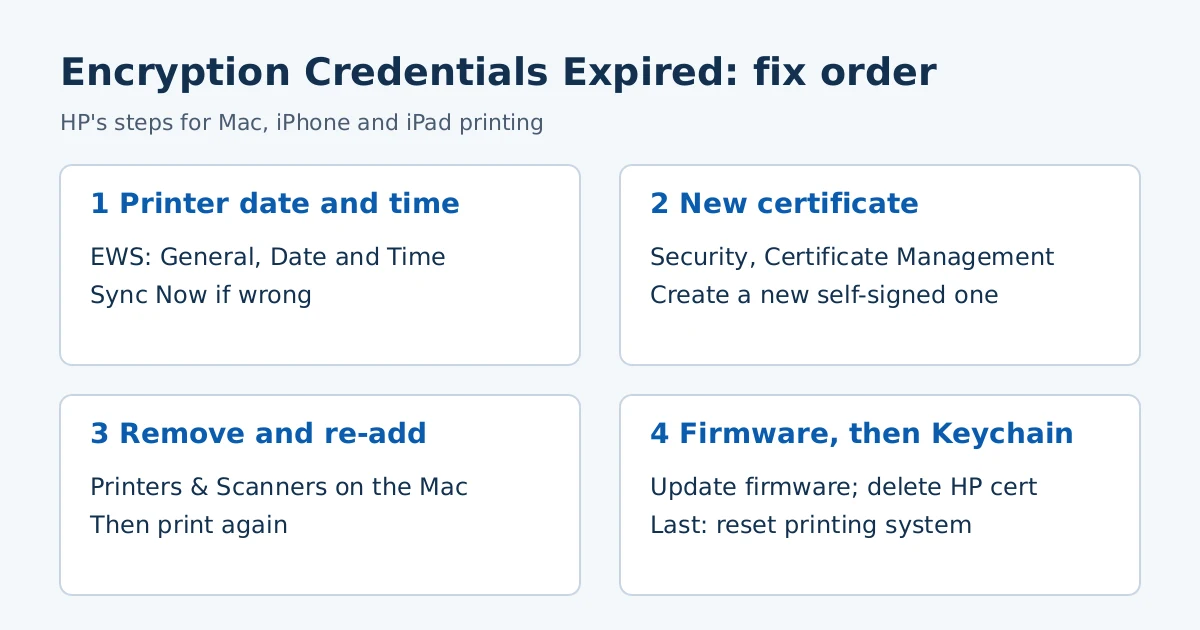
- Click General, then Date and Time. If the current printer time is wrong, click Sync Now.
- Click Security, then Certificate Management.
- Select Create, choose Create a New Self-Signed Certificate, and click Next.
- Click Create, then OK, and close the EWS.
HP says the printer then generates a new certificate that defaults to 10 years from the valid date. Try printing again.
Step 2: If HP encryption credentials expired stays, re-add the printer
If the error stays, open Printers & Scanners on the Mac, select the printer and remove it, then click Add Printer, Scanner, or Fax (or the Add button), pick the printer and add it again.
Step 3: Update firmware if HP encryption credentials expired returns
In the EWS, click General, then Firmware Update. If asked to log in, enter the PIN from the printer label, which is typically inside the cartridge access area. Click Check for Update. If an Update button appears, click it. HP warns not to turn the printer off during a firmware update because that can permanently damage it.
Step 4: Delete the stored HP certificate on the Mac
If the certificate itself may be corrupted, open Keychain Access, select Login and Certificates, and look for an HP certificate that includes your printer model name. Control-click it and delete it, then print again.
Step 5: Reset the printing system (last resort)
Control-click in the printer list in Printers & Scanners and choose Reset printing system. HP notes this removes all printers and scanners and clears print jobs and saved print settings, so you must set them up again. Restart the printer, then add it back.
What some users do instead
Many Apple Community and HP Community threads mention adding the printer with plain AirPrint instead of the secure option. This is a user workaround, not an HP step, and plain AirPrint may not encrypt the print data the same way, so use it only on a network you trust.
HP encryption credentials expired: frequently asked questions
Do I need a new driver?
Not for this error. It is about the printer’s certificate. If you do need a driver or the HP app, see our install guide and our HP app guide.
Why does it come back later?
A new certificate defaults to 10 years, according to HP. If it returns sooner, check that the printer’s date and time are correct, because a wrong clock can make a valid certificate look expired. That is our reasoning, and HP’s page does list checking the date first.
Sources: HP Support, “HP printers – ‘Encryption Credentials Expired’ or ‘Expired Credentials’ error (macOS, iOS).” Menu names vary by model.
Advertisement