
An HP printer can ask for a Wi-Fi password, a WPS PIN, a Wi-Fi Direct password or a printer PIN, and they are four different things. The most common mistake is typing the wrong one into the wrong prompt. This guide shows what each one is and where HP says to find it, starting with the HP printer WPS PIN, which is the one people confuse most.
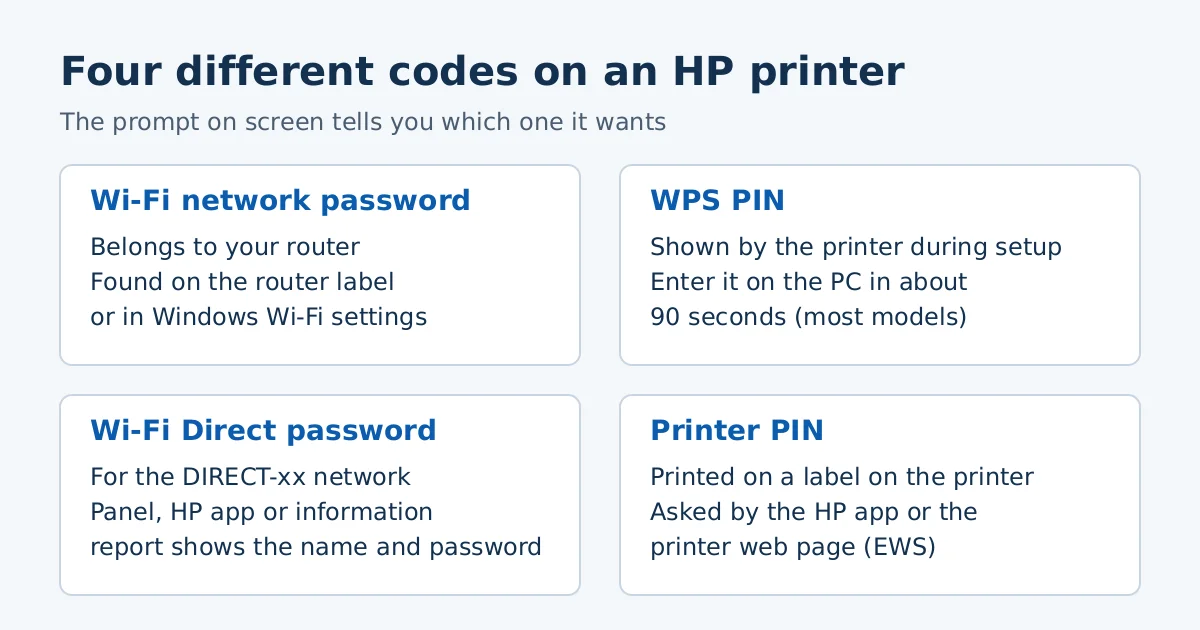
The short version
| What it is | Where it comes from | Where HP says to find it |
|---|---|---|
| Wi-Fi network password | Your router | Router label, or Windows Wi-Fi settings |
| WPS PIN | Printer, during setup | Printer control panel or the information sheet printed during setup |
| Wi-Fi Direct password | Printer’s own network | Control panel, information report, or HP app Advanced Settings |
| Printer PIN | Printer label | Label inside the cartridge access area or printer door, typically |
Wi-Fi network password: from the router, not the printer
This is the password for your home or office network. HP says to look for it on the router label, next to the network name (SSID). It may be called Wi-Fi Password, Network Key or Wireless Security Key. If the label does not help, check the paperwork from your internet provider.
On a Windows PC that is already connected, open Wi-Fi Settings, then Change adapter options under Related settings. Right-click your network, click Status, then Wireless Properties. On the Security tab, tick Show characters. If you changed the router or its password, HP has a separate article on reconnecting the printer after a router or network change.
WPS PIN: shown during setup, with a time limit
You may see a WPS PIN prompt on the computer when you set up the printer on a wireless network. HP says to look for the PIN on the printer control panel or on the information sheet that printed during setup, then enter it and click Next. For most models you have about 90 seconds before it expires.
If the PIN does not work, HP lists these options:
- Restart your computer and run the printer setup again to generate a new PIN.
- Use a different driver or method from HP’s downloads page. See our install guide.
- Install the HP app from 123.hp.com or your app store and connect the printer that way.
Wi-Fi Direct password: for the DIRECT network
Wi-Fi Direct lets a device print without your router. HP says it is available on most printers released after 2014. The printer has its own network, whose name starts with DIRECT followed by your model name. Its password is not your router password.
HP gives these places to find the name and password:
- HP app: click the printer, open Advanced Settings, click the Network tab, then Wi-Fi Direct Setup. Enter the printer PIN if prompted.
- Touchscreen printers: touch the Wi-Fi Direct icon on the control panel.
- Printers without a touchscreen: press the Information button to print an Information Report. On some models, press and hold the Wi-Fi Direct button for 3 seconds.
The WPS PIN appears here too. When you add a Wi-Fi Direct printer in Windows (Add a printer or scanner, then Show Wi-Fi Direct printers), a PIN prints or shows on the printer after you click Add device. HP says to enter it within 90 seconds. If it expires, close Printers & Scanners and start again. If Windows then says “Driver is unavailable,” HP points to 123.hp.com for the print driver.
Printer PIN: from the label
This PIN protects the printer’s settings. HP says it is typically on a label inside the cartridge access area or the printer door. The HP app may ask for it before showing Wi-Fi Direct details or checking for firmware updates.
Change the Wi-Fi Direct password
- Connect your computer to the printer by Wi-Fi Direct, or to the same network. HP says the printer web page (EWS) cannot be opened over USB.
- For a Wi-Fi Direct connection, type
192.168.223.1into the browser address bar, not a search engine, and press Enter. - If asked to log in, enter the printer PIN from the label. For HP LaserJets, the username is
admin. - Click Network, choose Wi-Fi Direct, click Status, then Edit Settings.
- Set a custom password, or click Generate for a random one.
HP recommends turning Wi-Fi Direct off when you are not using it and choosing the Manual or Advanced connection method, so a password is needed. Our HP app guide shows where Advanced Settings sits.
Frequently asked questions
Is the WPS PIN the same as the Wi-Fi password?
No. The WPS PIN comes from the printer during setup and expires quickly. The Wi-Fi password belongs to your router.
Where is the default Wi-Fi Direct password?
It depends on the model, so we do not list one. Use the control panel, the information report, or the HP app as above.
Can I print without a router?
Yes, on printers that support Wi-Fi Direct. HP says it does not need an internet connection to send print jobs to the printer.
Sources: HP Support, “Find the wireless network password or PIN to connect an HP printer” and “HP printer setup (Wi-Fi Direct).” Menu names vary by model.
Advertisement