
HP scan to network folder not working usually comes down to the folder, the network path or the printer’s saved setup, not the scanner itself. This guide follows the order HP uses in its setup pages: make sure the folder is shared, write the path the way the printer expects it, then save and test the setup in the printer’s web page.
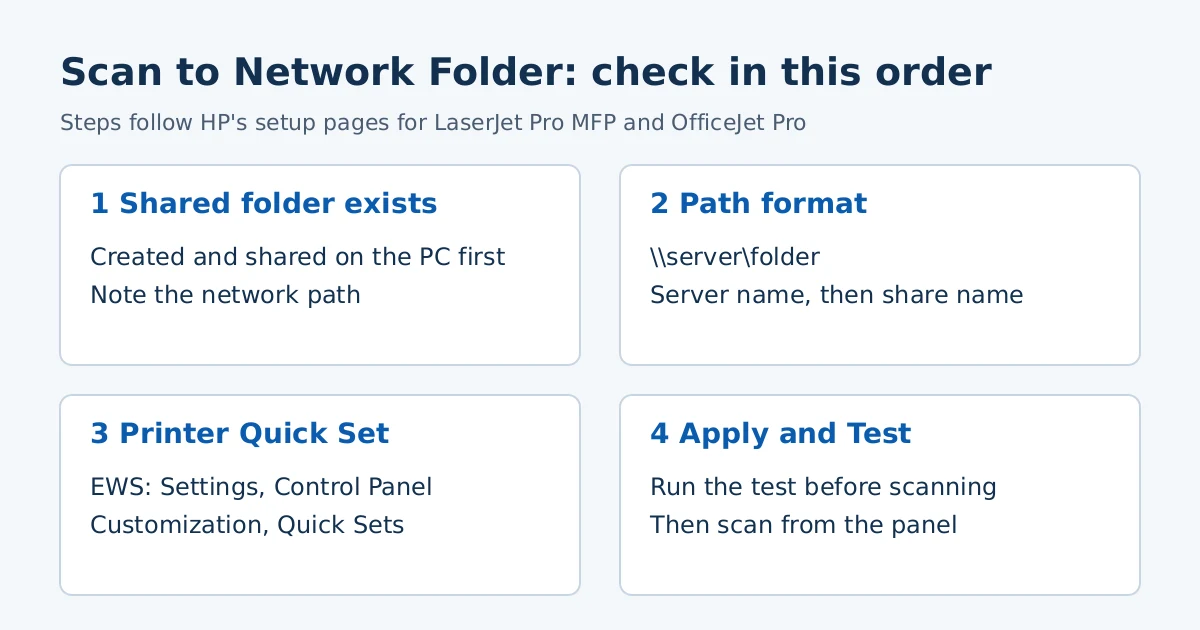
The short version
- The folder must already exist and be shared. HP says the feature does not work otherwise.
- The network path format is
\\server\folder: the computer that hosts the share, then the share name. - Set it up as a Quick Set in the printer’s Embedded Web Server (EWS) and click Apply and Test.
Step 1: Check that the folder is shared
HP’s LaserJet Pro MFP page says the network folder must be set up as a shared folder before Scan to Network Folder can work. Its OfficeJet Pro 9010/9020 page shows the Windows side: create a folder, right-click it, open Properties, then the Sharing tab and Share. HP’s example selects Everyone with Read/Write permission, then asks you to choose file sharing for a private network or all public networks and write down the network path shown at the end.
Sharing with Everyone is broad. On a home network that may be acceptable, but you can also share the folder with one specific Windows user and enter that user’s sign-in details in the printer’s setup. That is our suggestion, not an HP step, so test it before relying on it.
Step 2: Use the path format HP expects
HP’s page asks for the path as \\server\folder. The server is the computer (or server) that hosts the shared folder, and the folder is the share name, not the full path on its disk. Copy the path exactly as Windows showed it when you shared the folder.
Step 3: Save the Quick Set in the printer’s web page
On the LaserJet Pro MFP models HP lists (M329, M428, M429 and Color MFP M479), the steps are:
- Find the printer’s IP address on its control panel and type it into a browser address bar to open the EWS.
- If asked for a PIN, use the one on the label inside the cartridge door, or check the Printer Status Report. If the PIN was changed, the report says a custom password is set.
- Click Settings, then Control Panel Customization, then Quick Sets, then the Add icon.
- Under Type, choose Scan to Network folder, name it, and follow the prompts for the folder, authentication and scan settings.
- Click Apply. To check the setup, click Apply and Test instead.
Menu names differ by model. If your printer is an older or different series, search HP’s support site for your exact model and “Scan to Network Folder.”
Step 4: Scan from the control panel
HP’s OfficeJet Pro page describes the scan step: touch Scan, then Network Folder, select the folder, enter the PIN if you created one, adjust the file name if needed and touch Send. If the printer scans but the folder step fails only on the computer side, see our guide on an HP printer that prints but does not scan.
What some forum users report
These points come from HP Community replies, not from HP’s setup pages, so treat them as things to try, not rules:
- Some users found scanning to a folder worked again after Windows file sharing for older SMB 1.0 was re-enabled. Microsoft treats SMB 1.0 as insecure, so we would not turn it on unless nothing else works and you accept the risk.
- One user said a Microsoft-account sign-in failed where a local Windows account worked. We could not confirm this in HP documentation.
- Several users said the problem started after a printer firmware update or a new driver package.
Frequently asked questions
Do I need the HP driver installed for this?
Scan to Network Folder is set up in the printer, so it does not depend on a Windows scan driver. HP’s LaserJet Pro page also offers a Windows wizard in the full software package. Our install guide explains how to get it.
Does this apply to my LaserJet?
HP lists the M428 and M429 among the models above. Our M404-M405 series page has the driver details for that family.
Sources: HP Support, “HP LaserJet Pro MFP – Set up Scan to Network Folder” and “HP OfficeJet Pro 9010, 9020 printers – Set up and use a Scan to Network Folder.” Menu names vary by model.
Advertisement