
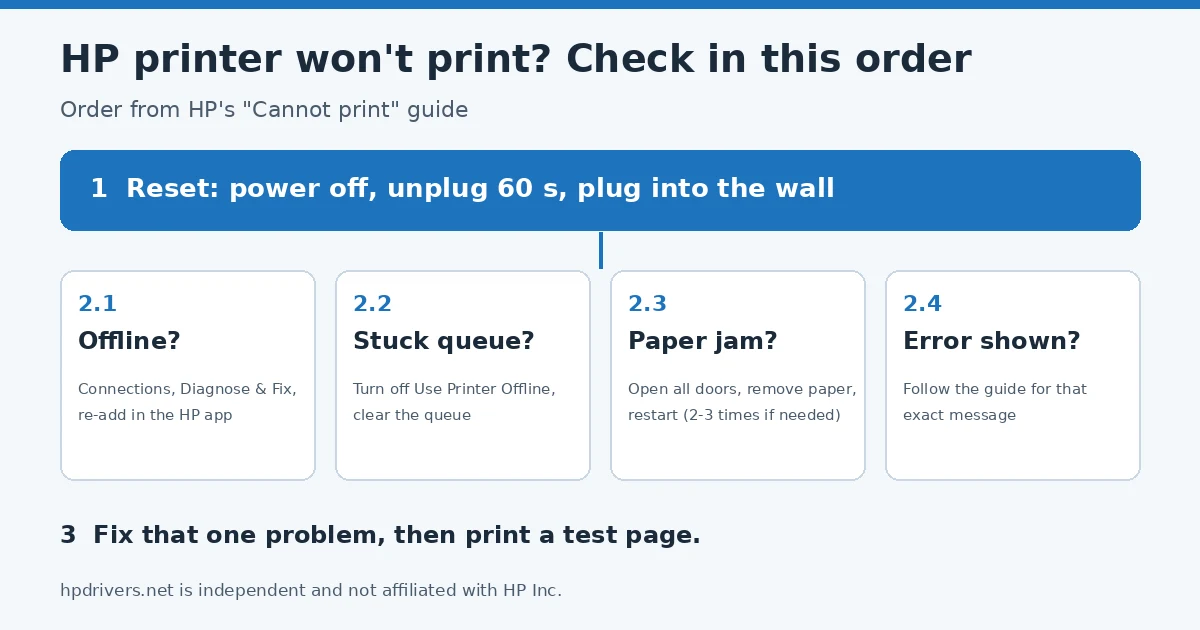
When an HP printer won’t print, HP says the cause is almost always one of four things: the printer lost power or hit an error, it lost its connection, the job is stuck in the queue, or paper is jammed. HP’s own “Cannot print” guide starts with a reset and then asks a short series of questions to find which one it is. This page follows the same order and points you to the right fix for each answer, including the specific error messages HP lists.
Quick answer
- Reset the printer: power off, unplug for 60 seconds, plug straight into a wall outlet.
- Still nothing? Find out which of four problems you have: offline, stuck queue, paper jam or an error message.
- Fix that one problem, then print a test page.
Step 1: Reset the printer
HP’s first step for a printer that won’t print is a full power reset, because it clears most temporary errors:
- Remove the battery if your printer has a rechargeable one.
- Turn the printer off with the power button, or unplug the cord from the printer if it will not turn off.
- Unplug the cord from the wall and wait 60 seconds.
- Plug it directly into a wall outlet and into the printer, then turn the printer on.
This is not a factory reset and changes no settings. For the other kinds of reset, see how to reset an HP printer.
Step 2: Find out why the HP printer won’t print
Is the printer offline or disconnected?
A message or a blinking light can mean the printer is offline. HP’s order is: check the printer and network connections, run Diagnose & Fix in the HP app, and if that fails, remove and re-add the printer in the HP app. Our guide for an HP printer that is offline but connected to Wi-Fi walks through those checks, and the HP app guide shows where Diagnose & Fix is.
Is the job stuck in the print queue?
If you click Print and nothing happens at all, HP says the job is most likely waiting in the queue. Make sure the printer is not set to Use Printer Offline in Windows, clear the queue, then reset again or fix the connection. When Windows shows User Intervention Required instead, follow HP’s fixes for that message.
Is paper jammed?
A jam stops printing and shows a message. Open the doors and look inside; some printers also have access panels at the back or underneath. Remove any paper carefully, close every door and restart the printer. If you find no paper, HP says a restart can still clear the message, and it may take two or three power cycles. Our page on a paper jam message with no paper covers that case.
Does an error message appear?
An error on the printer or a blinking light blocks printing until it is fixed. HP links separate guides for these errors from its “Cannot print” page:
| What you see | Where to go |
|---|---|
| Cartridge “Incompatible”, “Missing” or “Failure” | HP’s ink cartridge issues guide |
| Use SETUP Cartridges | What the SETUP cartridges error means |
| Paper Mismatch | Match the paper size and tray in the print settings |
| Out of Paper, printer does not pick paper | HP’s Out of Paper guide for All-in-One printers |
| E4 on a DeskJet | HP’s E4 paper jam guide |
| Printhead error, Door Open, Ink System Failure or Supply System Problem | The matching HP error guide |
| Unable to register the printer to your account | HP’s account registration guide |
| No AirPrint Printers Found (iPhone, iPad) or Printer isn’t available (Android) | HP’s mobile printing guides |
If your message is not in the list, HP suggests searching for “HP printer” plus the exact wording of the error.
It prints, but the pages are wrong
If the printer runs but black is missing or pages come out faint, that is a print quality problem rather than a printer that won’t print. Start with HP’s checks for missing black ink. If printing stopped right after an Instant Ink plan ended, see why cancelled Instant Ink cartridges stop working.
When Windows says the driver is missing
If Windows lists the printer with “Driver is unavailable”, no document will reach it. Our driver unavailable guide explains how to replace the driver, and the driver installation guide shows the full package method.
Still not printing?
If none of the steps above works, HP’s last step is to contact HP Support with your serial number at hand.
Sources
- HP Support: HP printers – Cannot print
hpdrivers.net is independent and not affiliated with HP Inc. The order of the checks follows HP’s guide; the explanations are ours.
Advertisement