
An HP printer that won’t connect to Wi-Fi usually fails in one of two situations: during first-time setup, when the HP app cannot find it, or after something on the network changed, such as a new router, a new internet provider or a new Wi-Fi password. HP has a support guide for each case. This page combines them in one order, from the quick restarts to reconnecting with WPS or the printer’s own setup page, and points out the network types HP says a printer cannot join at all.
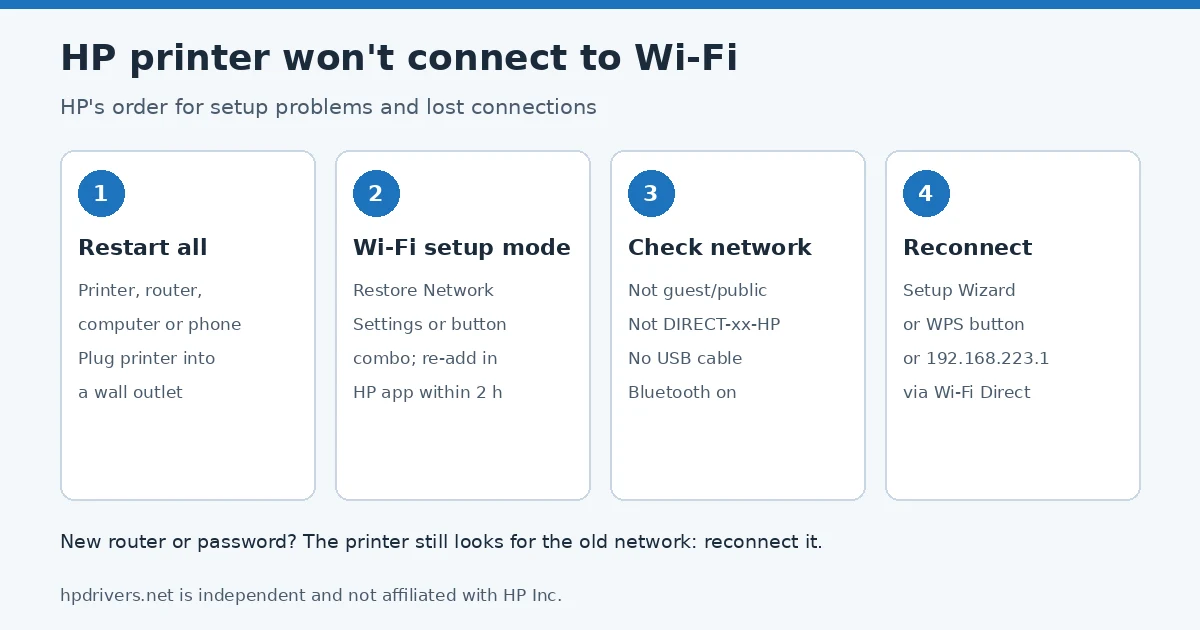
Try these first
- Turn off the printer, the router and your computer or phone, then turn them back on.
- Restore Wi-Fi setup mode on the printer and add it again in the HP app within two hours.
- Make sure your computer or phone is on your normal Wi-Fi, not a guest network and not the printer’s DIRECT-xx-HP signal.
- Unplug any USB cable between the printer and the computer.
Before you start: networks an HP printer cannot use
- Guest and public networks. HP says a printer connection cannot be made on networks that need a guest login or a confirmation page, like those in schools, hotels or coffee shops.
- A USB cable plugged in. HP says a USB connection can block Wi-Fi setup, and it also turns off the internet connection the printer needs for Instant Ink.
- The printer’s own Wi-Fi Direct signal. A network named DIRECT-xx-HP plus your model is the printer itself. Do not connect your computer to it for normal setup.
When the HP printer won’t connect to Wi-Fi during setup
If the HP app cannot find the printer the first time, HP’s order is:
- Restart the printer and the computer or phone.
- Restore Wi-Fi setup mode. On a touchscreen: Wireless or Setup menu, Network setup or Settings, Restore Network Settings. On button models the combination depends on the family; our HP printer reset guide lists HP’s sequences.
- Check which network you are on. Reconnect to your own Wi-Fi if needed and confirm it shows Connected.
- Turn on the extra connections the app needs. On a PC, switch Wi-Fi on even if you use Ethernet (unplug the cable for a moment if Wi-Fi will not turn on). Turn Bluetooth on, because HP says the app uses it to detect the printer. On a phone, allow the HP app to use location and Bluetooth.
- Reinstall the HP app from your app store and add the printer again.
When the connection was lost after a router or password change
A printer that worked before keeps trying the old network name and password. HP’s guide for a new router, new internet provider or changed password depends on the control panel:
Printers with a touchscreen
- Place the printer near the router, load paper and turn it on.
- Wireless or Setup menu, Network setup or Settings, Restore Network Settings.
- Have the new network name and password ready, then open Wireless Setup Wizard, select your network and enter the password. If the wizard is not listed, use Wi-Fi Protected Setup (WPS) Push Button instead.
Printers with buttons only
HP lists three methods; if one fails, try the next.
- HP app: restore Wi-Fi setup mode, then add the printer in the HP app.
- WPS: hold the printer’s Wi-Fi button for 5 seconds until the light flashes (DeskJet 6000, 6400, ENVY 6000, 6400 and Tango: hold Wi-Fi and Power on the back for 3 seconds). Within 2 minutes, hold the WPS button on the router. The printer is connected when its wireless light stops flashing.
- The printer’s setup page over Wi-Fi Direct: connect to the printer’s Wi-Fi Direct name, open
192.168.223.1in a browser, then Network, Wireless (802.11), Wireless Setup Wizard. The Wi-Fi Direct name and password are on the printer’s information report or in the HP app’s Advanced Settings; see where to find the HP printer PIN and passwords.
Print a Wireless Network Test report
The report shows the network the printer sees and the signal strength, and it often names the problem. HP’s ways to print it:
| Printer | How to print the report |
|---|---|
| Inkjet with a menu | Wireless, Network Settings or Setup menu, then the reports list |
| Most inkjets without a menu | Press Wireless and Information together, or Wireless and Start Copy Black |
| LaserJet | Hold Wireless for 10 seconds or until the Ready light blinks, or Wireless menu, Wireless Network Test |
| Laser NS, Neverstop Laser | Hold Resume and Wireless for 3 seconds |
| DeskJet 6000, 6400, ENVY 6000, 6400, Tango | Hold Information until all buttons light, then press Information and Resume |
If it connects but keeps dropping
HP names three causes when a printer joins the network but does not stay on it: too many devices on the network (especially streaming), signal interference from walls, metal furniture or other electronics, and router or provider problems. Move the router to a central spot or add a range extender, pause streaming while you test, and check the router maker for firmware updates. A solid blue Wireless light on the printer means it is connected.
If the printer is on the network but your computer shows it as offline, continue with HP printer offline but connected to Wi-Fi.
Sources
- HP Support: Troubleshoot a Wi-Fi connection to an HP printer
- HP Support: HP printers – Wi-Fi connection is lost after router or network settings change
hpdrivers.net is independent and not affiliated with HP Inc. Steps follow HP’s guides; button names can differ slightly on your model.
Advertisement