
HP Smart Tank error codes show up as an E followed by a single digit, together with the Attention light and blinking icons. On the Smart Tank 210, 520, 580, 590, 5000 and 5100 series, HP documents nine codes, from a paper size mismatch (E1) to a failed firmware update (E9), plus light patterns for the printheads, the ink tanks and Wi-Fi. Because these printers use refillable tanks and separate printheads, several codes mean something different from the cartridge printers. This page explains each one in HP’s terms and says what to do.
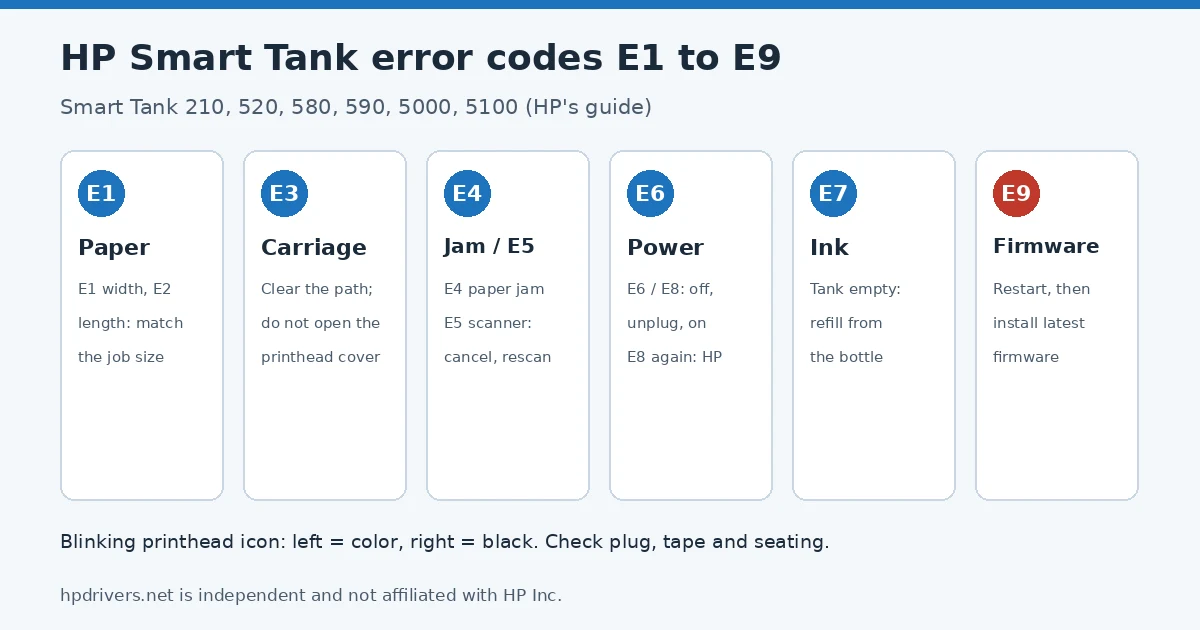
HP Smart Tank error codes
| Code | What happened | What to do |
|---|---|---|
| E1 / E2 | Page width (E1) or length (E2) differs from the job | Cancel, load matching paper or fix the size, print again |
| E3 | Carriage stuck | Front door open, printhead cover closed, clear the path |
| E4 | Paper jam | Remove the paper, restart |
| E5 | Scanner fault | Cancel, scan again, power cycle |
| E6 | General error state | Off, unplug a minute, on |
| E7 | A tank is out of ink | Refill the tank from a bottle |
| E8 | Fatal error | Off and on; contact HP if it returns |
| E9 | Firmware or update error | Off and on, then install the latest firmware |
E1 and E2: paper does not match the job
While printing, the printer measured the sheet and found it narrower or wider (E1) or shorter or longer (E2) than the page size in the job. Press Cancel, then either load the paper size you are printing on or change the size in your program to the paper in the tray, and send the job again.
E3: the carriage is jammed or stalled
Open the front door. Check that the printhead cover is fully closed and that nothing stands in the carriage’s way, and take out any paper or object. HP warns not to open the printhead cover for this. Close the door and press Resume, or Cancel. If E3 returns, switch the printer off and on, then contact HP.
E4 and E5: paper jam and scanner
For E4, find the jammed sheet, pull it out carefully and restart the printer. If a jam is reported with no paper inside, read HP paper jam with no paper. For E5 the scanner has failed: press Cancel and scan again, and power cycle if it still fails. Printing keeps working while the scanner is out.
E6, E8 and E9: errors you clear with power
- E6: turn the printer off, unplug the cord, wait a minute, plug it back in and turn it on.
- E8: a fatal error. Turn the printer off and on; if it comes back, contact HP.
- E9: an update went wrong. Restart, then download and install the latest firmware from HP’s site. HP notes you may need a USB cable to connect the printer to the computer for this.
E7: an ink tank is empty
Open the front door and the cap of the empty tank. Open the matching ink bottle, turn it upside down onto the tank so it clicks into place and let the tank fill. Then close the bottle, the tank cap and the door. Check the bottle numbers in our Smart Tank ink compatibility table before you buy.
Printhead, ink and paper icons
- Printhead icon blinking (left is color, right is black): a printhead is missing, wrongly installed, still has its orange plug or tape, or is damaged or incompatible. Reinstall it, remove any plug or tape, and check it is the right printhead. Do not open the printhead cover unless HP’s steps tell you to.
- Ink icon blinking, Resume and Cancel lights on: one or more tanks are low. Refill the tank shown.
- Document icon blinking, Resume and Cancel lights on: a job arrived with no paper. Load paper and press Resume.
- Letter A: printhead alignment is running. After the page prints and the Open Lid light blinks, place it face down on the glass and press the blinking Copy button. A blinking A with blinking Attention and Resume lights means the alignment failed: press a Copy button to rescan or Resume to print the page again.
Power and Wi-Fi lights
- Power light dim: sleep mode, by default after about five minutes. HP adds that the printer turns itself off after two hours of no use when Wi-Fi, Wi-Fi Direct and Bluetooth are off and no USB cable is connected; see why an HP printer turns off by itself.
- Power light blinking quickly: the access door is open or the printer is in an error state. Close the door or follow the message in the HP app.
- Racecourse animation for 10 minutes or more with the Power light blinking: a firmware update may be running. Do not switch the printer off.
- Wi-Fi light blinking blue, signal bars cycling: Wi-Fi setup mode or trying to connect. A blinking Wi-Fi alert means a Wi-Fi error; fast blinking alert and bars mean a WPS error. For connection help see HP printer won’t connect to Wi-Fi.
All lights blinking
When every light on the panel blinks, HP’s first step is a full reset: power off, unplug for 60 seconds, plug straight into a wall outlet and turn on. Our HP printer reset guide also lists the Smart Tank factory reset buttons if you need to go further.
Sources
hpdrivers.net is independent and not affiliated with HP Inc. Codes are from HP’s guide for the Smart Tank 210, 520, 580, 590, 5000 and 5100 series; other Smart Tank families can differ.
Advertisement