
The HP message “Printer Failure: There is a problem with the printer or ink system” looks like the end of the printer, but HP’s own note on it starts with much simpler causes. According to HP, the error usually appears when a sensor detects air in the ink supply. That can come from an empty or frothy supply, a priming problem, or ink that has settled because the printer is not standing level. HP’s recommended steps are short and cheap, and only the last one involves service.
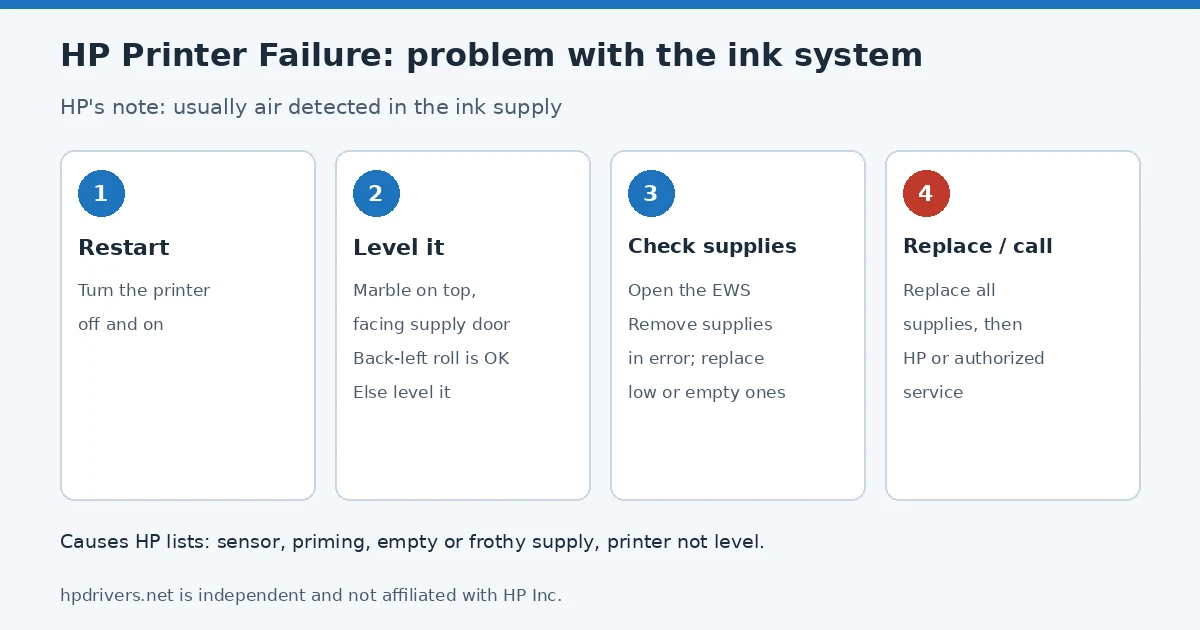
HP’s steps in order
- Turn the printer off and back on.
- Check that the printer is level with a small ball or marble on top.
- Open the Embedded Web Server, see which ink supplies are in error, and remove or replace them.
- If the error stays, or the EWS will not open, replace all the ink supplies.
- Still there: contact HP or an HP-authorized service provider.
What causes the HP printer failure error
HP’s note says the message is generally triggered when the printer’s SHAID sensor detects air in the ink supply unit. It lists several reasons that can lead there:
- the sensor itself not working correctly;
- the priming system not working correctly;
- an empty ink supply, or froth in a supply;
- ink left stranded because the printer is not level.
Most of these are about the ink supplies and how the printer stands, which is why HP’s steps start there rather than with a repair.
Step 1: Restart the printer
Turn the printer off and on again. If the message does not come back, you are done. If you want a fuller power reset, our guide on how to reset an HP printer explains the unplug-and-wait method HP uses elsewhere.
Step 2: Make sure the printer is level
HP describes a “round object roll test”:
- Stand facing the ink supply door.
- Put a small round object, such as a marble or a small ball, on top of the printer.
- Ideally it should not roll. HP adds that, for the ink supplies, a roll toward the back and to the left is still acceptable.
- If it rolls in any other direction, level the printer (move it to a flat surface or adjust what it stands on) before you go on.
Step 3: Check the ink supplies in the Embedded Web Server
- Find the printer’s IP address (on the network or information report, or in the HP app) and type it into a web browser to open the Embedded Web Server (EWS).
- Look at the supplies status and note which supplies are shown in an error state.
- Remove those supplies from the printer. If any feels low or empty, replace it with a new one.
If the browser cannot reach the printer, check the connection first; our page on an HP printer that is offline but connected to Wi-Fi covers the usual causes.
Step 4: Replace all supplies
If the error continues, or if the EWS cannot be opened at all, HP’s next step is to replace all of the ink supplies with new ones. Use the cartridge numbers listed for your model; our OfficeJet Pro and PageWide compatibility tables can help.
Step 5: Contact HP
If the message still appears with new supplies on a level printer, HP says to contact HP support or an HP-authorized service provider. At that point the sensor or the priming system is the likely cause, and neither is something HP asks owners to repair.
Related errors
- Black or color missing from prints, without an error: HP printer not printing black.
- The printer will not print and shows another message: HP printer won’t print checklist.
Sources
hpdrivers.net is independent and not affiliated with HP Inc. Causes and steps are from HP’s note; the wording is ours.
Advertisement