
HP DeskJet error codes on the 2800, 4200 and 4900 series appear as the letter E and one digit on the small control panel display, usually with blinking icons or lights. Each code has one meaning and a short fix in HP’s own guide for these printers. This page lists E0 to E6 in plain language, then explains the Power, Wi-Fi, paper and ink lights, so you can match what your printer shows and fix it without guessing.
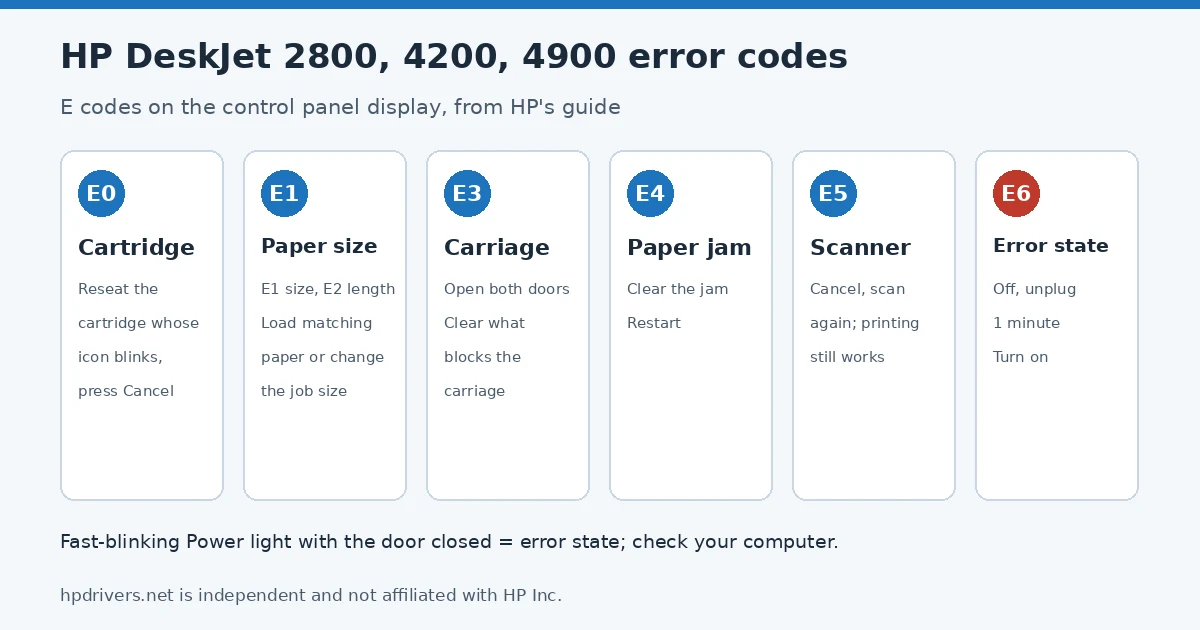
HP DeskJet error codes at a glance
| Code | Meaning | First thing to do |
|---|---|---|
| E0 | Cartridge problem | Reseat the cartridge whose icon blinks, then press Cancel |
| E1 / E2 | Paper size (E1) or length (E2) does not match the job | Load matching paper or change the size in the program |
| E3 | Print carriage jammed or stalled | Open the doors and clear whatever blocks the carriage |
| E4 | Paper jam | Clear the jam and restart the printer |
| E5 | Scanner not working | Press Cancel and scan again; printing still works |
| E6 | Printer error state | Turn off, unplug for a minute, turn on |
E0: cartridge error
E0 means one or both ink cartridges are the problem, and you cannot print. The ink icons tell you which: the left icon is the tri-color cartridge, the right one is black. If both cartridges show as empty although they contain ink, HP says a cartridge is not seated correctly.
- Open the cartridge access door and wait for the carriage to move to the center.
- Press down on the end of the cartridge to release it and slide it out, holding it only by the sides. Do not touch the copper contacts or the nozzles, and do not put tape back on.
- Push it back in until it snaps, and press down any cartridge that sits tilted so both are level.
- Close the door and press Cancel. If E0 is still shown, turn the printer off for 60 seconds.
- Still there: take the cartridge out again, check that its number is right for your printer, and remove any orange shipping tape over the nozzles (never the printed circuit strip).
- If a new genuine HP cartridge also shows E0, HP says the printer needs service.
Not sure which cartridge number fits? Our DeskJet cartridge compatibility table lists them by model.
E1 and E2: paper size or length mismatch
The printer measured the paper and it does not match the size set in the print job. Press Resume to print anyway or Cancel to stop. Then load the right paper, or change the paper size in your program to the paper in the tray, and print again.
E3: carriage jam
The carriage that holds the cartridges is stuck. Open the front door and the cartridge access door, check that nothing blocks the carriage, and remove any paper or object in its way. Close both doors and press Resume. If E3 comes back, turn the printer off and on, and contact HP if it continues.
E4: paper jam
Find the jammed paper, pull it out carefully and restart the printer. If the printer still reports a jam when no paper is inside, see HP paper jam with no paper.
E5: scanner error
Press Cancel and try the scan again. If it fails, turn the printer off and on. HP notes that the printer keeps printing even when the scanner does not work. For scanning problems without an E5 code, see HP printer not scanning but still prints.
E6: printer error state
Turn the printer off, unplug the power cord, wait a minute, plug it back in and turn it on. If E6 returns, HP says to contact support.
What the blinking lights mean
Power button light
- Dim: sleep mode.
- Blinking: turning on or off, or working on a job. Press Cancel to stop the job.
- Fast blinking: the cartridge access door is open. If the door is closed and it still blinks fast, the printer is in an error state; check your computer or phone for a message, or send a test print to make one appear.
Paper and ink icons
- Error and Paper icons on: no paper in the input tray.
- Error and Paper icons and the Resume light blinking: a job arrived with no paper loaded. Load paper and press Resume.
- Error icon and one ink icon blinking, Ink Alert light on: that cartridge is missing, badly seated or still taped. With one cartridge missing the printer works in single-cartridge mode.
- Error icon, both ink icons and Ink Alert blinking: both cartridges are missing, taped, badly seated, incompatible or damaged.
- Error icon, ink icons and Resume blinking: new cartridges may be counterfeit or used before; older ones are very low. Press Resume to keep printing.
Information and Wi-Fi lights
- Information light blinking white: press it to confirm the connection during Wi-Fi setup.
- Information light amber: press it to print the Information Page and follow its instructions.
- Wi-Fi light blinking with signal bars cycling: the printer is in Wi-Fi setup mode or trying to connect. On with the Wi-Fi icon means connected. If it never stops blinking, see HP printer won’t connect to Wi-Fi.
- Blinking letter A: the alignment page has printed. Place it face down on the scanner glass and press a Copy button to finish the alignment.
Sources
hpdrivers.net is independent and not affiliated with HP Inc. Codes and steps are from HP’s guide for the DeskJet 2800, 4200 and 4900 series; other DeskJet families can use different codes.
Advertisement