
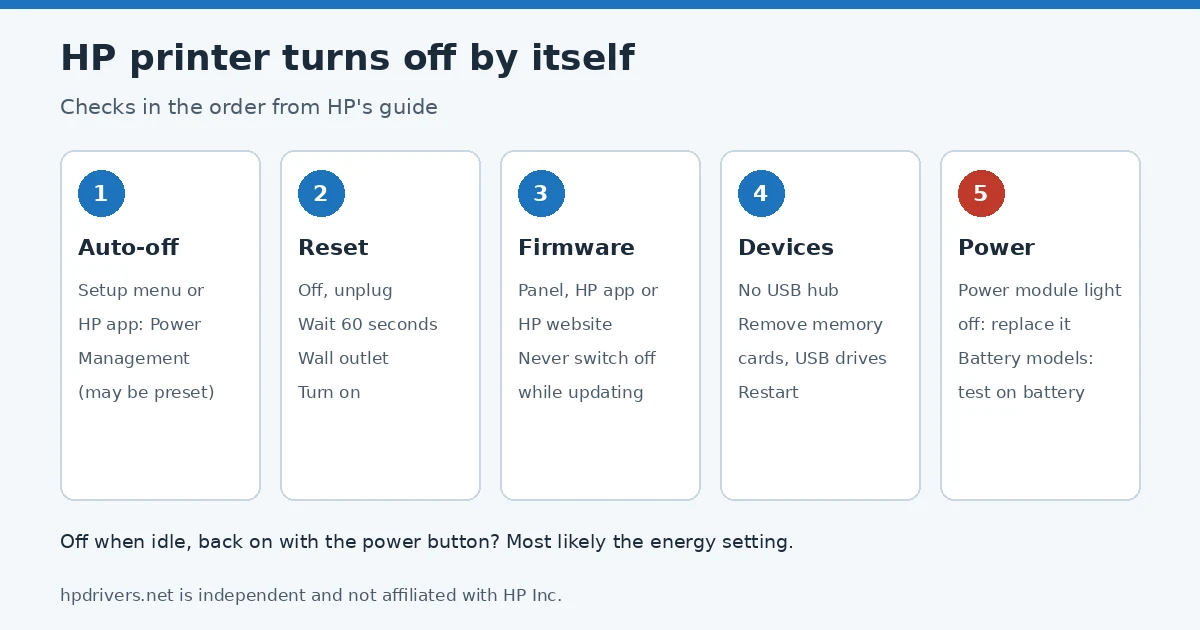
If your HP printer turns off by itself, it is not always faulty. HP designs most of its printers to power off when they are not in use, so a printer that “dies” after a quiet hour may simply be following its energy setting. HP’s guide for printers that turn off unexpectedly or repeatedly starts with that setting, then moves to a reset, a firmware update, the devices plugged into the printer and finally the power supply. This page follows the same order and helps you tell a setting from a real power fault.
Quick check
- Turns off after a period of no use, comes back with the power button: most likely the Auto Power Off or Schedule On and Off setting. See step 1.
- Turns off in the middle of a job, or will not stay on: work through steps 2 to 5.
- Does not respond to jobs after sleep: HP treats this as the same problem; start with step 1.
Step 1: Check the energy saving setting
HP says its printers reduce power use by switching off when they are idle; you press the power button to turn them back on. To see or change the setting:
- Printers with a display: look in the Setup menu for Schedule On and Off or Auto Power Off.
- In the HP app: select the printer, open Printer Settings, then Advanced settings, the Settings tab and Power Management. Enter the printer PIN if asked.
HP notes that on some printers the auto-off time is preset and cannot be changed. If your printer is one of them, turning off after inactivity is normal behavior and not a fault. The HP app guide explains where the app keeps its settings now that it has replaced HP Smart.
Step 2: Reset the printer
- Turn the printer off, or unplug the cord from the printer if it will not turn off.
- Unplug the cord from the power source and wait 60 seconds.
- Plug it directly into a wall outlet and into the printer. HP’s steps use a wall outlet rather than a power strip.
- Turn the printer on.
Other reset types are described in how to reset an HP printer.
Step 3: Update the printer firmware
HP regularly releases firmware with fixes. On many network printers with a menu you can update from the control panel, for example Setup, Printer Maintenance, Update Printer, Check Now. You can also use the HP app, or download the firmware from your model’s page on HP’s software and driver site and run the HP Printer Update tool. HP warns never to turn the printer off during a firmware update, because that can damage it permanently.
Step 4: Remove other devices
HP says too many connected devices or a USB hub can affect the power the printer needs:
- If the printer is connected through a USB hub, remove the hub and connect the USB cable straight from the computer to the printer.
- Take out any memory card or USB drive in the printer.
- Turn the printer off and on again.
Step 5: Check the power module or battery
| Power setup | What HP says |
|---|---|
| External power module (brick on the cord) | If its light is off, or it has no light and nothing above helped, replace the power module. |
| Internal power module | If the printer’s indicator is off or there is none, and nothing helped, the printer needs service. |
| Mobile printer with a battery | If it runs on the cord, charge the battery and test on battery alone. If it will not turn on that way, the battery needs replacing. |
Step 6: Service if the HP printer turns off by itself again
If the printer still switches off, HP’s last step is repair or replacement through HP Customer Support. Check the warranty first, since fees can apply outside warranty.
Related problems
- The printer stays on but shows offline: HP printer offline but connected to Wi-Fi.
- It is on but nothing prints: HP printer won’t print checklist.
Sources
- HP Support: HP printer turns off unexpectedly or repeatedly
hpdrivers.net is independent and not affiliated with HP Inc. Steps follow HP’s guide; the wording is ours.
Advertisement