
“No AirPrint Printers Found” appears on an iPhone or iPad when you choose Print and the device cannot see your HP printer. HP’s guide says to check the wireless connection first and then make sure AirPrint is turned on in the printer. This page follows HP’s order and explains each step in plain terms.
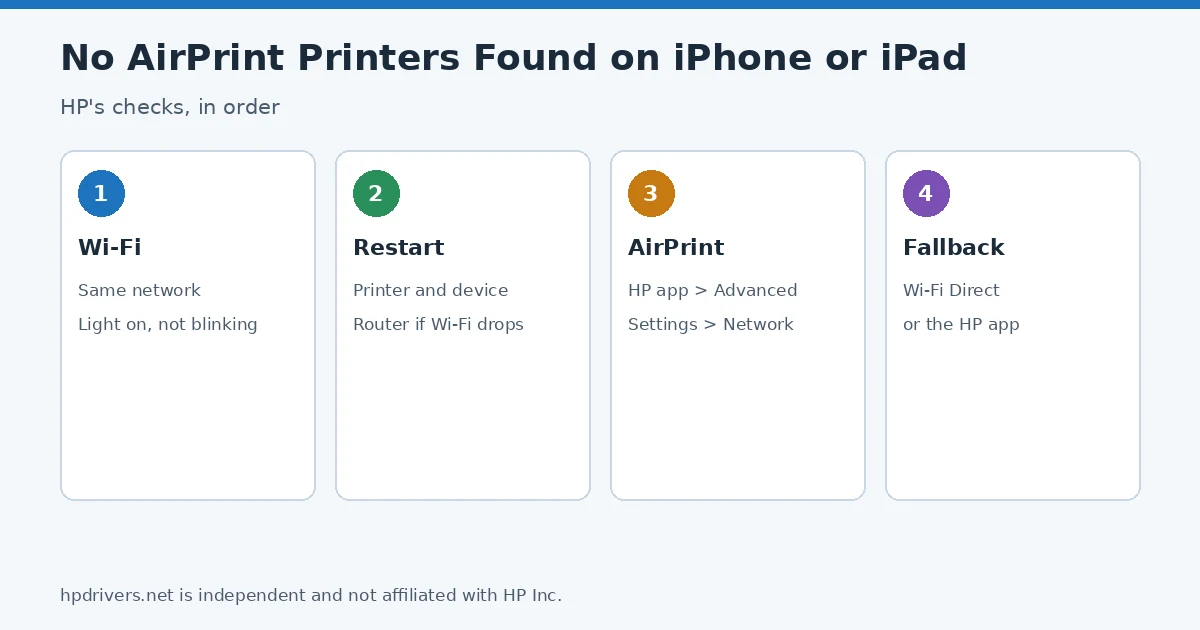
Quick check
- Printer’s wireless light off or blinking: it is not on the network; start with step 1.
- Printer is on Wi-Fi but still not found: check AirPrint in the HP app (step 2).
- AirPrint option missing: your printer may not support it; use Wi-Fi Direct (step 3).
Step 1: Check the wireless connection
HP asks you to try these in the order given and test after each one:
- Signal: move the printer and the phone closer to the router, and make sure websites load. If Wi-Fi is slow or drops, restart the router by unplugging it for 15 seconds.
- Sleep mode: touch the control panel or press Power to wake the printer. HP notes it can show Offline when it is actually ready.
- Same network: the printer and the iPhone or iPad must be on the same network. A light next to the wireless icon that is off or blinking means the printer is disconnected.
- Reconnect: on a touchscreen printer, open Setup, Network or Wireless settings, choose Wireless Setup Wizard and pick your network. Without a touchscreen, hold the Wireless button for five seconds, then press WPS on the router within two minutes.
- Restart: restart the printer and the mobile device.
- Setup mode and Bluetooth: HP says a new printer is in Wi-Fi setup mode for a short time and that Bluetooth should be on for HP app setup.
HP also warns that wireless isolation on the router can make a printer look offline; check your router’s documentation. More network checks are in HP printer won’t connect to Wi-Fi.
Step 2: Turn on AirPrint with the HP app
- Open the HP app and sign in or create an account.
- Click your printer’s name or image.
- Click Advanced Settings, or scroll to Printer Settings, click View all, then Advanced Settings.
- Select Network and look for AirPrint.
- If AirPrint is listed, select it, then Status. If asked to go to a secure HTTPS page, choose OK or Redirect to HTTPS. If a “connection is not private” message appears, choose Advanced or Show Details and proceed to the printer’s address.
- Under AirPrint Status, select Turn on AirPrint.
The printer’s address can be found as described in how to find the HP printer IP address. A related AirPrint message about certificates is covered in encryption credentials expired.
Step 3: If AirPrint is not listed or still fails
HP says that if AirPrint does not appear in the app, the printer does not support it, and you should use another method such as Wi-Fi Direct. In some cases the phone’s configuration may not be compatible with the HP Print Service Plugin. If you still cannot print, use Wi-Fi Direct or the HP app. Wi-Fi Direct names and passwords are explained in WPS PIN, Wi-Fi Direct password and printer PIN.
Related problems
Sources
hpdrivers.net is independent and not affiliated with HP Inc. Steps follow HP’s guide; the wording is ours.
Advertisement