
HP lists several ways to print from an Android phone or tablet: the HP app, the HP Print Service Plugin, Mopria Print Service, Wi-Fi Direct and more. Which one you can use depends on the printer model and your country. This page follows HP’s guide for the HP Print Service Plugin, the HP driver for Android, and shows how to add a printer the plugin did not find.
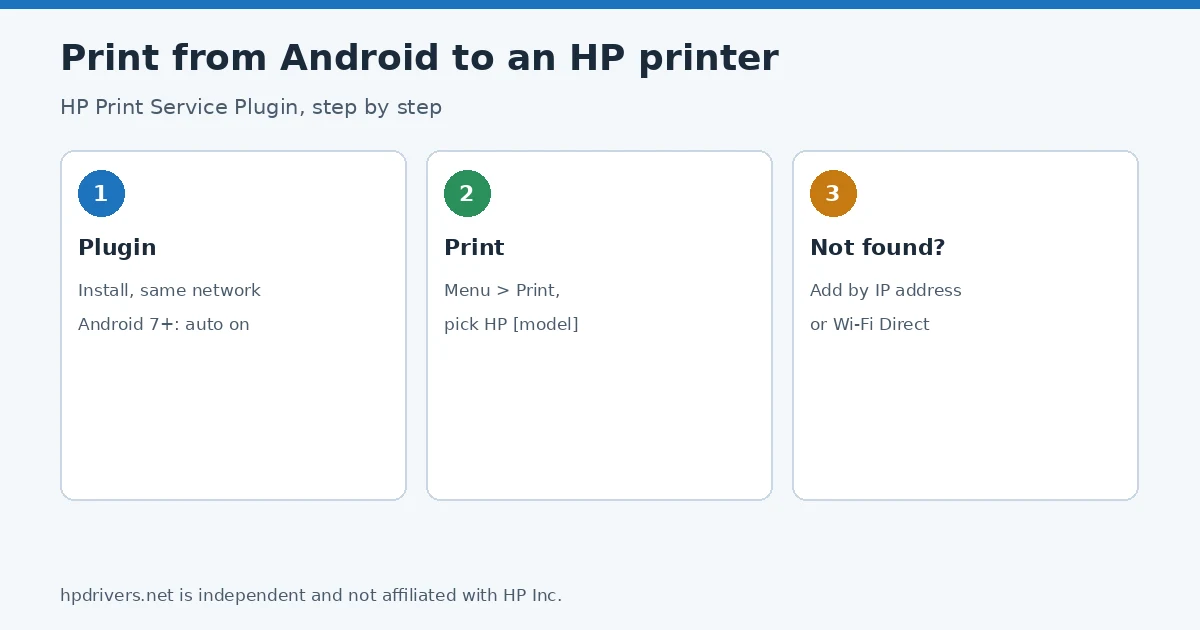
Quick check
- Printer not listed in the plugin: add it with its IP address or Wi-Fi Direct (step 3).
- No Wi-Fi network: choose the printer whose name starts with DIRECT (step 2).
- LaserJet printout unreadable: turn on Android Print Rendering (step 4).
Which Android option HP offers
HP states that the solutions available for each printer vary by model and country, so check your model on HP’s mobile printing page.
Step 1: Install and turn on the HP Print Service Plugin
- Make sure the Android device is on the same network as the printer.
- Install or update the HP Print Service Plugin from the store.
- On Android 7.0 (Nougat) or later, HP says the plugin turns on automatically. On Android 6.0 and 5.0, open Settings, search for HP Print Service and tap On.
Step 2: Print from an Android app
- Open the item, tap the Menu icon and tap Print. If the app has no Print option, tap Share, or look in the Export or Send menu, and choose HP Print Service Plugin.
- On the preview screen, tap the down arrow to see the printer list. Choose HP [your model] to print over the network, or DIRECT-xx-HP [your model] to print with Wi-Fi Direct.
- Change paper size or orientation if needed, then tap the Print icon.
Step 3: Add a printer the plugin did not find
- By IP address: tap All printers > Add printer, tap HP Print Service or HP Inc., tap On a Wi-Fi Network, type the printer name and IP address, and tap OK. See how to find the HP printer IP address.
- By Wi-Fi Direct: make sure Wi-Fi Direct is on at the printer, tap All printers > Add printer, tap HP Print Service or HP Inc., tap Directly to the Printer and select the name that contains DIRECT.
- Edit or remove: open the plugin menu, tap Add printer > Manage printers, press and hold the printer, then tap Modify or Forget printer.
HP’s FAQ also names two messages. If you see “This printer isn’t available right now” or cannot add the printer, HP points to its “Printer isn’t available error (Android)” article. If remote printing with Print Anywhere shows “Can’t connect to printer,” open the HP app, sign out and sign back in. Network problems are covered in offline but connected to Wi-Fi.
Step 4: Handy settings from HP’s FAQ
- Unreadable LaserJet printout from a PDF or web page: open the plugin, tap Menu > Print settings > Advanced Settings and turn on Android Print Rendering.
- Print over USB: HP says this works if the printer supports PCL3 or PCL5, the phone supports USB On-the-Go (OTG) and the plugin is installed. Connect the OTG cable to the printer while it is on and confirm on the phone.
- Monitor or cancel a job: swipe down from the top of the Home screen to see current print jobs and tap Cancel on the one you want to stop.
- File types in the Print menu: photos (JPEG, PNG), PDF, Microsoft Office files, text files and webpages. The Share menu supports photos and PDF.
Related problems
Sources
- HP Support: HP printer setup (Print Service Plugin for Android)
- HP Support: Mobile printing solutions for HP printers
hpdrivers.net is independent and not affiliated with HP Inc. Steps follow HP’s guide; the wording is ours.
Advertisement