
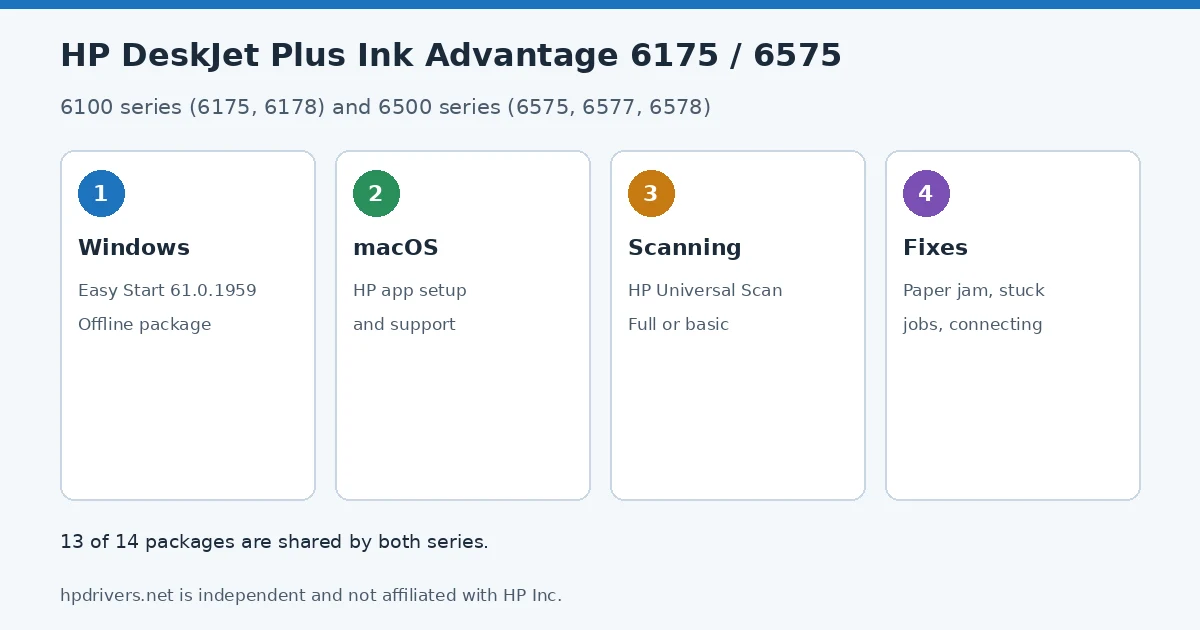
Looking for the HP DeskJet Plus Ink Advantage 6175 driver? This page lists HP’s official software for the whole HP DeskJet Plus Ink Advantage 6100 Printer Series: the DeskJet Plus Ink Advantage 6178 and DeskJet Plus Ink Advantage 6175. HP lists some packages for specific models in the series, so check that the package title includes your model. For Windows 11; Windows 10 (32-bit and 64-bit), the package most people need is the HP DeskJet Plus Ink Advantage 6100 Series EasyStart Printer Setup Software – Offline Use Only. For a Mac, HP lists Install HP app to complete setup and support.
Recommended downloads
Files download directly from HP’s official servers. hpdrivers.net does not host or modify them.
Models covered by this page
All 2 models share one download list at HP:
HP DeskJet Plus Ink Advantage 6178 HP DeskJet Plus Ink Advantage 6175
All Ink Advantage 6175 driver downloads
Windows
10 (32-bit and 64-bit)
File details
File:HPEasyStart-16.6.10-DJP6100_61_0_1959_Webpack.exeOther HP software listed for this series
Windows 10, 8.1 (32-bit and 64-bit)
Windows 10, 8.1 (32-bit and 64-bit)
Windows 10 (32-bit and 64-bit)
Installing the Ink Advantage 6175 driver (6100 series)
The steps below install the Ink Advantage 6175 driver the way HP’s package expects. Download the file only from the HP link in the table above, and follow the order shown here.
For step-by-step instructions, see our guide to installing an HP printer driver.
Specifications that matter for setup
Ink supplies HP lists for the DeskJet Plus Ink Advantage 6100
HP’s specifications name these replacement supplies for the DeskJet Plus Ink Advantage 6100:
- EMEA: HP 654 Black Original Ink Advantage Cartridge (~400 pages
Paper handling and hardware details
Values below are HP’s published figures for the DeskJet Plus Ink Advantage 6100; they help you check that this page matches your printer before you download anything.
HP DeskJet Plus Ink Advantage 6500 Printer Series downloads
HP lists the DeskJet Plus Ink Advantage 6500 Printer Series as its own series (DeskJet Plus Ink Advantage 6575, DeskJet Plus Ink Advantage 6578 and DeskJet Plus Ink Advantage 6577). It shares 13 of its 14 packages with the DeskJet Plus Ink Advantage 6100 Printer Series. HP lists these only for this series:
version 61.0.1959 · Jun 06, 2024
DeskJet Plus Ink Advantage 6175 or 6575 says “Paper jam”
HP’s jam guide for the DeskJet Plus Ink Advantage 6100 family notes that jams can be real or false: the 6175 may report a jam with no paper inside, and the same steps cover both cases. HP lists four places to check, in this order:
- Carriage and cleanout area: open the cartridge access door, wait for the carriage to stop, slide it right if it is in the center, remove the paper path cover, lift the duplexer cover and take out any paper. Refit the cover until it snaps in.
- Input tray: pull the tray out, check the area underneath the printer, then push it back until it clicks.
- Output tray: remove all paper, loose and jammed.
- Bottom of the printer: turn the printer off, extend the input tray, carefully turn the printer on its side and pull any paper out of the gap with both hands.
HP’s cautions: no tweezers or pliers, pull paper straight out with both hands, do not pull from the front (it tears and leaves pieces), and unplug the printer before moving the carriage by hand. Finish with a 60-second power reset. A no-paper jam on other models is covered in paper jam but no paper.
Based on HP support document HP DeskJet, ENVY 6100 Printers – ‘Paper jam’ error; the wording is ours.
“Connecting to printer” never finishes in Windows
On the 6100 and 6500 families HP describes a Connecting to printer message that stays on screen, sometimes with the Windows message We couldn’t print because there doesn’t seem to be a printer installed. HP’s fix:
- Install all Windows updates (search for Check for updates) and restart the computer.
- Restart the printer, plugged directly into a wall outlet, and make sure printer and computer are on the same network.
- In Printers & scanners, select the printer and click Remove device. In the HP app, right-click the printer and choose Hide Printer.
- Add the printer again in the HP app. When it appears in Printers & scanners, the driver is installed. If you see Unable to Connect, click Connect to Printer.
Based on HP support document HP DeskJet, ENVY 6100, 6500 Printers – ‘Connecting to printer’ message stays on screen; the wording is ours.
Printer freezes or jobs stay stuck in the queue
When a DeskJet Plus Ink Advantage 6575 or 6175 stops responding, jobs stick in the queue, or a cartridge or account error appears, HP’s first step is a factory reset. On these models without a touchscreen, HP gives a button method: open the cartridge access door, hold Power and Wireless together for at least 3 seconds, and close the door after about 20 seconds. The printer restarts by itself. You can do the same from the HP app (Advanced Settings, Settings or System tab, Restore Factory Defaults) or from the printer’s web page.
Then set the printer up again by scanning the QR code on the control panel and adding it to the HP app. HP’s last step is to set the printer clock to Automatic (HP Service) in Advanced Settings, General tab, with Sync Now. Clearing a Windows queue is explained in print job stuck in queue.
Based on HP support document HP DeskJet, ENVY 6100, 6500 Printers – Printer stops responding, print job stuck; the wording is ours.
Advertisement