
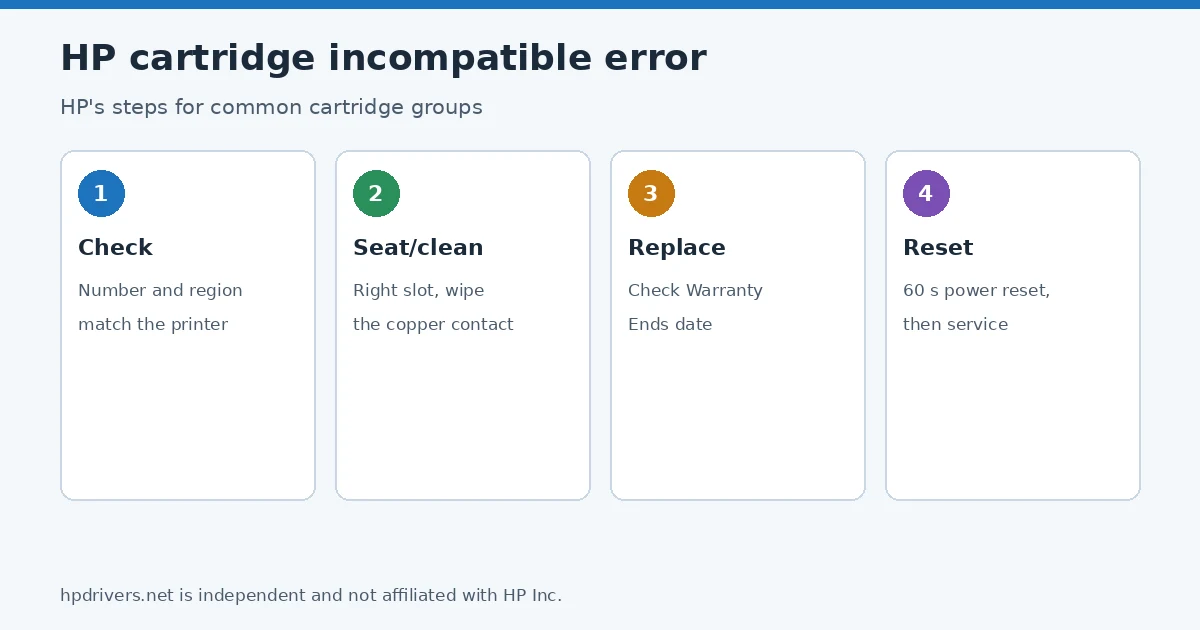
When an HP inkjet says a cartridge is “incompatible,” “incorrect” or “not intended for use in this printer,” HP says the cause is usually a cartridge made for another printer or region, or a poor connection between cartridge and printer. This page follows HP’s steps for the two most common cartridge groups and explains when HP says a replacement is the answer.
Quick check
- Printer has two slots (black and tri-color): Type 1 steps; you can print in single-cartridge mode meanwhile.
- Moved the printer to another country: the cartridge number may not match; HP may need to run a regionalization reset.
- Instant Ink or HP+ printer: special rules apply (step 1).
Step 1: Check the cartridge numbers
Open the cartridge door and wait for the carriage to stop. Compare the numbers on the cartridge labels with HP’s list of compatible cartridges for your printer. If the printer is enrolled in Instant Ink, the cartridges are marked Instant Ink and their numbers may differ from retail ones. HP+ printers require original HP cartridges. If you moved the printer from one country to another, HP says you might need a regionalization reset from HP Support.
Step 2: Seat the cartridges and clean the contacts (Type 2)
Type 2 covers cartridges 932, 933, 936–938, 950–959 and 962–969. Check that every cartridge sits in its matching color-coded slot and that none sticks out farther than the others. Then, for the cartridge named in the error:
- Push the cartridge in to release it and lift it out.
- Wipe the copper-colored contact with a lint-free cloth. If the contact is missing or damaged, the cartridge must be replaced.
- Slide it back into its slot until it clicks and close the door.
Step 3: Print with one cartridge for now (Type 1)
Type 1 covers printers with two slots that use numbers such as 21, 22, 27, 28, 46, 56–68, 61/301, 63/302, 64/303, 65/304, 74, 75, 92–98, 110, 121–125, 300–305, 650–654, 662, 664, 667, 668, 802–805 and 901. If you have no replacement and need to print, HP says to remove the cartridge named in the error, accept the prompt for single-cartridge mode and try printing. Do this before installing any new cartridge.
Step 4: Replace the cartridge
HP says a new cartridge usually resolves cartridge errors. Remove the problem cartridge and read the Warranty Ends date printed on it:
Step 5: Reset, then service
For Type 2 printers HP adds a reset: turn the printer off, unplug it from the wall, wait 60 seconds and plug it directly into the wall. See how to reset an HP printer. If the error persists after every step, HP says to service or replace the printer; repair fees can apply outside warranty.
Other cartridge messages
HP’s page also covers other cartridge errors in separate sections, such as missing or damaged cartridges and cartridges not communicating with the printer. For related messages we have covered, see ink system failure, use SETUP cartridges and not printing black.
Related problems
Sources
hpdrivers.net is independent and not affiliated with HP Inc. Steps follow HP’s guide; the wording is ours.
Advertisement