
The HP LaserJet MFP M232dwc driver download for Windows 11, Windows 10, 8.1, 8, 7 (32-bit and 64-bit) is the HP LaserJet MFP M232dw/dwc/sdw-M237dw/sdw EasyStart Software – Offline Use Only, and for a Mac HP lists Install HP app to complete setup and support. This page lists HP’s official software for the HP LaserJet MFP M232dwc.
Recommended LaserJet MFP M232dwc driver downloads
Files download directly from HP’s official servers. hpdrivers.net does not host or modify them.
Which Windows package does the LaserJet MFP M232dwc driver need?
HP publishes 2 kinds of Windows package for the LaserJet MFP M232-M237:
- Firmware update (v20260530, Jul 23, 2026): updates the printer itself, not your PC.
- Full software solution (v52.3.4930, Dec 07, 2023, 297.7 MB): driver plus HP’s setup wizard and tools.
LaserJet MFP M232dwc driver: all packages
LaserJet MFP M232dwc driver for Windows
File details
File:M232-M237_Series_FW_Update-20260530.exeFile details
File:HPEasyStart-16.2.4-LJM232-M237_UWWL_52_3_4930_Webpack.exeMac firmware utility for the LaserJet MFP M232dwc
File details
File:M232-M237_Series_FW_Update-20260530.dmgScanning and OCR software
Setup tools and other software
LaserJet MFP M232dwc driver for Linux
HP lists Linux support for this series through its HPLIP project, outside the regular download list: HP’s Linux printing page (HPLIP).
Which systems the LaserJet MFP M232dwc driver supports
HP’s download list for the LaserJet MFP M232dwc names Windows 11; Windows 10, 8.1, 8, 7 (32-bit and 64-bit); macOS 26, 15, 14, 13, 12, 11, 10.13, 10.12, Mac OS X 10.11, Mac OS X 10.10; and Linux through HPLIP. On a Mac the setup runs through the HP app.
Installing the LaserJet MFP M232dwc driver
When the download from the table above finishes, follow these steps.
- First, download the package shown in the Recommended downloads box.
- Then, make sure the computer is on the same Wi-Fi network as the printer.
- Next, run the installer and select your printer from the list.
- Finally, print a test page to confirm the wireless link works.
For step-by-step instructions, see our guide to installing an HP printer driver.
Firmware update 20260530 for the LaserJet MFP M232dwc
The newest firmware HP lists for the LaserJet MFP M232-M237 is version 20260530, released Jul 23, 2026. HP’s notes for it: USB Support for PSA Driver; Security updates; General improvements and bug fixes.
- Check your current firmware version first on the printer’s Configuration Page, and update only if it is older.
- Install the printer driver before running the update. HP’s utility needs it to reach the printer.
Specifications that matter for setup
Toner supplies HP lists for the LaserJet MFP M232-M237
HP’s specifications name these replacement supplies for the LaserJet MFP M232-M237:
- HP 134A Black LaserJet Toner Cartridge, W1340A (about 1,100 pages)
- HP 134X Black LaserJet Toner Cartridge, W1340X (about 2,400 pages)
- HP 135A Black LaserJet Toner Cartridge, W1350A (about 1,100 pages)
- HP 135X Black LaserJet Toner Cartridge, W1350X (about 2,400 pages)
- HP 136A Black LaserJet Toner Cartridge, W1360A (about 1,150 pages)
- HP 136X Black LaserJet Toner Cartridge, W1360X (about 2,600 pages)
- HP 137A Black LaserJet Toner Cartridge, W1370A (about 1,150 pages)
- HP 137X Black LaserJet Toner Cartridge, W1370X (about 2,600 pages)
Paper handling and hardware details
Values below are HP’s published figures for the LaserJet MFP M232-M237; they help you check that this page matches your printer before you download anything.
Turning the wireless function on or off
You can set up and manage the printer’s wireless connection from the control panel. This includes printing network settings, turning wireless on or off and restoring the wireless settings.
To switch the wireless function on or off, press the Wireless button. If wireless is off, press it first. Then connect the printer to your Wi-Fi network with HP Smart or with WPS.
Restoring the network settings
When the printer is no longer in wireless setup mode, restore its network settings.
- Hold the Information button for 3 seconds, then release it. All the control panel buttons light up.
- Hold the Wireless and Cancel buttons together. The printer restarts.
Depending on the model, either the status light pulses purple or the Wireless button blinks blue. This shows that the printer is in wireless setup mode, so you can set up a new connection. HP says to use the HP Smart app for that connection.
Changing between USB and wireless
HP gives separate steps for Windows 10 or macOS and for Windows 7. To go from USB to wireless, follow these steps.
- First, unplug the USB cable from the printer.
- Then, make sure the computer or phone is on the Wi-Fi network.
- Next, turn the printer’s wireless on if it is off, and restore the network settings if it is no longer in setup mode.
- Then, open HP Smart, create an HP account and register the printer if asked.
- Finally, follow the on-screen steps to join the Wi-Fi network.
On Windows 7, instead, open the HP printer software, click Tools, then Device Setup and Software, and choose Convert a USB connected device to wireless. If the software is missing, download it from 123.hp.com.
To go back to USB, connect the cable to the computer and open HP Smart. Click the plus icon or Add Printer, then follow the instructions. Create an HP account and register the printer if prompted.
Wi-Fi Direct on the M232dwc
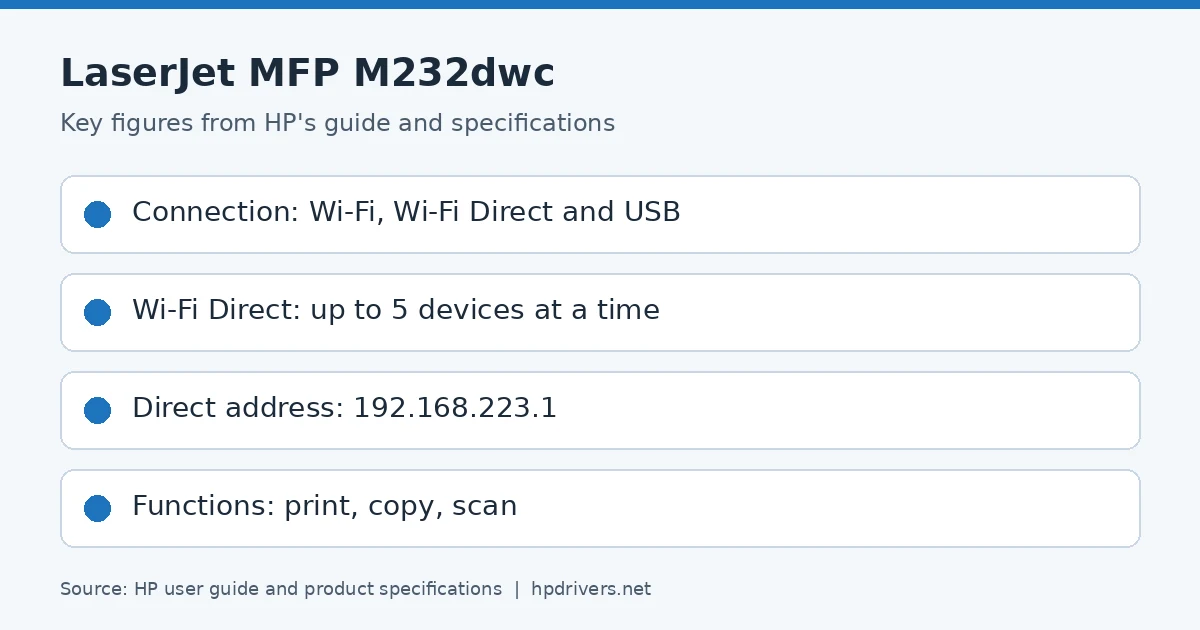
With Wi-Fi Direct, a computer or phone connects straight to the printer without joining an existing wireless network. Up to 5 computers and mobile devices can connect this way. Make sure Wi-Fi Direct is on first. When it is on, the Wi-Fi Direct icon appears on the control panel display.
- Hold the Information button for 3 seconds, then release it. All the buttons light up.
- Press the Continue button and the Wireless button at the same time.
The same steps turn it on or off. To see its status and password, press the Information button and print the report.
Opening the printer’s web page over Wi-Fi Direct or HP Smart
If your device is joined by Wi-Fi Direct, you can still open the EWS. Open a web browser and type 192.168.223.1, or the printer’s host name, in the address bar.
Another way is HP Smart. Select the printer in the app, then click or tap Advanced Settings. On Windows 7, open HP Printer Assistant, select the Print tab and choose Printer Home Page (EWS). Note that some EWS features may be unavailable, depending on how the printer is connected.
When the printer stops printing after wireless setup
HP gives a short routine for this case. Start with the simple checks, then rule out the firewall.
- First, make sure the printer is on and ready.
- Then, turn off any third-party firewall on the computer.
- Next, confirm that the wireless network works, and restart the computer if needed.
- Finally, check that you can open the printer’s EWS from a computer on the network.
If a third-party firewall is installed, update it first. Allow the program to run when the firewall asks. As a last resort, switch the firewall off while you install the printer, and turn it on again afterwards.
Network missing from the list, and ways to reduce interference
When your network does not show in the list, first check that the router is on. The network may also be hidden. The printer works on both the 2.4 GHz and the 5 GHz band, so refresh the list or restart the printer.
To lower interference, keep wireless devices away from large metal objects such as filing cabinets, and from microwave ovens and cordless phones. In addition, keep them away from large masonry structures, because these absorb radio waves. Place the router centrally among the devices that use it.
For most networks, the printer must be within 30 metres (100 feet) of the access point.
Similar models
This page covers the M232dwc only. The M234dwc, the M232sdw and M236sdw and the M232dw and M236dw have their own pages.