
Looking for an HP LaserJet M109e-M112e driver download? This page lists HP’s official software for the HP LaserJet M109e-M112e. For Windows 11, Windows 10, 7 (64-bit), the package most people need is the HP LaserJet M109w/M109we/M110w/M110we/M111w/M111we/M112w/M112we EasyStart Printer Setup Software – Offline Use Only. For a Mac, HP lists Install HP app to complete setup and support.
Recommended downloads
Files download directly from HP’s official servers. hpdrivers.net does not host or modify them.
Which Windows package should you choose?
HP publishes 2 kinds of Windows package for the LaserJet M109e-M112e:
- Firmware update (v20260530, Jul 23, 2026): updates the printer itself, not your PC.
- Full software solution (v54.3.5247, Mar 24, 2022, 149.9 MB): driver plus HP’s setup wizard and tools.
All downloads for the LaserJet M109e-M112e
Each LaserJet M109e-M112e driver download below links straight to the file on HP’s servers; HP’s own support page for the LaserJet M109e-M112e lists the same files.
Windows
10, 7 (64-bit)
File details
File:M109-M112_Series_FW_Update-20260530.exemacOS
File details
File:M109-M112_Series_FW_Update-20260530.dmgOther HP software listed for this series
Windows 10, 7 (64-bit)
Windows 10, 7 (64-bit)
Linux
HP lists Linux support for this series through its HPLIP project, outside the regular download list: HP’s Linux printing page (HPLIP).
Installing the LaserJet M109e-M112e driver
Once the LaserJet M109e-M112e driver download from the table above is complete, follow these steps.
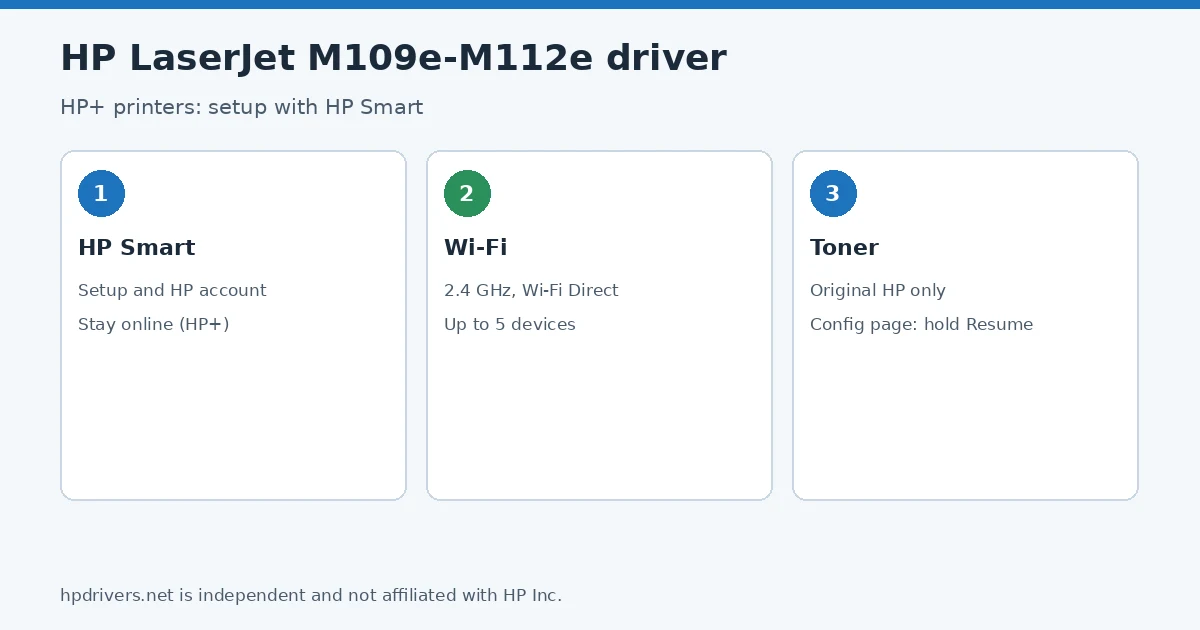
- Install the HP Smart app and sign in with your HP account: HP+ printers need it for setup and must stay connected to the internet.
- Put the printer next to your router, load paper and let HP Smart connect the printer to your 2.4 GHz Wi-Fi network.
- Install the printer driver from the Recommended downloads box if you also want classic printing from Windows or macOS.
- Print a configuration page by holding the Resume/Cancel button until the Ready light blinks.
For step-by-step instructions, see our guide to installing an HP printer driver.
Firmware update 20260530
The newest firmware HP lists for the LaserJet M109e-M112e is version 20260530, released Jul 23, 2026. HP’s notes for it: USB Support for PSA Driver; Security updates; General improvements and bug fixes.
- Keep the printer and the computer switched on until the update has finished.
Specifications that matter for setup
What comes in the box
HP lists these items with the LaserJet M109e-M112e:
- Printer
- Power cord
- Toner Cartridge
- Setup Poster
- Reference Guide
- Warranty Guide
- Flyer
Paper handling and hardware details
Values below are HP’s published figures for the LaserJet M109e-M112e; they help you check that this page matches your printer before you download anything.
HP+ on the LaserJet M109e-M112e: what you have to accept
The “e” in M109e-M112e marks HP’s HP+ printers. HP’s guide lists three requirements. The printer is a cloud-connected device that must stay connected to the internet to work: it has to be online during setup, and even if you print over USB afterwards, the connection must still be there. It needs original HP toner, because refilled or non-HP cartridges make an HP+ printer behave unexpectedly, and you must sign in to an HP account to manage it.
For setup HP Smart is the route: install the app on a computer or phone and it connects the printer to your Wi-Fi. The printer has a 2.4 GHz 802.11b/g/n radio, a Wireless button with a light (steady means connected, blinking means no connection or a WPS session) and Wi-Fi Direct for up to five devices without a router.
Based on HP user guide c07833319 (“HP LaserJet M109e-M112e series User Guide”).
Checking toner and testing the wireless on the M109e-M112e
The printer has a simple LED panel, so status comes from reports. To see the toner level, wake the printer if the Ready light is dim, then hold the Resume/Cancel button until the Ready light starts blinking and release it: the configuration page lists the cartridge and other replaceable parts.
For wireless trouble, hold the Wireless button for more than 10 but less than 20 seconds and release it when the Ready light starts blinking; the wireless network diagnostic test report shows signal strength, detected networks and more. HP warns against using EconoMode all the time: the toner may then outlast the mechanical parts of the cartridge.
Based on HP user guide c07833319 (“HP LaserJet M109e-M112e series User Guide”).
Switching the M109e-M112e between USB and Wi-Fi, and Wi-Fi Direct
On an HP+ model you change the connection type through the HP Smart app rather than by simply moving the cable. To go from USB to wireless, unplug the USB cable, make sure the computer or phone is on your Wi-Fi (on a phone, switch on Bluetooth and location services), turn the printer’s Wi-Fi on if it was off, and restore the printer’s network settings if it is no longer in setup mode. Then open HP Smart, sign in or create an HP account, register the printer and follow the prompts. Going back to USB uses the same app, and HP notes that the internet connection must stay on either way.
To print from a phone without your router, use Wi-Fi Direct: open the phone’s Wi-Fi menu and pick the printer’s name. Wi-Fi Direct must be turned on in the Embedded Web Server (Networking tab, Wi-Fi Direct Setup), and up to five computers and mobile devices can share that connection.
Based on HP user guide c07833319 (“HP LaserJet M109e-M112e series User Guide”).
Similar models
This page is the LaserJet M109e-M112e driver download page for this model only. The LaserJet M110w (M109-M112 without the e) has its own page.
Advertisement