
The HP LaserJet P2015dn Font DIMM driver download for Windows 11 is the HP Universal Print Driver for Windows PCL6 (64-bit). This page lists HP’s official software for the HP LaserJet P2015dn w/Font DIMM Printer.
Recommended P2015dn Font DIMM driver downloads
Files download directly from HP’s official servers. hpdrivers.net does not host or modify them.
P2015dn Font DIMM driver: all packages
HP Universal Print Driver
HP lists its Universal Print Driver for this series on Windows 11, Windows 10, 8.1, 8, 7 (32-bit and 64-bit). Get it from our HP Universal Print Driver page.
These Universal Print Driver files are not on that page, so they are listed here:
- HP Universal Print Driver for Windows PostScript (32-bit) 8.2.0.26778 (Windows 10, 8.1, 8, 7 (32-bit))
- HP Universal Print Driver for Windows PCL6 (32-bit) 8.2.0.26778 (Windows 10, 8.1, 8, 7 (32-bit))
- HP Print Administrator Resource Kit 1.9.2 (Windows 11, Windows 10, 8.1, 8, 7 (32-bit and 64-bit))
P2015dn Font DIMM driver for Linux
HP lists Linux support for this series through its HPLIP project, outside the regular download list: HP’s Linux printing page (HPLIP).
Which systems the P2015dn Font DIMM driver supports
HP’s download list for the P2015dn Font DIMM names Windows 11; Windows 10, 8.1, 8, 7 (32-bit and 64-bit); and Linux through HPLIP. HP’s current list has no macOS software for this printer.
Installing the P2015dn Font DIMM driver
To install it, follow these steps.
- Select the driver package from the table above.
- Start the installer and follow the instructions.
- Plug in the USB cable when you are asked.
- Print a test page to check the installation.
For step-by-step instructions, see our guide to installing an HP printer driver.
Specifications that matter for setup
Paper handling and hardware details
Values below are HP’s published figures for the LaserJet P2015 series, which the LaserJet P2015dn Font DIMM belongs to.
Built-in fonts and printer languages
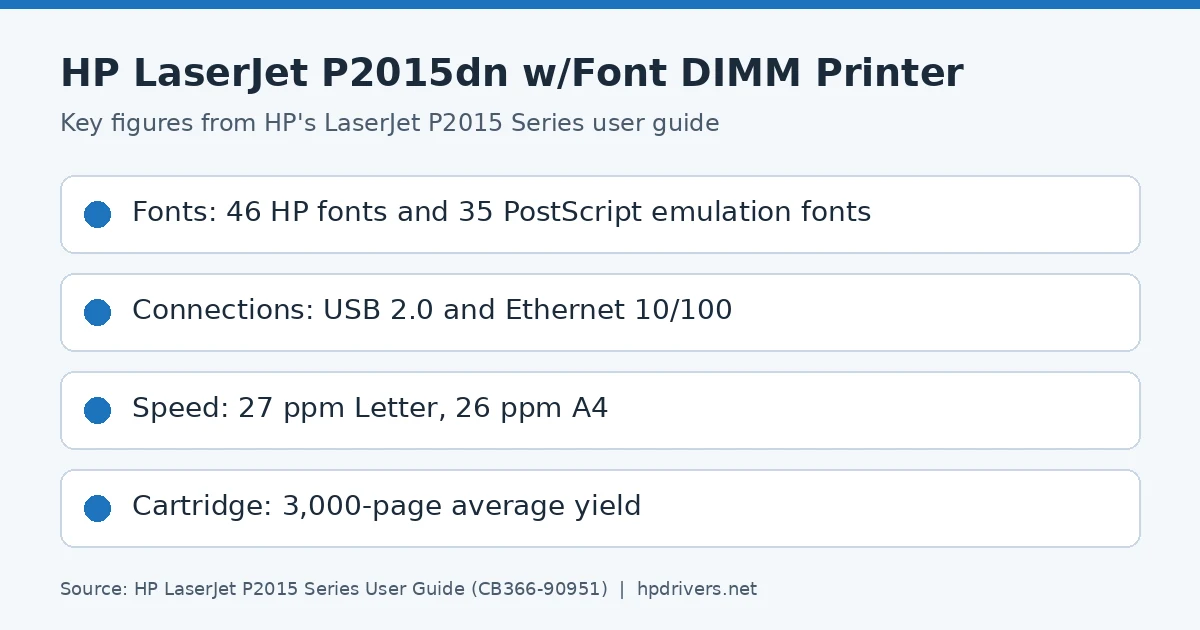
The standard feature list in HP’s guide counts 46 HP fonts and 35 HP postscript emulation level 3 fonts. Because the printer detects the job language itself, it switches among PCL 6, PCL 5e and PostScript emulation on its own.
The guide does not explain how a font DIMM changes that list, so this page makes no font-specific claim. HP ToolboxFX does have a PCL 5e page for viewing and changing the PCL font information. However, that utility came on the original CD, and HP no longer lists it for this printer.
The dn version also has a networking port. Both USB and Ethernet appear in the ports list near the end of this page.
Pages that are too complex to print
Some failures are not about fonts at all. Instead, the printer may simply run out of memory for a busy page. The guide lists the signs for PostScript emulation jobs.
- A legal page prints with clipped margins: the job is too complex. Print at 600 dots per inch, simplify the page or install more memory.
- Limit Check Error: the cause and the remedy are the same as for the clipped legal page.
- An error page prints: the job may not be a PostScript emulation job. Check whether the software expected a setup or header file to be sent to the printer.
The guide names 600 dpi as the first setting to try, so test that before you add hardware.
Toner smear, loose toner and repeating marks
These three defects share some causes, so the guide’s fixes overlap.
- Toner smear: if it appears on the leading edge, the media guides may be dirty. Wipe them with a dry, lint-free cloth. The fuser temperature may also be too low, so make sure the correct media type is selected in the driver.
- Loose toner: clean the inside of the printer and check the media. Plug the printer straight into an AC outlet instead of a power strip.
- Vertical repetitive defects: a mark in the same spot on every page suggests a damaged cartridge. If the defects appear on the back of the page, they will probably fix themselves after a few more sheets.
Misformed characters, skew, curl, wrinkles and scatter
Media is the most common cause of the defects in this group.
- Misformed characters: hollow characters mean the stock may be too slick. A wavy effect, in contrast, suggests the printer needs service.
- Page skew: check that the guides are neither too tight nor too loose and that the input bin is not too full.
- Curl or wave: heat and humidity both curl media. Turn the stack over, rotate it by 180 degrees, or print straight through the open output door.
- Wrinkles or creases: check how the media is loaded. For envelopes, air pockets can be the cause, so flatten the envelope and print again.
- Toner scatter outline: a small amount is normal for laser printing, but large amounts suggest the media resists toner. Use media made for laser printers.
Choosing paper and avoiding media that harms the printer
Supported sizes run from 76 by 127 mm to 216 by 356 mm. Weight, grain and moisture content all affect quality. Therefore test a sample before buying a large quantity.
- Conventional paper: 75 g/m2 is the best choice, and it should be free of cuts, tears, dust and curled edges.
- Avoid: rough paper, multi-part forms, and cutouts or perforations other than standard three-hole punching.
- Can damage the printer: staples, inkjet transparencies, inkjet photo paper, and embossed or coated paper that cannot take 200 degrees C for 0.1 second.
- Card stock: stay at or below 157 g/m2, because heavier stock can cause misfeeds and poor fusing.
Speed, capacity and ports
The guide’s capacities and ratings table gives the figures that matter for daily use.
- Print speed is 27 ppm on Letter and 26 ppm on A4. The first page can be out in as few as 8.5 seconds.
- Tray 2 holds 250 sheets and tray 1 holds 50 sheets of 75 g/m2 paper. The top output bin holds 125 sheets.
- Media weight is 60 to 105 g/m2 for the output bin, while the straight-through path takes 60 to 163 g/m2.
- Monthly duty cycle is at most 10,000 single-sided pages, and the average is 1,000.
- For connections, the guide lists high-speed USB 2.0 plus an RJ-45 Ethernet 10/100 port on networking-equipped models.
Storing the cartridge and HP’s policy on non-HP cartridges
Keep the cartridge in its package until you are ready to use it. Also minimize its exposure to light. The average yield is 3,000 pages under ISO/IEC 19752, although a 7,000-page version also exists. Actual yield depends on how you use the printer.
HP cannot recommend non-HP cartridges, whether new, refilled or remanufactured, because it cannot control their quality. Service or repair that results from using one is not covered by the printer warranty.
Similar models
This page covers the HP LaserJet P2015dn w/Font DIMM Printer only. Its HP file list matches the P2015d and has no Port Monitor file, whereas the standard P2015dn page does. The P2015d with Font DIMM is on its own page.