
The HP LaserJet MFP M141ca driver download for Windows 11, Windows 10 (32-bit and 64-bit) is the HP LaserJet MFP M139a/M140a/M141a/M142a EasyStart Printer Setup Software – Offline Use Only, and for a Mac HP lists the package titled “Install HP app to complete setup and support”. This page lists HP’s official software for the HP LaserJet MFP M141ca.
Recommended LaserJet MFP M141ca driver downloads
Files download directly from HP’s official servers. hpdrivers.net does not host or modify them.
Which Windows package does the LaserJet MFP M141ca driver need?
These are the main types of Windows package that HP lists specifically for the LaserJet MFP M139-M142:
- Firmware update (v20260530, Jul 23, 2026): updates the printer itself, not your PC.
- Full software solution (v54.3.5248, Feb 08, 2023, 186.1 MB): driver plus HP’s setup wizard and tools.
LaserJet MFP M141ca driver: all packages
LaserJet MFP M141ca driver for Windows
File details
File:M139-M142_Series_FW_Update-20260530.exeFile details
File:HPEasyStart-13.6.5-LJM139-M142_U_54_3_5248_1_Webpack.exeMac firmware utility for the LaserJet MFP M141ca
File details
File:M139-M142_Series_FW_Update-20260530.dmgScanning and OCR software
Setup tools and other software
LaserJet MFP M141ca driver for Linux
HP lists Linux support for this series through its HPLIP project, outside the regular download list: HP’s Linux printing page (HPLIP).
Which systems the LaserJet MFP M141ca driver supports
HP’s download list for the LaserJet MFP M141ca names Windows 11; Windows 10, 8.1, 8, 7 (32-bit and 64-bit); macOS 26, 15, 14, 13, 12, 11, 10.15, 10.14, 10.13, 10.12, Mac OS X 10.11, Mac OS X 10.10, Mac OS X 10.9, Mac OS X 10.8, Mac OS X 10.7, Mac OS X 10.6, Mac OS X 10.5; and Linux through HPLIP. For macOS 26, 15, 14, 13, 12, 11, setup runs through the HP app. For macOS 10.15, 10.14, 10.13, 10.12, Mac OS X 10.11, Mac OS X 10.10, Mac OS X 10.9, Mac OS X 10.8, Mac OS X 10.7, Mac OS X 10.6, Mac OS X 10.5, HP’s list has only the firmware utility.
HP’s specifications for the LaserJet MFP M139-M142 series say Windows 8 and 8.1 are not supported and that the full software solution is only for Windows 10 and newer. HP’s download list still shows some files for older versions.
Installing the LaserJet MFP M141ca driver
To install it, follow these steps.
- Pick the installer from the table above.
- Run it and follow the on-screen instructions.
- Connect the USB cable when the installer asks.
- Print a test page to confirm the connection.
For step-by-step instructions, see our guide to installing an HP printer driver.
Firmware update 20260530 for the LaserJet MFP M141ca
For the LaserJet MFP M141ca, HP lists the HP LaserJet MFP M139-M142 Printer series Firmware Update Utility (not compatible with HP LaserJet MFP M139w Printer), version 20260530, released Jul 23, 2026. HP’s notes for it: USB Support for PSA Driver; Security updates; General improvements and bug fixes.
- Check your current firmware version first on the printer’s Configuration Page, and update only if it is older.
- Install the printer driver before running the update. HP’s utility needs it to reach the printer.
Specifications that matter for setup
Toner supplies HP lists for the LaserJet MFP M139-M142
HP’s specifications name these replacement supplies for the LaserJet MFP M139-M142:
- HP 141A Black LaserJet Toner Cartridge (~950 pages), W1410A
- HP 142A Black LaserJet Toner Cartridge (about 950 pages), W1420A
- HP 150A Black LaserJet Toner Cartridge (about 975 pages), W1500A
- HP 141/142 Toner Black Welcome Rep HC Kit (about 1,250 pages), W8006J
What comes in the box
HP lists these items with the LaserJet MFP M139-M142:
- Printer
- Power cord
- Toner Cartridge
- Setup Poster
- Reference Guide
- Warranty Guide
Paper handling and hardware details
Values below are HP’s published figures for the LaserJet MFP M139-M142 series, which the LaserJet MFP M141ca belongs to.
Connecting the printer by USB
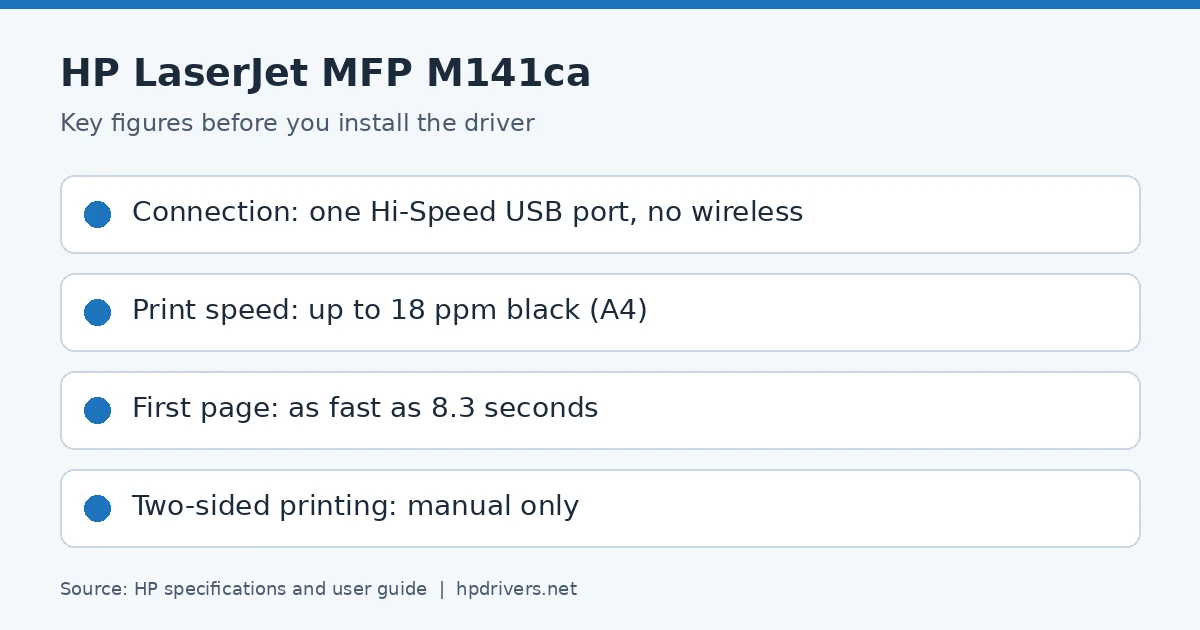
HP lists one Hi-Speed USB port as this model’s only standard connection. Since the guide’s USB steps use HP Smart (HP’s current download list calls it the HP app), install the app on the computer first.
- Connect the printer to the computer with a USB cable.
- Open HP Smart on the computer.
- Click the plus icon or Add Printer, then choose the printer and follow the instructions.
- If prompted, create or sign in to an HP account and register the printer.
HP’s file list for this model lists the M139a/M140a/M141a/M142a offline EasyStart installer for this model.
Copying on the basic panel
The basic panel has no display. When you lift the scanner lid, put the original face down. Align it with the mark at the rear left corner of the glass before you close the lid. The guide also points to the instructions printed along the glass edge.
Press the Resume button to start the copy. If you need more copies, press Resume again, up to nine presses in total. A dirty glass or inner lid side may stop the scanner from working as it should.
Copying an ID card
ID copy puts both sides of a card, or other small documents, on one side of a sheet. The printer prints the two images together.
- Before you start, place the ID card on the left side of the scanner glass.
- When the lid is closed, press the ID Copy button. The attention light blinks when the first side is done.
- When the light blinks, turn the card over and put its second side in the same place on the glass.
- Press ID Copy again, and the page then prints.
Manual two-sided printing
HP’s specifications list no automatic duplex printing. The guide gives a manual process in which you reload the paper for the second side.
On Windows, open the print driver from your program and click the Layout tab. Tick the manual duplex box and print. The printer first prints one side of every page.
- Before the second pass, take the blank paper out of the input tray.
- Remove the printed stack from the output bin, then load it print side down, top edge first, in the input tray.
- Click OK on the computer to print the second sides.
- When the attention light blinks, press Resume to continue.
On a Mac, show the details in the print dialog and open the Manual Duplex menu. Tick the box and choose a binding option, then reload the stack the same way and press Resume when the attention light blinks. This option needs the printer set up through the HP app, so it is unavailable with AirPrint.
Printing several pages on one sheet
Printing several pages on one sheet saves paper, for example on a very large document.
- Windows: when the driver is open, click the Layout tab and choose the number of pages per sheet and the layout order. If you want a frame around each page, tick Page Borders.
- macOS: open the Layout menu in the print dialog, then choose the pages per sheet, the layout direction and, if you like, a border type.
Because button names vary by program, look for the closest match. Click OK or Print to start the job.
Loading envelopes and labels
The standard input tray holds 150 sheets. HP’s specifications list plain paper, envelopes, postcards and labels as media types. Supported sizes are Letter, Legal, No. 10 envelopes and custom sizes from 4.13 x 5.83 to 8.5 x 14 inches.
- Envelopes: take any paper out of the tray first, then place the envelopes in the middle with the print side up and the short edge forward. If the flap is on the short edge, point it up with the flapless end toward the printer. When the flap is on the long edge, face it down with the stamp end toward the back of the tray.
- Labels: when the tray is empty, place the sheets in the middle with the top edge toward the back and the print side up.
Slide the paper guides until they touch the stack, and pull out the output tray extension. For the full list of supported sizes and tray capacity, check the product specifications on HP’s support site.
Checks for paper, toner and the cartridge
Check the paper type in the job settings first, because a wrong type can spoil the output. While Windows uses the Paper/Quality tab for this, a Mac uses the Finishing menu in the print dialog.
To read toner status, wake the printer with Cancel, then hold Resume for five seconds. The page that prints shows the cartridge’s remaining life and HP part number, so you can order the right one. Because a cartridge near the end of its life can cause print-quality problems, check this page before replacing anything.
When you inspect the cartridge, take it out and confirm that the sealing tape is gone. Also look for damage to the memory chip and to the green imaging drum, but do not touch the drum, because fingerprints can spoil print quality. If the drum has scratches, the cartridge needs replacing.
Because paper and surroundings affect print quality, use clean, smooth laser paper that has not been printed on before. Also keep the printer away from drafts, enclosed cabinets and blocked vents, and out of extreme temperature or humidity.
Common print defects
HP’s guide gives common first steps for image defects. When a defect appears, reprint the document, check the cartridge and make sure the driver paper type matches the tray. If the problem stays, use the extra steps for the defect below.
- Light print: if the page is faint, remove the cartridge and shake it to redistribute the toner. When it is seated again, reprint, and replace the cartridge if the print stays faint.
- Gray background or dark print: make sure the paper in the tray has not already been through the printer. Also try another paper type.
- Blank page: if the page is blank, check that the cartridge is genuine HP and properly installed, or print with another cartridge.
- Black page: when every page is black, look at the cartridge for damage, then reseat or replace it.
- Bands and streaks: for bands, replace the cartridge. When light vertical streaks appear, redistribute the toner first.
- Shadow or poor fusing: match the paper type in the driver to the paper loaded. While a lighter type helps against shadows, a heavier one helps when toner rubs off the edges.
- Skewed or off-center image: when the stack sits unevenly, reload it with flat edges and keep it below the tray’s full mark. While you set the guides to the paper size, do not press them hard against the stack.
- Output curl: for curl toward the printed side choose a heavier paper type; for curl away from it, a lighter one. Also use fresh paper.
Similar models
This page covers the M141ca only. The wireless M141we, M140we, M139we and M142we have their own pages, and so does the M141cw.