
The HP Envy 6155e driver download for Windows 11, Windows 10 (32-bit and 64-bit) is the HP Envy 6100 Series EasyStart Printer Setup Software – Offline Use Only, and for a Mac HP lists the package titled “Install HP app to complete setup and support”. This page lists HP’s official software for the HP Envy 6155e All-in-One.
Recommended Envy 6155e driver downloads
Files download directly from HP’s official servers. hpdrivers.net does not host or modify them.
Which Windows package does the Envy 6155e driver need?
These are the main types of Windows package that HP lists specifically for the Envy 6100e All-in-One:
- Firmware update (v6.22.5.27, Jul 22, 2026): updates the printer itself, not your PC.
- Full software solution (v61.0.1959, Apr 29, 2024, 324.5 MB): HP’s setup package for printing and scanning only.
Envy 6155e driver: all packages
Envy 6155e driver for Windows
File details
File:Envy_6100_6100e_6100r_DJPIA_6100_6.22.5.27.exeFile details
File:HPEasyStart-16.5.6-EN6100_61_0_1959_1_Webpack.exeMac firmware utility for the Envy 6155e
File details
File:Envy_6100_6100e_6100r_DJPIA_6100_6.22.5.27.dmgScanning and OCR software
Setup tools and other software
Which systems the Envy 6155e driver supports
HP’s download list for the Envy 6155e names Windows 11, 11 on ARM64; Windows 10, 8.1, 7 (32-bit and 64-bit); macOS 26, 15, 14, 13, 12, 11, 10.15, 10.14, 10.13, 10.12. For macOS 26, 15, 14, 13, 12, 11, setup runs through the HP app. For macOS 10.15, 10.14, 10.13, 10.12, HP’s list has only the firmware utility.
HP’s specifications name Windows 11 and Windows 10 as the compatible desktop versions of Windows. For older versions, the list has no printer setup package.
Installing the Envy 6155e driver
To install it, follow these steps.
- Pick the setup file from the table above.
- Run it and follow the on-screen instructions.
- Choose your connection when the setup asks.
- Print a test page to confirm the connection.
For step-by-step instructions, see our guide to installing an HP printer driver.
Firmware update 6.22.5.27
For the Envy 6155e, HP lists the HP ENVY 6100-6100e-6100r/HP DeskJet Plus Ink Advantage 6100 All-in-One Printer series Firmware Update, version 6.22.5.27, released Jul 22, 2026. HP’s notes for it: Customer experience improvements; Key product improvements and bug fixes.
- Keep the printer and the computer switched on until the update has finished.
Specifications that matter for setup
Ink supplies HP lists for the Envy 6100e All-in-One
For North America, HP’s specifications name these replacement supplies for the Envy 6100e All-in-One:
- HP 68 Black Original Ink Cartridge (~160 pages) 7FP21TN
- HP 68 Tri-Color Original Ink Cartridge (~120 pages) 7FP20TN
- HP 68e EvoMore Black Original Ink Cartridge (~320 pages) 7FP22TN
Paper handling and hardware details
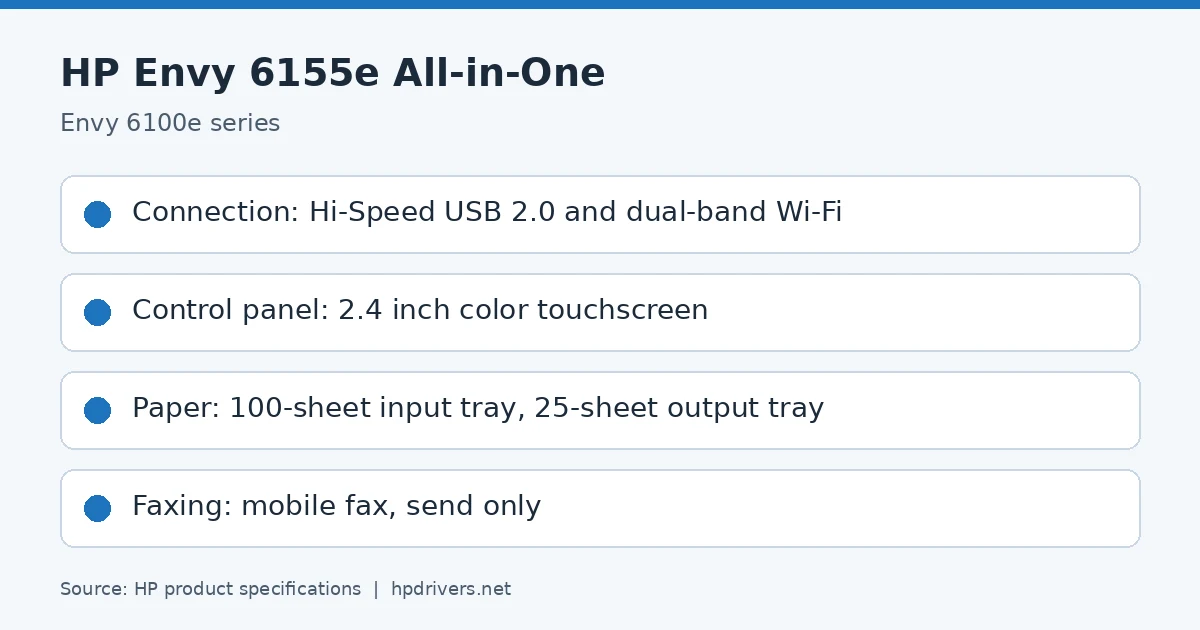
Values below are HP’s published figures for the Envy 6100e All-in-One series, which the Envy 6155e belongs to.
Wi-Fi setup after you install the Envy 6155e driver
The HP software on a computer or phone is one way to put the printer on your wireless network. Turn on Wi-Fi on the printer and put it in Wi-Fi setup mode before you start. The computer or phone must be on the same Wi-Fi network as the printer.
The software uses Bluetooth for setup only, because it does not support printing over Bluetooth. On a phone, turn on Bluetooth and location services first.
- Start the HP software, sign in or create an HP account if it asks, and register the printer.
- Follow the on-screen instructions to add the printer.
- If the software asks for a password, enter the default printer PIN from the label inside the printer access door. A password you changed yourself replaces that PIN.
When the printer connects, the Wi-Fi light stops blinking and stays lit.
Joining a network from the control panel and checking Wi-Fi status
The control panel has a Wi-Fi Setup Wizard and Wi-Fi Protected Setup, so a computer is not required. If the printer has never been set up on Wi-Fi, turning Wi-Fi on starts the wizard automatically.
- On the Home screen, touch Menu.
- Scroll to Utilities and touch Settings.
- Choose Network, and then Wi-Fi.
- Switch on the toggle next to Wi-Fi.
- Pick Wi-Fi Setup Wizard or Wi-Fi Protected Setup and follow the prompts.
The blue Wi-Fi light stays lit while Wi-Fi is on. To check the connection later, follow the same menu path as far as Wi-Fi and touch View Details. Once the printer has joined, get the HP software from 123.hp.com.
Copying from the printer and from a phone
The printer copies any standard paper size up to A4 and Letter. It copies in color by default, and Save stores your current settings as the new default.
- Load paper in the input tray.
- On the Home screen, touch Copy and choose Document Copy or ID Card Copy.
- Set the number of copies, or change the copy settings.
- Place the original print-side down on the scanner glass and touch Copy.
For an ID card, follow the on-screen instructions to place the card on the scanner glass. Also, a phone with a camera can copy or scan: open the HP software, tap the Plus icon or Add Printer, then choose Copy, Camera Scan, or Printer Scan. When you use the camera, place the original inside the frame on the preview screen, pick a size option, and tap the round button to take the picture.
Sending a mobile fax
Mobile Fax in the HP software scans and faxes several pages from a phone or computer. Mobile fax on this model sends only, according to HP’s specifications. The phone or computer must be connected to a network.
- Open the HP software and sign in to an HP account if prompted.
- Select the Mobile Fax tile. If it is missing, tap or click Personalize Tiles to add it to your home screen.
- Fill in the required details and turn on a cover page if you need one.
- Attach an existing file, or scan a new one with the printer or phone.
- Review the details and send the fax.
If you cannot find the feature in the software, it might not be available in your country or region.
Loading envelopes into the input tray
Envelopes go in the same tray as paper. HP’s specifications list No. 10 envelopes and a weight of 20 to 24 lb for HP envelopes. Remove any paper before you load a different type or size, and never load paper while the printer is printing.
- Pull out the input tray.
- Slide the paper guides to the edges of the tray.
- Insert the envelopes into the middle of the tray with the side to be printed facing down, and push the stack in until it stops.
- Adjust the guides until they touch the edges of the stack.
- Gently close the input tray.
- Keep or change the paper settings on the control panel so they match the type and size you loaded.
- Pull out the output tray extension.
Replacing a cartridge
Replace a cartridge with a new Original HP cartridge when the ink is too low for good print quality. Keep the printer turned on. If HP+ is enabled, the printer needs Original HP cartridges, an HP account and a permanent Internet connection. HP advises replacing a missing or damaged cartridge quickly, because that avoids print quality problems and extra ink usage.
- Open the cartridge access door and wait until the carriage stops moving.
- Press down on top of the cartridge to release it, and lift it out of its slot.
- Recycle the used cartridge through hp.com/recycle.
- Take the new cartridge out of its packaging and remove the plastic tape with the pull tab.
- Slide the cartridge into its slot and push firmly at an upward angle until you hear a snap.
- Repeat for the other cartridge, then close the access door.
Do not touch the nozzle or the electrical contacts. If ink gets on clothing, wipe it with a dry cloth and wash in cold water, since hot water sets ink into the fabric.
Cleaning the scanner glass
Dust or dirt on the glass, the lid backing, or the scanner frame can slow the scanner, lower scan quality, and affect special features such as fitting a copy to a page size. Before cleaning, turn the printer off with the Power button and unplug the power cord.
- Lift the scanner lid.
- Wipe the glass and the lid backing with a soft, lint-free cloth sprayed with a mild glass cleaner.
- Close the lid and turn the printer on.
Use glass cleaner only, because abrasives, acetone, benzene, and carbon tetrachloride can damage the glass. Isopropyl alcohol can also leave streaks. Spray the cloth rather than the glass, because too much cleaner can leak under the glass and damage the scanner.
Similar models
This page covers the Envy 6155e only. The Envy 6120e has its own page.