
The HP OfficeJet Pro 8124e driver download for Windows 11 is the HP OfficeJet Pro 8120 series EasyStart Printer Setup Software with PSA – Offline Use Only, and for a Mac HP lists the package titled “Install HP app to complete setup and support”. For Windows 11 on ARM64, HP lists the HP OfficeJet Pro 8120 series EasyStart Printer Setup Software with PSA (ARM64)- Offline Use Only. For Windows 10 (32-bit and 64-bit), HP lists the HP OfficeJet Pro 8120 series EasyStart Printer Setup Software – Offline Use Only. This page lists HP’s official software for the HP OfficeJet Pro 8124e All-in-One.
Recommended OfficeJet Pro 8124e driver downloads
Files download directly from HP’s official servers. hpdrivers.net does not host or modify them.
Which Windows package does the OfficeJet Pro 8124e driver need?
These are the main types of Windows package that HP lists specifically for the OfficeJet Pro 8120e All-in-One:
- Firmware update (v6.23.6.41, Jul 10, 2026): updates the printer itself, not your PC.
- Full software solution for Windows 11 (v17.6.13, Oct 30, 2026, 474.2 MB): HP’s setup package for printing and scanning only.
- Full software solution for Windows 11 on ARM64 (v17.6.13, Oct 30, 2026, 480.6 MB): HP’s setup package for printing and scanning only.
- Full software solution for Windows 10 (32-bit and 64-bit) (v59.2.1865, Oct 30, 2026, 398.9 MB): HP’s setup package for printing and scanning only.
OfficeJet Pro 8124e driver: all packages
OfficeJet Pro 8124e driver for Windows
File details
File:OJP8120_8120e_8130_8130e_6.23.6.41.exeFile details
File:HPEasyStart-17.6.13-OJP8120_59_2_1865_Webpack.exeFile details
File:HPEasyStart-17.6.13-OJP8120_59_2_1865_ARM64_Webpack.exeFile details
File:HPEasyStart-17.6.13-OJP8120_59_2_1865_1_Webpack.exeMac firmware utility for the OfficeJet Pro 8124e
File details
File:OJP8120_8120e_8130_8130e_6.23.6.41.dmgScanning and OCR software
Setup tools and other software
Which systems the OfficeJet Pro 8124e driver supports
HP’s download list for the OfficeJet Pro 8124e names Windows 11, 11 on ARM64; Windows 10, 8.1 (32-bit and 64-bit); macOS 26, 15, 14, 13, 12, 11. On a Mac the setup runs through the HP app.
HP’s specifications name Windows 11 and Windows 10 as the compatible desktop versions of Windows. For older versions, the list has no printer setup package.
Installing the OfficeJet Pro 8124e driver
To install it, follow these steps.
- Pick the setup file from the table above.
- Run it and follow the on-screen instructions.
- Choose your connection when the setup asks.
- Print a test page to confirm the connection.
For step-by-step instructions, see our guide to installing an HP printer driver.
Firmware update 6.23.6.41
For the OfficeJet Pro 8124e, HP lists the HP OfficeJet 8120-8120e-8130-8130e/HP OfficeJet Pro 8120-8120e-8130-8130e All-in-one Printer series Firmware Update, version 6.23.6.41, released Jul 10, 2026. HP’s notes for it: Security fixes; General enhancements and bug fixes.
- Keep the printer and the computer switched on until the update has finished.
Specifications that matter for setup
Ink supplies HP lists for the OfficeJet Pro 8124e
HP’s specifications name these replacement supplies for the OfficeJet Pro 8124e:
- HP 924 Black Original Ink Cartridge (~500 pages) 4K0U6NE
- HP 924 Cyan Original Ink Cartridge (~400 pages) 4K0U3NE
- HP 924 Magenta Original Ink Cartridge (~400 pages) 4K0U4NE
- HP 924 Yellow Original Ink Cartridge (~400 pages) 4K0U5NE
- HP 924e EvoMore Black Original Ink Cartridge (~1,000 pages) 4K0V0NE
- HP 924e EvoMore Cyan Original Ink Cartridge (~800 pages) 4K0U7NE
- HP 924e EvoMore Magenta Original Ink Cartridge (~800 pages) 4K0U8NE
- HP 924e EvoMore Yellow Original Ink Cartridge (~800 pages) 4K0U9NE
What comes in the box
HP lists these items with the OfficeJet Pro 8124e:
- HP 924 Setup Black Ink Cartridge
- HP 924 Setup Cyan Ink Cartridge
- HP 924 Setup Magenta Ink Cartridge
- HP 924 Setup Yellow Ink Cartridge
- Power Cord
- Regulatory Flyer
- Ink Caution Flyer
- Setup Poster
- Reference Guide
Paper handling and hardware details
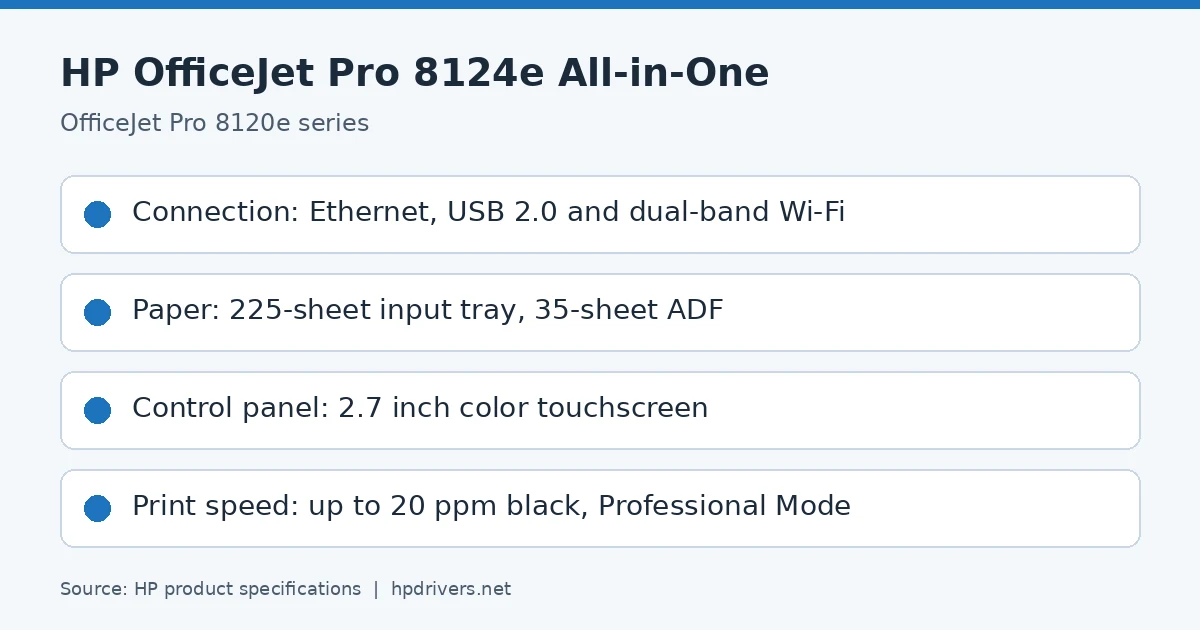
Values below are HP’s published figures for the OfficeJet Pro 8120e All-in-One series, which the OfficeJet Pro 8124e belongs to.
Connecting with an Ethernet cable
Ethernet is one of three connections on this model. When you plug in the Ethernet cable, the Wi-Fi connection is disabled automatically.
- Connect your computer to the router.
- Connect the printer to the router with an Ethernet cable.
- Open the HP software on the computer. If prompted, create or sign in to an HP account and register the printer.
- Add the printer in the software and follow the on-screen instructions.
A USB connection works too, but HP+ does not work as expected on a printer that was set up over USB.
Opening the embedded web server and finding the IP address
The embedded web server (EWS) opens in a browser when you type the printer’s IP address or hostname. Enter the default printer PIN from the label inside the printer access door if it asks for a password. You can also open it from the HP software.
On a Wi-Fi connection, touch Status Center on the control panel to see the IP address. As an alternative, go to Menu, Utilities, Settings, Network, Wi-Fi, and then View Details. A printer connected over Wi-Fi Direct uses 192.168.223.1.
In the EWS, the Network menu holds Network Summary and Network Settings. If the printer is not detected on the network, go to Network Settings, click IP Settings, and pick IPv4 Only, IPv6 Only, or Both IPv4 and IPv6 from the Protocols menu.
Printing with the OfficeJet Pro 8124e driver on Windows and Mac
Install the HP software before you print from Windows. Most apps print from the File menu.
- Open the document and choose Print from the File menu.
- Check that your printer is selected.
- Click the button that opens the Properties dialog box. Depending on the app, it is called Properties, Options, Setup, or Preferences.
- Change any settings, click OK, and then click Print.
On a Mac, the first print needs the printer added: open System Preferences, choose Printers & Scanners, click the Add button, select the printer, and click Add. After that, use the Print command in any open file. iOS devices have AirPrint preinstalled, and Android devices use the HP Print Service Plugin.
Checking ink levels and caring for cartridges
The control panel shows estimated ink levels. Swipe right on the Home screen, touch Supplies, and then Ink Cartridges. The HP software and the EWS show the same estimates.
These levels are for planning only. When a low-ink alert appears, keep a replacement cartridge ready. You do not have to replace the old one until the printer prompts you.
- Use Original HP cartridges. HP+ printers will not print with non-Original or refilled cartridges, or when disconnected from the Internet.
- Check that all cartridges are installed correctly.
- Order only the cartridge number printed on the label of the cartridge you are replacing.
That number also appears on a sticker inside the printer, behind the cartridge access door. The setup cartridge that ships with the printer is not sold separately.
Printing with Wi-Fi Direct
Wi-Fi Direct connects a computer or phone straight to the printer without an existing wireless network. Up to 5 computers and mobile devices can connect this way, and you must turn it on before printing from a device.
- On the Home screen, touch Menu.
- Scroll to Utilities and touch Settings.
- Choose Network, and then Wi-Fi Direct.
- Use the toggle next to Wi-Fi Direct to switch it on.
You can also turn it on in the EWS. HP keeps instructions and troubleshooting tips at hp.com/go/wifidirectprinting.
Setting sleep, shutdown, and schedules
The Power Management settings cut energy use. By default, the printer enters Sleep mode after 5 minutes of inactivity. Inactivity Shutdown turns it off completely after a default period, and you press the Power button to switch it on again.
Inactivity Shutdown is disabled while Wi-Fi or Wi-Fi Direct is on. It is also disabled when a USB or Ethernet connection is established. Schedule Printer On/Off turns the printer on and off at set times, for example on at 8 a.m. and off at 8 p.m. from Monday to Friday.
- On the Home screen, touch Menu.
- Scroll to Utilities and touch Settings.
- Choose General, and then Energy.
- Select a feature and change its settings.
Longer times, or turning a feature off, increase energy consumption.
Restoring the original network settings
Restoring network settings restarts Wi-Fi setup mode and helps with network problems. Before you do it, run HP Print and Scan Doctor or visit hp.com/support, because they can fix many problems automatically. Afterwards, reconnect the printer to the network with the HP software. An HP+ printer must also be registered again with the HP account used at first setup.
- On the Home screen, touch Menu.
- Scroll to Utilities and touch Tools.
- Choose Maintenance, and then Restore Settings.
- Select Restore network settings.
The same menu also offers Reset user settings, Reset user data, and Restore all factory defaults.
Similar models
This page covers the OfficeJet Pro 8124e only. The OfficeJet Pro 8122 has its own page.