
The HP LaserJet Pro MFP M130a driver download for Windows 11, Windows 10, 8.1, 8, 7 (32-bit and 64-bit) is the HP LaserJet Pro MFP M130a/132a and Ultra MFP M134a Full Feature Software and Drivers, and for a Mac HP lists the package titled “Install HP Easy Start”. This page lists HP’s official software for the HP LaserJet Pro MFP M130a.
Recommended LaserJet Pro M130a driver downloads
Files download directly from HP’s official servers. hpdrivers.net does not host or modify them.
Which Windows package does the LaserJet Pro M130a driver need?
HP publishes 3 kinds of Windows package for the LaserJet Pro MFP M130:
- Full software solution (v44.11.2775, May 18, 2022, 193.8 MB): driver plus HP’s setup wizard and tools.
- Driver-only installer (v44.11.2775, May 18, 2022): print driver only, for PCs that can’t or shouldn’t take the full package.
- Firmware update (v20211215, Dec 20, 2021): updates the printer itself, not your PC.
LaserJet Pro M130a driver: all packages
LaserJet Pro M130a driver for Windows
File details
File:Full_Webpack-44.11.2775-LJM129-M134_U_3_1_Full_Webpack.exeFile details
File:Basic_Webpack_x64-44.11.2775-LJM129-M134_U_3_1_Basicx64_Webpack.exeFile details
File:Basic_Webpack_x86-44.11.2775-LJM129-M134_U_3_1_Basicx86_Webpack.exeFile details
File:HP_LaserJet_Pro_M130a_M132a_and_Ultra_M134a_Printer_Firmware_Update_Utility_20211215.exeMac firmware utility for the LaserJet Pro M130a
File details
File:HP_LaserJet_Pro_M130a_M132a_and_Ultra_M134a_Printer_Firmware_20201023.dmgOther HP software listed for this series
LaserJet Pro M130a driver for Linux
HP lists Linux support for this series through its HPLIP project, outside the regular download list: HP’s Linux printing page (HPLIP).
Which systems the LaserJet Pro M130a driver supports
HP’s download list for the LaserJet Pro M130a names Windows 11; Windows 10, 8.1, 8, 7 (32-bit and 64-bit); macOS 26, 15, 14, 13, 12, 11, 10.13, 10.12, Mac OS X 10.11, Mac OS X 10.10; and Linux through HPLIP. On a Mac the setup runs through the HP app.
Installing the LaserJet Pro M130a driver
To install it, follow these steps.
- Download the full software package listed below.
- Turn on the printer and start the installer.
- Connect the USB cable only when the installer asks for it.
- Print a test page to check the connection.
For step-by-step instructions, see our guide to installing an HP printer driver.
Firmware update 20211215 for the LaserJet Pro M130a
For the LaserJet Pro MFP M130a, HP lists the HP LaserJet Pro M130a/M132a and Ultra M134a printer Firmware Update Utility, version 20211215, released Dec 20, 2021. HP’s notes for it: General improvements and bug fixes; Contains all previous fixes and enhancements in official releases; Security Fixes. On a Mac, HP lists version 20201023, released Oct 23, 2020.
- Check your current firmware version first on the printer’s Configuration Page, and update only if it is older.
- Install the printer driver before running the update. HP’s utility needs it to reach the printer.
Specifications that matter for setup
Toner supplies HP lists for the LaserJet Pro MFP M130
HP’s specifications name these replacement supplies for the LaserJet Pro MFP M130:
- HP 17A Original Black LaserJet Toner Cartridge CF217A (about 1,600 pages)
- HP 19A Original LaserJet Imaging Drum CF219A (about 12,000 pages)
Paper handling and hardware details
Values below are HP’s published figures for the LaserJet Pro MFP M130 series, which the LaserJet Pro MFP M130a belongs to.
Reading the LED control panel
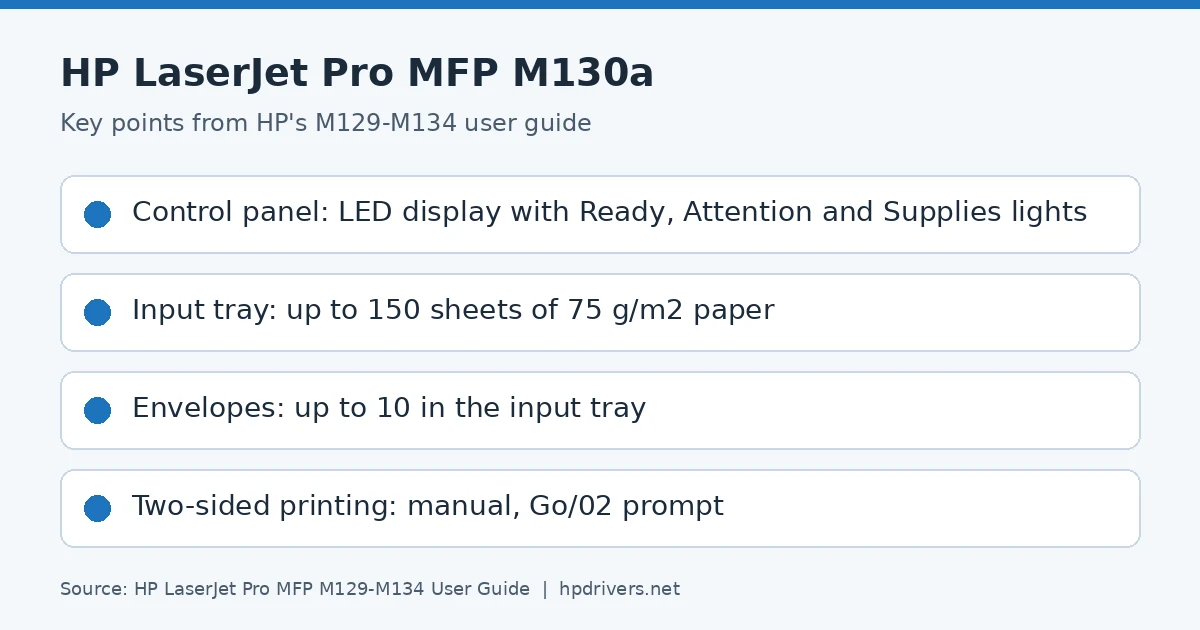
The M130a has no menu display. Instead, a small LED display shows numbers for copy jobs, and three lights report the printer state.
- Ready: steady when the printer can print; blinking while it receives data or cancels a job.
- Attention: blinks when you need to act, for example when paper runs out or the toner needs changing. A steady light, however, means an error.
- Supplies: blinks on a supply error and stays on when a supply is very low and must be replaced.
The buttons are simple. The up and down arrows change the value on the display. Copy Setup moves between the copy options, and Start Copy then begins the copy. Cancel stops a print job. When the printer is idle, however, Cancel resets the copy settings to their defaults.
What the Go and Er codes on the M130a mean
When the printer wants a confirmation, the LED display alternates between Go and a two-digit code. When it needs attention, it alternates between Er and an error code. These are the common ones from HP’s table.
- Go/01: manual-feed mode. Load the correct paper and press Start Copy.
- Go/02: a manual two-sided job is waiting. Reload the pages for the second sides and press Start Copy.
- Empty tray, Er/01: load paper in the input tray.
- Open door, Er/02: check that the top cover is fully closed.
- Paper jam, Er/04 to Er/06: paper is stuck in the input tray (04), the toner cartridge area (05) or the output bin (06).
- Missing supply, Er/07: the toner cartridge or imaging drum is missing or not seated correctly.
- Very low supply, Er/08 or Er/09: replace the toner cartridge or the imaging drum.
- Wrong paper size, Er/25: replace the paper, or press Start Copy to use the size that is loaded.
With Er/30 and the other codes shown while both the Attention and Ready lights are on, the printer has a fatal error. Turn it off, wait 30 seconds and turn it on again. If the code returns, however, contact HP support.
Loading paper and envelopes in the input tray
The input tray holds up to 150 sheets of 75 g/m2 (20 lb) paper. When you add paper, first take out what is left and straighten the whole stack. Do not fan it, because that helps several sheets feed at once.
- Open the input tray if it is closed.
- Slide the width and length guides outward.
- Load the paper face-up, top edge forward.
- Push the guides in until they are snug against the stack.
Letterhead and preprinted paper also go face-up with the top edge leading in, for both one-sided and two-sided jobs. Prepunched sheets, on the other hand, go face-up with the holes toward the left side.
For envelopes, HP recommends no more than 10 in the input tray. Place them face up, with the short, return-address end leading into the printer. Then, in the print driver, open the Paper/Quality tab, pick the tray under Paper source and choose Envelope under Media.
Manual two-sided printing and several pages per sheet in Windows
Two-sided printing on this model is done by hand. In the print dialog, open Properties or Preferences for the printer.
- On the Layout tab, choose an option from Print on Both Sides Manually and click OK.
- Print the job. The printer prints the first side of every page.
- Take the stack from the output bin and place it printed side down, top edge first, in the input tray.
- Click OK on the computer to print the second sides.
While the printer waits for the stack, the LED display shows Go/02. Another way to save paper is to print several pages on one sheet. On the same Layout tab, set the orientation and the Pages per sheet number. Next, click Advanced to choose the page order and the borders. Finally, close both dialogs with OK and print.
On a Mac, the Manual Duplex menu in the print dialog does the same job. It needs the HP print driver, however, and might not be available with AirPrint.
Making copies from the LED panel
Copies are made from the scanner glass. Place the original according to the indicators on the printer.
- Press Copy Setup to move between Number of Copies, Lighter/Darker and Reduce/Enlarge.
- Use the up and down arrows to change the selected value.
- Press Start Copy.
Number of Copies is the option selected by default. Also, pressing Cancel while the printer is idle returns all copy settings to their default values.
To copy both sides of a document, place it face-down with its upper-left corner in the upper-left corner of the glass. Then close the scanner and press Start Copy. Afterwards, put the printed page printed side down, top edge first, into the input tray. Flip the original, press Start Copy again and repeat for every page.
USB connection, HP Device Toolbox and power settings
The M130a connects to the computer with a USB cable. HP’s installation note says not to connect the cable until the installer asks for it. After a full installation on Windows, HP Printer Assistant gives access to HP Device Toolbox. As a result, you can reach the printer’s settings pages over USB.
On Windows 7, click Start, All Programs, HP, the printer folder and the printer icon to open HP Printer Assistant. There, select Print and then HP Device Toolbox.
- Hold Start Copy until the Ready light blinks to print a configuration page. The supplies status page prints with it.
- The Sleep/Auto Off and Shut Down After delays are on the System tab, under System Setup, Energy Settings. Shut Down After is 4 hours by default.
- Restore Defaults is on the System tab, on the Save and Restore page. The printer then restarts.
HP also notes that the Firmware Update Utility is the only update method for printers connected by USB. It requires an installed print driver.
Similar models
This page covers the HP LaserJet Pro MFP M130a only, the model with the LED control panel. Each display model has its own page: LaserJet Pro MFP M130nw, LaserJet Pro MFP M130fn and LaserJet Pro MFP M130fw.
Great products from HP
We are need of the software to be able to use the printer
want to install hp laserJet mfp pro130a software driver
want to install hp laserJet mfp pro130a software driver for free because I had one