
The HP LaserJet MFP M236sdn driver download for Windows 11, Windows 10, 8.1, 8, 7 (32-bit and 64-bit) is the HP LaserJet MFP M232sdn-M237sdn EasyStart Printer Setup Software – Offline Use only, and for a Mac HP lists Install HP app to complete setup and support. This page lists HP’s official software for the HP LaserJet MFP M236sdn and HP LaserJet MFP M232sdn, which share the same downloads at HP. HP lists some packages for specific models in the series, so check that the package title includes your model.
Recommended LaserJet MFP M236sdn driver downloads
Files download directly from HP’s official servers. hpdrivers.net does not host or modify them.
Models covered by this page
Both models share one download list at HP:
HP LaserJet MFP M236sdn HP LaserJet MFP M232sdn
Which Windows package does the LaserJet MFP M236sdn driver need?
HP publishes 2 kinds of Windows package for the LaserJet MFP M232-M237:
- Firmware update (v20260530, Jul 23, 2026): updates the printer itself, not your PC.
- Full software solution (v52.3.4930, Dec 07, 2023, 297.7 MB): driver plus HP’s setup wizard and tools.
LaserJet MFP M236sdn driver: all packages
LaserJet MFP M236sdn driver for Windows
File details
File:M232-M237_Series_FW_Update-20260530.exeFile details
File:HPEasyStart-16.2.4-LJM232-M237_UW_52_3_4930_Webpack.exeMac firmware utility for the LaserJet MFP M236sdn
File details
File:M232-M237_Series_FW_Update-20260530.dmgScanning and OCR software
Setup tools and other software
LaserJet MFP M236sdn driver for Linux
HP lists Linux support for this series through its HPLIP project, outside the regular download list: HP’s Linux printing page (HPLIP).
Which systems the LaserJet MFP M236sdn driver supports
HP’s download list for the LaserJet MFP M236sdn names Windows 11; Windows 10, 8.1, 8, 7 (32-bit and 64-bit); macOS 26, 15, 14, 13, 12, 11, 10.13, 10.12, Mac OS X 10.11, Mac OS X 10.10; and Linux through HPLIP. On a Mac the setup runs through the HP app.
Installing the LaserJet MFP M236sdn driver
When the download from the table above finishes, follow these steps.
- First, download the package shown in the Recommended downloads box.
- Then, connect the printer to your router with an Ethernet cable, then turn it on.
- Next, run the installer and pick your printer from the list it finds.
- Finally, print a test page from any program to confirm the connection.
For step-by-step instructions, see our guide to installing an HP printer driver.
Firmware update 20260530 for the LaserJet MFP M236sdn
The newest firmware HP lists for the LaserJet MFP M232-M237 is version 20260530, released Jul 23, 2026. HP’s notes for it: USB Support for PSA Driver; Security updates; General improvements and bug fixes.
- Check your current firmware version first on the printer’s Configuration Page, and update only if it is older.
- Install the printer driver before running the update. HP’s utility needs it to reach the printer.
Specifications that matter for setup
Toner supplies HP lists for the LaserJet MFP M232-M237
HP’s specifications name these replacement supplies for the LaserJet MFP M232-M237:
- HP 134A Black LaserJet Toner Cartridge, W1340A (about 1,100 pages)
- HP 134X Black LaserJet Toner Cartridge, W1340X (about 2,400 pages)
- HP 135A Black LaserJet Toner Cartridge, W1350A (about 1,100 pages)
- HP 135X Black LaserJet Toner Cartridge, W1350X (about 2,400 pages)
- HP 136A Black LaserJet Toner Cartridge, W1360A (about 1,150 pages)
- HP 136X Black LaserJet Toner Cartridge, W1360X (about 2,600 pages)
- HP 137A Black LaserJet Toner Cartridge, W1370A (about 1,150 pages)
- HP 137X Black LaserJet Toner Cartridge, W1370X (about 2,600 pages)
Paper handling and hardware details
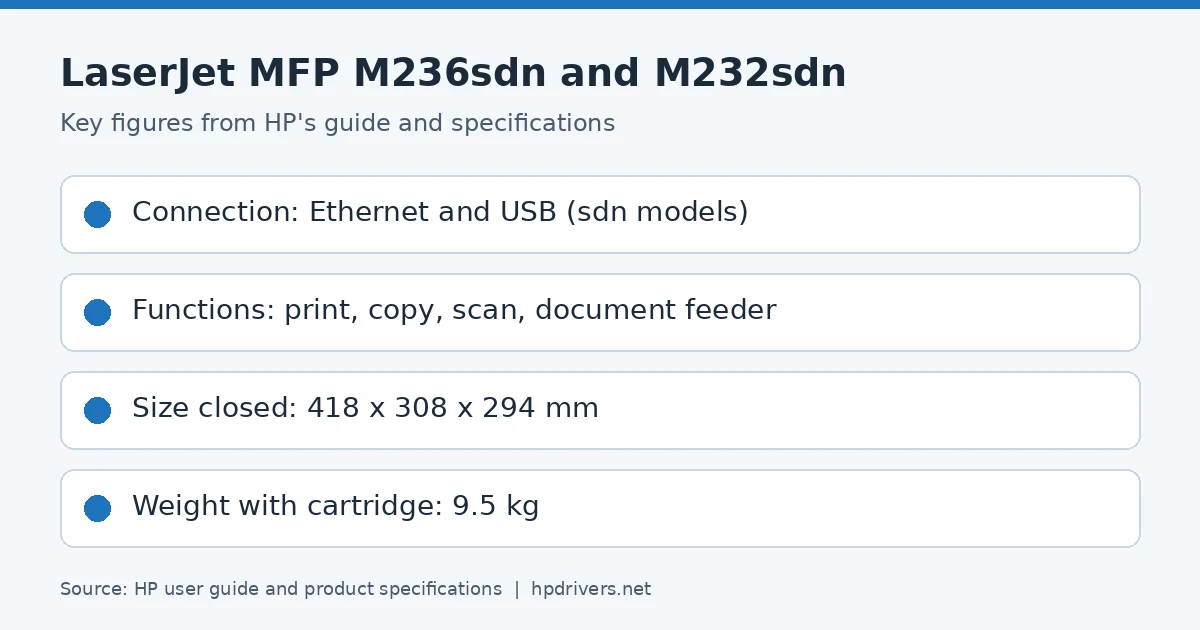
Values below are HP’s published figures for the LaserJet MFP M232-M237; they help you check that this page matches your printer before you download anything.
Opening the Embedded Web Server over Ethernet
Because the sdn models have an Ethernet port, you can manage them from a browser. HP lists the HP Smart app, the HP printer software and a browser with the printer’s IP address as ways to open the Embedded Web Server (EWS). Since these models have no Wi-Fi, the IP address route is the usual one.
- First, press the Information button on the printer to print the information page, which shows the IP address.
- Then, open a web browser and type the IP address or host name in the address bar.
- Finally, press Enter.
If the browser warns that the site is not secure, choose the option to continue. HP says that visiting the page does not harm your device. When a login is requested, the user name is admin. For the password, open the cartridge access door and read the label inside the printer. Note that the EWS cannot be reached from outside the network firewall.
If the computer cannot find the printer on the network
HP’s guide gives a short checklist for Ethernet problems. Work through it in order.
- Make sure the network works and that the hub, switch or router is turned on.
- Check that the Ethernet cable runs from the printer to the router. The signal light next to the connector lights up when the cable is connected properly.
- Rule out security software. Antivirus and spyware protection can stop the network from reaching the printer. If antivirus or firewall software blocks the connection, HP’s online firewall troubleshooter can help.
- Run HP Print and Scan Doctor. It tries to diagnose and fix the problem automatically, although it may not exist in every language.
Setting a fixed IPv4 address and a printer name
The EWS also lets you view or change the network settings. Open the Network tab to see the current details and change what you need.
To enter the IPv4 settings by hand, follow these steps.
- First, open the EWS and click the Network tab.
- Then, choose IPv4 Settings in the left-hand pane.
- Next, in the IP Preferred Address Method list, select Manual, then edit the IPv4 settings.
- Finally, click Apply.
In addition, you can give the printer a unique name on the network. Open the System tab, then Device Information, and edit the Device Description field. Click Apply to save the change.
Protecting the web server with a password
A password keeps unauthorised users from changing the printer settings. Set it from the EWS.
- First, open the EWS and click the System tab.
- Then, click the Administration link in the left-hand pane.
- Next, in the Product Security area, type the password in the Password box.
- Then, type it again in Confirm Password.
- Finally, click Apply.
HP advises you to write the password down and keep it somewhere safe. Otherwise a forgotten password can make later changes harder.
Opening the EWS from the Windows 7 printer software
On Windows 7 there is another route to the EWS. From the desktop, click Start, choose All Programs and click HP. Then click the printer’s folder, select the icon that carries the printer name and open HP Printer Assistant.
In HP Printer Assistant, select the Print tab and choose Printer Home Page (EWS). The page then opens in your browser in the same way as it does from an IP address.
What HP Smart does and where to get it
HP Smart helps with many printing tasks. It sets up and connects the printer, prints and scans documents and photos, and shares documents by email and other apps. It also manages printer settings, checks the printer status, prints reports and orders supplies.
The app supports phones and computers that run iOS, Android, Windows 10 and macOS 10.13 or later. Download it from 123.hp.com, or from the app store on your device. Windows 7 is the exception, because there you download the HP printer software from 123.hp.com instead.
HP notes that the app is not offered in every language, and that some features exist only on certain printers. Not every file format is supported either.
Printing a document from Windows
Before you print, make sure the HP Smart app is installed. Then follow HP’s steps.
- First, open the document you want to print.
- Then, in the program’s File menu, choose Print.
- Next, click the button that opens the properties dialog. Depending on the program, it may be called Properties, Options, Setup or Preferences.
- Then, check that your printer is selected, change any settings, and click OK.
- Finally, click Print or OK to send the job.
Similar models
This page covers the M236sdn and M232sdn only. The M233sdn, the M234sdn and the M237sdn have their own pages.