
An HP printer that is not scanning but still prints usually has a problem in the scan path only: the scan service in Windows, the connection, or the software that talks to the scanner. HP lists messages such as “Scanner not found,” “An error occurred communicating with the scanner or scanning device,” and “Scan to computer is currently unavailable.” This guide follows HP’s own Windows steps in a practical order.
The short version
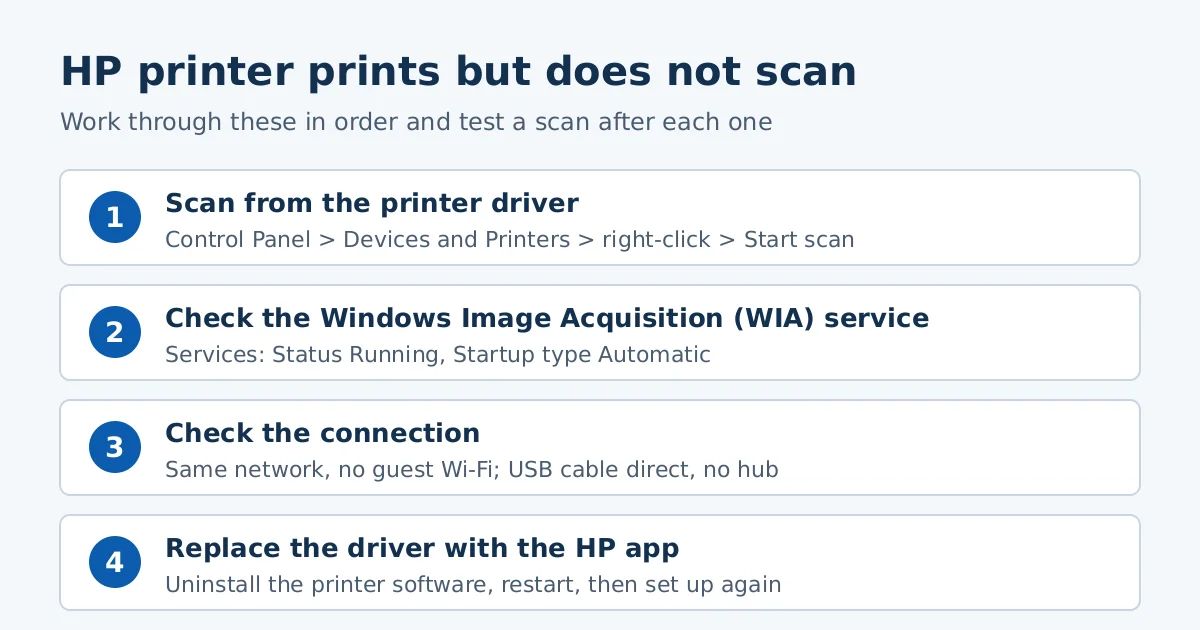
- Try scanning from the printer driver in Control Panel. If that works, the printer and the connection are fine and the problem is the app.
- Check that the Windows Image Acquisition (WIA) service is running and set to Automatic.
- Check the connection: same network for Wi-Fi, a short USB cable plugged straight into the PC.
- If nothing helps, remove the old printer software and set the printer up again with the HP app.
Why your HP printer is not scanning while printing works
Printing and scanning use different parts of Windows. A print job only needs the printer driver. A scan also needs the scan service (WIA) and an app that can reach the scanner. So a printer can be online for printing and still be unreachable for scanning. Test the scan after every step below, as HP advises, so you know which step fixed it.
Step 1: Scan from the printer driver
HP suggests this first when the HP app or another app fails. It tells you whether the scanner itself responds.
- Make sure the printer is on and ready, and load the page you want to scan.
- In Windows, search for Control Panel and open it, then click Devices and Printers.
- Find your printer and check that it is online. HP describes this as a green circle with a check mark on its icon.
- Right-click the printer driver and choose Start scan.
- Make any changes you want, click Preview, drag the boundary lines around the area, and click Scan.
- Click Next, type a name, and click Import. HP says scans are saved in your Pictures folder, in a folder named by date.
If this scan works, keep using it as a workaround and move on to the app question further down. If it fails, go to Step 2.
Step 2: Check the Windows Image Acquisition service
HP explains that WIA allows communication between the computer and the scanner, and that scan jobs can fail when it is off or not running correctly.
- In Windows, search for View local services and open it.
- Find Windows Image Acquisition (WIA) and read its Status and Startup Type.
- If the status is Started or Running and the Startup Type is Automatic, WIA is fine. Go to Step 3.
- If it is Disabled or the status is blank, right-click the service, choose Properties, set Startup type to Automatic on the General tab, and click Start.
If the Start button is grayed out, HP says to go back to the Services list and make sure these services are running and set to Automatic: DCOM Server Process Launcher, Remote Procedure Call, RPC Endpoint Mapper, and Shell Hardware Detection. Then try to start WIA again.
Step 3: Check how the printer is connected
HP’s offline-printer page lists the connection checks that also apply to scanning. For a Wi-Fi printer, make sure the PC is on the same network as the printer and that the printer’s wireless light is solid blue. Do not connect the PC to the printer’s own DIRECT network by mistake. A guest or public network that asks you to log in can also block the connection.
For USB, HP says to use a cable no longer than 3 m (9 ft 10 in) and to plug it straight into the computer, not into a hub. Replace the cable if it looks damaged.
Step 4: Replace the driver with the HP app
If the scanner is still not found, HP’s next step is to remove the printer software and set the printer up again with the HP app.
- Disconnect any USB cable from the printer.
- Search for Add or remove programs and look for your printer name. If you find it, click it and choose Uninstall. If not, open Printers & scanners, click your printer, and choose Remove device.
- Click Yes if a User Account Control message appears, follow the prompts, and restart the computer.
- Go to 123.hp.com or your app store, install the HP app, and follow the steps to connect the printer.
HP says installing the HP app also installs the drivers your printer needs. We explain this change in HP App Replaces HP Smart. HP’s page also lists the HP app’s Diagnose & Fix tool, which replaced the retired Print and Scan Doctor (our page on the replacement).
If you also need the full driver package
Some older printers and some office setups still work best with HP’s full software package for the exact model. Our guide to installing an HP printer driver explains how to pick it. hpdrivers.net is an independent website, and our model pages link to HP’s own downloads.
Frequently asked questions
Why does my HP printer print but not scan?
Printing needs only the printer driver. Scanning also needs the WIA service and a working connection to the scanner. If either is off, printing can continue while scanning fails.
Does it matter whether I use USB or Wi-Fi?
Yes. HP gives different checks for each. For USB, use a cable under 3 m, directly in the PC. For Wi-Fi, use the same network on the PC and the printer.
Can I use another app to scan?
If the scan from the printer driver in Control Panel works, you can keep scanning that way while you sort out the app. HP lists this as its first step.
Sources: HP Support, “HP printers – Scanner not found or connected (Windows, macOS)” and “HP printer is offline or unavailable”. Menu names can differ slightly between Windows versions and printer models.
Advertisement