
The HP LaserJet P4015x driver download for Windows 10, 8.1, 8 (64-bit) is the HP LaserJet USB (DOT4) communication driver for Windows 8 and Higher (64-bit). For Windows 11, HP lists the HP Universal Print Driver for Windows PCL6 (64-bit). This page lists HP’s official software for the HP LaserJet P4015x.
Recommended LaserJet P4015x driver downloads
Files download directly from HP’s official servers. hpdrivers.net does not host or modify them.
Which Windows package does the LaserJet P4015x driver need?
These are the main types of Windows package that HP lists specifically for the LaserJet P4015x:
- Firmware update (v04.270.2, Jan 24, 2017): updates the printer itself, not your PC.
- HP Universal Print Driver (v8.2.0.26778, Sep 26, 2026): HP’s shared driver for many models, also listed for this series.
- HP LaserJet USB (DOT4) communication driver for Windows 8 and Higher (64-bit) (v7.0.0.29, Apr 21, 2015).
LaserJet P4015x driver: all packages
Windows firmware utility for the LaserJet P4015x
File details
File:readme_ljP4000fw_04_270_2.pdfFile details
File:ljP4000_fw_utility_04_270_2.exeFile details
File:ljP4000_fw_04_270_2.zipMac firmware utility for the LaserJet P4015x
File details
File:readme_ljP4000fw_04_270_2.pdfFile details
File:ljP4000_fw_utility_04_270_2.exeFile details
File:ljP4000_fw_04_270_2.zipOther HP software listed for this series
HP Universal Print Driver
HP lists its Universal Print Driver for this series on Windows 11, 11 on ARM64; Windows 10, 8.1, 8, 7 (32-bit and 64-bit). Get it from our HP Universal Print Driver page.
These Universal Print Driver files are not on that page, so they are listed here:
- HP Universal Print Driver for Windows PostScript (32-bit) 8.2.0.26778 (Windows 10, 8.1, 8, 7 (32-bit))
- HP Universal Print Driver for Windows PCL6 (32-bit) 8.2.0.26778 (Windows 10, 8.1, 8, 7 (32-bit))
- HP Print Administrator Resource Kit 1.9.2 (Windows 11, Windows 10, 8.1, 8, 7 (32-bit and 64-bit))
LaserJet P4015x driver for Linux
HP lists a Linux driver for this series: HP LaserJet P4000 Series Printer README (Version 04.270.2 · Released Jan 24, 2017 · 0.6 MB). Download from HP.
Which systems the LaserJet P4015x driver supports
HP’s download list for the LaserJet P4015x names Windows 11, 11 on ARM64; Windows 10, 8.1, 8, 7 (32-bit and 64-bit); macOS 26, 15, 14, 13, 12, 11, 10.15, 10.14, 10.13, 10.12, Mac OS X 10.11, Mac OS X 10.10, Mac OS X 10.9, Mac OS X 10.8, Mac OS X 10.7, Mac OS X 10.6, Mac OS X 10.5; and Linux through HPLIP.
Installing the LaserJet P4015x driver
To install it, follow these steps.
- Pick the installer from the table above.
- Run it and follow the prompts on screen.
- Connect the printer with the USB cable, or to your network, when the installer asks.
- Print a test page to confirm the connection.
For step-by-step instructions, see our guide to installing an HP printer driver.
Firmware update 04.270.2
For the LaserJet P4015x, HP lists the HP LaserJet CP4015 Series Printer Firmware (Includes Code Signing) for – All Operating Systems – (Must Read README Before Installing), version 04.270.2, released Jan 24, 2017.
- Keep the printer and the computer switched on until the update has finished.
Specifications that matter for setup
Paper handling and hardware details
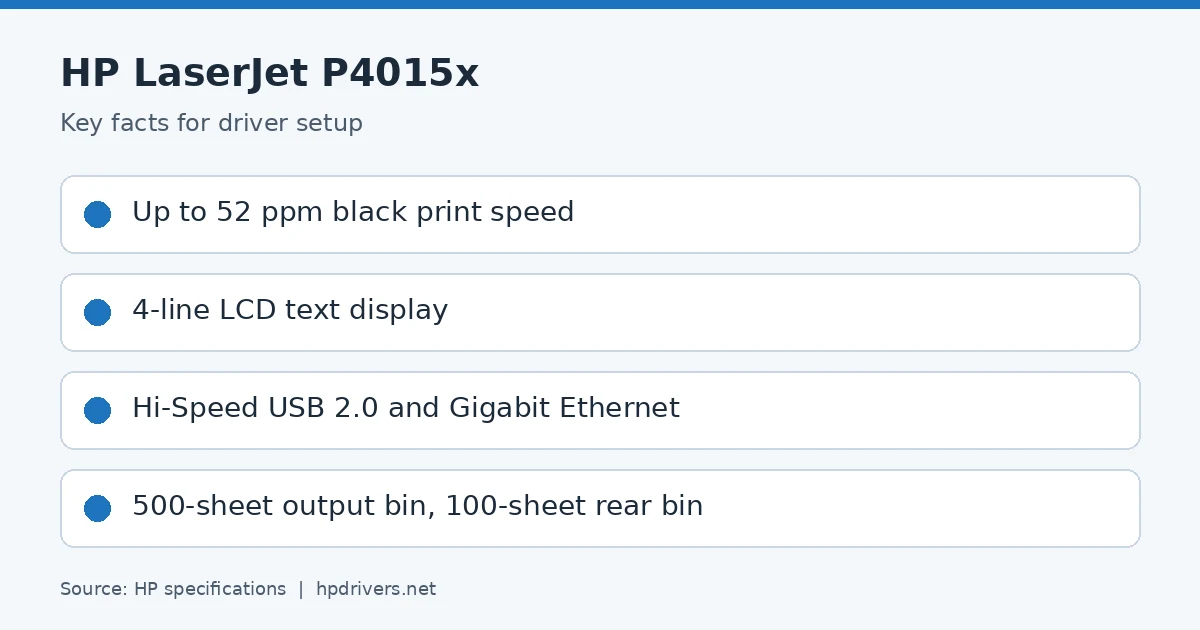
Values below are HP’s published figures for the LaserJet P4015 series, which the LaserJet P4015x belongs to.
Print quality settings on the control panel
Some Print Quality items also exist in the program or printer driver, and those settings override control-panel settings. For that reason, the guide recommends changing them in the driver where applicable. Also, SET REGISTRATION shifts the margin alignment to center the image on the page, and PRINT TEST PAGE shows the current registration settings.
Reading control-panel messages
The guide lists control-panel messages with a description and a recommended action. For example, 10.94.YY REMOVE SHIPPING LOCKS means at least one shipping lock is installed. However, for a 13.JJ.NT jam message, remove the jammed paper from the named location. For 10.XX.YY SUPPLY MEMORY ERROR, turn the product off and then on.
Replacing the print cartridge
A control-panel message recommends ordering a replacement as a cartridge nears the end of its life. The product keeps printing until a message says to replace it. Meanwhile, rocking the removed cartridge gently back and forth redistributes the toner.
- Open the top cover and remove the used print cartridge.
- Take the new cartridge out of its bag, and put the used one in that bag for recycling.
- Grasp both sides of the new cartridge and gently rock it to distribute the toner. Keep clear of the shutter and the roller surface.
- Remove the shipping lock and the shipping tape from the new cartridge.
- Align the cartridge with the tracks, insert it until it is firmly seated, and close the top cover.
- After a short time, the control panel should display Ready.
Link speed and duplex settings
The print server’s link speed and communication mode must match the network. For most situations, the guide says to leave the product in automatic mode. Also, a change makes the product turn off and then on, so make changes when it is idle.
- Press Menu.
- Press the down arrow to highlight CONFIGURE DEVICE, then press OK.
- Highlight I/O and press OK.
- Highlight EMBEDDED JETDIRECT and press OK.
- Highlight LINK SPEED and press OK.
- Highlight an option such as Auto or 100TX FULL, then press OK.
Similar models
This page covers the P4015x only. The P4015n and the P4015dn have their own pages.