
The HP DeskJet Plus 4121 driver download for Windows 11, Windows 10 (32-bit and 64-bit) is the HP Easy Start Printer Setup Software (Internet connection required for driver installation), and for a Mac HP lists the package titled “Install HP app to complete setup and support”. This page lists HP’s official software for the HP DeskJet Plus 4121.
Recommended DeskJet Plus 4121 driver downloads
Files download directly from HP’s official servers. hpdrivers.net does not host or modify them.
DeskJet Plus 4121 driver: all packages
Windows firmware utility for the DeskJet Plus 4121
File details
File:DJP4100_DJ4100_2550B_2550C_2550D.exeMac firmware utility for the DeskJet Plus 4121
File details
File:DJP4100_DJ4100_2550B_2550C_2550D.dmgOther HP software listed for this series
DeskJet Plus 4121 driver for Linux
HP lists Linux support for this series through its HPLIP project, outside the regular download list: HP’s Linux printing page (HPLIP).
Which systems the DeskJet Plus 4121 driver supports
HP’s download list for the DeskJet Plus 4121 names Windows 11; Windows 10, 8.1, 8, 7 (32-bit and 64-bit); macOS 26, 15, 14, 13, 12, 11, 10.15, 10.14, 10.13, 10.12, Mac OS X 10.11, Mac OS X 10.10, Mac OS X 10.9, Mac OS X 10.8; and Linux through HPLIP. For macOS 26, 15, 14, 13, 12, 11, setup runs through the HP app.
Installing the DeskJet Plus 4121 driver
To install it, follow these steps.
- Pick the installer from the table above.
- Run it and follow the prompts on screen.
- Connect the printer by USB or Wi-Fi when the installer asks.
- Print a test page to confirm the connection.
HP Easy Start needs an internet connection; it downloads the right software for your exact model during setup. For step-by-step instructions, see our guide to installing an HP printer driver.
Firmware update 2550B/2550C/2550D
For the DeskJet Plus 4121, HP lists the HP DeskJet/Ink Advantage 4100 All-in-One Printer series Firmware Update, version 2550B/2550C/2550D, released May 25, 2026. HP’s notes for it: General enhancements and bug fixes.
- Keep the printer and the computer switched on until the update has finished.
Specifications that matter for setup
Ink supplies HP lists for the DeskJet Plus 4100 All-in-One
HP’s specifications name these replacement supplies for the DeskJet Plus 4100 All-in-One:
- HP 67 Black Original Ink Cartridge (~120 pages) 3YM56AN
- HP 67XL Black High
Paper handling and hardware details
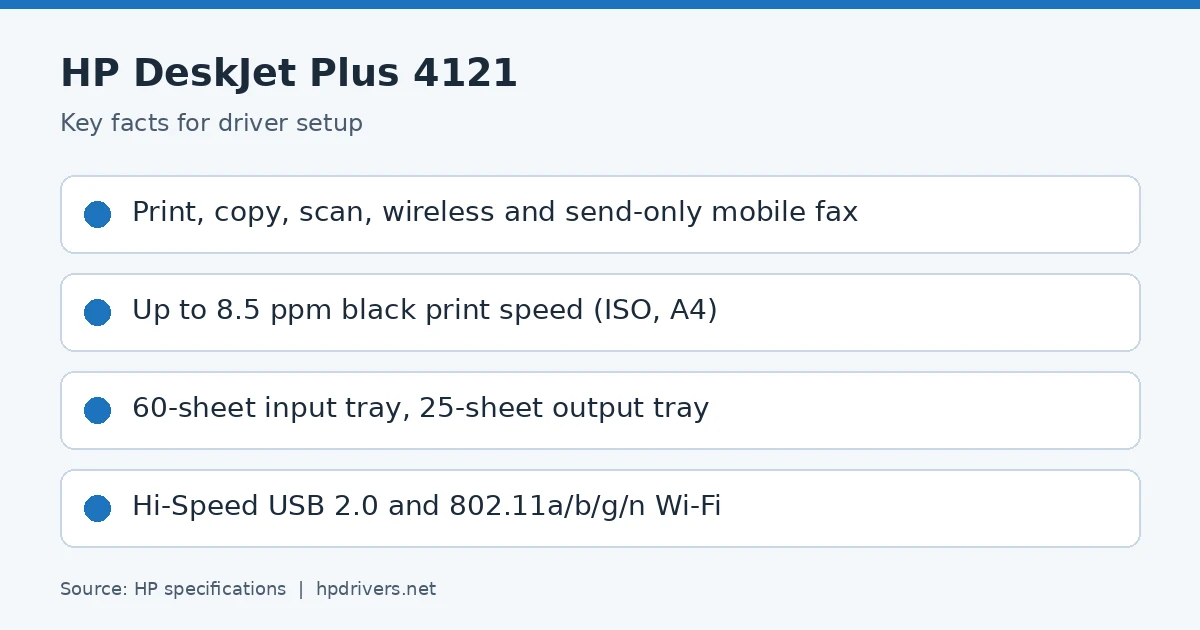
Values below are HP’s published figures for the DeskJet Plus 4100 All-in-One series, which the DeskJet Plus 4121 belongs to.
Copy and scan with HP Smart
HP Smart lets you copy and scan documents or photos with your device camera. It has editing tools for adjusting a scanned image before you save, share or print it. Also, scans can be kept locally or in cloud storage, or sent by email, SMS and social apps.
- Open the HP Smart app.
- Tap Copy, and the built-in camera opens.
- Hold the original in front of the camera, choose a size option, and tap the round button.
- Tap Start Black or Start Color.
Printing by email with HP ePrint
HP ePrint sends a print job to an ePrint-enabled printer from any location, at any time. The printer must be connected to an active network with Internet access. However, documents printed this way may differ from the original, since style, formatting and text flow can change.
- Make sure Web Services is set up.
- Press the Information and Cancel buttons together to print an information page with the printer email address.
- Email the document as an attachment to that address.
- Enter that address alone in the To field, with Cc empty.
Managing the wireless connection
The Wireless button turns the printer’s wireless on or off. When a connection to a wireless network is active, the light beside the button glows steady blue and the display shows the Signal Bars icon. With wireless off, that light is dark.
To restore network settings to their defaults, press and hold the Wireless and Cancel buttons together for three seconds. Also, wireless settings can be changed in Windows once the printer software is installed, which needs a USB cable connected when prompted.
- Open the HP printer software.
- Click Tools.
- Click Device Setup & Software.
- Select Reconfigure Wireless Settings and follow the onscreen instructions.
Similar models
This page covers the 4121 only. The 4120 and the 4122 and the 4123 and the 4132 have their own pages.