
The HP DeskJet Plus 4123 driver download for Windows 11, Windows 10 (32-bit and 64-bit) is the HP Easy Start Printer Setup Software (Internet connection required for driver installation), and for a Mac HP lists the package titled “Install HP app to complete setup and support”. This page lists HP’s official software for the HP DeskJet Plus 4123.
Recommended DeskJet Plus 4123 driver downloads
Files download directly from HP’s official servers. hpdrivers.net does not host or modify them.
DeskJet Plus 4123 driver: all packages
Windows firmware utility for the DeskJet Plus 4123
File details
File:DJP4100_DJ4100_2550B_2550C_2550D.exeMac firmware utility for the DeskJet Plus 4123
File details
File:DJP4100_DJ4100_2550B_2550C_2550D.dmgOther HP software listed for this series
DeskJet Plus 4123 driver for Linux
HP lists Linux support for this series through its HPLIP project, outside the regular download list: HP’s Linux printing page (HPLIP).
Which systems the DeskJet Plus 4123 driver supports
HP’s download list for the DeskJet Plus 4123 names Windows 11; Windows 10, 8.1, 8, 7 (32-bit and 64-bit); macOS 26, 15, 14, 13, 12, 11, 10.15, 10.14, 10.13, 10.12, Mac OS X 10.11, Mac OS X 10.10, Mac OS X 10.9, Mac OS X 10.8; and Linux through HPLIP. For macOS 26, 15, 14, 13, 12, 11, setup runs through the HP app.
Installing the DeskJet Plus 4123 driver
To install it, follow these steps.
- Pick the installer from the table above.
- Run it and follow the prompts on screen.
- Connect the printer by USB or Wi-Fi when the installer asks.
- Print a test page to confirm the connection.
HP Easy Start needs an internet connection; it downloads the right software for your exact model during setup. For step-by-step instructions, see our guide to installing an HP printer driver.
Firmware update 2550B/2550C/2550D
For the DeskJet Plus 4123, HP lists the HP DeskJet/Ink Advantage 4100 All-in-One Printer series Firmware Update, version 2550B/2550C/2550D, released May 25, 2026. HP’s notes for it: General enhancements and bug fixes.
- Keep the printer and the computer switched on until the update has finished.
Specifications that matter for setup
Ink supplies HP lists for the DeskJet Plus 4100 All-in-One
HP’s specifications name these replacement supplies for the DeskJet Plus 4100 All-in-One:
- HP 67 Black Original Ink Cartridge (~120 pages) 3YM56AN
- HP 67XL Black High
Paper handling and hardware details
Values below are HP’s published figures for the DeskJet Plus 4100 All-in-One series, which the DeskJet Plus 4123 belongs to.
Scanning from Windows software
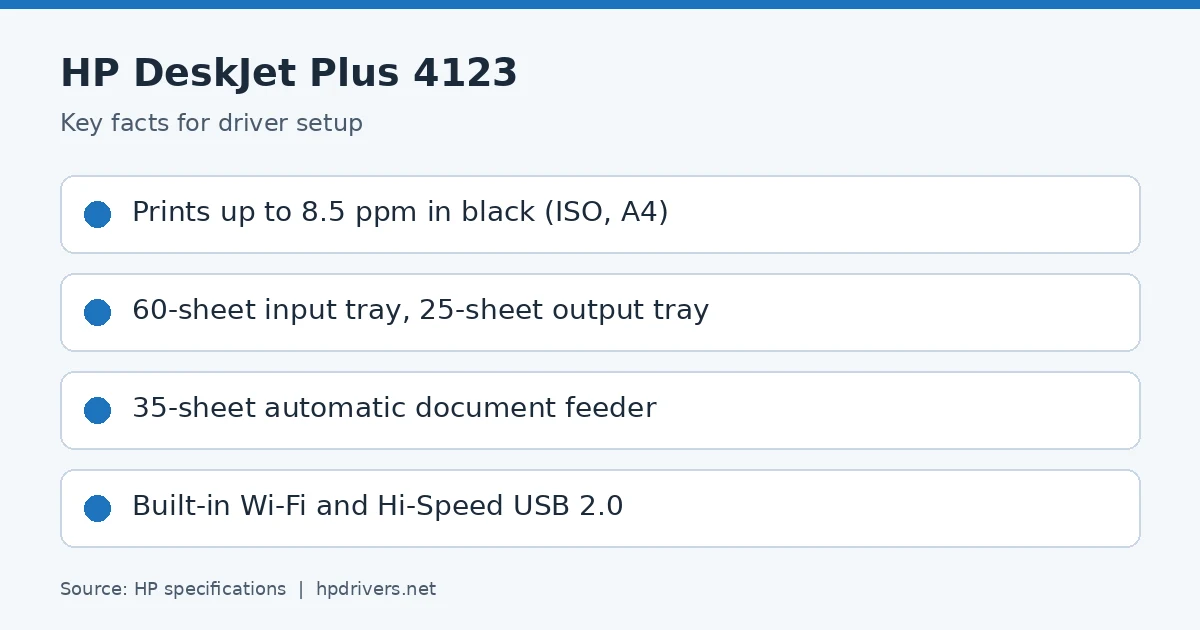
The DeskJet Plus 4123 has a flatbed scanner and a 35-sheet automatic document feeder, with optical resolution up to 1200 dpi. Before you scan to a computer, install the HP recommended printer software. The printer and the computer must also be connected and turned on.
The Scan dialog opens with basic settings you can review and change. However, the More link in its top right corner shows the detailed settings. For email, pick Email as PDF or Email as JPEG.
- Load the original into the document feeder or on the scanner glass.
- Open the HP printer software.
- Click Scan, then click Scan a Document or Photo.
- Under Scan Shortcuts, select the type of scan you want.
- Click Scan.
Checking estimated ink levels
Ink levels are estimates, which you can see in the printer software, the control panel or HP Smart. On the printer display, the Ink Level icons show roughly how much ink remains. However, a refilled, remanufactured or previously used cartridge can make the indicator inaccurate or unavailable.
Turning Quiet Mode on or off
Quiet Mode slows printing down to reduce overall noise, and print quality is not affected. It applies to printing on plain paper with Better print quality. The setting is off by default, so the printer runs at normal speed until you turn it on.
For example, plain paper with Draft or Best quality, photos and envelopes print the same way as when Quiet Mode is off. The setting can be changed from HP Smart on Android or iOS, the Windows printer software or the embedded web server.
- Open the HP printer software.
- Click the Quiet Mode tab.
- Select On or Off.
- Click Save Setting.
Similar models
This page covers the 4123 only. The 4120 and the 4122 and the 4121 and the 4132 have their own pages.