
The HP LaserJet Pro MFP M426m driver download for Windows 10, 8.1, 8 (32-bit and 64-bit) is the HP LaserJet Pro MFP M426-M427 Printer Series PCL 6 v3 Full Solution, and for a Mac HP lists the package titled “Install HP Easy Start”. This page lists HP’s official software for the HP LaserJet Pro MFP M426m.
Recommended HP LaserJet Pro MFP M426m driver downloads
Files download directly from HP’s official servers. hpdrivers.net does not host or modify them.
Which Windows package does the HP LaserJet Pro MFP M426m driver need?
These are the main types of Windows package that HP lists specifically for the LaserJet Pro MFP M426m:
- Firmware update (v20220414, May 24, 2022): updates the printer itself, not your PC.
- Driver files (no installer) (v8.00.1329.6488, Apr 05, 2021): bare driver files for Windows’ Add Printer wizard.
- Full software solution (v16.0.22049.102, Mar 21, 2022, 128.4 MB): driver plus HP’s setup wizard and tools.
- Driver-only installer (v16.0.19134.687, Mar 04, 2021): print driver only, for PCs that can’t or shouldn’t take the full package.
HP LaserJet Pro MFP M426m driver: all packages
HP LaserJet Pro MFP M426m driver for Windows
File details
File:M426_M427_MFP_Series_FW_Update-20220414.nativeofficefonts.exeFile details
File:HP_LJ_Pro_MFP_M426-M427-PCL6_Print_Driver_no_Installer-19133_687-419_1.exeFile details
File:HP_LJ_Pro_MFP_M426-M427-PCL_6_v3_Win8plus_Full_Solution-22049_102-3.exeFile details
File:HP_LJ_Pro_MFP_M426-M427_PCL-6_Win8_Plus_Print_Driver_no_Installer-19133_687-419_1.exeFile details
File:HP_LJ_Pro_MFP_M426-M427-PCL6_v3_Basic_Solution-19134_687-420.exeFile details
File:HP_LJ_Pro_MFP_M426-M427-Full_Solution-22049_102-3.exeMac firmware utility for the HP LaserJet Pro MFP M426m
File details
File:M426_M427_MFP_Series_FW_Update-20211118.dmgOther HP software listed for this series
Which systems the HP LaserJet Pro MFP M426m driver supports
HP’s download list for the HP LaserJet Pro MFP M426m names Windows 11; Windows 10, 8.1, 8, 7 (32-bit and 64-bit); macOS 26, 15, 12, 11, 10.15, 10.14, 10.13, 10.12, Mac OS X 10.11, Mac OS X 10.10, Mac OS X 10.9, Mac OS X 10.8, Mac OS X 10.7, Mac OS X 10.6, Mac OS X 10.5. For macOS 26, 15, setup runs through the HP app. For macOS 12, 11, 10.15, 10.14, 10.13, 10.12, Mac OS X 10.11, Mac OS X 10.10, Mac OS X 10.9, Mac OS X 10.8, Mac OS X 10.7, Mac OS X 10.6, Mac OS X 10.5, HP’s list has only the firmware utility.
Installing the HP LaserJet Pro MFP M426m driver
To install it, follow these steps.
- Pick the installer from the table above.
- Run it and follow the prompts on screen.
- Connect the printer with the USB cable, or to your network, when the installer asks.
- Print a test page to confirm the connection.
The driver files without an installer are added through Windows’ Add Printer wizard (Have Disk). For step-by-step instructions, see our guide to installing an HP printer driver.
Firmware update 20220414 for the HP LaserJet Pro MFP M426m
For the LaserJet Pro MFP M426m, HP lists the HP LaserJet Pro Series Windows Firmware Update Utility, version 20220414, released May 24, 2022. HP’s notes for it: Network stack update; Supplies related fixes. On a Mac, HP lists version 20211118, released Dec 09, 2021.
- Check your current firmware version first on the printer’s Configuration Page, and update only if it is older.
- Install the printer driver before running the update. HP’s utility needs it to reach the printer.
Specifications that matter for setup
Paper handling and hardware details
Values below are HP’s published figures for the LaserJet Pro MFP M426-M427 series, which the LaserJet Pro MFP M426m belongs to.
Common setup problems
- An older driver is still installed. HP’s 2021 packages fixed a security vulnerability, so replace older versions with the current package.
- You’d rather not install software on a Mac. HP’s specifications list AirPrint support, so macOS can usually add the printer from System Settings without extra software.
Storing a Print Job on the Printer
The Windows print driver can store a job on the printer for private or delayed printing. The Job Storage tab offers four modes: Proof and Hold, Personal Job, Quick Copy and Stored Job. However, the driver may look different from the screens in HP’s guide, though the steps match.
- Choose Print in the software program, select the printer, and open Properties or Preferences.
- Click the Job Storage tab and select a Job Storage Mode.
- Click OK to close Document Properties, and click OK in the Print dialog box.
Selecting the Paper Type in Windows
The paper type is set in the print driver on the Paper/Quality tab. If the tray needs to be configured, the printer control panel displays a tray configuration message after you print.
- Open Print in the software program, select the printer, and click Properties or Preferences.
- On the Paper/Quality tab, click More… in the Paper type drop-down list.
- Expand Type is:, expand the matching paper category, select your paper type, and click OK.
- Click OK to close Document Properties, and click OK in the Print dialog box.
Printing Photos from a USB Flash Drive
The USB Flash Drive menu includes View and Print Photos. After you select the preview image of each photo to be printed and select Done, a summary screen opens where these settings can be adjusted: Image Size, Paper Size, Paper Type, Number of Copies and Lighter/Darker.
- Select View and Print Photos.
- Select the preview image of each photo to print, and select Done.
- Adjust the settings on the summary screen, and select Print.
- Take the printed job from the output bin and remove the USB flash drive.
Scanning to a USB Flash Drive
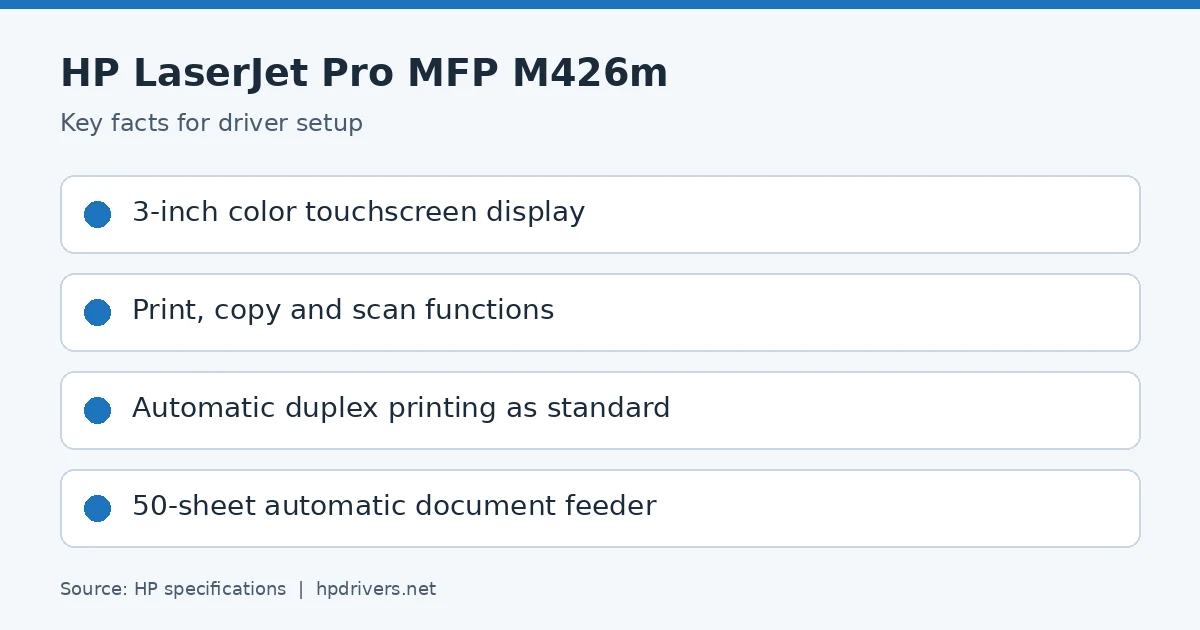
This printer scans from the flatbed glass or the 50-sheet document feeder. After a scan, the printer creates a folder named HPSCANS on the USB drive and saves the file in PDF or JPG format with an automatically generated name.
- Load the document on the scanner glass or into the document feeder.
- Insert a USB flash drive into the walk-up USB port.
- Select Scan to USB Drive from the USB Flash Drive menu.
- Touch the Scan button to scan and save the file.
Similar models
This page covers the M426m only. The M426dw and the M427dw have their own pages.