Independent download guide for HP printer and scanner drivers
hpdrivers.net is an independent website and is not affiliated with, endorsed by, or sponsored by HP Inc. Download links point to HP's official servers (ftp.hp.com). Read the full disclaimer
Last checked against HP’s download list: November 13, 2026 · Checked by H&G
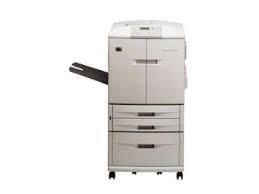
Looking for the HP Color LaserJet 9500hdn driver? This page lists HP’s official software for the whole HP Color LaserJet 9500 Printer series: the Color LaserJet 9500gp, Color LaserJet 9500hdn Remarketed, Color LaserJet 9500n Remarketed, Color LaserJet 9500gp Remarketed, Color LaserJet 9500n and Color LaserJet 9500hdn. HP lists some packages for specific models in the series, so check that the package title includes your model. For Windows 11, the package most people need is the HP Universal Print Driver for Windows PCL6 (64-bit).
HP Color LaserJet 9500hdn
Recommended downloads
Windows 11: HP Universal Print Driver for Windows PCL6 (64-bit)Version 8.2.0.26819 · Released Sep 26, 2026 · 20.2 MB
Files download directly from HP’s official servers. hpdrivers.net does not host or modify them.
Models covered by this page
All 6 models share one download list at HP:
HP Color LaserJet 9500gpHP Color LaserJet 9500hdn RemarketedHP Color LaserJet 9500n RemarketedHP Color LaserJet 9500gp RemarketedHP Color LaserJet 9500nHP Color LaserJet 9500hdn
Which Windows package should you choose?
HP publishes 2 kinds of Windows package for the Color LaserJet 9500:
Firmware update (v1.0, Nov 08, 2000): updates the printer itself, not your PC.
HP Universal Print Driver (v8.2.0.26778, Sep 26, 2026): HP’s shared driver for many models, also listed for this series.
All downloads for the Color LaserJet 9500
Windows
Package / Windows
Version
Released
Size
hp LaserJet 8150 MFP/9000 MFP/hp color LaserJet 9500 foreign interface harness portal
HP lists its Universal Print Driver for this series on Windows 11; Windows 10, 8.1, 8, 7 (32-bit and 64-bit). Get it from our HP Universal Print Driver page.
The newest firmware HP lists for the Color LaserJet 9500 is version 1.0, released Nov 08, 2000.
Check your current firmware version first on the printer’s Configuration Page, and update only if it is older.
Specifications that matter for setup
Print languages
PostScript® 3™ emulation, PCL 5, PCL 6, direct PDF
Print speed (black)
Normal: Up to 24 ppm Long jobs will occasionally pause for calibrations and adjustments. This has the effect of reducing the overall throughput speed somewhat. Complex jobs may print slower.
Recommended monthly volume
5000 to 25,000
Paper handling and hardware details
Values below are HP’s published figures for the Color LaserJet 9500; they help you check that this page matches your printer before you download anything.
Output tray
500-sheet output bin
Print speed (color)
Up to 24 ppm
Print quality (black)
Black: Up to 600 x 600 dpi Color: Up to 600 x 600 dpi
Control panel
4-line LCD (text and graphics)
Processor
500 MHz
Power use
Power requirements are based on the country/region where the printer is sold. Do not convert operating voltages. This can damage the printer and void the produc
USB cable
HP Color LaserJet 9500 Printer series
Warranty
One-year, next business day onsite warranty
Installing the HP Color LaserJet 9500hdn on Linux (HPLIP)
On Linux the Color LaserJet 9500hdn is handled by HPLIP, HP’s own open-source imaging and printing package, not by the Windows or macOS downloads above. The details below come from the HPLIP model database entry for this printer.
First HPLIP release with support: 0.9.5 (any newer HPLIP also works).
Print technology in the HPLIP database: colour laser.
Connections HPLIP can use: USB, wired network (Ethernet).
Binary plug-in: not needed; the open-source driver is enough.
USB ID:03f0:2217 (shown by lsusb when the printer is connected).
Supply numbers listed by HPLIP: HP 50, 51, 53, 52, 60, 61, 63, 62 (numbers vary by sales region).
Same HPLIP entry also covers: Color LaserJet 9500n Printer, Color LaserJet 9500gp Printer, Color LaserJet 9500 Printer, Color LaserJet 9500 Multifunction Printer.
Install the hplip package from your distribution, then run hp-setup -i (or: hp-setup -i <printer IP> for a network printer) and follow the prompts. hp-check reports anything missing, and hp-toolbox shows ink levels and maintenance tools where the model supports them.
The HP LaserJet Pro MFP M132fw driver download for Windows 11, Windows 10, 8.1, 8, 7 (32-bit and 64-bit) is the HP LaserJet Pro MFP M130fw/M132fw Full Feature Software and Drivers, and for a Mac HP lists the package titled “Install HP Easy Start”. This page lists HP’s official software for the HP LaserJet Pro MFP M132fw.
Last checked against HP’s download list: November 21, 2026 · Checked by H&G
HP LaserJet Pro MFP M132fw
Recommended LaserJet Pro M132fw driver downloads
Windows 11, Windows 10, 8.1, 8, 7 (32-bit and 64-bit): HP LaserJet Pro MFP M130fw/M132fw Full Feature Software and DriversVersion 44.11.2775 · Released May 18, 2022 · 193.8 MB · HP rating: Recommended
HP lists Linux support for this series through its HPLIP project, outside the regular download list: HP’s Linux printing page (HPLIP).
Which systems the LaserJet Pro M132fw driver supports
HP’s download list for the LaserJet Pro M132fw names Windows 11; Windows 10, 8.1, 8, 7 (32-bit and 64-bit); macOS 26, 15, 14, 13, 12, 11, 10.13, 10.12, Mac OS X 10.11, Mac OS X 10.10; and Linux through HPLIP. On a Mac the setup runs through the HP app.
Installing the LaserJet Pro M132fw driver
To install it, follow these steps.
Download the full software package from the table above.
Connect the network cable, or join the printer to Wi-Fi.
Start the installer and follow the on-screen instructions.
Print a configuration page and note the IP address.
Firmware update 20220414 for the LaserJet Pro M132fw
For the LaserJet Pro MFP M132fw, HP lists the HP LaserJet Pro MFP M130fn/fw/nw Pro MFP M132fn/fp/fw/nw/snw and Ultra MFP M134fn Firmware Update Utility, version 20220414, released Apr 28, 2022. HP’s notes for it: Network stack update.
Check your current firmware version first on the printer’s Configuration Page, and update only if it is older.
Install the printer driver before running the update. HP’s utility needs it to reach the printer.
Specifications that matter for setup
Print languages
PCLmS, URF, PWG
Recommended monthly volume
150 to 1500
Two-sided printing
Manual duplex
Scan file formats
JPEG, PDF, PNG
Toner supplies HP lists for the LaserJet Pro MFP M132
HP’s specifications name these replacement supplies for the LaserJet Pro MFP M132:
HP 18A Original Black LaserJet Toner Cartridge CF218A (about 1,400 pages)
HP 19A Original LaserJet Imaging Drum CF219A (about 12,000 pages)
Paper handling and hardware details
Values below are HP’s published figures for the LaserJet Pro MFP M132 series, which the LaserJet Pro MFP M132fw belongs to.
Paper input tray
150-sheet input tray
Output tray
100-sheet output tray
Media types
Paper (laser, plain, photo, rough, vellum), envelopes, labels, cardstock, postcards
Print quality (black)
Black: Up to 600 x 600 dpi, HP FastRes 1200 (1200 dpi quality)
Processor
600 MHz
Power use
255 watts (active printing), 4.2 watts (ready),1.0 watts (sleep), 0.7 watts (Auto Off/Wake on USB, enabled at shipment)
Warranty
One-year limited warranty
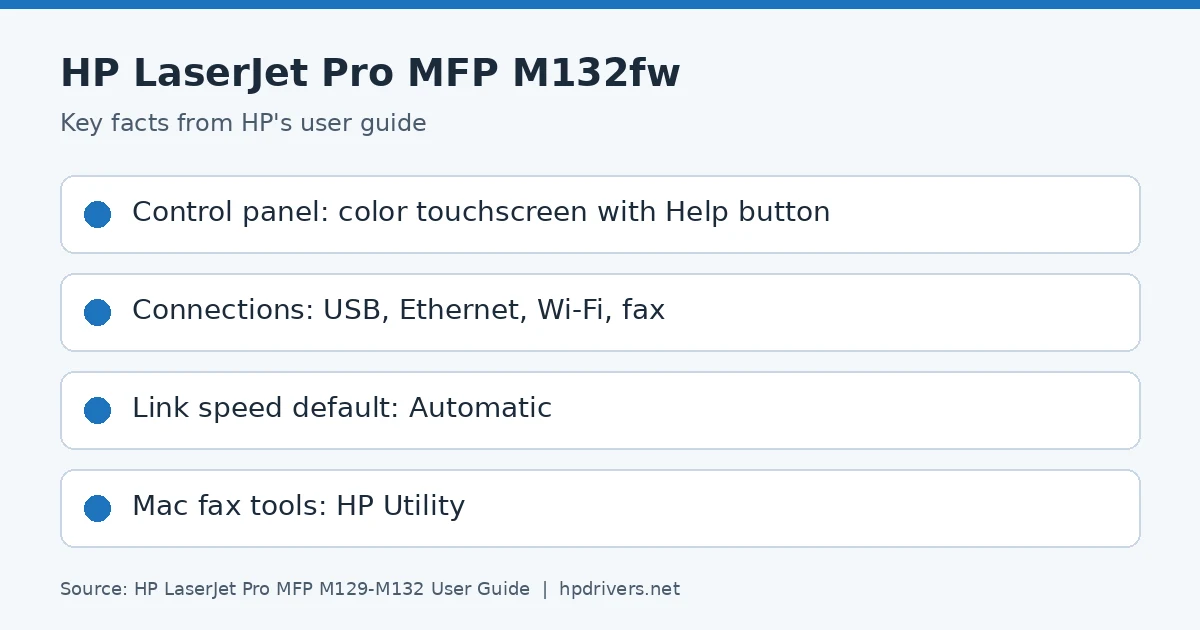
The Help button on the touchscreen
The M132fw has its own help system. Touch the Help button in the upper-right corner of the screen to open it.
On some screens, Help opens a menu where you can browse or search for a topic.
On screens with settings for one job, it explains the options of that screen.
Some topics include animations, for example for clearing a jam.
When the printer shows an error or a warning, Help describes the problem and how to solve it.
In addition, the Home screen gives you the IP address. Touch Connection Information, and then touch Network Connected or Network Wi-Fi ON.
When the printer is not found on a wired network
Start with a configuration page, because it lists the IP address the printer uses. Then work through HP’s checks.
Cable: the amber activity light and the green link light at the network port on the back should be on. If not, try another cable or another port on the hub.
Port: in the printer properties on Windows, the Ports tab must show the current IP address. With the HP standard TCP/IP port, tick Always print to this printer, even if its IP address changes.
Ping: open a command prompt (on a Mac, Terminal) and type ping with the printer’s IP address. Round-trip times mean the network works.
Software: new programs must use the correct print driver.
Finally, if the address is correct and printing still fails, delete the printer on the computer and add it again. Also, with a Microsoft standard TCP/IP port, use the host name instead of the IP address.
Ethernet link speed
The link speed of the printer must match the hub, switch or router it is plugged into. HP recommends leaving it on Automatic. This matters because a wrong value can stop the printer from talking to the rest of the network. This setting applies to Ethernet only, not to Wi-Fi.
On the Home screen, swipe to the Setup menu and touch Setup.
Because of that restart, change the link speed only when the printer is idle.
What the EWS tabs hold on the M132fw
The HP Embedded Web Server (EWS) opens when you type the printer’s IP address into a browser. It also works without Internet access.
Home: device and supplies status, network summary, reports and an event log of errors.
System: paper, print quality and energy settings. Save and Restore writes all settings to a file, which can later restore them or set up another printer.
Fax: receive options, the phone book, the junk fax list and the fax activity log.
Scan: network folders, Scan to E-mail, sender profiles and the e-mail address book.
Networking: network settings and Wi-Fi Direct.
The System tab can be protected with a password. If it is, ask the administrator before you change anything there.
Fax settings from a Mac in HP Utility
Mac users can manage the fax without the touchscreen. Open Applications, HP, HP Utility and select the printer. After that, the fax pages are listed under All Settings.
Basic Fax Settings: the fax header and how the printer answers calls.
Fax Forwarding: sends incoming faxes on to another number.
Fax Speed Dials: adds numbers to the speed dial list.
Junk Fax Blocking: stores the numbers to block.
Fax Logs: shows every fax sent and received.
Scan to E-mail and Scan to Network Folder also appear there. Both open the matching EWS page, so they need a network connection rather than USB.
The HP LaserJet Pro MFP M130fw driver download for Windows 11, Windows 10, 8.1, 8, 7 (32-bit and 64-bit) is the HP LaserJet Pro MFP M130fw/M132fw Full Feature Software and Drivers, and for a Mac HP lists the package titled “Install HP Easy Start”. This page lists HP’s official software for the HP LaserJet Pro MFP M130fw.
Last checked against HP’s download list: November 21, 2026 · Checked by H&G
HP LaserJet Pro MFP M130fw
Recommended LaserJet Pro M130fw driver downloads
Windows 11, Windows 10, 8.1, 8, 7 (32-bit and 64-bit): HP LaserJet Pro MFP M130fw/M132fw Full Feature Software and DriversVersion 44.11.2775 · Released May 18, 2022 · 193.8 MB · HP rating: Recommended
HP lists Linux support for this series through its HPLIP project, outside the regular download list: HP’s Linux printing page (HPLIP).
Which systems the LaserJet Pro M130fw driver supports
HP’s download list for the LaserJet Pro M130fw names Windows 11; Windows 10, 8.1, 8, 7 (32-bit and 64-bit); macOS 26, 15, 14, 13, 12, 11, 10.13, 10.12, Mac OS X 10.11, Mac OS X 10.10; and Linux through HPLIP. On a Mac the setup runs through the HP app.
Installing the LaserJet Pro M130fw driver
To install it, follow these steps.
Download the full software package listed below.
Join the printer to your network by cable or Wi-Fi.
Run the installer and follow the on-screen instructions.
Touch Connection Information to see the IP address.
Firmware update 20220414 for the LaserJet Pro M130fw
For the LaserJet Pro MFP M130fw, HP lists the HP LaserJet Pro MFP M130fn/fw/nw Pro MFP M132fn/fp/fw/nw/snw and Ultra MFP M134fn Firmware Update Utility, version 20220414, released Apr 28, 2022. HP’s notes for it: Network stack update.
Check your current firmware version first on the printer’s Configuration Page, and update only if it is older.
Install the printer driver before running the update. HP’s utility needs it to reach the printer.
Specifications that matter for setup
Print languages
PCLmS, URF, PWG
Print speed (black)
Normal: Up to 23 ppm
Recommended monthly volume
150 to 1500
Two-sided printing
Manual duplex
Copy speed
Black: Up to 23 cpm Color:
Toner supplies HP lists for the LaserJet Pro MFP M130
HP’s specifications name these replacement supplies for the LaserJet Pro MFP M130:
HP 17A Original Black LaserJet Toner Cartridge CF217A (about 1,600 pages)
HP 19A Original LaserJet Imaging Drum CF219A (about 12,000 pages)
Paper handling and hardware details
Values below are HP’s published figures for the LaserJet Pro MFP M130 series, which the LaserJet Pro MFP M130fw belongs to.
Paper input tray
150-sheet input tray
Output tray
100-sheet output tray
Optional trays
NA
Paper sizes
Letter; legal; executive; 8.5 x 13 in; envelopes
Media types
Paper (laser, plain, photo, rough, vellum), envelopes, labels, cardstock, postcards
Paper weight
16 to 43 lb
Print quality (black)
Black: Up to 600 x 600 dpi, HP FastRes 1200 (1200 dpi quality)
Processor
600 MHz
Power use
255 watts (active printing), 4.2 watts (ready),1.0 watts (sleep), 0.7 watts (Auto Off/Wake on USB, enabled at shipment)
Warranty
one year limited warranty
Getting around the M130fw touchscreen
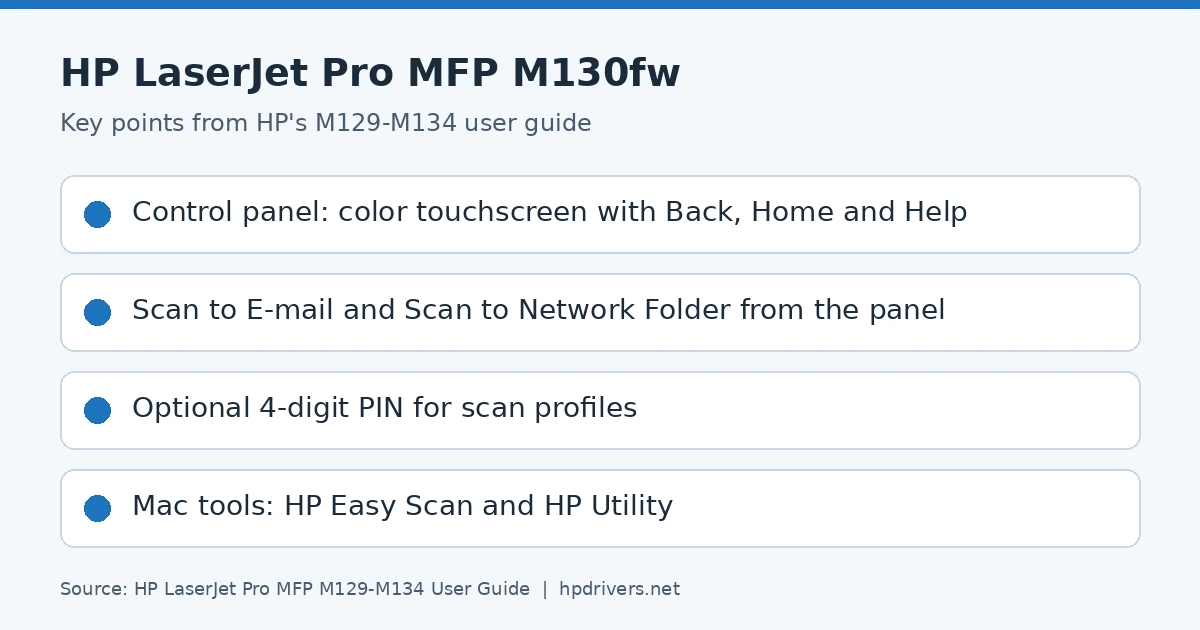
Instead of a 2-line display, the M130fw has a color touchscreen. Three buttons sit beside it: Back, Home and Help. There is no standard Cancel button, although one appears on the screen during many processes.
Touch an item to select it or open its menu. A brief touch also stops scrolling.
Swipe sideways to scroll the screen, for example to reach Setup on the Home screen.
Scroll up or down without lifting your finger to move through a menu.
The Help button opens a built-in help system. Depending on the screen, it shows a searchable menu or a topic that explains the options there. Some help screens even include animations, such as for clearing jams. When the printer reports an error or warning, Help opens a message that describes the problem and how to solve it.
What the Home screen buttons do
Reset: returns temporary job settings to the printer defaults.
Connection Information: opens network information. Its icon shows a wired or a wireless network, depending on the connection.
Copy, Scan and Fax: open the menus of each function. Scan leads to Scan to Network Folder and Scan to E-mail.
Supplies: shows the supplies status.
Apps: prints directly from selected web applications.
Setup: opens the Setup menu.
A status area reports the overall state of the printer, and an indicator shows which Home screen page is open. Connection Information is also the way into the EWS. Touch it, choose Network Connected or Network Wi-Fi ON, and the IP address or host name appears. Then type it into a browser to open the EWS.
For copies, touch Copy, then Settings and Optimize. You can choose Auto Select, Mixed, Text or Picture, depending on the original.
Setting up Scan to E-mail
Scan to E-mail sends a scan to one or more addresses, but it must be configured first. For this, the printer also needs a connection to the same network as the setup computer. Before you begin, collect the SMTP server name, port number and any login details from your email provider.
Windows wizard: in HP Printer Assistant, select Scan and then Scan to E-mail Wizard. Click New, enter the sender address and display name, and add an optional 4-digit PIN. On the Authenticate page, enter the SMTP server and port, then click Save and Test.
EWS: on the System tab, open Administration and set Scan to Email to On. Next, on the Scan tab, open Outgoing E-mail Profiles, click New and fill in the same details.
Mac: open HP Utility from Applications, HP. Under Scan Settings, click Scan to Email and Begin Scan to E-mail Setup to reach the EWS.
For Gmail, HP names smtp.gmail.com, port 465 and SSL on as typical values, but check them online first. HP also recommends Automatic as the maximum attachment size.
To send a scan, touch Scan and then Scan to E-mail. Pick the From profile, choose the To address or group and touch Scan.
Saving scans to a network folder
Scan to Network Folder saves a scan straight to a shared folder. Again, the printer must be on the same network as the computer used for setup. In addition, you need administrative access and the network path of the folder, which must be shared.
In HP Printer Assistant, select Scan and then Scan to Network Folder Wizard.
Click New and enter a display name for the control panel.
Type or browse to the folder path, or click Share Path to create a shared folder. HP recommends the Private share type.
Add an optional 4-digit PIN.
Enter your Windows user name and password on the Authenticate page.
Choose the default file type, color, paper size and quality, and click Save and Test.
If the wizard is missing, use the EWS instead. Set Scan to Network Folder to On under System, Administration. After that, open the Scan tab, click New on the Network Folder Configuration page and enter the path, user name and password. On a Mac, HP Utility leads to the same page through Register My Shared Folder.
When it is ready, touch Scan on the Home screen and then Scan to Network Folder. Select the folder, check the settings and touch Scan.
HP Web Services apps on the touchscreen
HP Web Services apps download content such as news, calendars, forms and cloud document storage to the printer. For this, the printer needs a wired or wireless network with Internet access.
Swipe the Home screen until Setup appears, and touch it.
Open HP Web Services.
Select Enable Web Services.
To get the terms of use on paper, touch Print.
Confirm with OK.
This step also turns on the Apps button. You activate the apps and schedule their downloads on the HP Connected website, hpconnected.com. Afterwards, each downloaded app appears in the Apps menu on the control panel.
Scanning on a Mac with HP Easy Scan
On OS X, scans start from the computer with HP Easy Scan, which is in the Applications folder.
Place the document on the scanner glass according to the indicators on the printer.
Open HP Easy Scan from the Applications folder.
Follow the on-screen instructions to scan.
Once all pages are scanned, click File and then Save.
HP Utility is the other Mac tool for this printer. It shows the supplies status and device information, and it opens the EWS pages for both scan destinations. For fax, it also holds Basic Fax Settings, Fax Forwarding, Fax Logs, Fax Speed Dials and Junk Fax Blocking.
The utility works over USB or a TCP/IP network. However, Additional Settings, which opens the EWS, does not support USB connections.