
hpdrivers.net is an independent website and is not affiliated with, endorsed by, or sponsored by HP Inc. Download links point to HP's official servers (ftp.hp.com). Read the full disclaimer

HP LaserJet P2015x Driver Download

The HP LaserJet P2015x driver download for Windows 11 is the HP Universal Print Driver for Windows PCL6 (64-bit). This page lists HP’s official software for the HP LaserJet P2015x Printer.
Last checked against HP’s download list: November 22, 2026 · Checked by H&G
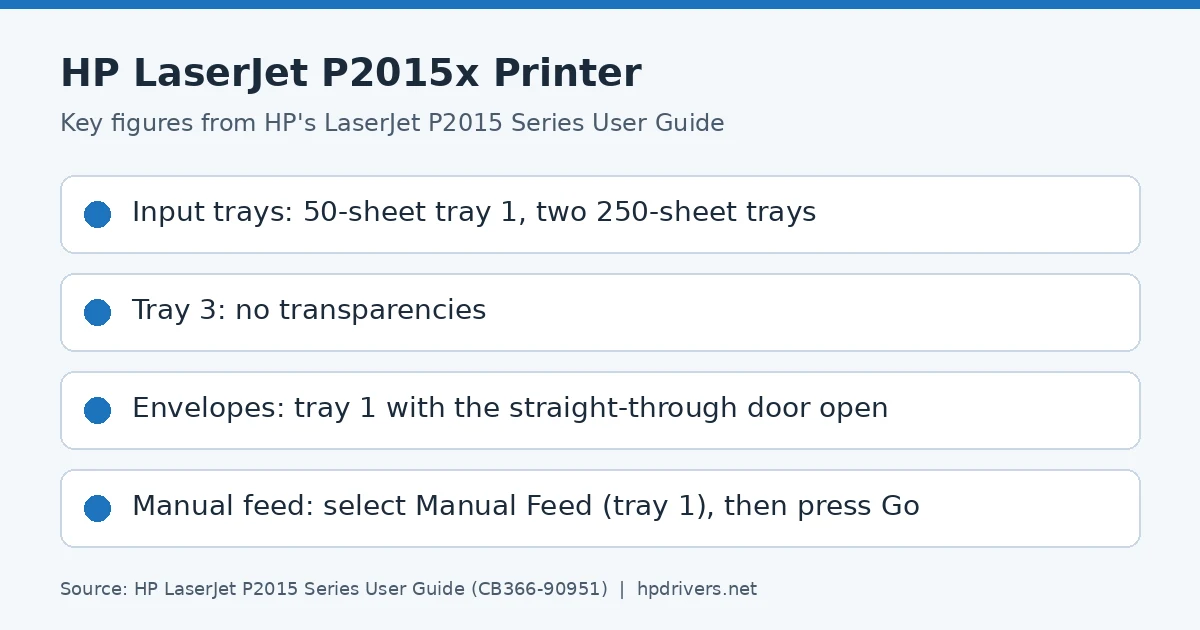
LaserJet P2015x driver: key figures from HP's user guide
LaserJet P2015x

Recommended LaserJet P2015x driver downloads

Windows 11: HP Universal Print Driver for Windows PCL6 (64-bit)Version 8.2.0.26819 · Released Sep 26, 2026 · 20.2 MB
Download

Files download directly from HP’s official servers. hpdrivers.net does not host or modify them.

LaserJet P2015x driver: all packages

HP Universal Print Driver

HP lists its Universal Print Driver for this series on Windows 11, Windows 10, 8.1, 8, 7 (32-bit and 64-bit). Get it from our HP Universal Print Driver page.

These Universal Print Driver files are not on that page, so they are listed here:

LaserJet P2015x driver for Linux

HP lists Linux support for this series through its HPLIP project, outside the regular download list: HP’s Linux printing page (HPLIP).

Which systems the LaserJet P2015x driver supports

HP’s download list for the LaserJet P2015x names Windows 11; Windows 10, 8.1, 8, 7 (32-bit and 64-bit); and Linux through HPLIP. HP’s current list has no macOS software for this printer.

Installing the LaserJet P2015x driver

To install it, follow these steps.

  1. Select the package for your system from the table above.
  2. Start the installer and follow the prompts.
  3. Connect the printer when the installer asks.
  4. Print a test page from tray 3 as a check.

For step-by-step instructions, see our guide to installing an HP printer driver.

Specifications that matter for setup

Wi-Fi
Optional, enabled with purchase of a hardware accessory
Print languages
HP PCL 5, HP PCL 6, HP postscript level 3 emulation with automatic language switching
Print speed (black)
Normal: Up to 27 ppm
Recommended monthly volume
740 to 3000

Paper handling and hardware details

Values below are HP’s published figures for the LaserJet P2015 series, which the LaserJet P2015x belongs to.

Output tray
125-sheet output bin
Paper sizes
Letter, legal, executive, index cards, envelopes (No. 10, Monarch)
Media types
Paper (bond, light, heavy, plain, recycled, rough), envelopes, labels, cardstock, transparencies, heavy media
Print quality (black)
Black: Up to 1200 x 1200 dpi
Processor
400 MHz
Power use
350 watts (printing), 7 watts (ready), 7 watts (sleep), <0.1 watts (off)
USB cable
No, please purchase USB cable separately
Warranty
One-year, return to HP authorized service center

What the extra tray 3 adds

The P2015x has everything the P2015dn offers, and it adds a 250-sheet input tray, called tray 3. On other models the same tray is an optional accessory (Q5931A), so here it is already fitted.

Trays 2 and 3 each hold up to 250 pages of 75 g/m2 (20 lb) paper, or fewer pages of heavier media with a stack height of 25 mm or less. Tray 1 still takes priority. The printer prints from tray 1 before it tries other trays, so a stack in tray 1 is used first.

One limit applies. Transparencies should not be printed from tray 3. They can be printed from tray 2, but more slowly.

Loading the trays correctly

Tray 1 holds up to fifty sheets of 75 g/m2 media, or ten envelopes, ten transparencies or ten cards. It also lets you print the first page on different media from the rest of the document.

  • For trays 2 and 3, load the top forward and the side to be printed facing down.
  • Adjust the side and rear media guides to the length and width of the media.
  • When you add new media, remove all of the old media first and straighten the new stack.

That last step prevents several sheets from feeding at once. Wrinkled, folded or damaged media can cause a jam.

Straight-through output and manual feed

Open the straight-through output door when you print envelopes, transparencies, heavy media or anything that curls. The media then leaves by the straight path from tray 1, tray 2 or tray 3. Because it does not stack, it drops to the surface below unless you take each sheet as it comes out.

Manual feed suits mixed jobs, such as an envelope, a letter, then an envelope again. Load envelopes in tray 1 and letterhead in tray 2. In the printer Properties, select Manual Feed (tray 1) as the Source Tray. When it is enabled, press Go to print.

Printing on an envelope

Use only envelopes recommended for laser printers. Their weight should not exceed 90 g/m2, and they should lie flat with less than 6 mm of curl.

  1. Open the straight-through output door.
  2. Open tray 1 and set the media guides to the envelope width.
  3. Place the envelope print side up with the top edge along the left guide. If the flap is on the short edge, feed that edge in first.
  4. In the printer Properties, choose the right media type on the Paper tab, and print.

Avoid envelopes with clasps, snaps, tie strings, windows, holes or pressure-seal adhesive, because they can jam or wrinkle.

Transparencies and labels

The printer adjusts the fuser temperature to the media type you select. Because of that, set the correct type before printing on labels or transparencies, so the fuser does not damage them.

  • Open the straight-through output door and load the media in tray 1, rough side up.
  • Take each page from the back of the printer as it prints, so the sheets do not stick together.
  • Use only HP LaserJet transparencies and labels, because inkjet transparencies are not heat-resistant.
  • Never feed a sheet of labels through the printer twice, since the adhesive degrades.

Labels need no exposed backing between them, and they must lie flat with no more than 13 mm of curl.

Replacing the cartridge and redistributing toner

Faded or light areas appear when toner is low, but redistributing the toner may improve the page for a while. Press the cartridge-door button, remove the cartridge, and rock it gently from front to back. Cover it with paper because light can damage it. After that, reinsert it and close the door.

If prints are still light, install a new HP Q7553A (3,000-page) or Q7553X (7,000-page) cartridge.

  1. Remove the old cartridge and take the new one from its packaging.
  2. Bend the tab on the left side to break it loose, then pull it until all the tape is gone.
  3. Rock the cartridge gently from front to back.
  4. Insert it and close the cartridge door.

If toner gets on clothing, wipe it off with a dry cloth and wash in cold water.

Similar models

This page covers the HP LaserJet P2015x Printer only. The related models have their own pages: P2015, P2015d, P2015n and P2015dn.
HP LaserJet Pro M15 Driver Download for Windows and Mac

HP LaserJet Pro M15 Printer Driver for Windows 11-10-8-7 and Mac OS X

Download HP LaserJet Pro M15/M16/M17a Printer Full Software Solution

HP LaserJet Pro M15 Printer Driver for Windows and Mac OS X
HP LaserJet Pro M15a Printer

Details

The full solution software includes everything you need to install your HP printer. This collection of software includes the complete set of drivers, installer software, and other administrative tools found on the printer’s software CD.

Fix and enhancements: Updated some basic information in installation screen.

Relase Details

Version: 46.4.2644
Release date: Mar 4, 2022
File name: Full_Webpack-46.4.2644-LJM14-M17_U_Full_Webpack.exe

Operating Systems

Microsoft Windows 11, Microsoft Windows 10 (32-bit), Microsoft Windows 10 (64-bit), Microsoft Windows 7 (32-bit), Microsoft Windows 7 (64-bit), Microsoft Windows 8 (32-bit), Microsoft Windows 8 (64-bit), Microsoft Windows 8.1 (32-bit), Microsoft Windows 8.1 (64-bit)

Download

File Size: 112.48 MB

HP LaserJet Pro M15/M17w Driver Download

HP LaserJet Pro M15/M17w Printer Full Software Solution for Windows 11, 10, 8, 8.1, 7 (64bit-32bit)46.4.2644112.4 MBMar 4, 2022Download
File name : Full_Webpack-46.4.2644-LJM14-M17_UWL_Full_Webpack.exe

OS: Microsoft Windows 11, Microsoft Windows 7 (32-bit), Microsoft Windows 7 (64-bit), Microsoft Windows 8 (32-bit), Microsoft Windows 8 (64-bit), Microsoft Windows 8.1 (32-bit), Microsoft Windows 8.1 (64-bit), Microsoft Windows 10 (32-bit), Microsoft Windows 10 (64-bit)

Fixes installation and driver issues

HP Print and Scan Doctor for Windows Windows 11, 10, 8, 8.1, 7 (64bit-32bit)5.7.4.00511.5 MBSep 11, 2023Download
The HP Print and Scan Doctor was designed by HP to provide users with troubleshooting and problem solving features needed to resolve many common problems experienced with HP print and scan products connected to Windows-based computers. Simply run the tool and follow the on-screen instructions.

HP LaserJet Pro M15 Driver Download for Macintosh

Install HP Easy Start

Install HP Easy Start2.14.0.23101610.9 MBOct 31, 2023Download
HP Easy Start is the new way to set up your HP printer and prepare your Mac for printing. HP Easy Start will locate and install the latest software for your printer and then guide you through printer setup.

Operating Systems: Mac OS X 10.10, Mac OS X 10.11, Mac OS X 10.12, Mac OS X 10.9, macOS 10.13, macOS 10.15, macOS 11, macOS 12, macOS 13, macOS 14

HP LaserJet 4240 Drivers (LaserJet 4240n Series)

Looking for the HP LaserJet 4240 driver? This page lists HP’s official software for the whole HP LaserJet 4240n Printer.

Last checked against HP’s download list: November 13, 2026 · Checked by H&G
HP LaserJet 4240 printer
HP LaserJet 4240

What HP still lists for this series

HP's current download list for the LaserJet 4240n Printer no longer includes a full software and driver package. The items HP still lists for this series are in the table below.

Files download directly from HP’s official servers. hpdrivers.net does not host or modify them.

All downloads for the LaserJet 4240n Printer

Windows

Package / Windows
Version
Released
Size
HP LaserJet 42×0/4350 HP Easy Firmware Upgrade Utility (Includes Code Signing) for Windows Operating Systems
Windows: 11
10, 8.1, 8, 7 (32-bit and 64-bit)
File detailsFile: lj4240_4250_4350_fw_utility_08_260_1.exe
08.260.1
Jan 30, 2015
17.1 MB
HP LaserJet 42×0/4350 Printer README
Windows: 11
10, 8.1, 8, 7 (32-bit and 64-bit)
File detailsFile: readme_lj4240_4250_4350fw_08_260_1.pdf
08.260.1
Jan 30, 2015
0.4 MB
HP LaserJet 42×0/4350 Printer Firmware (Includes Code Signing) for – All Operating Systems – (Must Read README Before Installing)
Windows: 11
10, 8.1, 8, 7 (32-bit and 64-bit)
File detailsFile: lj4240_4250_4350_fw_08_260_1.zip
08.260.1
Jan 30, 2015
15.8 MB

macOS

Package / macOS
Version
Released
Size
HP LaserJet 42×0/4350 HP Easy Firmware Upgrade Utility (Includes Code Signing) for Windows Operating Systems
macOS: 26, 15, 14, 13, 12, 11, 10.13, 10.12, 10.11, 10.10, 27, 10.15, 10.14, 10.9
File detailsFile: lj4240_4250_4350_fw_utility_08_260_1.exe
08.260.1
Jan 30, 2015
17.1 MB
HP LaserJet 42×0/4350 Printer README
macOS: 26, 15, 14, 13, 12, 11, 10.13, 10.12, 10.11, 10.10, 27, 10.15, 10.14, 10.9
File detailsFile: readme_lj4240_4250_4350fw_08_260_1.pdf
08.260.1
Jan 30, 2015
0.4 MB
HP LaserJet 42×0/4350 Printer Firmware (Includes Code Signing) for – All Operating Systems – (Must Read README Before Installing)
macOS: 26, 15, 14, 13, 12, 11, 10.13, 10.12, 10.11, 10.10, 27, 10.15, 10.14, 10.9
File detailsFile: lj4240_4250_4350_fw_08_260_1.zip
08.260.1
Jan 30, 2015
15.8 MB

Installing the LaserJet 4240n Printer driver

For step-by-step instructions, see our guide to installing an HP printer driver.

Firmware update 08.260.1

The newest firmware HP lists for the LaserJet 4240n Printer is version 08.260.1, released Jan 30, 2015.

  • Check your current firmware version first on the printer’s Configuration Page, and update only if it is older.

Specifications that matter for setup

Wi-Fi
Not built in
Print languages
HP PCL 6, HP PCL 5, HP postscript level 3 emulation, direct PDF (v 1.3) printing (with at least 128 MB printer memory)
Recommended monthly volume
3000 to 12,000
Two-sided printing
Automatic (optional)

Paper handling and hardware details

Values below are HP’s published figures for the LaserJet 4240n Printer; they help you check that this page matches your printer before you download anything.

Paper input tray
100-sheet multipurpose tray, 500-sheet input tray
Output tray
250-sheet output bin, 50-sheet rear output bin
Optional trays
500-sheet input tray, 1500-sheet input tray (up to 3 additional trays for up to 3100-sheet input capacity), two-sided printing accessory, 75-envelope feeder
Media types
Paper (bond, color, letterhead, plain, preprinted, prepunched, recycled, rough), envelopes, labels, cardstock, transparencies, user-defined
Print quality (black)
Black: Up to 1200 x 1200 dpi
Processor
460 MHz
Power use
Power requirements are based on the country/region where the printer is sold. Do not convert operating voltages. This can damage the printer and void the produc
USB cable
No, please purchase USB cable separately
Warranty
One-year, return to bench warranty

Common setup problems

  • No Wi-Fi option during setup. HP’s specifications list no built-in Wi-Fi for the LaserJet 4240n Printer. Use an Ethernet cable or USB.

Installing the HP LaserJet 4240 on Linux (HPLIP)

On Linux the LaserJet 4240 is handled by HPLIP, HP’s own open-source imaging and printing package, not by the Windows or macOS downloads above. The details below come from the HPLIP model database entry for this printer.

  • First HPLIP release with support: 0.9.5 (any newer HPLIP also works).
  • Print technology in the HPLIP database: mono laser.
  • Connections HPLIP can use: USB, wired network (Ethernet).
  • Binary plug-in: not needed; the open-source driver is enough.
  • USB ID: 03f0:6a17 (shown by lsusb when the printer is connected).
  • Same HPLIP entry also covers: LaserJet 4240n Printer.

Install the hplip package from your distribution, then run hp-setup -i (or: hp-setup -i <printer IP> for a network printer) and follow the prompts. hp-check reports anything missing, and hp-toolbox shows ink levels and maintenance tools where the model supports them.

About the LaserJet 4240n Printer

More of HP’s published specifications for this series, beyond the setup details above. They describe the printer as HP sold it, which helps when you decide whether an older model still fits your needs.

Print Cartridges/Bottle, Number
1 (black)
Print quality black (best)
Black: Up to 1200 x 1200 dpi Color:
Print Resolution Technologies
REt, HP ProRes 1200, HP FastRes 1200
Connectivity, optional
HP Jetdirect EIO internal print servers, HP Jetdirect external print servers, HP wireless print servers, HP Jetdirect EIO conectivity card (for USB, serial, LocalTalk), Bluetooth wireless
Minimum System Requirements for Macintosh
160 MB available hard disk space, Mac OS 9.x and Mac OS X v 10.1 and higher, Power PC G3, G4, G5, or Intel Core processor, CD-ROM drive, USB port or IEEE 1284-B compliant parallel port
Compatible Operating Systems
Windows 2000; Windows XP Home; Windows XP Professional; Windows Server 2003; Windows Vista(TM) Ready; Mac OS X v 10.1 or higher
Paper handling output, optional
500-sheet stacker or 15-sheet stapler/500-sheet stacker
Maximum output capacity (sheets)
Up to 800 sheets
Paper handling output, optional
500-sheet stacker or 15-sheet stapler/500-sheet stacker
Power
Input voltage 100 to 127 VAC (+/- 10%), 50/60 Hz (+/- 3 Hz); 220 to 240 VAC (+/- 10%), 50/60 Hz (+/- 3 Hz)
Recommended operating humidity range
10 to 80% RH
Acoustic power emissions (ready)
4 B(A)
Acoustic pressure emissions bystander (active, printing)
55 dB(A)
Quantity per pallet
16 (US), 12 (Europe)