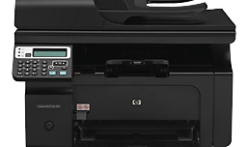
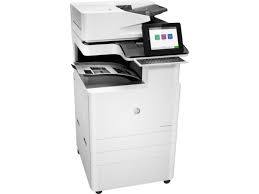
Looking for the HP LaserJet Managed MFP E72535 driver? This page lists HP’s official software for the whole HP LaserJet Managed MFP E72525-E72535 series. HP lists some packages for specific models in the series, so check that the package title includes your model. For Windows 11; Windows 10, 8.1, 8, 7 (32-bit and 64-bit), the package most people need is the HP LaserJet Managed MFP E72520/E72525/E72530/E72535/E72540 Printer Full Software Solution. For a Mac, HP lists Install HP Easy Start.
Recommended downloads
Files download directly from HP’s official servers. hpdrivers.net does not host or modify them.
Models covered by this page
HP’s download list for this series names these models. It covers the whole LaserJet Managed MFP E72525-E72535 range, including model variants HP does not list by name:
HP LaserJet Managed MFP E72525dn – Speed 25 ppm HP LaserJet Managed MFP E72535dn – Speed 35 ppm HP LaserJet Managed Flow MFP E72525z – Speed 25 ppm HP LaserJet Managed Flow MFP E72535z – Speed 35 ppm HP LaserJet Managed MFP E72525dn Plus – Bundle Product 25 ppm HP LaserJet Managed MFP E72525-E72535dn – Base Product 25-35 ppm HP LaserJet Managed Flow MFP E72525-E72535z – Base Product 25-35 ppm HP LaserJet Managed Flow MFP E72535z Plus – Bundle Product 35 ppm
Which Windows package should you choose?
HP publishes 5 kinds of Windows package for the LaserJet Managed MFP E72525-E72535:
- Firmware update (v2510156_069217, Aug 29, 2026): updates the printer itself, not your PC.
- HP Universal Print Driver (v8.2.89, Sep 11, 2026): HP’s shared driver for many models, also listed for this series.
- Driver files (no installer) (v49.10.4644, Nov 11, 2021): bare driver files for Windows’ Add Printer wizard.
- Full software solution (v49.10.4644, Nov 11, 2021, 77.3 MB): driver plus HP’s setup wizard and tools.
- MFP Network Twain Scan Package (v1.0.683, Jun 29, 2020): scanning from the computer.
All downloads for the LaserJet Managed MFP E72525-E72535
Windows
10, 8.1, 8, 7 (32-bit and 64-bit)
File details
File:E72525_30_35_fs5.10.0.7_fw_2510156_069217.zip10, 8.1, 8, 7 (32-bit and 64-bit)
File details
File:E72525_30_35_fs4.12.0.1_fw_2411226_066583.zip10, 8.1 (32-bit and 64-bit)
File details
File:V4_DriveronlyWebpack-49.10.4644-LJE72525-30-35_V4_DriveronlyWebpack.exe10, 8.1, 8, 7 (32-bit and 64-bit)
File details
File:V3_DriveronlyWebpack-49.10.4644-LJE72525-30-35_V3_DriveronlyWebpack.exe10, 8.1, 8, 7 (32-bit and 64-bit)
File details
File:Full_Webpack-49.10.4644-LJE72525-30-35_Full_Webpack.exemacOS
File details
File:E72525_30_35_fs5.10.0.7_fw_2510156_069217.zipFile details
File:E72525_30_35_fs4.12.0.1_fw_2411226_066583.zipOther HP software listed for this series
Windows 10, 8.1, 7 (32-bit and 64-bit)
Windows 10, 8.1, 7 (32-bit and 64-bit)
Windows 10, 7 (32-bit and 64-bit)
Windows 10, 8.1, 7 (32-bit and 64-bit)
HP Universal Print Driver
HP lists its Universal Print Driver for this series on Windows 11; Windows 10, 8.1, 8, 7 (32-bit and 64-bit). Get it from our HP Universal Print Driver page.
Linux
HP lists a Linux driver for this series: FutureSmart Bundle Version 5.10.0.7 – HP LaserJet Managed MFP E72525/30/35 Series Printer FIRMWARE (Version 2510156_069217 · Released Aug 29, 2026 · 991.6 MB). Download from HP.
Installing the LaserJet Managed MFP E72525-E72535 driver
The driver files without an installer are added through Windows’ Add Printer wizard (Have Disk). For step-by-step instructions, see our guide to installing an HP printer driver.
Firmware update 2411226_066583
The newest firmware HP lists for the LaserJet Managed MFP E72525-E72535 is version 2411226_066583, released Feb 02, 2023.
- Keep the printer and the computer switched on until the update has finished.
Specifications that matter for setup
Toner supplies HP lists for the LaserJet Managed MFP E72525-E72535
HP’s specifications name these replacement supplies for the LaserJet Managed MFP E72525-E72535:
- HP Black Managed LJ Toner Cartridge (ISO
What comes in the box
HP lists these items with the LaserJet Managed MFP E72525-E72535:
- Engine
- TCU
- Drums
- Assy-Color WG Nameplate and Label
- Power Cords
- Assembly-CD WW
- Hardware install and setup documentation
- Support flyers (DOES NOT INLCLUDE TONER)
Paper handling and hardware details
Values below are HP’s published figures for the LaserJet Managed MFP E72525-E72535; they help you check that this page matches your printer before you download anything.
Common setup problems
- No Wi-Fi option during setup. HP’s specifications list no built-in Wi-Fi for the LaserJet Managed MFP E72525-E72535. Use an Ethernet cable or USB.
Fuser area and Tray 2 or 3 jams on the LaserJet Managed MFP E72535
These HP articles cover the E72525 to E72535 together with the E77822 to E77830 and E78323 to E78330.
13.B2 and 13.B9 at the right door and fuser
- HP lists 13.B2.Az and 13.B2.Dz (right door), 13.B9.Az (fuser) and 13.B9.Dz. Wait for the fuser to cool, open the right door, remove the paper and close it.
13.B2, 13.A3, 13.A8 in Tray 2 or Tray 3
- Clear the right door first, then open the tray in the message, remove the sheet and close it. Tray 3 is cleared the same way as Tray 2.
Source: HP Support, HP LaserJet Managed MFP E72525-E72535, E77822-E77830, E78323-E78330 – 13.B2, 13.B9 jam error in the fuser area. and 13.B2, 13.A3, 13.A8 jam error in tray 2 or tray 3.
High-capacity tray and output bin jams on the E72535
13.A4 in the bottom HCI tray
- Codes 13.A4.A4, 13.A4.D4 and 13.A4.FF. Open the HCI tray, take out jammed or damaged sheets and close it. HP’s video shows the E778xx and E783xx, with the same steps.
13.E1 in the output bin
- Codes 13.E1.Az and 13.E1.Dz. Take hold of the leading edge of a visible sheet and pull it out.
Source: HP Support, 13.A4 jam error in the bottom high-capacity input (HCI) tray. and 13.E1 jam error in the output bin (HP LaserJet Managed MFP E72525-E72535 family).
Document feeder and Tray 1 jams on the E72535
The E72535 shares its jam articles with the E77822 to E77830 and E78323 to E78330.
31.13 in the document feeder
- Open the feeder cover, take the sheet out and close the cover. HP lists 31.13.00, 31.13.01, 31.13.03 and 31.13.04.
- To prevent it, HP says to set the guides against the originals without bending them, remove staples and clips, and copy narrow pages on the glass.
Tray 1 (13.B2.A1, 13.B2.D1, 13.A8)
- Remove the paper from Tray 1, then open and close the front door so printing resumes.
Source: HP Support, HP LaserJet Managed MFP E72525-E72535, E77822-E77830, E78323-E78330 – 31.13 jam error in the document feeder. and 13.B2.A1, 13.B2.D1, 13.A8 jam error tray 1.
49.DE.05 Webkit error on the E72535
HP says LaserJet Enterprise and Managed printers with an installed software solution can show 49.DE.05 Webkit encountered a fatal error, unable to recover, and then restart or ask for a restart. It can happen when signing in or out at the control panel, during scan or copy jobs, or when releasing pull-print jobs.
Fix
- HP’s fix is FutureSmart firmware bundle 4.7.1 or newer. The E72535 firmware files listed above are newer FutureSmart 4 and 5 releases.
Source: HP Support, HP LaserJet Enterprise, HP LaserJet Managed, HP PageWide Enterprise, HP PageWide Managed – “49.DE.05 Webkit encountered a fatal error”.
Replacing staple cartridges on the E72535
HP’s staple article names the LaserJet MFP E72525 to E72535 among the printers its videos apply to. It covers three finishers: the inner finisher, the stapler/stacker and the booklet finisher.
Inner finisher
- Open the inner finisher front door, pull the staple cartridge carriage out by its colored tab, lift the two tabs and take out the empty cartridge.
- Keep the carriage, since HP says it is reused. Put the new cartridge in, press the carriage back until it snaps and close the door.
Source: HP Support, HP LaserJet Managed MFP – How to replace the staple cartridges.